
How to Use Pollo Recast: Recreate Videos in 3 Simple Steps
Want to recreate a video with your own character, product, or setting? I recommend Pollo Recast! Learn what Pollo Recast is, then follow this guide to transform an existing clip while keeping its original movements, camera work, and pacing.
TL;DR
Upload your own video and images, or choose a template. For templates, click Recreate and replace the images with yours. In either case, adjust the prompt if needed, click Create, then preview and download your video.
Method 1: Recreate Your Own Video
Upload Your Video and Reference Image
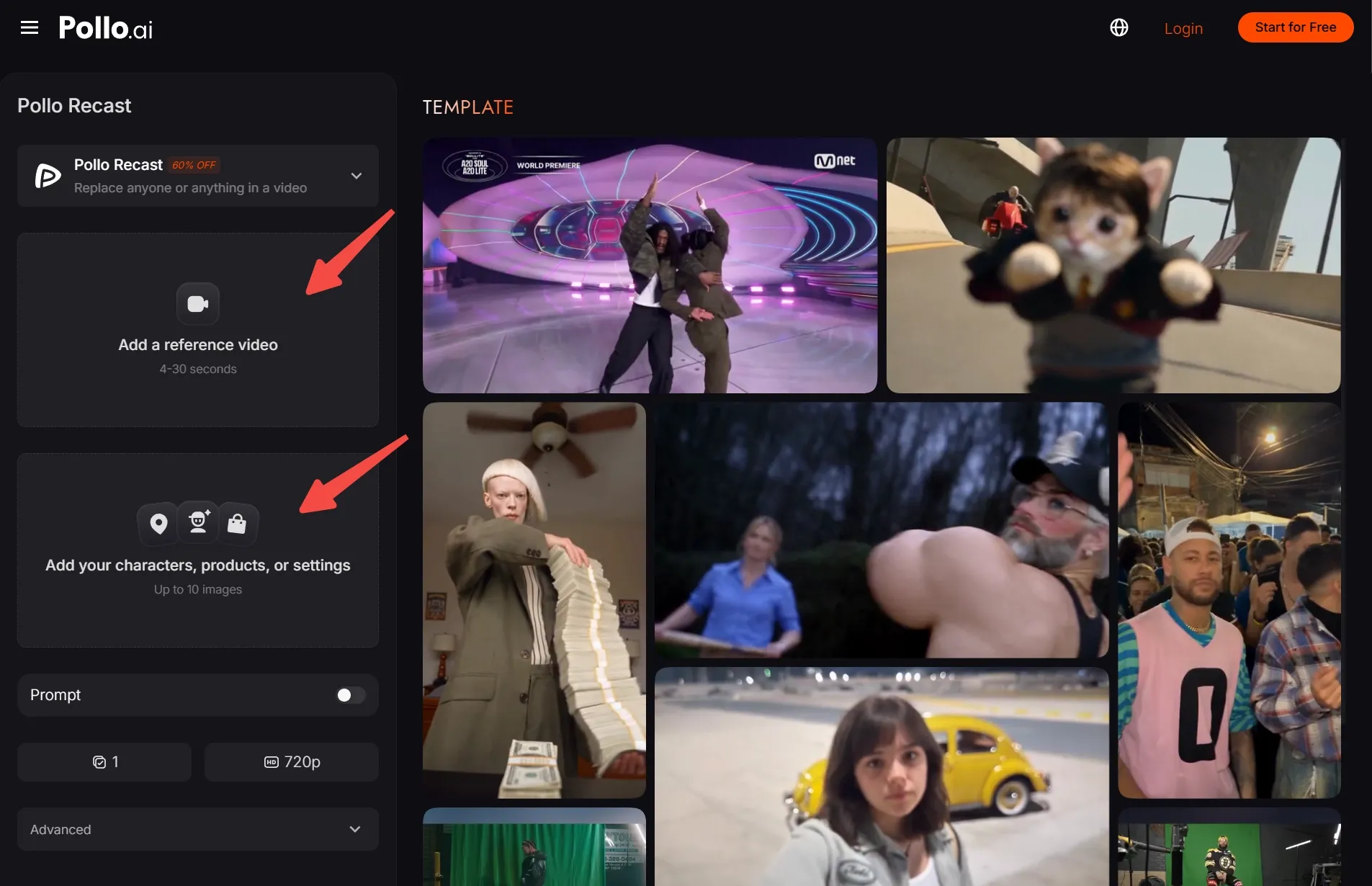
Open Pollo Recast and upload your reference video, then add an image of your replacement character. In this example, I’m using a cinematic clip with a blue-lit setting and a portrait of a character dressed in black.
Describe the Replacement and Click Create
Enter a simple prompt like: “Replace the person in the @video1 with @image1.” Then click Create. The video supplies the scene and movement, while the uploaded portrait guides the new character's appearance.
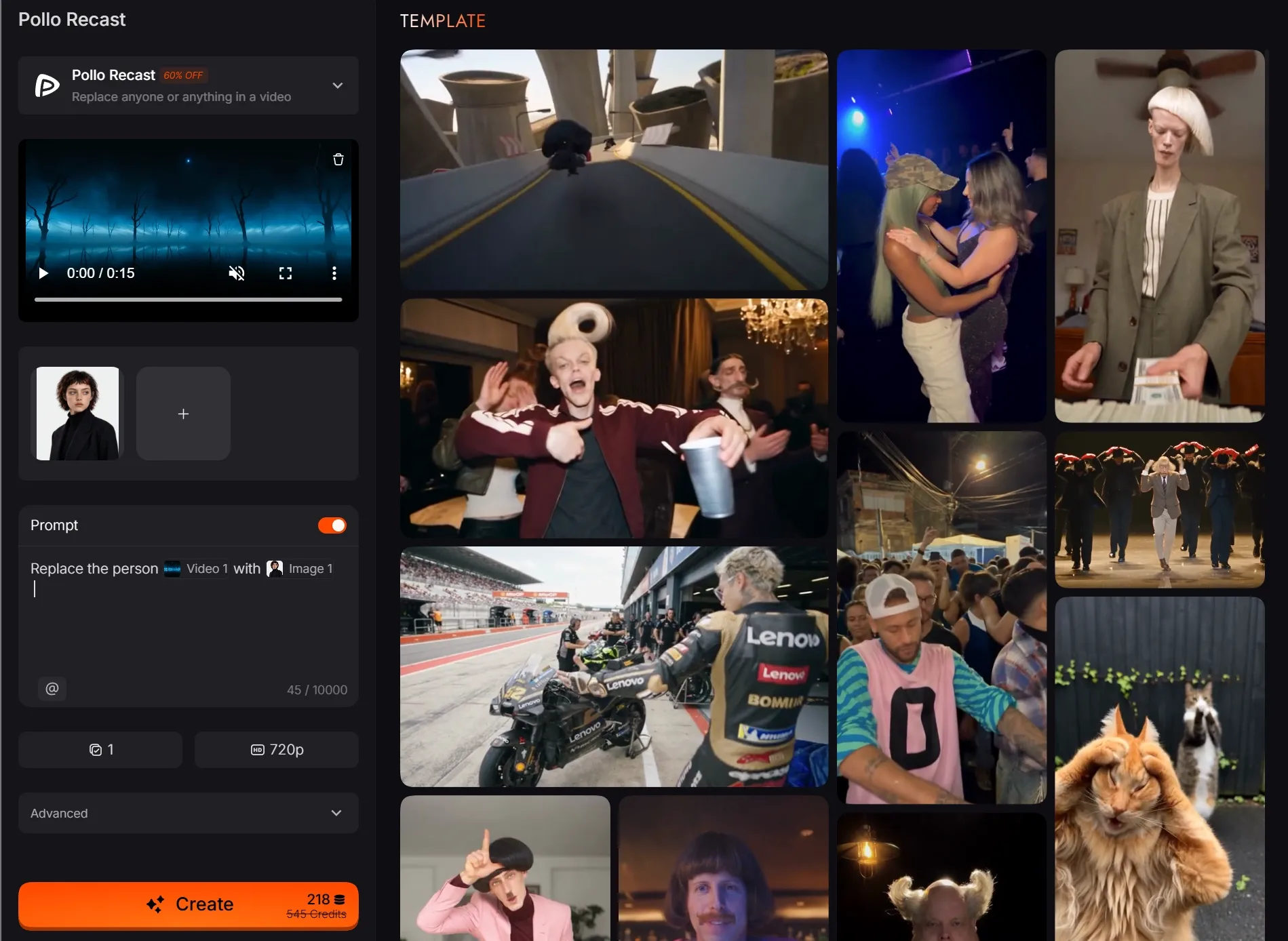
See Your Character in the Scene
Ta-da! Your cinematic remake is ready. The new character fits right into the dramatic blue-lit scene, with dark clothing that complements the atmosphere. The result looks polished and cinematic, without the need for manual frame-by-frame editing.
| Before | After |
|---|---|
Method 2: Make a Template Your Own
Choose a Template and Click Recreate
Browse the templates on the right and click Recreate on the one you want to try. For this example, I‘m starting with a group dance video. Its reference video, images, and prompt automatically load into the form.
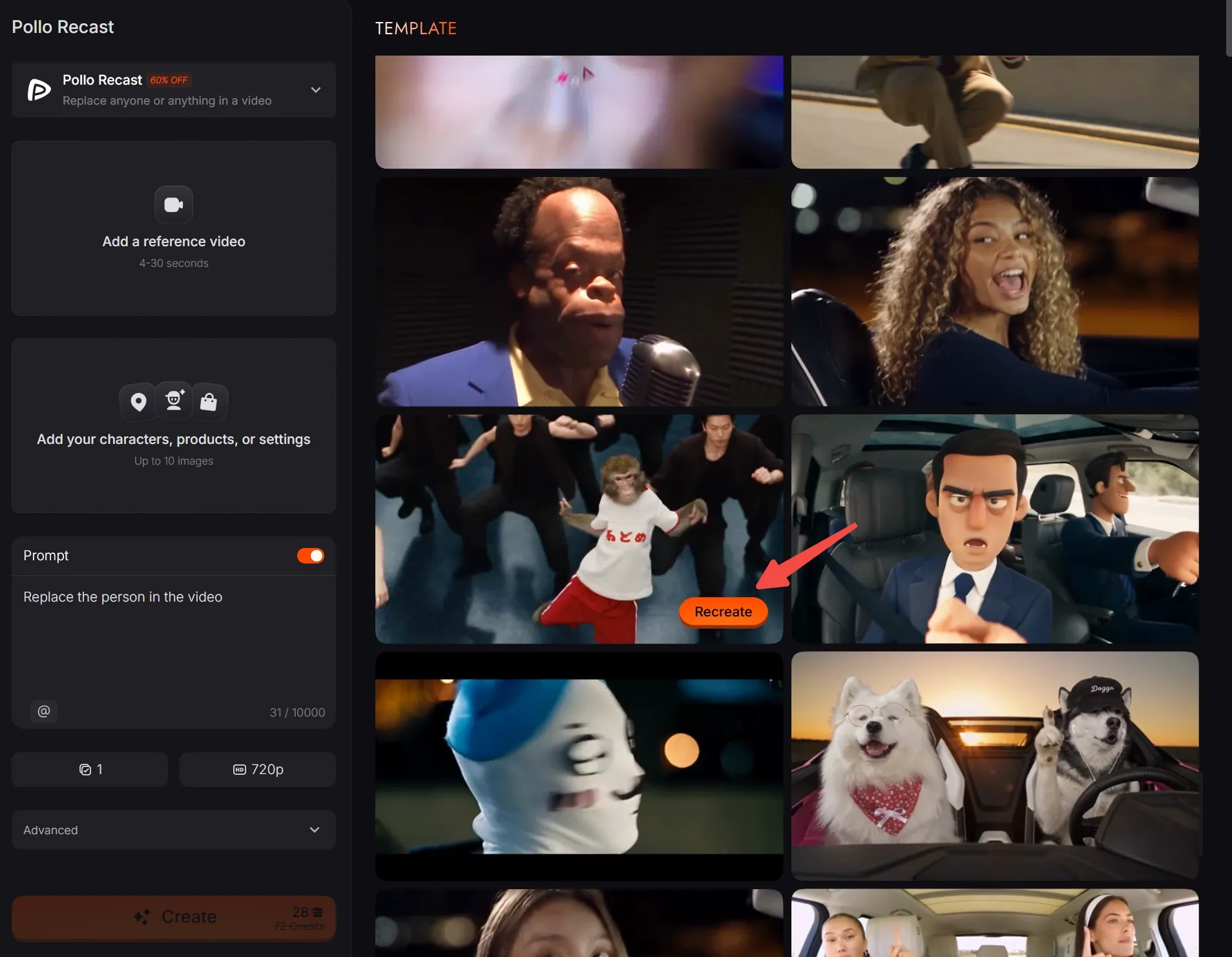
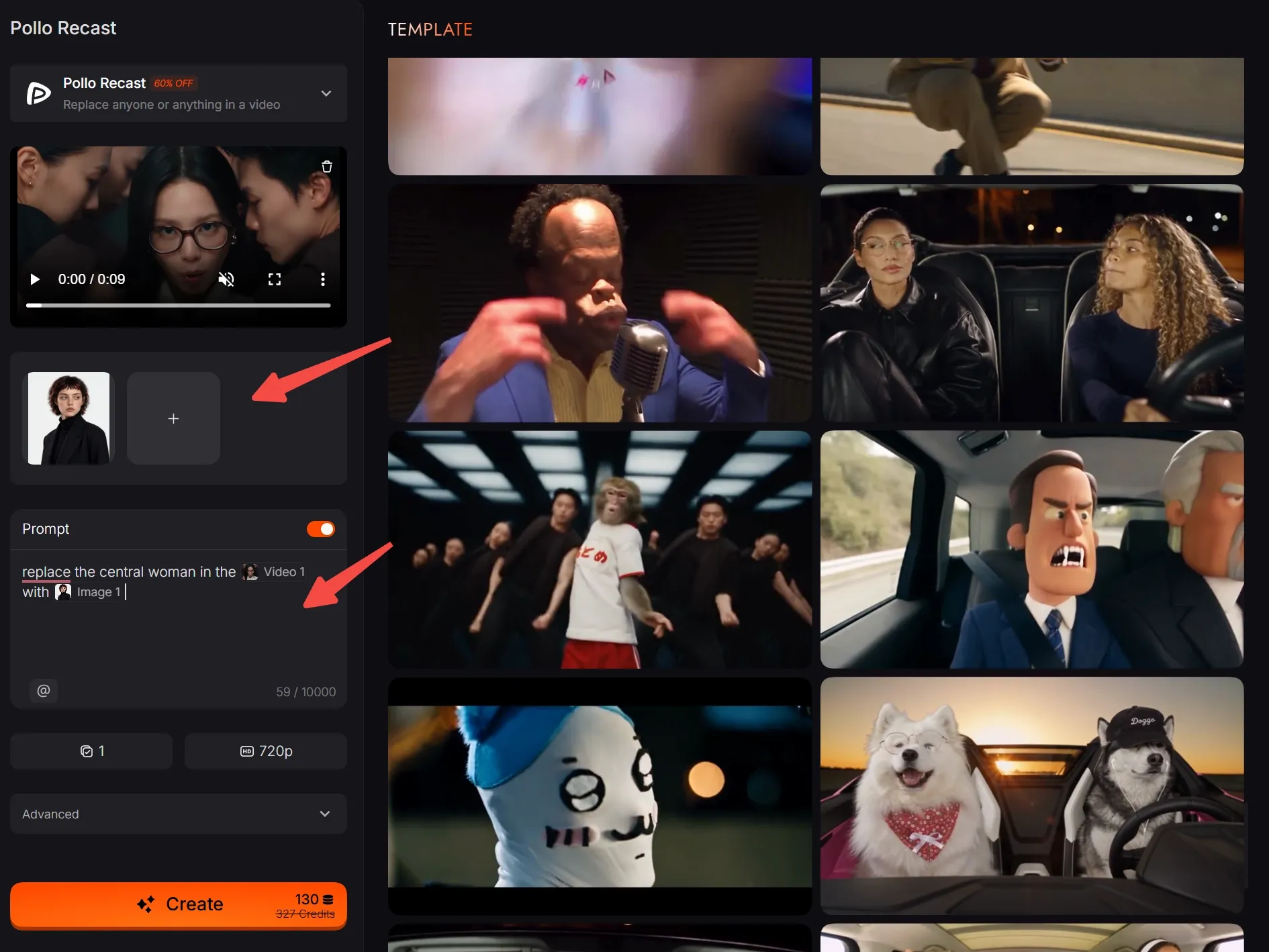
Add Your Image and Update the Prompt
Replace the template's character image with your own reference image. Then update the prompt: “Replace the central woman in the video with the person in my reference image.” Click Create to generate the dance video with your chosen character.
Watch Your Character Take Center Stage
My character now takes the lead in the group dance, with the surrounding performers framing the action. The black outfit fits naturally into the scene, giving the recreation a cohesive look. Compare both versions below and download your favorite.
| Before | After |
What Makes Pollo Recast Worth Trying?
Change the Look Without Rebuilding the Motion
Replace characters, products, outfits, or settings while preserving the original video's movements, camera work, and pacing. Give existing product videos or social clips a fresh look without reshooting the scene or manually recreating each movement and camera angle.
Get Started Without Writing a Detailed Prompt
Recast automatically optimizes the prompt using your reference video and images, helping you get started with less guesswork. Add a short description when you want more specific changes, or let your visual references guide the result without writing one.
Keep the Original Soundtrack Automatically
Your source video's audio carries over automatically, keeping its music, dialogue, or other sounds alongside the new visuals. That saves you from adding the original track back manually and helps retain the familiar feel of the clip you're recreating.
Turn Ready-Made Templates Into Your Own Videos
Templates give you a ready starting point, with the reference video, images, and prompt already supplied. Swap in your own visuals to create a different version, making it easier to explore an idea without gathering every asset from scratch.
Give Your Videos a New Look
Replace characters, products, or settings while keeping the original motion with Pollo Recast. Bring your creative ideas to the screen!
Try Pollo Recast Now
What Can You Create With Pollo Recast?
Give a Familiar Clip a New Main Character
Turn a dance, celebration, or expressive gesture into a clip starring your own character. You can create a character first, then use Recast to bring that look into an existing performance for playful, recognizable social content.
Adapt a Product Video for Another Item
Give an existing product showcase a new focus by replacing the featured item with your own. Use clear product photos as references, then create matching image ads separately to carry the same product across your campaign's video and static visuals.
Try a Different Outfit or Setting
Reimagine a scene with a new wardrobe or location while keeping its original movement. You can explore outfit references with an AI clothes changer before using Recast, or replace the background to give familiar footage a different mood.
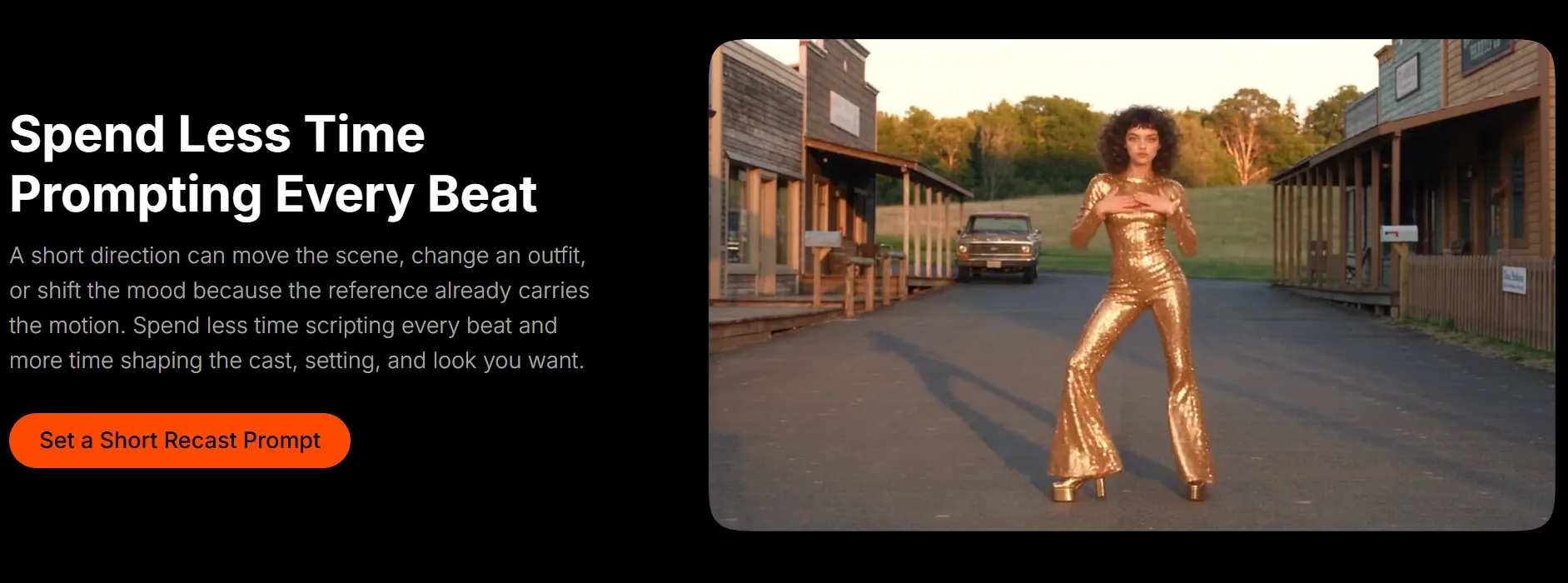
Simple Tips for Better Recast Videos
Choose a video with clear movement and a simple scene.
A recognizable dance or straightforward product shot gives you an easier starting point. Avoid beginning with crowded footage where several subjects overlap and the intended replacement is difficult to identify.
Use reference images that clearly show the details you care about.
If distracting surroundings make the subject hard to identify, you can edit your image first. Keep multiple images consistent so they communicate the same intended appearance.
Match your instructions to the source footage.
If the video shows someone walking, focus on changing their appearance or surroundings while keeping that movement. Asking for an unrelated action works against the reference you're using to guide the result.
Create Your First Pollo Recast Video
Have a clip you’d love to reimagine? Bring your character, product, or style into the scene with Pollo Recast! Upload your references or pick a template, then create your own version in just a few clicks!
FAQs About Pollo Recast
Do I Need Video Editing Skills to Use Pollo Recast?
Absolutely No! The basic workflow is uploading your video and reference images, adding an optional description, and generating the result. You don't need to manually track the subject or edit individual frames. Templates also give you a prepared starting point.
Does Pollo Recast Keep the Original Audio?
Yes. The original video's audio track is automatically retained in the generated result. You don't need to upload it separately for this workflow. When reviewing your video, play it with sound to check how the updated visuals work alongside it.
Can I Make Further Edits After Generating?
Yes. You can adjust your references or prompt and generate another Recast version. For separate visual changes, such as removing an unwanted object or adding an effect, you can also use our AI video editor after generating your clip.