Can ChatGPT Make Videos? Here’s the Practical Answer
You have the idea, the script, and maybe even the perfect opening line. The missing piece is turning those words into something people can actually watch. This guide explains what ChatGPT can do for video creation, where it stops, and how to use Pollo AI to finish the job.
TL;DR
ChatGPT is excellent for writing scripts, planning scenes, creating captions, and polishing video prompts. On its own, however, it does not usually render a full video or export an MP4 file.
For a full video creation workflow, paste your ChatGPT script into Pollo AI’s ChatGPT video generator. If you want to generate, edit, and manage videos directly inside your ChatGPT conversation, please connect Pollo MCP.
Can ChatGPT Make Videos by Itself?
The short answer is no.
In a regular ChatGPT conversation, you can ask for a script, storyboard, voiceover, or list of visual ideas. But ChatGPT does not automatically create moving footage, arrange clips on a timeline, add background music, or export a finished video file.
That does not make ChatGPT useless for video creation. It simply means ChatGPT works best as one part of the production process.
You can ask ChatGPT to prepare a detailed prompt or creative brief, then send that brief to an AI video generator. ChatGPT handles the thinking and planning. The video generator turns that plan into visuals, motion, sound, and a finished format.
Once you see the workflow this way, the process becomes much easier. Below, let’s look at exactly what ChatGPT can do for video creation.
What ChatGPT Can Do for Video Creation
Write a stronger video script
ChatGPT can turn a rough idea into a complete script with a hook, supporting points, transitions, and a call to action.
Try giving it details such as:
- Who the video is for
- Where it will be published
- How long it should be
- What tone you want
- What action viewers should take
For example:
Write a 15-second TikTok script for a small coffee brand. Use a warm, conversational tone. Start with a surprising question and end with an invitation to visit the store.
A prompt like this gives ChatGPT enough direction to produce something closer to a usable draft.
Turn ChatGPT Prompts into AI Videos
Transform your ideas into ready-to-share videos in minutes.
Start Creating Free
Plan the video scene by scene
A script tells you what to say. A scene plan tells you what viewers should see.
Ask ChatGPT to divide the script into scenes and include the visuals, narration, on-screen text, camera movement, and approximate duration for each one.
For example:
Break this script about an orange cat finding a home into six scenes. For each scene, describe the visual action, voiceover, camera angle, lighting, on-screen text, and estimated length.
This kind of structure is especially useful for AI video generators. Instead of receiving one broad instruction, the tool gets a clear visual plan.
Create Videos with ChatGPT Prompts Now
Bring scripts to life with visuals, motion, voice, and music.
Start Creating FreeCreate detailed video prompts
AI video tools respond better when a prompt includes more than just a subject.
ChatGPT can help you add details such as:
- Location and time of day
- Camera angle and movement
- Lighting
- Character actions
- Visual style
- Mood and pacing
A simple idea like “a dog running on the beach” can become:
A golden retriever runs along a quiet beach at sunrise. The camera follows from a low side angle as warm orange light reflects on the waves. The dog looks energetic and happy. Use natural movement, soft shadows, and a gentle handheld camera style.
The second version gives the video generator much more to work with.
Write captions, titles, and voiceover copy
ChatGPT can also help after the main concept is ready. It can create YouTube titles, TikTok captions, subtitle lines, thumbnail text, and several versions of a hook.
This is useful when one video needs to work across different platforms. A long YouTube explanation may need a shorter caption for Instagram or a sharper opening line for TikTok.
Two Practical Ways to Turn ChatGPT Text Into a Video
Once ChatGPT has helped prepare the script and creative direction, you need a tool that can create the actual video. Pollo AI gives you two practical ways to continue.
Option 1: Use ChatGPT video generator
When a script, story, dialogue, or explanation is ready, Pollo AI’s ChatGPT video generator offers a direct way to turn that text into video.
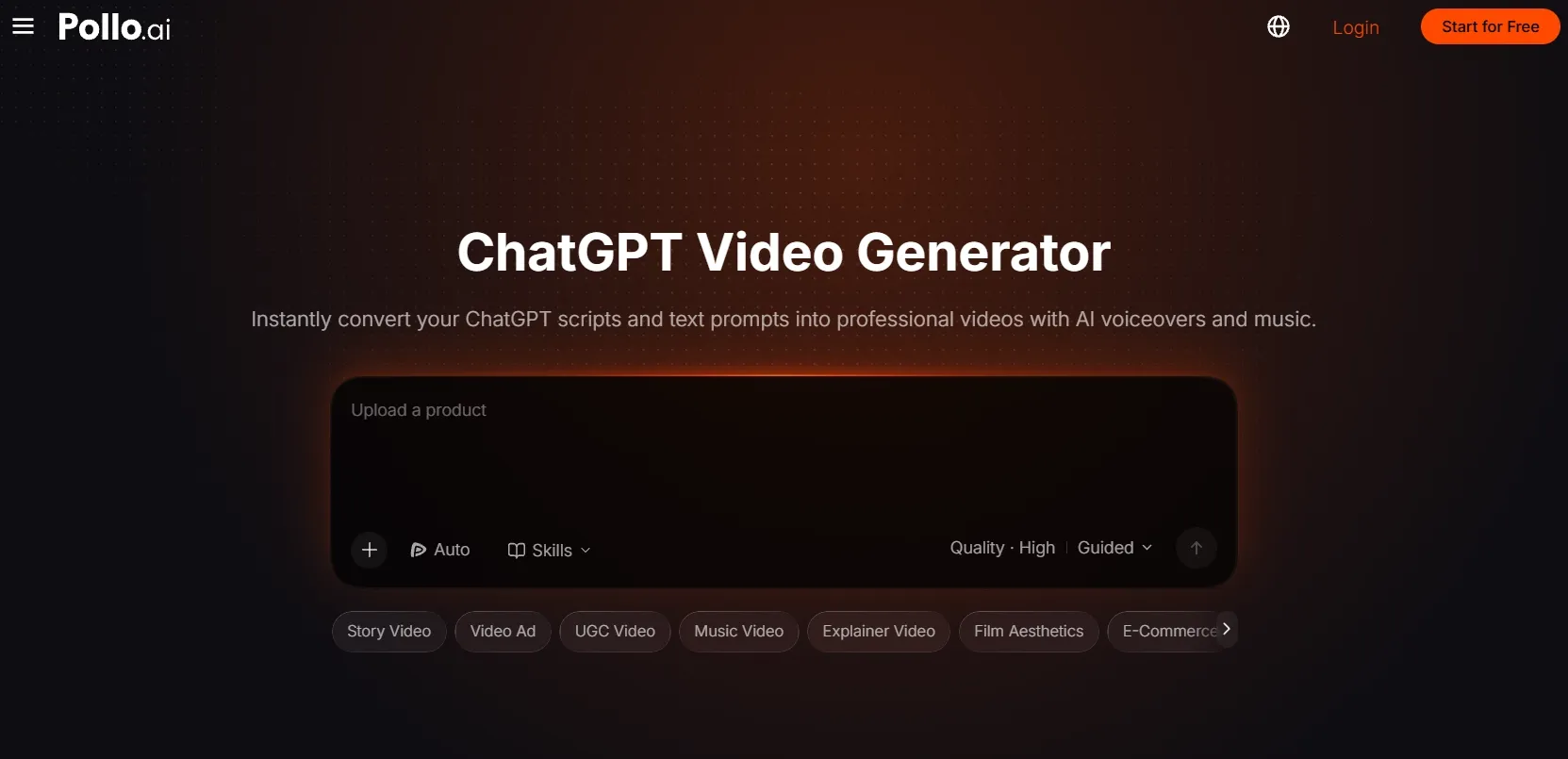
Paste the content into the video generator. It analyzes the text and creates relevant visuals, narration, and music.
This workflow works well for short explainers, educational videos, social stories, podcast clips, product introductions, and narrated list videos.
The basic process is:
- Ask ChatGPT to write a script, story, explanation, or dialogue.
- Copy the text into Pollo AI’s ChatGPT video generator.
- Let the ChatGPT video generator analyze the text and generate the video.
- Preview the result and make any adjustments available in the tool.
Try ChatGPT Video Generator Now
Paste your ChatGPT prompt and create polished videos in minutes.
Start Creating FreeThe first result does not have to be the final one. Continue the conversation and ask this ChatGPT video generator to try a different visual style, replace the main character, move the scene to another location, add subtitles, or revise one specific shot.
This makes AI video creation feel more like working with a creative partner than filling out a one-time form. Generate a draft, explain what needs to change, and keep refining the video until it fits the idea.
Option 2: Connect Pollo MCP to ChatGPT
The ChatGPT Video Generator works well when one piece of text needs to become a video.
Some projects need more flexibility. Several variations may be required, reference images may need to be included, or an existing asset may need to be refined. Images and audio may also need to be generated alongside the video.
That is where Pollo MCP becomes useful. It allows ChatGPT to connect with creative tools and perform tasks through the same conversation.
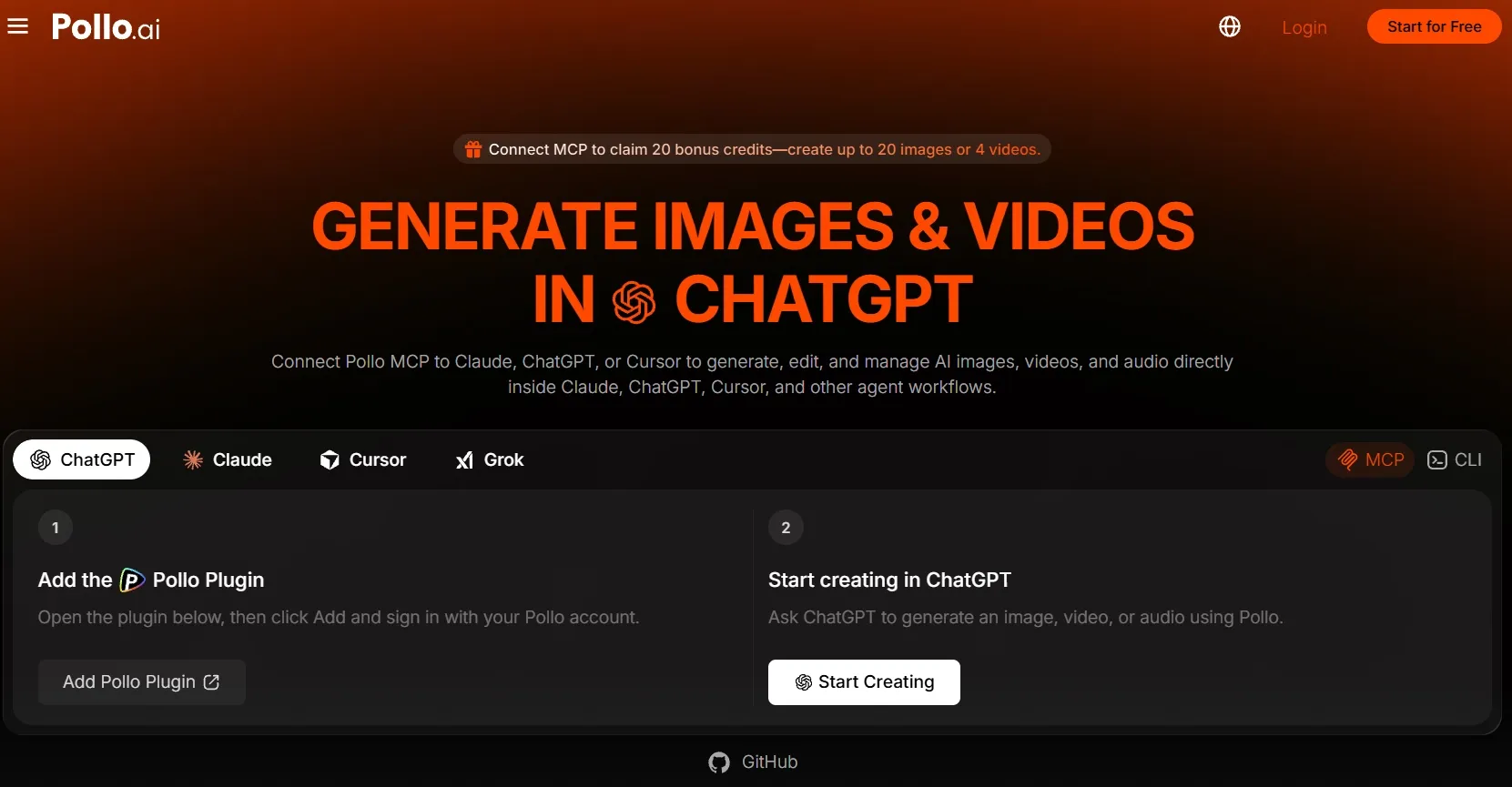
For example:
Create a 15-second product video for this skincare bottle. Use a clean bathroom setting, soft morning light, slow camera movement, and a calm tone. Create three variations.
After the videos are generated, continue with a follow-up request:
Keep the second version, make it vertical, and create a shorter cut for social media.
Pollo MCP can help with:
- Generating images, videos, and audio from natural language
- Using reference images or videos for better consistency
- Choosing a specific model or requesting a recommendation
- Submitting multiple image or video tasks in one batch
- Refining, enhancing, reframing, or transforming existing media
- Continuing the workflow without switching between several tools
Start Connecting Pollo MCP to ChatGPT
Generate, refine, and manage images, videos, and audio in one conversation.
Start CreatingOne connection provides multiple creative models, including Seedance, Kling, Veo, Nano Banana, and GPT Image.
The right workflow depends on the project. For a single script or short idea, the ChatGPT video generator provides a direct path from text to video. When the project includes multiple assets, follow-up revisions, or several creative directions, Pollo MCP keeps those steps connected in the same conversation.
ChatGPT Alone vs. ChatGPT with Pollo AI
| Task | ChatGPT alone | ChatGPT with Pollo AI |
| Write a script | Yes | Yes |
| Create a storyboard | Yes | Yes |
| Generate video scenes | No | Yes |
| Add narration or music | No | Yes |
| Create multiple variations | No | Yes |
| Work with reference assets | Limited | Yes, where supported |
| Refine an existing asset | No | Yes |
| Continue the workflow in one conversation | Limited | Yes with Pollo MCP |
ChatGPT Prompts to Try
For a short social video
Turn this idea into a 30-second vertical video. Start with a strong hook, use three quick scenes, keep the pacing energetic, and end with a clear call to action.
For a product video
Create a polished product video using this product description. Show the product in a bright, modern setting with smooth camera movement. Focus on the main benefit and keep the message concise.
For an educational video
Turn this explanation into a 60-second lesson. Use simple language, clear scene changes, readable captions, and a calm narrator. Make the first five seconds interesting enough to keep viewers watching.
Can ChatGPT Edit an Existing Video?
ChatGPT alone cannot edit video files, but Pollo MCP lets it connect with Pollo AI’s video tools. You can use natural-language instructions to refine generated or uploaded videos.
Ask Pollo MCP to improve video quality, extend a scene, reframe the aspect ratio, change the visual style, test a new character or setting, or add subtitles. Review the result and continue refining it in the same conversation.
Final Verdict
ChatGPT can be a powerful part of video creation. It can write the script, organize the story, plan the scenes, and improve the prompts.
What it cannot usually do alone is render and deliver the final video.
Use Pollo AI’s ChatGPT video generator to turn ChatGPT text into a ready-to-post video through a simple paste-and-generate workflow. Use Pollo MCP when the project involves video, images, audio, reference assets, and multiple revisions.