
Flow AI Review: I Tried Google Flow AI Video Generator — Here’s Why I Think It’s the Future of AI Storytelling | Pollo AI
Google’s push into AI storytelling has taken a clear step forward with Flow, a tool that feels closer to a full creative studio than a typical generator.
Introduced at Google I/O 2025, Flow is built specifically for creators and filmmakers, combining models like Veo, Imagen, and Gemini into one unified workflow.
That alone makes it different. Instead of generating just images or short clips, Flow is designed around creating, refining, and composing entire scenes, turning isolated outputs into a more complete storytelling process.
From my perspective, this shift toward workflow and storytelling is what makes Flow worth paying attention to. It’s not just another AI tool. It’s Google trying to redefine how creative content is actually produced.
Curious to see how this plays out in practice, I decided to test it myself.
After testing Google Flow AI, I found it excels at creative workflows and storytelling, especially with its ability to combine video, image, and scene composition in one place.
That said, there are still some gaps in performance and control, particularly when handling complex prompts or consistency. In this review, I’ll walk through its strengths, weaknesses, and overall usability.
6 Key Features I Tested:
- All-in-One Creative Workflow: Create, refine, and compose videos, images, and stories in a single workspace without switching tools.
- Cinematic Video Generation with Audio: Generates realistic video clips with motion, physics, and even synchronized audio for storytelling.
- Natural Language Editing & Control: Easily edit scenes using simple prompts like removing objects or adjusting elements without manual tools.
- Advanced Scene & Camera Control: Direct camera movement, extend scenes, and iterate on visuals for more precise storytelling.
- Iterative Creative Process: Built for refinement, allowing you to continuously tweak and improve outputs instead of generating one-off results.
- Powered by Top-Tier AI Models: Combines Veo, Imagen, and Gemini for higher-quality and more coherent outputs.
Where Flow Really Shines
All-in-One Creative Workflow
One of the first things I noticed is how everything is handled in one place. I didn’t need to jump between different tools for images, video, and editing, which usually breaks the flow in other platforms.
Here, I could go from idea to a composed scene without switching contexts, which made the whole process feel much smoother and faster, especially for multi-step projects.
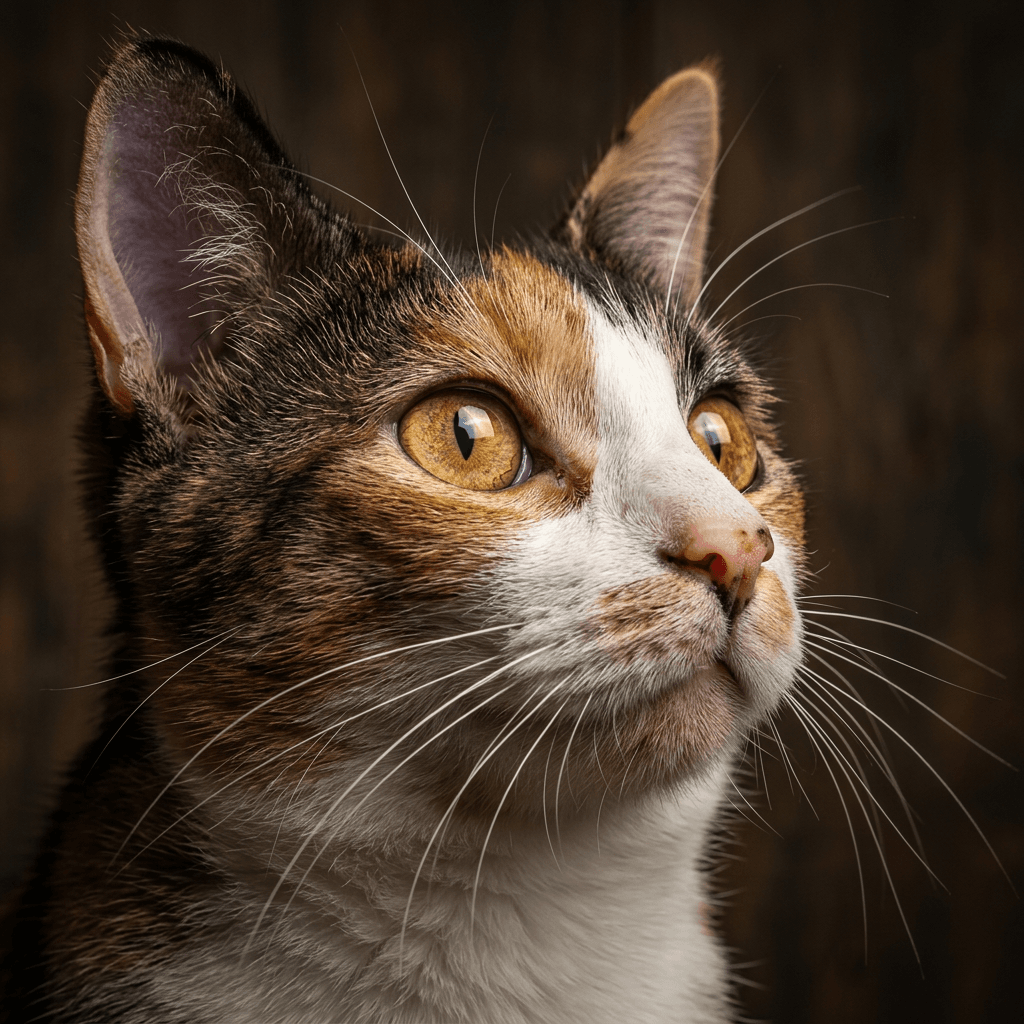
Here, I used the prompt “generate a realistic portrait of a cat, then transform it into an oil painting” to test the workflow. It’s a simple setup, but it clearly shows how well Flow handles style transformation across steps.
| Output Image1 | Output Image2 |
 |
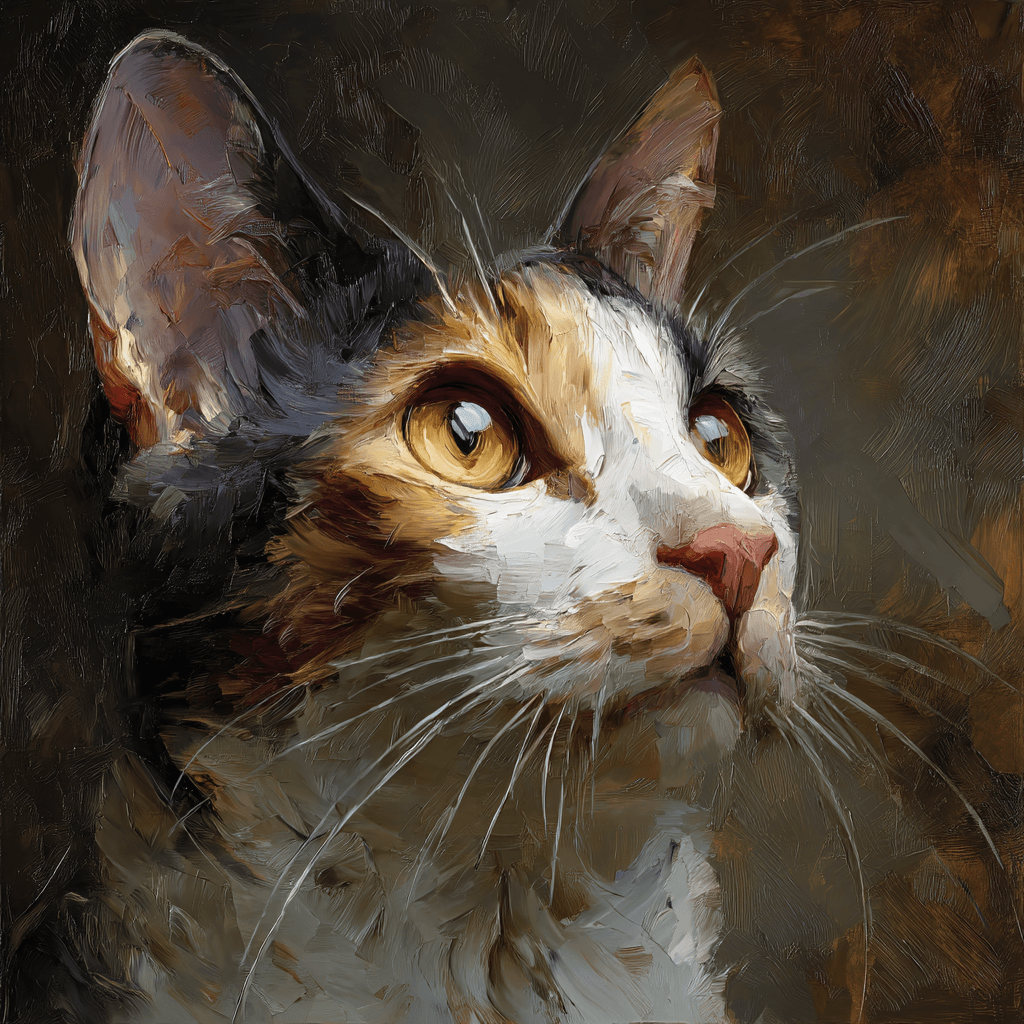 |
The results look stunning! The painterly texture of the final result feels natural, with rich brushstrokes and strong lighting that bring out the cat’s eyes beautifully.
It reads more like a crafted artwork than an AI output at first glance.
Cinematic Video Generation with Audio
What really stood out to me is how the videos feel more “constructed” rather than randomly generated. The motion has a sense of pacing, and the addition of audio makes the scenes feel more complete.
This makes a big difference if you’re trying to create storytelling content, since the results feel closer to something you could actually publish.
| Prompt | Output Video |
| A cinematic scene of a man standing on a calm lake, performing Tai Chi with slow, controlled movements. As he moves, black ink flows and swirls around him like liquid, following his gestures and forming dynamic brushstroke effects, with a natural, misty atmosphere. |
From my experience, the result felt very immersive, especially with how naturally the ink follows his movements.
The motion looks smooth and cohesive, which makes the whole scene feel almost like a live-action martial arts sequence rather than an AI-generated clip.
Natural Language Editing & Control
Editing in Flow feels very intuitive. Instead of using layers or complex tools, I could just describe what I wanted to change, like removing objects or adjusting elements in a scene.
This not only makes it more accessible for beginners but also speeds up iteration when you want to quickly test different ideas.
I tried the same prompt in Shutterstock, and the difference was pretty obvious.
Flow removed both the cup and the steam above it, while Shutterstock only got rid of the cup. From my experience, Flow just feels better at understanding what I actually meant, not just what I said.
| Tool | Prompt | Input Image | Output Image |
| Flow AI | Remove the white cup from the table. |
 |
 |
| Shutterstock | Remove the white cup from the table. |
|
 |
Advanced Scene & Camera Control
Another thing I found useful is the level of control over scenes and camera movement. You’re not limited to static outputs; you can guide how the scene evolves and how the camera behaves.
This gives you more creative control, especially if you’re aiming for something more cinematic or narrative-driven.
seedance horror movie clip:
Watching this felt surprisingly immersive. The first-person, documentary-style camera made it feel like I was actually inside the scene, not just watching it.
Iterative Creative Process
Flow is clearly designed for iteration rather than one-off generation. I could refine outputs step by step and build on previous results instead of starting from scratch every time.
That makes the whole experience feel closer to a real creative workflow, and it’s much easier to gradually improve the final output.
Flow AI is honestly super convenient to use. Instead of going through a bunch of manual editing steps, I could get this result in one step and within just a few seconds.
Where Flow Needs Improvement
Do These Models Hold Up in Practice?
From my testing, Flow’s overall quality does feel strong at first. The integration of Veo, Imagen, and Gemini is noticeable, and in many cases, the outputs are well aligned across image and video, which saves time on fixing inconsistencies.
For example, I used a simple setup:
“Generate a cinematic image of a woman in a red dress hanging clothes on a balcony at sunset, with warm sunlight, soft lens flare, plants, and a city background.
Then use this image as the starting frame to create a video where the clothes gently move in the wind and the woman continues hanging laundry with natural, smooth motion.”
| Tool | Output Image | Output Video |
| Flow AI |
 |
|
| Dreamina | |
However, when I pushed it further and compared it side by side, the gap started to show. Using the same starting frame, the video output of Dreamina felt more natural and logically consistent, especially in motion.
In contrast, Flow’s result looked slightly less realistic, and the scene continuity wasn’t always as convincing. Flow has a strong foundation, but in more demanding scenarios, it still struggles to fully deliver on that “top-tier” promise.
Want More Flexibility Beyond Flow? Try It on Pollo AI!
After testing Flow, I really liked its creative workflow and storytelling capabilities. But at the same time, I found myself wanting a bit more flexibility, especially when switching between different styles, tools, or content types.
That’s when I started using Pollo AI. From my experience, it covers the basics of image and video generation, but what really stood out is its AI Agent feature.
You can just describe your idea, and it helps turn it into a full video, with different modes like UGC, story, or news content. It felt much more flexible when I wanted to quickly switch directions or try different formats.
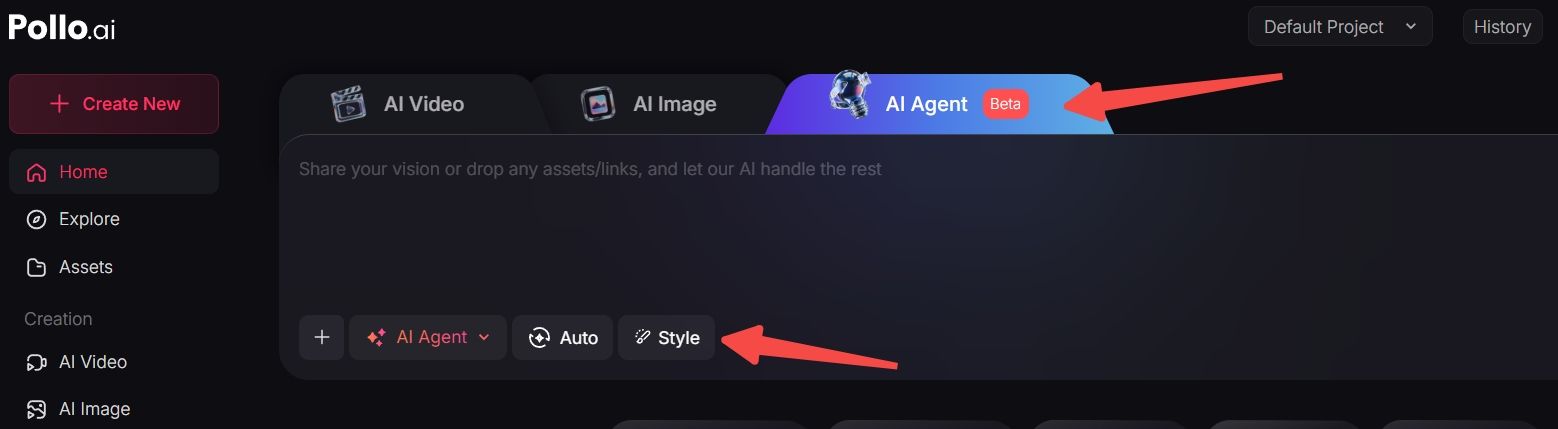
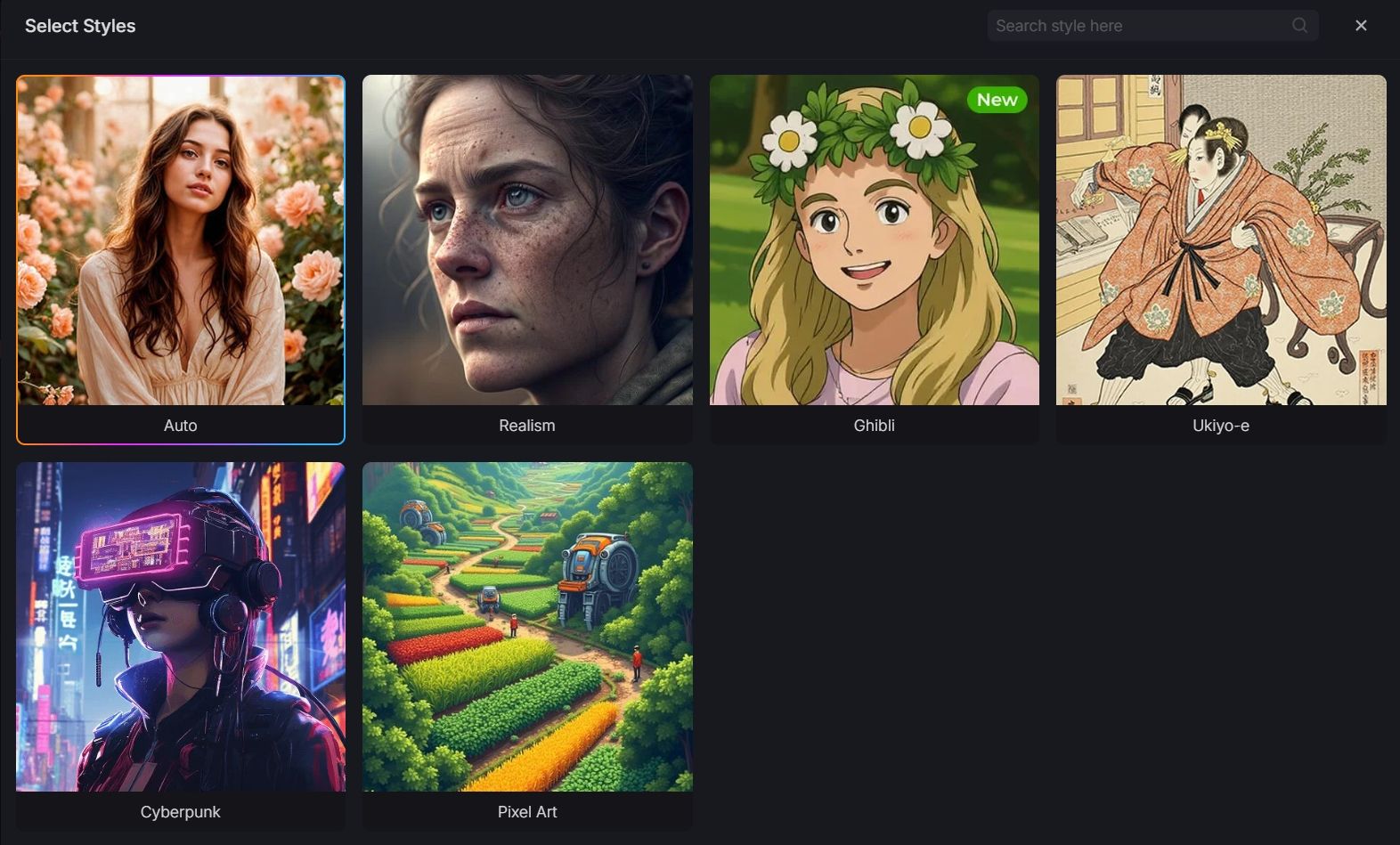
You can also use Flow directly on Pollo AI for free, which made it much easier for me to experiment without being locked into a single ecosystem.
From my experience, what makes Pollo AI stand out is that it’s not limited to just one model. Besides the Google models, you can also flexibly try other popular and newer video models like Kling 3.0 and Seedance 2.0, depending on what you’re trying to create.
And it goes beyond just generation. Pollo AI also offers advanced tools through Pollo Apps, like the AI TikTok video generator and AI reels maker.
I found these especially useful when turning ideas into ready-to-post content, since they’re already optimized for different platforms.
Overall, Flow feels like a powerful starting point, but Pollo AI feels more like a complete toolkit. It gave me much more flexibility to create, test, and publish content in one place.
Final Thoughts About Flow
After testing Flow, I can see why it stands out. The workflow feels smooth, and creating, refining, and composing in one place made storytelling much easier for me.
That said, it’s not perfect. In some cases, especially with motion and scene consistency, the results felt less realistic compared to tools like Dreamina.
This is where Pollo AI felt more practical. I could still use Flow, but also switch between different models depending on what I needed, which made experimentation much easier.
Overall, Flow is a strong creative engine, but using it through Pollo AI simply gives you more flexibility to create.