

How to Loop a YouTube Video and Create a Reusable Loop
A song, language lesson, workout, or tutorial often needs more than one play. YouTube can repeat the full video inside the player. When you need the repeated footage in a presentation, website, Short, or another edit, Pollo AI can turn the clip into a downloadable loop.
Boomerang Video vs. Loop Video
Both formats repeat footage, but a Boomerang sends the action backward while a loop starts it again in the same direction. Boomerang is better for a jump or reaction; a loop makes more sense for backgrounds, displays, and continuous motion.
| Boomerang | Loop | |
|---|---|---|
| Motion | Forward, then backward | Original direction repeats |
| Best for | Short actions with a return effect | Backgrounds, displays, and continuous scenes |
| Viewer impression | The action comes back | The scene keeps going |
YouTube's own control is enough for repeated viewing. A separate loop file makes more sense when the footage needs to leave the player.
Create a YouTube Video Loop with Pollo AI
Turn a clip into a downloadable video loop for YouTube edits, Shorts, presentations, or website backgrounds with Pollo AI.
Create a YouTube Video Loop
How to Loop a YouTube Video on Desktop
The desktop player can repeat the full video without creating a new file.
Open the Video You Want to Repeat
Open the video's watch page and start playback. Loop repeats the entire video, so you do not need to choose a start or end point.
Turn On the Loop Setting
On desktop, YouTube's own help page says to right-click inside the player and select Loop. The video will keep repeating until you turn the setting off.
Confirm the Video Restarts
Let the video reach the end once. If it returns to the beginning on its own, Loop is active. Open the same right-click menu to turn it off when you are finished.
How to Create a Reusable Loop with Pollo AI
Open the Video Looper
Open Pollo AI's video looper when you need a file you can download, edit, or use outside YouTube.
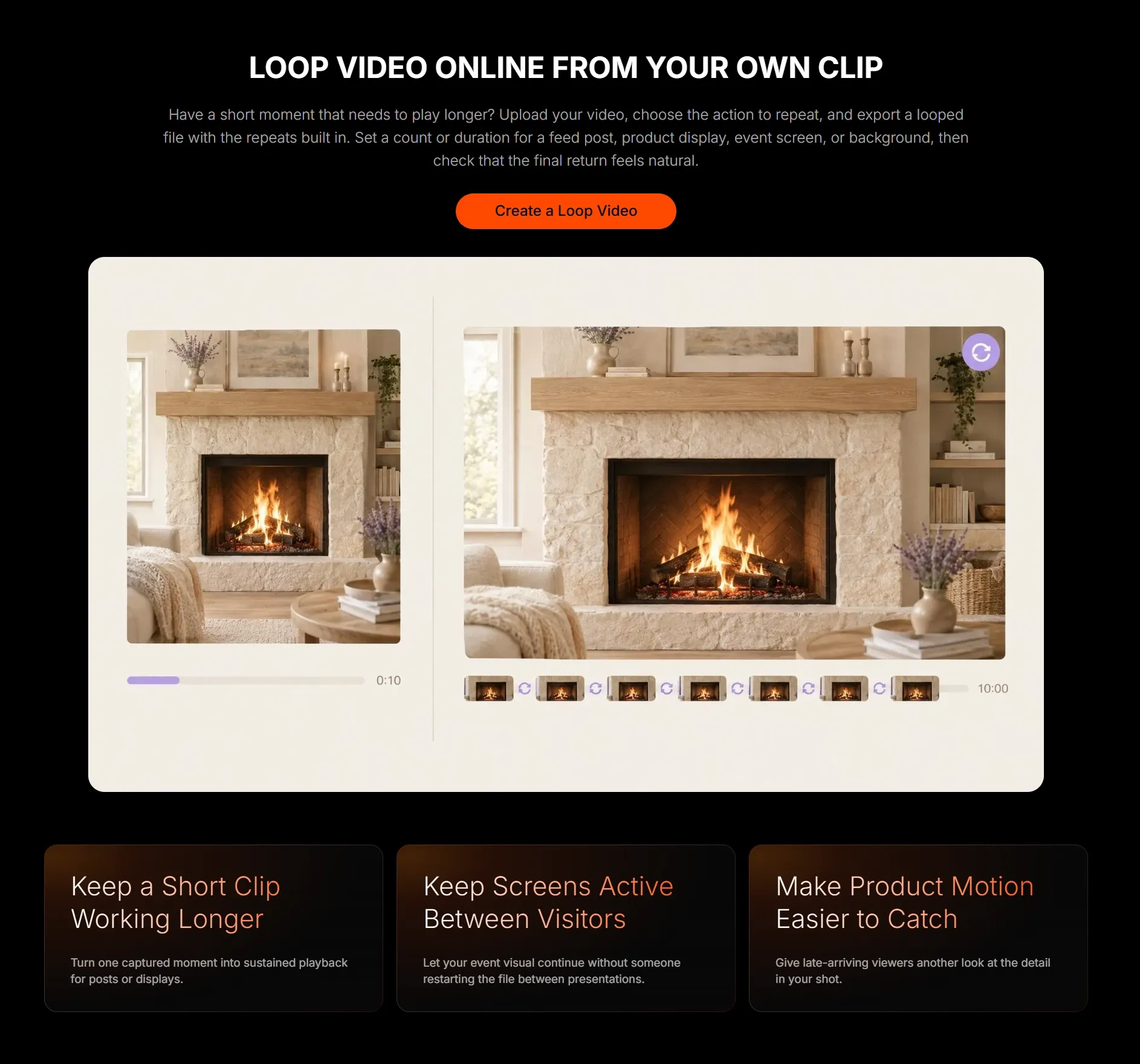
Upload the Clip and Say How It Should Repeat
Pick a section with a clear beginning and end before uploading. Similar subject position, camera angle, and lighting at both ends give the model a better chance of hiding the join.
Generate and Check the Join
Let the result play through the join several times. If your eye catches the restart, check these details before downloading:
- Avoid a strong audio ending. A final word, beat, or sound effect can expose the join even when the picture loops cleanly.
- Watch objects entering and leaving the frame. A person or vehicle that disappears at the end and suddenly returns at the start will make the repeat feel abrupt.
- Keep brightness steady. Exposure changes become much more noticeable when viewers see the same cycle several times.
- Clean up a compressed source first. If the source already looks soft or blocky, improve it with the video enhancer before building the repeated file.
Download the loop when the subject stays in place, the brightness does not flash, and the audio does not cut sharply.
Which Loop Style Should You Use?
The end of the clip tells you which loop style will work. A normal repeat fits an ending that already resembles the opening. A seamless loop is better when the join needs to disappear, while a bounce sends the motion backward.
| Use case | Best loop style | What the loop should do |
|---|---|---|
| YouTube edit | Normal repeat or seamless join | Fill the required time on the editing timeline without an obvious restart. |
| B-roll sequence | Seamless environmental or product movement | A background shot that can repeat between two talking sections as B-roll footage. |
| YouTube Short | Short repeat or bounce with one centered subject | A vertical background or opening shot for the AI YouTube Shorts generator. |
| Website background | Slow seamless loop | The background keeps moving while the page text and buttons remain easy to read. |
| Presentation | Slow loop with little change in brightness | Background movement that stays behind the message in a video presentation. |
| Display screen | Longer normal or seamless loop | A file that can keep playing at an event, shop, booth, or waiting area. |
Loop Video FAQs
How many repeats should I include in the downloaded file?
For a website or display player that repeats automatically, one or two cycles are enough. For a fixed-length video, include enough cycles to cover the full time the loop needs to remain on screen.
Can I loop a YouTube playlist?
Yes. Open a video inside the playlist, expand the playlist panel, and select the loop icon. Make a separate loop file only when one repeated video needs to be used outside YouTube.
Can I make a longer loop from a short clip?
Yes. Repeat the short clip for as long as you need, then watch the full file once. Remove a cycle if the movement starts to feel distracting or mechanical.