
LumeFlow AI Review: I Tested Its Motion Tools
LumeFlow AI is a multi-model creative platform whose video side lets users generate from text or images, mimic motion from a reference clip, extend footage, add effects, and apply lip sync.
What made me test it was the number of ways it offers to make one idea move; I wanted to see whether those routes add up to a complete video workflow or remain strong single-asset transformations.
My verdict: LumeFlow AI is most convincing as a short-form motion sandbox; it becomes less direct when the job requires several scenes, narrative order, and a publish-ready structure.
LumeFlow AI Review: TL;DR
| Area | My Take |
|---|---|
| Category | Multi-model AI video and motion platform |
| Core input | Text, still image, source video, or reference motion |
| Key mechanics | Text/image generation, Mimic Motion, video extension, effects, lip sync |
| Output shape | Short generated, animated, or transformed clips |
| Better alternative | Pollo AI for multi-scene drafts and a defined publishing task |
What Is LumeFlow AI?
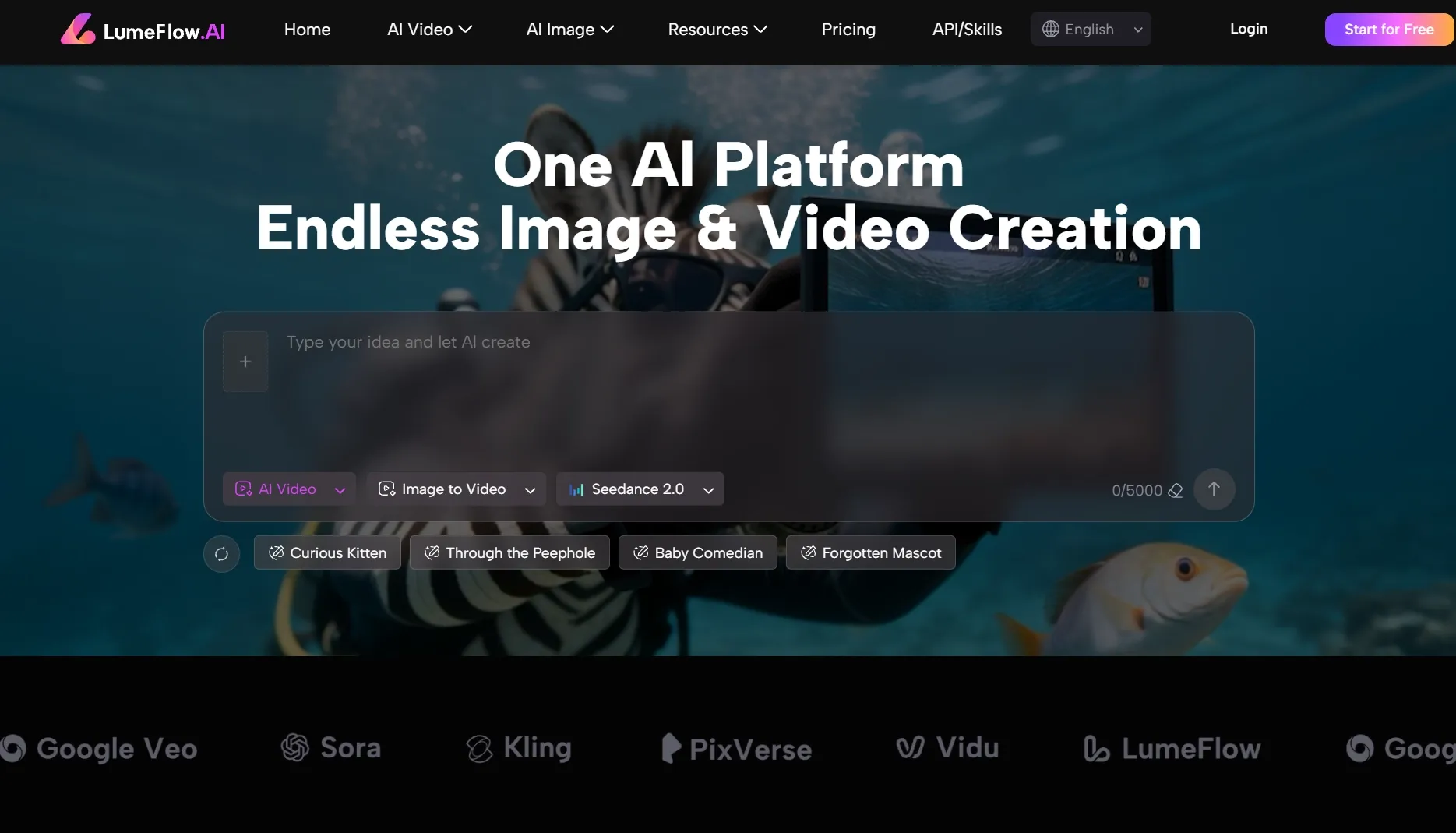
LumeFlow AI is a web platform that gives creators access to multiple video models plus focused tools for motion, extension, effects, and lip sync.
Its AI video generation paths start from text or an image, while Mimic Motion starts from a still subject and a reference movement clip. Video-to-video tools accept existing footage for extension or transformation, so the platform is organized around the source material a creator already has.
The product also surfaces a changing model catalog and Prompt Agent, but the user still chooses the input route and tool. LumeFlow therefore behaves more like a motion workbench than a single guided editor.
How I Evaluated LumeFlow AI
I evaluated LumeFlow AI by following four source paths: a written scene, a still image, a still subject plus reference motion, and an existing video. For each route, I checked what the source controls and what the generator is still free to invent.
I paid particular attention to Mimic Motion because its reference motion workflow is more specific than a general prompt: the subject image defines who appears, while the uploaded motion clip defines how that subject should move.
Key Feature Review
Text and image starts
LumeFlow's text route asks for a prompt and video parameters, while the image route combines one still with motion instructions. That gives users a clean choice between inventing the scene and preserving an existing composition.
A simple text to video scene is useful for mood and movement discovery, whereas image to video is safer when the subject already looks right. Both routes become fragile when the prompt asks for several timed actions, exact product placement, or continuity across shots.
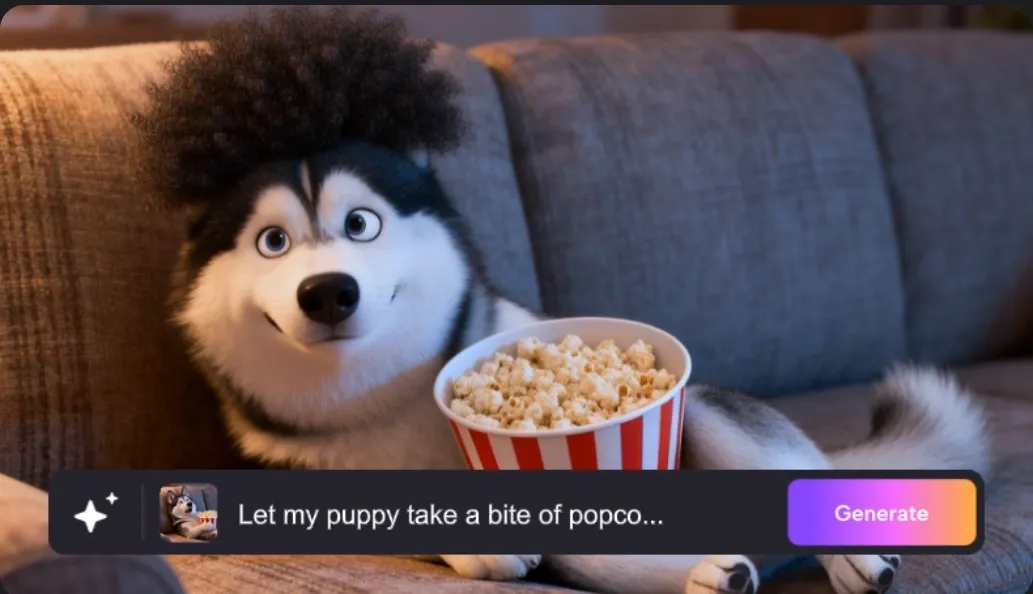
Mimic Motion
Mimic Motion uses two explicit inputs: a JPG, JPEG, or PNG subject image and an MP4 movement reference. The current interface requires the image to be at least 480 by 480 pixels and limits the motion reference to 30 seconds.
This is the LumeFlow feature I would reach for when I can show the movement more easily than I can describe it. The reference clip removes some guesswork, although it cannot rescue a poor subject image, hidden limbs, or a body shape that maps badly to the performer.
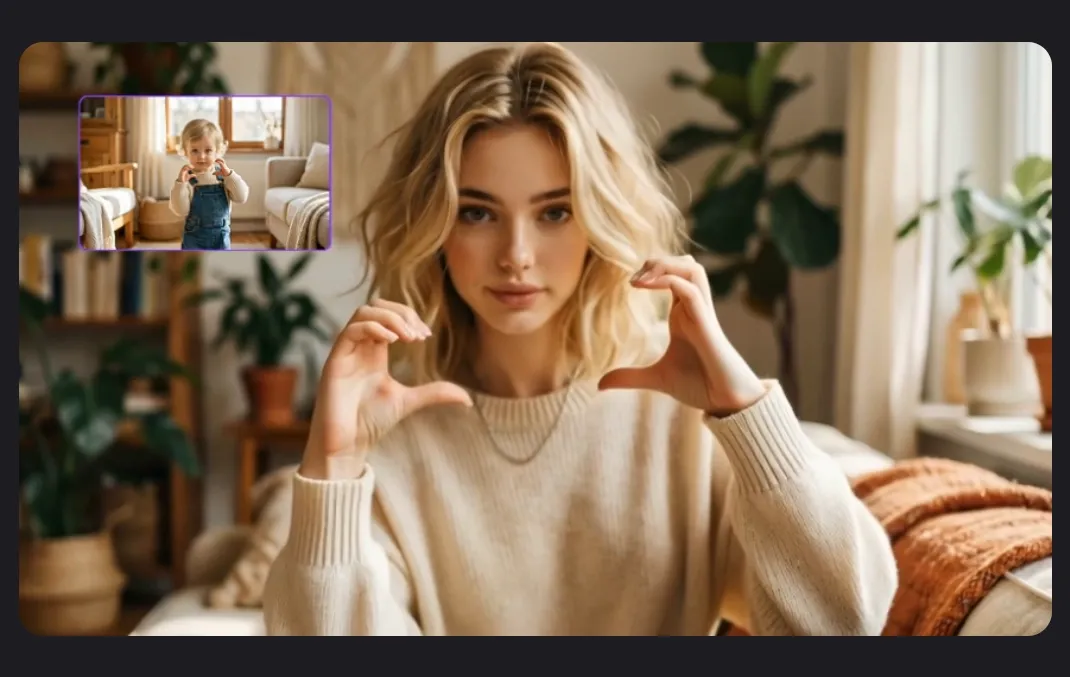
Video extension and transformation
LumeFlow's video-to-video support accepts MP4 or MOV footage up to 50 MB, 1920px, and 30 seconds, then uses a prompt to extend or transform the clip. Starting from real footage preserves more timing information than inventing motion from a still.
That makes video to video useful for continuation and style experiments. It is less safe when a face, product label, costume, or camera path must remain exact, because visual transformation can change the very details the source was meant to protect.
Effects and lip sync
Effects provide quick transformations, while lip sync adds spoken performance to an existing face or clip. These routes are practical for social ideas because they begin with a visible action rather than a long production brief.
The user still has to judge whether the effect supports the idea and whether the lip-sync result feels natural at close range. A technically synchronized mouth cannot compensate for flat delivery, weak framing, or a clip that has no reason to continue after the effect lands.
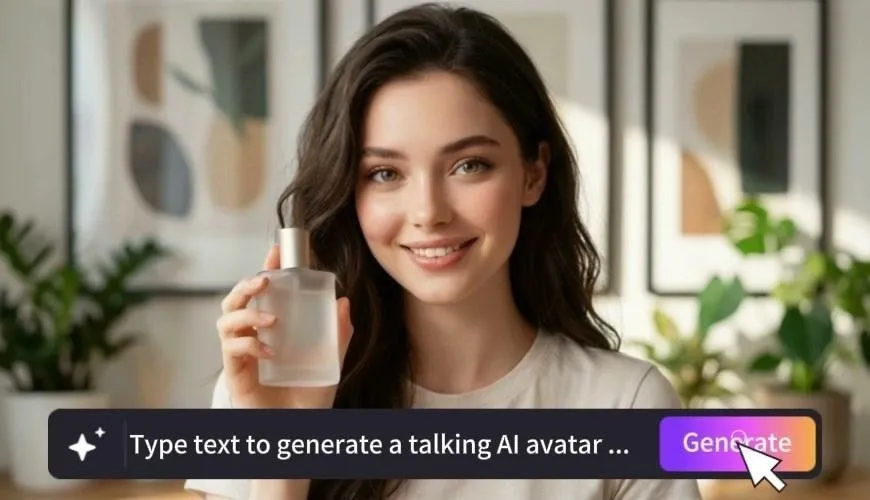
The lip-sync demo starts from a portrait and typed speech input.
LumeFlow AI Use Cases: Who Should Use It?
LumeFlow AI fits creators who already have a source idea and need to test its motion quickly.
- Reference-motion performances: for creators transferring a dance, gesture, or body movement to a still subject.
- Still-image animation: for artists and social teams checking whether one composition can carry a short clip.
- Effect-led social posts: for users testing a visual transformation as the hook for TikTok videos.
- Promo mood tests: for teams creating a short promo video before the script and shot list are fixed.
What I Liked
I liked that LumeFlow organizes the video decision around what the user already has. Choosing text, an image, a video, or a motion reference is a more useful first question than choosing a model name before defining the source.
The upload guidance also makes the boundaries visible. File type, size, resolution, and duration limits are easier to plan around than a vague promise that any media will work.
Where LumeFlow AI Falls Short
The awkward moment comes after one clip finally works. A mimicked movement, extended shot, or effect can look good on its own, yet I can still be left asking what opens the video, what the next shot adds, and how the idea ends.
- Reference motion transfers movement, not intent: a gesture can be copied accurately and still feel wrong for the character, product, or message.
- Source limits shape the idea: the current motion and video routes impose file, resolution, and duration boundaries that can exclude longer or heavier footage.
- Transformation can overwrite key details: a successful visual effect may still require video enhancement or regeneration if identity and product details drift.
Pros and Cons
Pros:
- Clear source-led video routes
- Specific image-plus-motion workflow
- Useful extension and transformation options
- Effects and lip sync support fast experiments
Cons:
- Each route solves one clip-level task
- Subject and reference must map cleanly
- Important source details can drift
- A hook effect does not supply story structure
Beyond LumeFlow AI
I would stay in LumeFlow while I was trying to make one image, movement, or effect work. Once that clip became the keeper, my question would change from 'Can I make this move?' to 'How do I turn this into a video with a beginning, supporting beat, and ending?'
That is when I would open Pollo AI, a broader AI creative suite. Beyond generating or correcting the individual clips, Pollo Agent can take the idea or source asset, arrange several scenes, and give me a complete sequence to review instead of another variation of the same shot.
- Multi-scene first draft: Pollo Agent can organize an idea or asset into a finished sequence, giving the user scenes and pacing to review together.
- Targeted clip correction: Pollo AI's AI video editor accepts a source clip and a text instruction for changes such as object removal, background replacement, or visual restyling.
- Narrative route: Pollo AI's story video generator gives a story-led idea a defined beginning, progression, and ending instead of treating each shot as an isolated experiment.
Build Complete Videos with Pollo AI
Move from one motion idea to a structured sequence.
Try Pollo AI for Video Creation
Final Verdict
What I found most useful was LumeFlow's input-first logic. A creator can decide whether the idea lives in a prompt, still image, motion reference, or existing clip before choosing how to generate.
Use LumeFlow AI for motion transfer, image animation, short transformations, and effect tests around one asset. Use Pollo AI when that successful clip needs to sit inside a multi-scene story, receive prompt-based corrections, or become a finished content format.