

Claude as a Creative Studio: AI Video and Image Generation With Pollo AI
I can’t be the only one who wishes that Claude had a more comprehensive creative studio, right? It can turn an unclear idea into a useful production brief, but that’s about it. So, what if I told you that you could start generating images and videos with Pollo AI in your Claude conversation thread? All you need for that is Pollo MCP, and I’m here to tell you all about it!
TL;DR
You can turn Claude into a creative studio by using Pollo MCP to connect it to the Pollo AI creative suite. Once installed, you don’t need to switch between apps to generate images and videos. You can draft briefs, upload references, generate videos, compare and refine outputs, etc., all within a single Claude chat for a more unified production workflow.
How To Bring AI Video & Image Generation to Claude?
I think we can all agree that creative AI production demands multiple generations. A single product ad campaign or short film can start with an image or script that forms a storyboard, which leads into multiple videos that need various edits, and so on.
But I always dislike how you have to hop between different apps, tools, and websites. Luckily, this is where an MCP or Model Context Protocol can save the day. It acts like a bridge that allows an AI assistant like Claude to use the capabilities of an external service.
In this case, if I connect Pollo MCP to Claude, this gives the AI agent full access to the Pollo AI creative suite. Instead of treating every asset as a separate task in a separate application, I can handle the entire creative production process within a single chat thread!
Picture it: if I want to generate an image or video, I can just request it via Claude chat, which sends it to Pollo, tracks the progress, and returns the final result inside the same conversation. But the key benefit here is that you can turn Claude into a proper creative studio.
What’s more? It can shave a lot of time off decision-making by helping to refine the visual brief, selecting the best model for the task, based on available credit, format, style, duration, etc. Best part? Connecting Pollo AI to Claude only takes a few minutes; no technical expertise needed!
Build Your Claude Creative Studio with Pollo MCP
Draft briefs, use references, generate visuals, and refine campaigns with Pollo AI in one continuous Claude conversation.
Create with Pollo MCP in Claude
Connecting Claude and Pollo AI: Pollo MCP Setup
First, make sure that you’ve already signed up for a Claude account and a Pollo AI account. I suggest that you handle this before getting started to make the whole process easier:
Step 1: Open Claude To Get Started
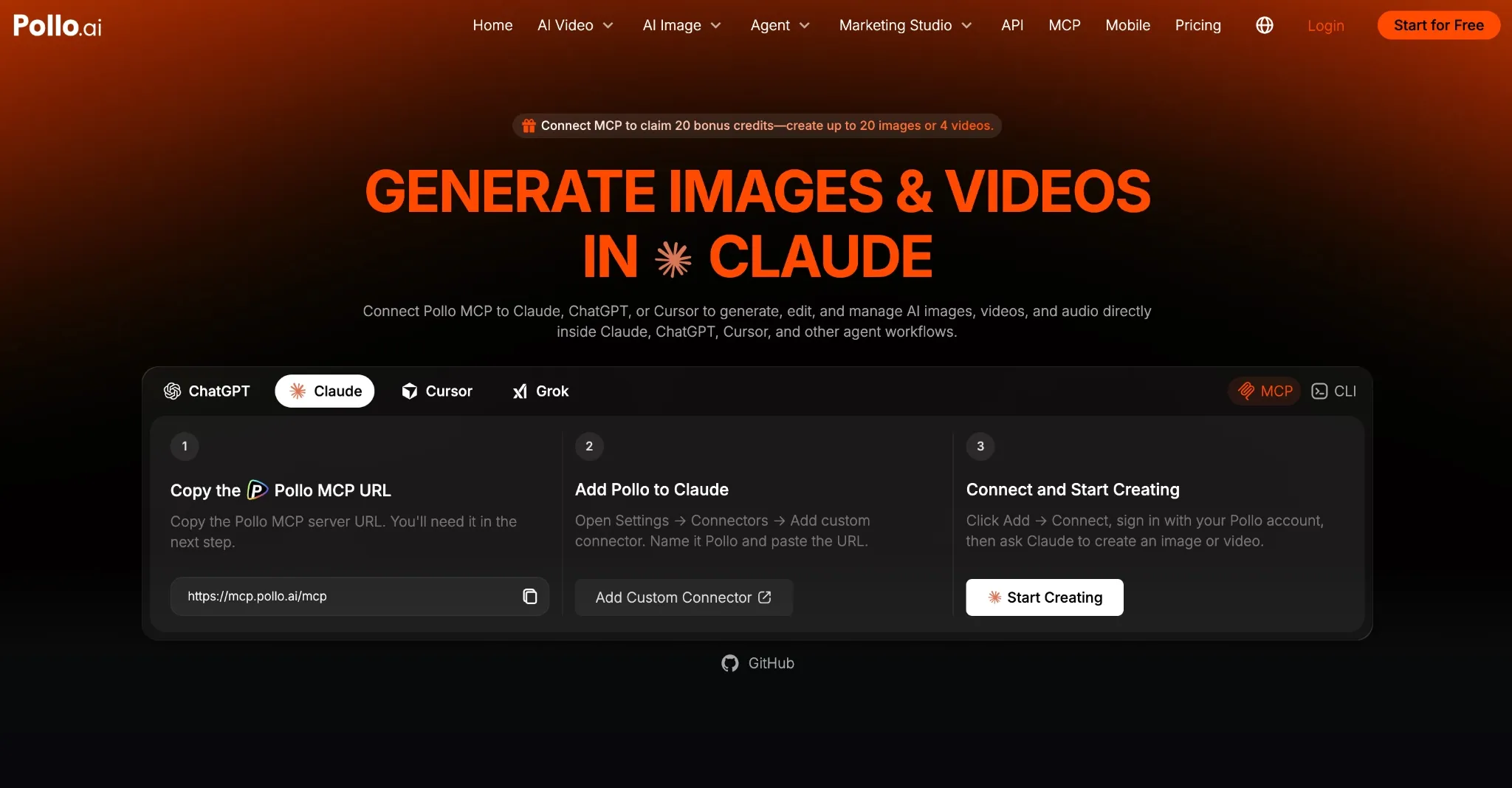
Log in to Claude and go to Settings > Customize > Connectors.
Step 2: Add Custom Connector
Select Add Custom Connector, name it Pollo, and paste this https://mcp.pollo.ai/mcp into the MCP server box. After that, you’ll be redirected to log in to your Pollo AI account.
Step 3: Generate Images/Videos with Claude
After you sign in and the connection is set, you can proceed to generate images/videos/audio in Claude. Just open a new chat to get started.
Note: If you don’t want to approve every request, then you can set your permissions to ‘Always Allow’, but it’s often best to make Claude wait for approval first. I also recommend always telling Claude to provide a credit estimate before it runs a generation to avoid expensive costs.
Generating AI Images/Videos In Claude with Pollo AI: Example
After the setup, you’ll have access to the full Pollo AI creative suite, which includes dozens of AI image and video models, like Seedance 2.5, Wan 3.0, GPT-Image 2, etc. You can start with a simple request to create a 15s vertical video ad for a skincare product, for example.
Since Claude keeps track of any references and previous assets that you mention in conversation, you won’t need to keep generating from scratch. I find this particularly useful for creators and teams who may need to build off existing content assets.
To show you how this works, here’s a quick case example of how a creative workflow on Claude can be after installing Pollo MCP:
I opened a new chat and requested: Use Pollo MCP to create a premium product image for GlazeLab, a ladies’ lipstick collection. Show multiple lipstick tubes in complementary shades. Here’s what it returned:
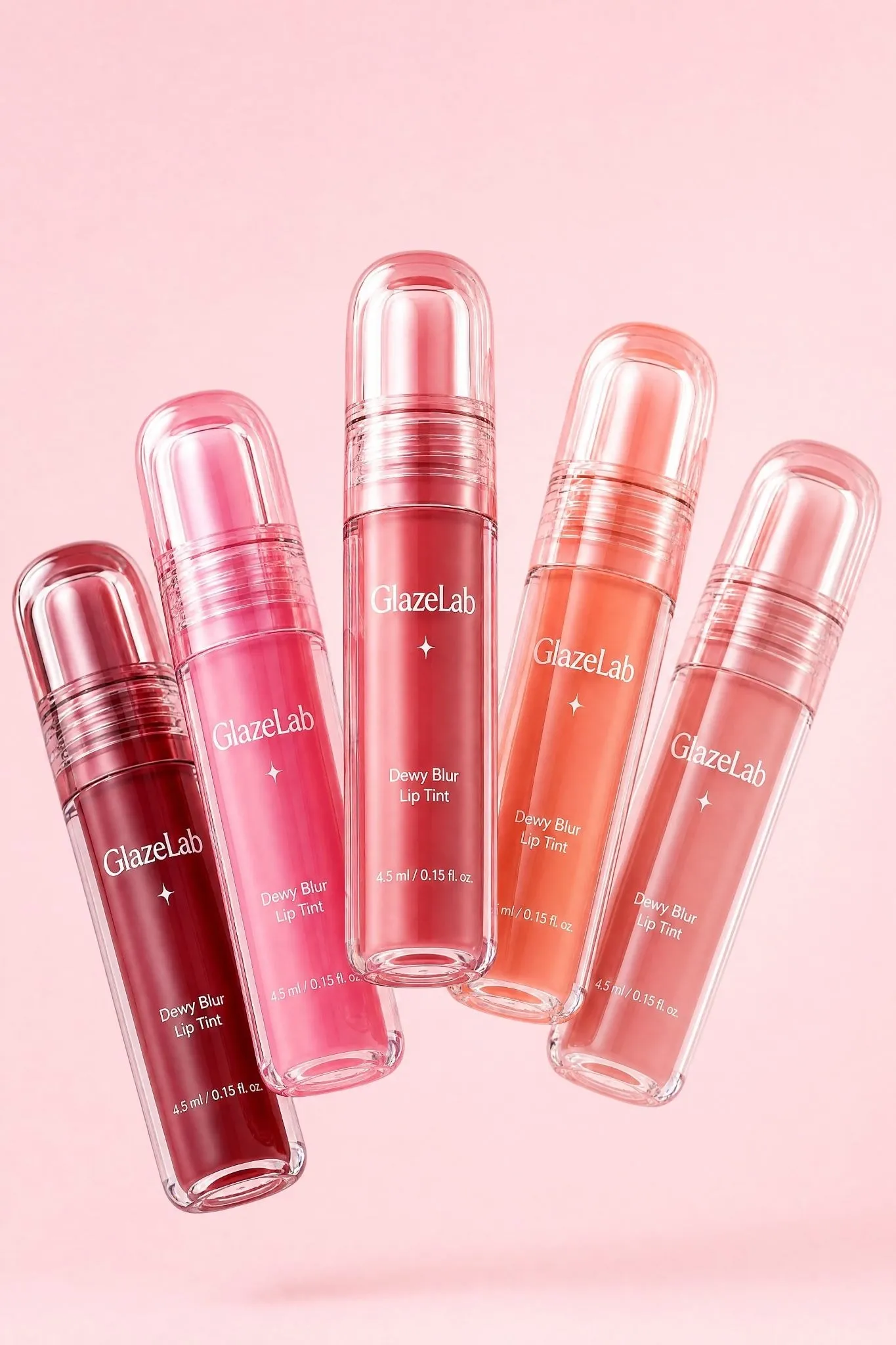
Next, I asked Claude to create a short production brief/script for a promotional campaign video based on the same reference image. This is what it generated:
Create a 15-second vertical 9:16 Korean beauty teaser using the reference image above. Feature a glowing East Asian model in a soft pink top, glossy berry lips, and neat low bun against a clean pink studio background.

Show playful beauty poses, a close-up of the clear GlazeLab tube with bold white branding, five vibrant lip shades, and a fast montage showcasing each shade. Include a sleek product lineup and centered GlazeLab logo end card.

Premium glossy lighting, youthful energy, snappy edits. Only apply tint using an opened applicator wand. No distortions, watermarks, subtitles, or messy backgrounds.
From there, I simply requested Claude to use Pollo AI to generate a full video with the same prompt it just produced. I also asked Claude to select an appropriate model to use for the task before submitting the request to Pollo AI, and this is what it returned:
As you can see, all this can be handled in one conversation on Claude, giving me one clear advantage: continuity. I can use Claude to shape the idea, Pollo to generate the images/videos, and continue refining the content within the same thread to guide what else follows.
Instead of isolated prompts, I can build a unified creative studio workflow that makes it possible to move from a rough idea/sentence to a finished video campaign. Talk about convenient, right?
Conclusion
Pollo MCP offers up any Claude user the chance for fewer tool switches when generating images and videos. All it takes is a few steps to connect Claude with Pollo AI and you’ll have your own creative studio in the same place you run research, writing, app development, etc!