

Pollo MCP Setup Guide for Claude, ChatGPT, Cursor, and CLI Agents
If you use AI agents in your daily workflow, I've got a treat for you! Today, I’m going to show exactly how to set up Pollo MCP inside compatible AI apps like Claude, ChatGPT, and Grok. I’ll also touch on how to install Pollo CLI in coding agents like Claude Code. And don’t worry, I’ll keep it short and simple, so the whole process is easy to follow. Now, let’s get into it!
TL;DR
To set up Pollo MCP in AI agents like ChatGPT, Grok, and Claude, copy the Pollo MCP server URL and add the custom Pollo connector in the settings. Then you'll be redirected to the Pollo AI login page to sign in and authorize the connection. To install Pollo CLI for Claude Code, Cursor, etc., copy the setup task on the Pollo CLI page and paste it into your coding agent.
Pollo MCP & Pollo CLI: Everything You Need To Know
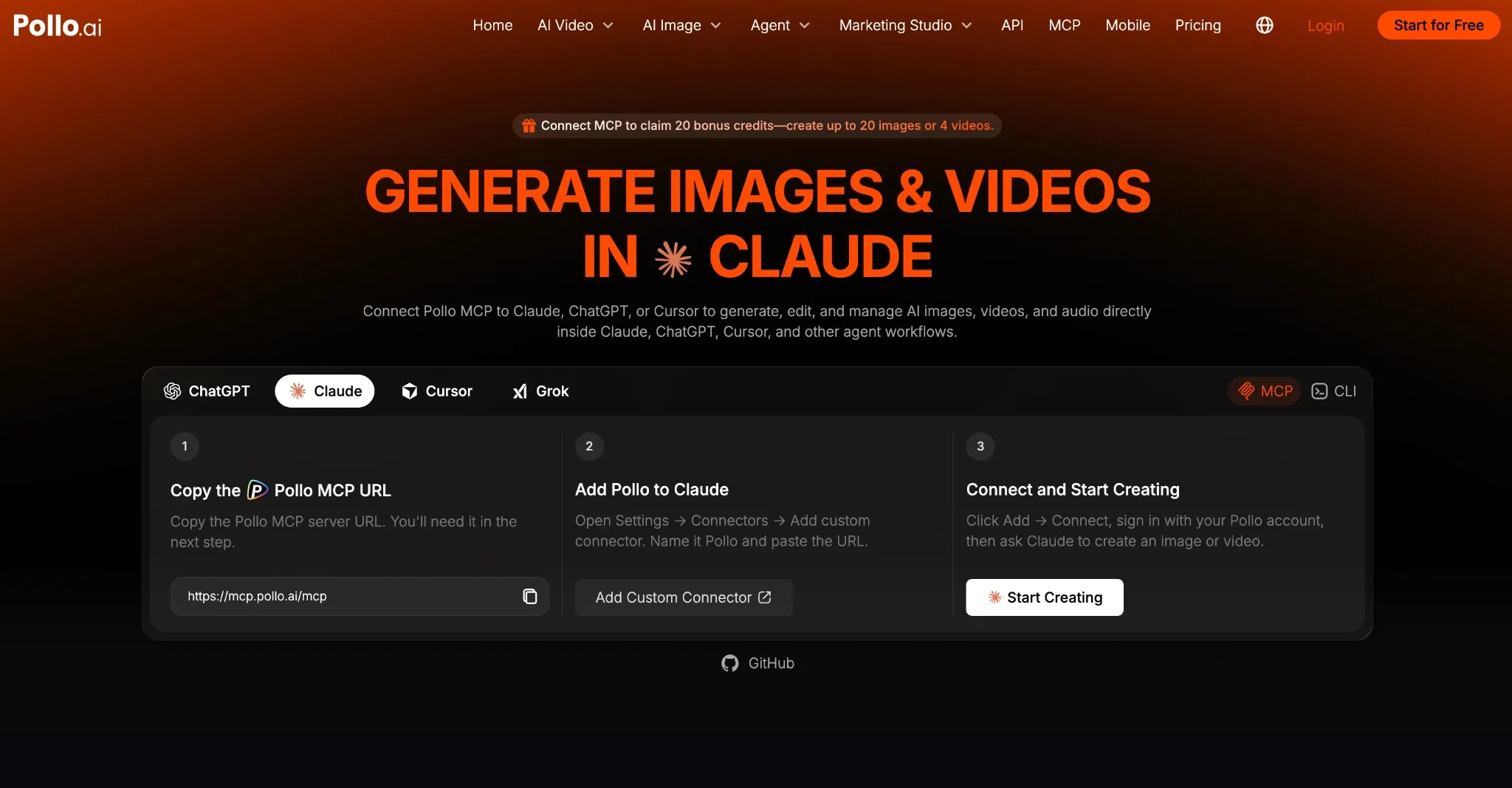
Short for Model Context Protocol, Pollo MCP works like a connector between Pollo AI and AI agents like Claude, ChatGPT, or Cursor. Once you have this plugin installed, you can access the Pollo AI creative suite to generate images, videos, and audio within these agents.
I frequently use it to continue working conversationally in chat, making simple requests like “create a 15s product ad video using this image.” The AI agent then automatically selects a model, submits the job, and returns the generated output.
Since I can handle all my media generation within a single chat thread, it saves me a lot of time and effort from manually switching between websites. But what I really enjoy about this setup is how the AI agent helps me with model selection, cost estimation, batch task submissions, etc.
On the other hand, if you’re a developer or need help with automation, Pollo CLI lets you operate Pollo AI through coding agents like Claude Code, Cursor, Hermes, etc. Once installed, you can set up a script or run commands to generate images, videos, or audio.
If I were to put it simply, I’d use Pollo MCP whenever I want to tell a compatible AI what to create. But for direct command-line control or to automate Pollo through scripts and coding agents, I’d use Pollo CLI. Now, let me break down how to set them up for Claude, ChatGPT, etc.
Connect Your AI Agent to Pollo AI
Bring image, video, and audio generation into Claude, ChatGPT, Cursor, and CLI workflows with one flexible Pollo setup.
Set Up Pollo MCP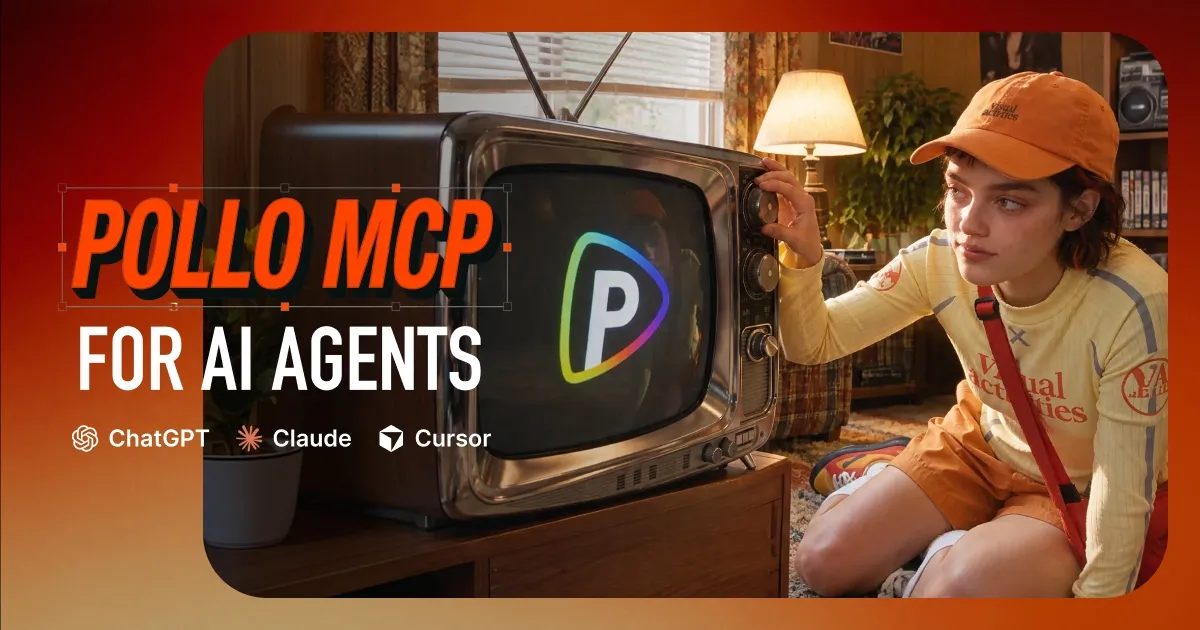
How to Set Up Pollo MCP: ChatGPT, Claude, Cursor and Grok
Before we start, you need to make sure you have an account with Pollo AI and at least one of these AI agents. If you have yet to sign up, you should do so and then follow the steps below:
How To Connect Pollo to ChatGPT:
- Sign in to ChatGPT
- Open this page and click Install plugin to be redirected to Pollo AI.
- Sign in to your Pollo account, then click ‘Connect’ to authorize the plugin.
How To Connect Pollo to Claude:
- Sign in to your Claude account
- Copy the Pollo MCP server URL: https://mcp.pollo.ai/mcp
- Click this link, then select Add → Add custom connectors.
- Name it Pollo, paste the URL, and click Continue.
- Sign in to your Pollo account, then click Connect.
How To Connect Pollo to Grok:
- Sign in to your Grok account
- Copy the Pollo MCP server URL: https://mcp.pollo.ai/mcp
- Go to this link and select New Connector → Custom.
- Name it Pollo, paste the URL, and click Add Connector.
- Sign in to Pollo AI to authorize the connection.
How To Connect Pollo to Cursor:
- Log in to Cursor and go to Settings
- Select MCP & Integrations → New MCP Server to open the mcp.json configuration file.
Paste the configuration below and save the file.
  {
    "mcpServers": {
      "pollo": {
        "url": "https://mcp.pollo.ai/mcp"
      }
    }
}- In Cursor's MCP settings, click Needs login next to Pollo and approve the connection.
Note: Once connected, you can test it with small requests to validate the tool list, estimate credits, etc. For example, “Use Pollo MCP to check my current credit balance.”
How to Set Up Pollo CLI: Claude Code, Codex, Cursor, OpenClaw and Hermes
When installing Pollo CLI, you only need to send this message to the coding agent:
Set up Pollo for image and video generation.
1. Install the Pollo CLI: `npm i -g @pollo-ai/cli`
If the global install fails: `curl -fsSL https://raw.githubusercontent.com/polloaiofficial/cli/main/install.sh | sh`
2. Install the Pollo skills: `npx skills add polloaiofficial/skills`
3. Run `pollo account status`. If the token is missing or expired, run
`pollo auth login` — it opens a browser, so stop there and wait for me to
finish signing in.
4. Show me the availableCredits from `pollo account status`.
Tell me when Pollo is ready.- After that, there’ll be a browser window that opens. Sign in to your Pollo AI account.
- Verify that the Pollo MCP setup works using a basic command like “pollo model list” or “pollo account status”.
- If it works, you should be able to proceed and generate images/video/audio.
Troubleshooting Pollo MCP/CLI: What If the Connection Fails?
If Pollo MCP does not seem to work, then I recommend first checking to see if Pollo is connected and authorized. I would start by reviewing the connected apps, plugins, or MCP settings in your AI agent to see if Pollo appears as an active connection.
If the connection is missing, then repeat the Pollo MCP setup and complete the browser authorization process again. If authorization still fails, then log out of your Pollo account, log back in, and repeat the Pollo MCP setup.
If the connection appears, you can test it by simply asking the agent, “Use Pollo MCP to check my credits,” for example. If it can check your credits, then you should be good to go.
If Pollo CLI has an issue, then I would suggest inspecting the coding agent configuration to see if pollo is on the system PATH. If authentication has failed, then run “pollo auth login” again and check “pollo account status.”
For image/video requests that fail, I recommend asking the agent to check the specific model’s requirements before generating. After all, different models support different parameters and limits, so the issue could be that the agent is sending unsupported settings through Pollo CLI.
Conclusion
When setting up Pollo MCP or CLI, I always suggest starting with a small test task to ensure everything is working smoothly before submitting more demanding requests. I also urge you to request the AI agent for a credit estimate before generating anything to avoid overspending.