
How to Use Kling 4.0 for Cinematic Videos (Step-by-Step Guide)
Learning how to use Kling 4.0 doesn't have to mean writing a complicated screenplay or adjusting every setting.
This guide breaks the process into three steps, then gives you practical reference tips and three prompts to adapt.
TL;DR
To use Kling 4.0, start with a written idea or a reference image, describe what should happen, choose the available video settings, and generate. Review the result before changing one instruction at a time.
How to Use Kling 4.0: Step-by-Step
Prepare your input, describe the scene, then generate and refine your video.
Step 1: Choose Kling 4.0 and Add Your Input
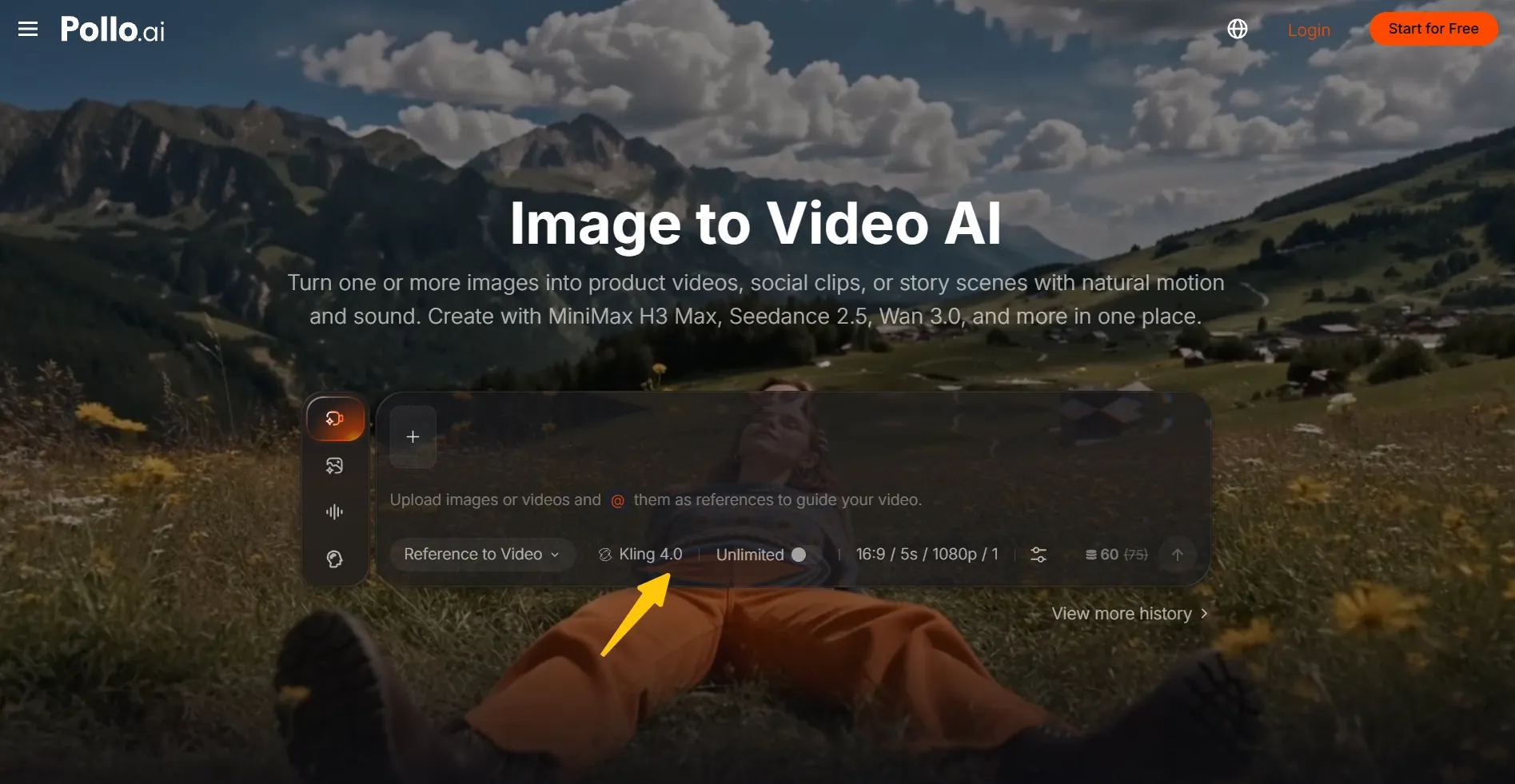
Start from the Pollo AI image to video page and choose Kling 4.0 as your video model. Upload a reference image with your intended subject and composition. This gives you a visual starting point, so you can focus on directing the movement.
Step 2: Describe the Scene and Choose Settings
Describe the main action, camera movement, and lighting in plain English. Choose the duration and aspect ratio available in your workspace. For your first attempt, keep the scene focused on one action, with enough time for it to finish.
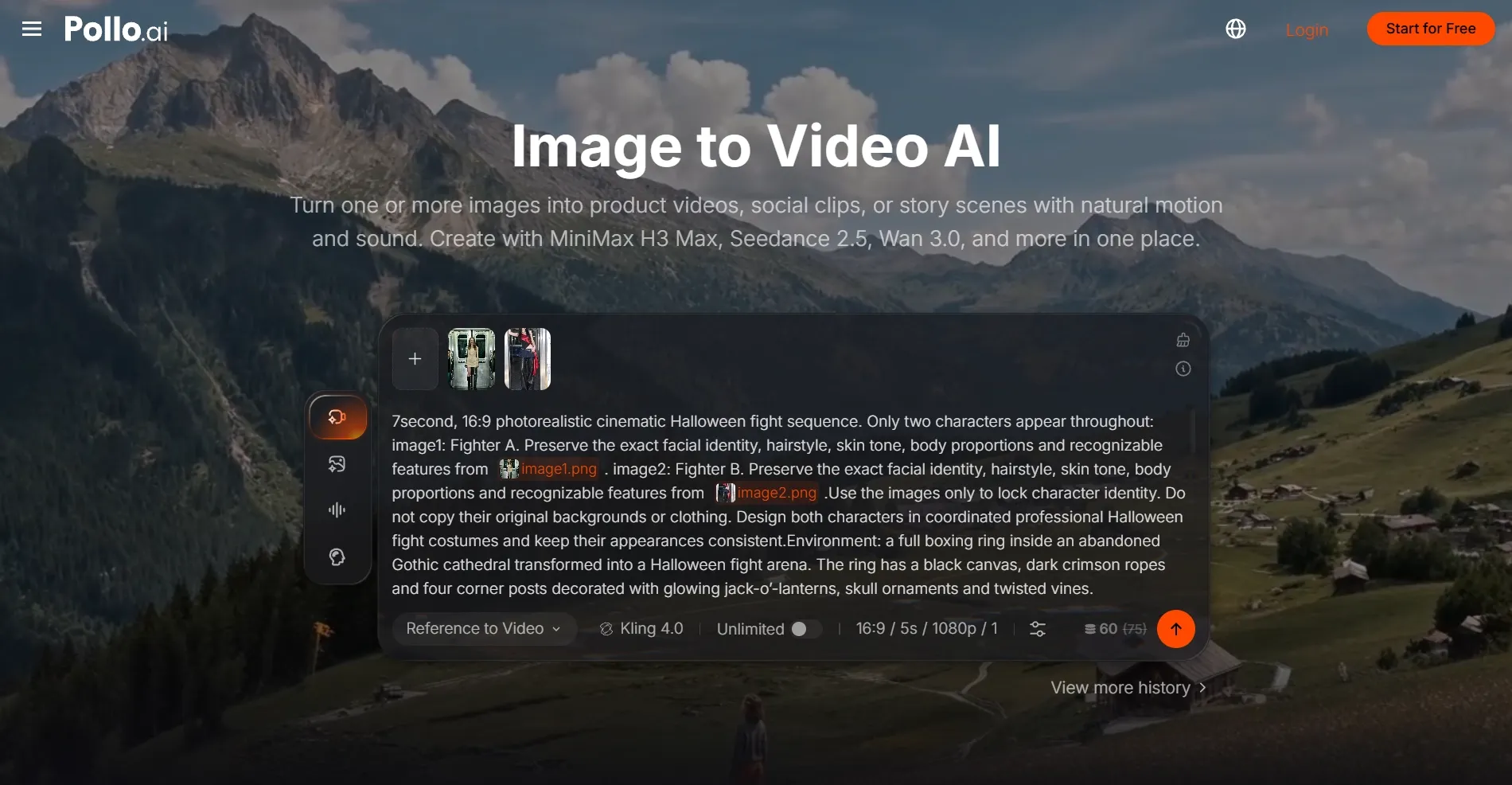
Step 3: Generate, Review, and Download
Generate your video and watch it from beginning to end. Check the subject, movement, framing, and any generated audio. If something feels wrong, revise one instruction and generate again. Download the version that best matches your idea.
What Should You Prepare Before Generating?
Prepare a short scene idea and, if appearance matters, a clear reference. You don't need a folder full of assets to begin. I would first decide what viewers should notice: a character's reaction, a product detail, or a change in the scene.
Use the starting point that fits what you already have:
| Starting Point | What to Prepare | Example |
|---|---|---|
| A written idea | A subject, setting, and visible action | A cyclist stops beside a quiet seaside café. |
| A finished image | A clear image and a description of what moves | Steam rises from a cup while the camera moves closer. |
| Several references | A specific purpose for each asset | One image defines the character; another defines the location. |
| A planned sequence | A beginning, a change, and an ending | A student notices a forgotten notebook and returns it. |
No suitable image? Use the AI image generator to create your starting frame. Describe the subject, setting, and composition, leaving enough space for the movement you want Kling 4.0 to add.
If your image needs adjustments, use our AI photo editor to change the background, improve lighting, or remove distractions. Check that the subject and important details are clearly visible before uploading the finished reference to Kling 4.0.
If you have neither a reference image nor a clear visual direction, try text to video generation to explore possibilities. Start with a simple subject and action, then use the first result to decide which details you want to develop.
How to Write a Kling 4.0 Prompt
Start with the subject, action, setting, and camera movement, then add lighting and an ending. Describe one visible event, such as a student returning a forgotten notebook. If you need inspiration, explore our best Kling 4.0 use cases for scene ideas.
If you upload an image, focus on what should move and what should stay the same. For a product shot, ask the camera to move closer while the bottle remains upright. Avoid repeating every detail already visible in your reference.
For longer scenes, describe the events in order and leave enough time for each action. Add exact dialogue and background sounds when needed. Keep camera directions consistent, and make any timestamps match the video duration you select before generating.
Keep your first prompt simple, then revise the instruction that caused the biggest mismatch. For more detailed examples and scene-specific advice, explore our Kling 4.0 prompt guide. Use it to build on the basic approach once your first scene works.
Create UNLIMITED Kling 4.0 Videos Now
Turn your ideas into compelling videos with expressive characters, dynamic motion, and sound with Kling 4.0 on Pollo AI.
Start Creating Free
Common Mistakes to Avoid
Keep the first revision focused on the instruction causing the clearest problem. These are general AI video troubleshooting suggestions, not claims that every Kling 4.0 output will have these issues.
| Mistake | What to Do Instead |
|---|---|
| Packing several unrelated events into one clip | Build around one event and its immediate consequence. |
| Asking for conflicting camera movements | Choose one move per shot or explain the order clearly. |
| Uploading references without explaining their purpose | Specify which asset guides the subject, setting, or motion. |
| Requesting a major action from a tightly cropped image | Prepare a composition that leaves room for the action. |
| Judging the result only by its opening frame | Review appearance and movement across the entire clip. |
Why Use Kling 4.0 on Pollo AI?
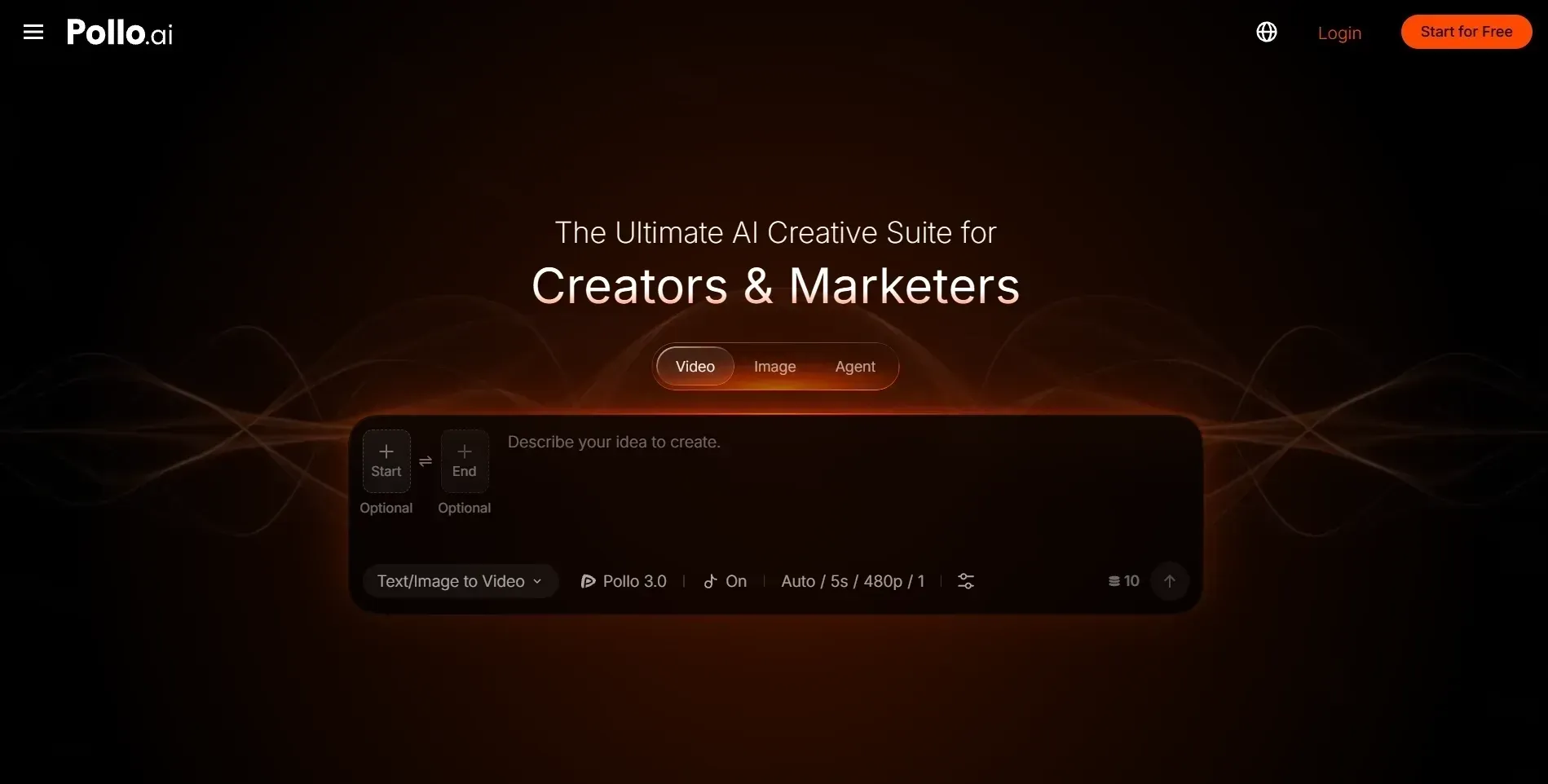
Pollo AI is the ultimate AI creative suite for creators, marketers, and sellers, bringing video, image, and audio creation into one workspace. Alongside Kling 4.0, you get leading AI models and creative tools for developing stories, product videos, and social content.
Explore More Models and Create With Pollo Agent
Access Kling 4.0 alongside models like Seedance 2.5 in one place. Try different models for the same idea, compare results, and choose the version that best fits your scene’s movement, style, and mood. For help choosing where to start, read our Kling 4.0 comparison.
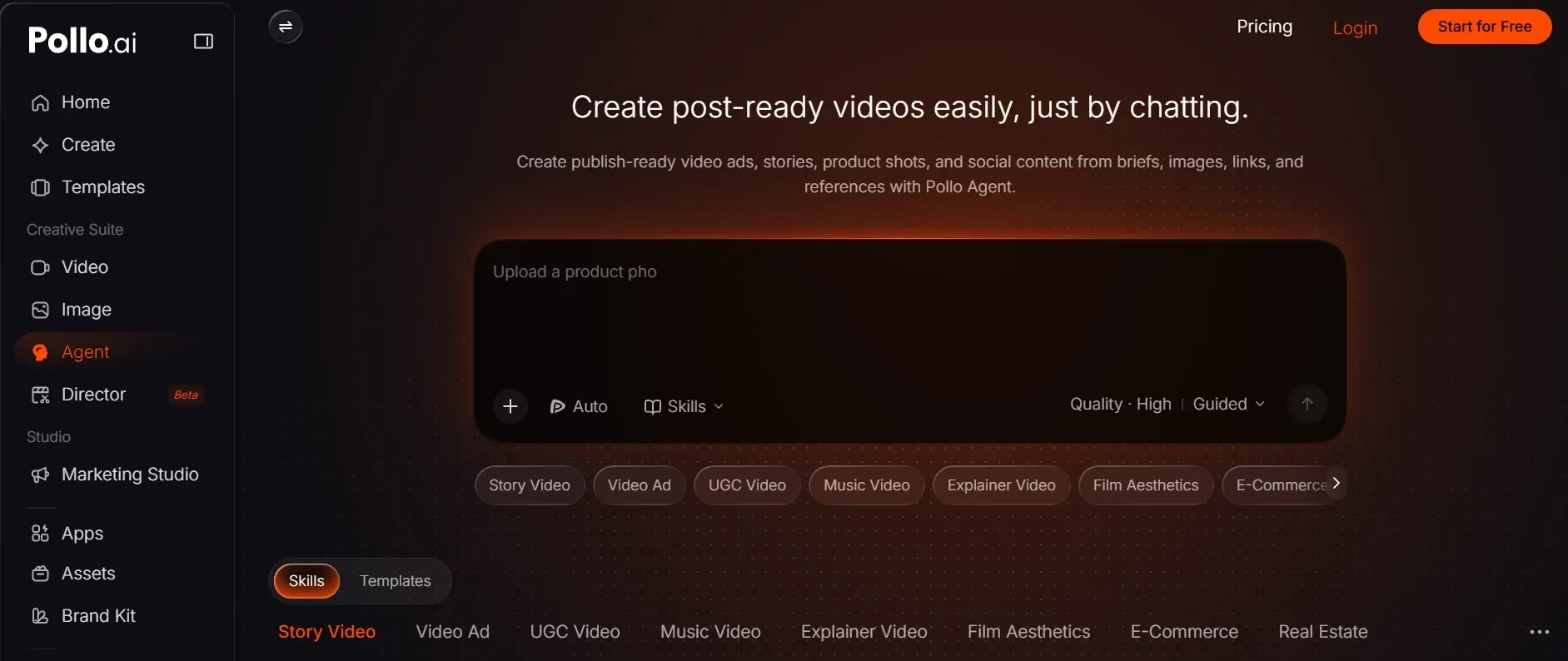
For a more guided workflow, Pollo Agent turns your brief, images, or references into a complete video. It plans the workflow and generates the assets, while you review progress and refine the direction through conversation—useful for ads, product videos, and stories.
Explore Your Film’s Look With Pollo Cinema
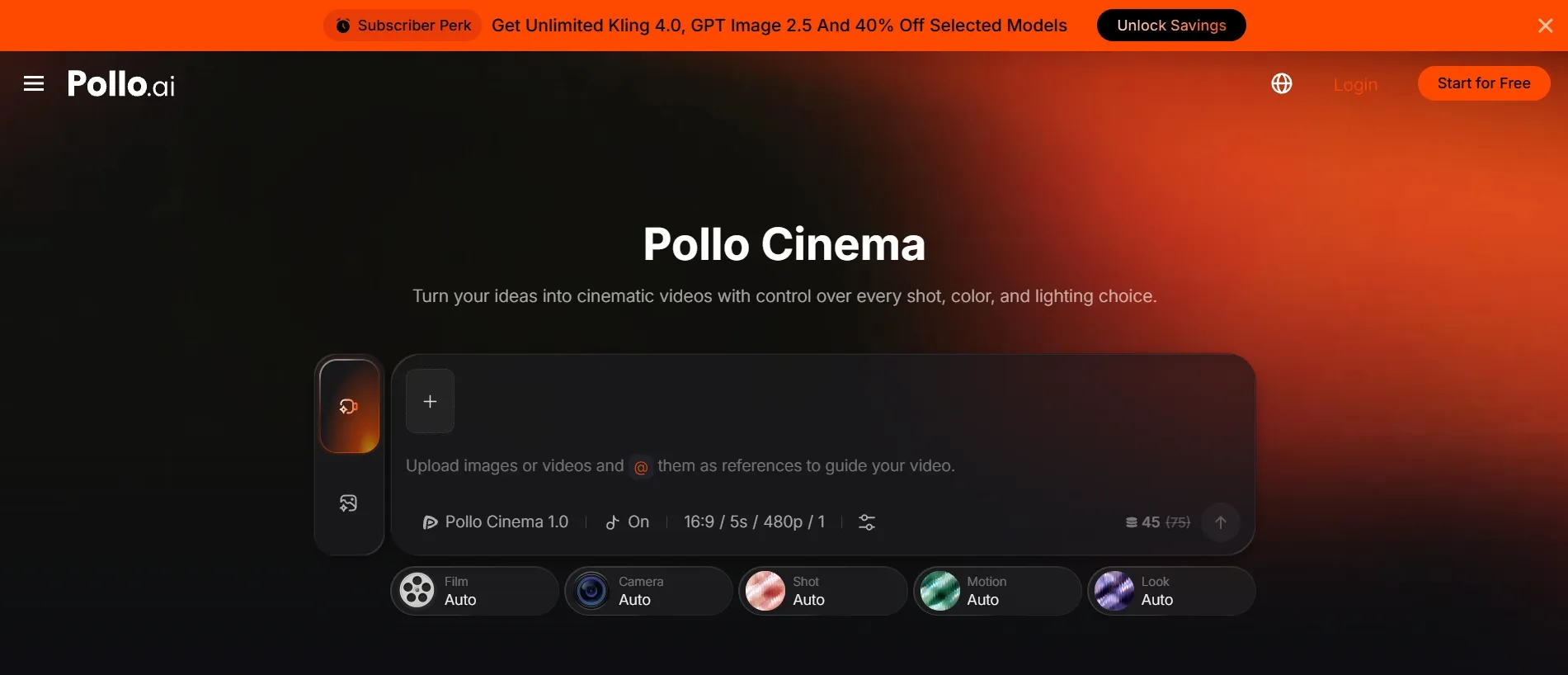
When your next scene needs more deliberate visual direction, explore Pollo Cinema. Its film presets, camera and lens controls, color grading, and lighting options help you shape a cinematic look through visual choices. It gives you another creative workflow alongside Kling 4.0.
Turn a Favorite Clip Into New Versions
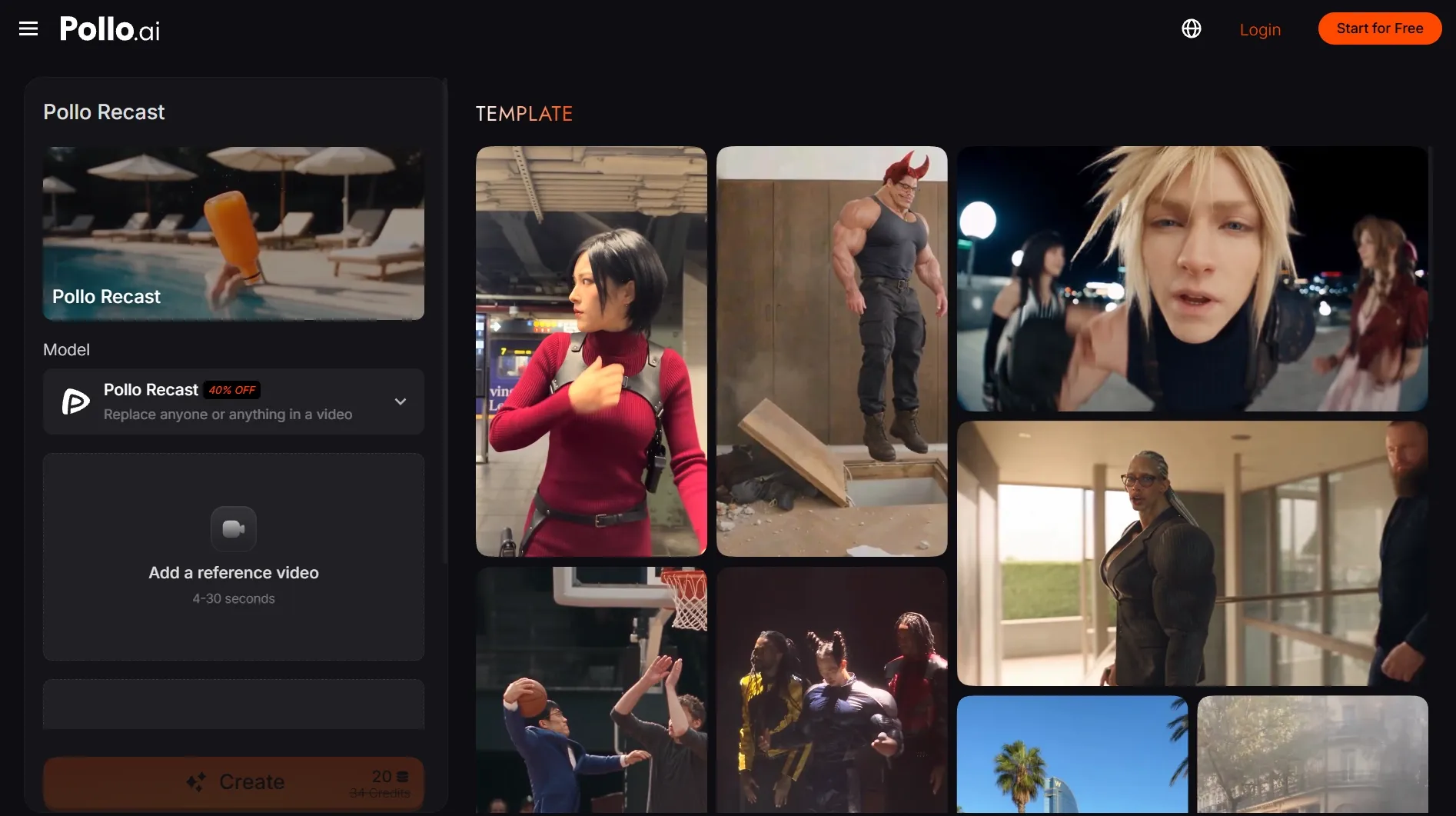
If you like a clip’s movement but want a different character or product, try Pollo Recast. Upload your source video and replacement images to recreate the scene while keeping its action, camera movement, and pacing recognizable across your new versions.
Bring Your First Kling 4.0 Scene to Life
Give that scene in your head its first take. Describe the moment you want to capture, bring your scene to life, and refine it until it matches your vision. Try Kling 4.0 on Pollo AI today!