

Claude, ChatGPT, Cursor, or CLI: Which Agent Should You Use for AI Video?
Ever wished your preferred AI assistant could do more? I think many of us would love to generate videos in ChatGPT, Claude, Cursor, etc., because it combines brainstorming, writing, and AI video production, all in one agent-driven workspace. But which of these should you connect Pollo MCP to? If you’re stuck, then sit back and let’s quickly compare them, shall we?
TL;DR
Between Claude, ChatGPT, Cursor, and CLI for AI videos, I recommend connecting Pollo MCP to Claude for developing scripted videos, while ChatGPT is best suited to broad visual testing. For Cursor, it works well for creating video assets in existing software projects. Meanwhile, CLI is meant for repeatable workflows like regularly integrating videos into sites, games, apps, etc.
Creating AI Videos in AI Agents: How Pollo MCP Can Help
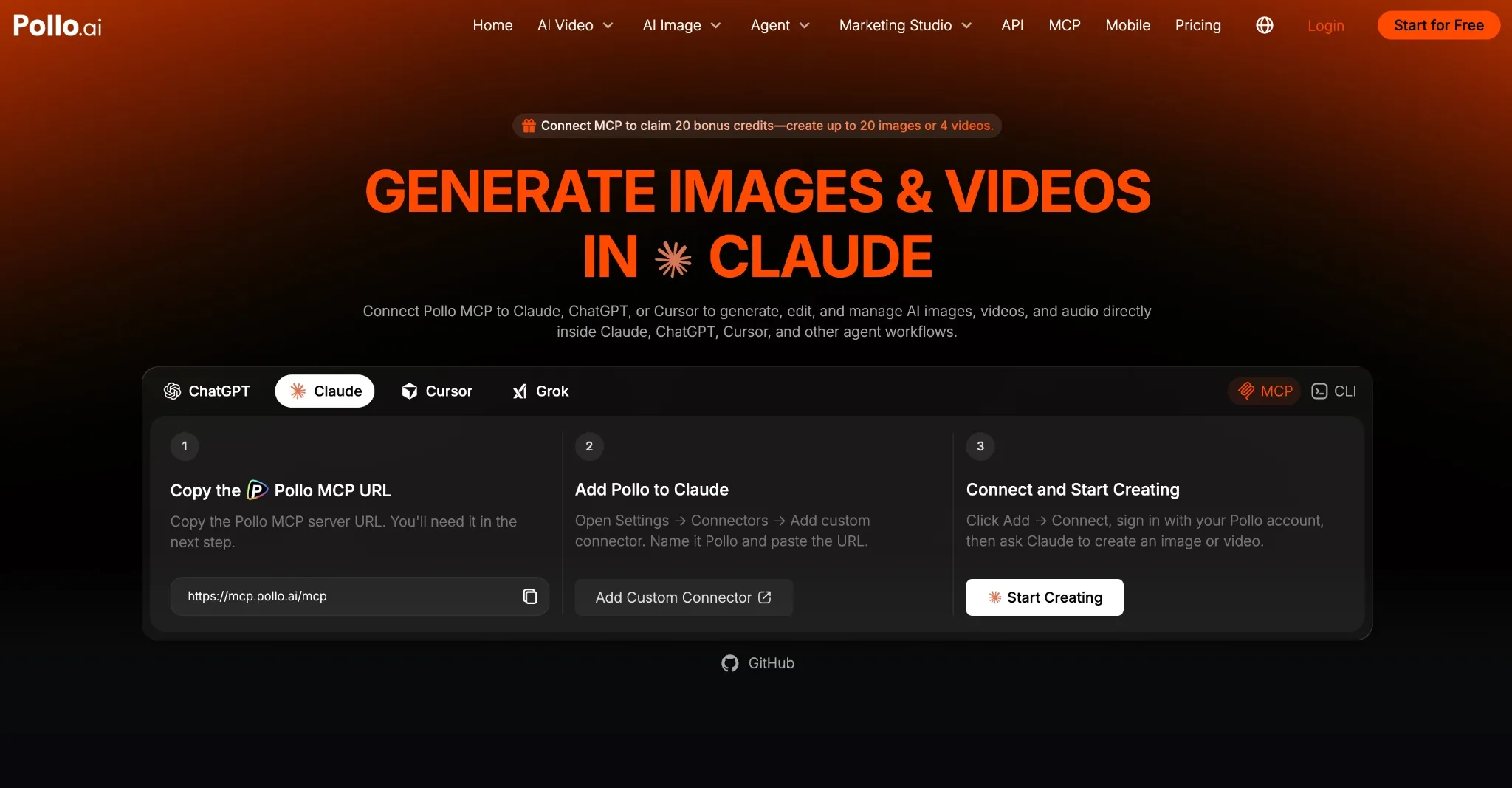
If you need some context, I’ve got you. Basically, Pollo MCP enables compatible AI agents to interact with Pollo AI’s creative tools. Once connected, I can directly generate AI videos through AI agents like ChatGPT, Claude, etc., handling the full creative workflow within the chat thread.
Sounds convenient, right? Imagine it: the same place you ask Claude or ChatGPT for help drafting a polished script can also be used to request the video. It’s like turning a simple chat station into an automated production workspace!
For example, I can give the same AI assistant a simple description of what I want to create; it’ll then build the script, select a compatible image/video model, check available credits, return character images and/or return the full video, and even help refine the results further.
In this respect, Pollo AI offers two connection modes: Pollo MCP and Pollo CLI. Pollo MCP is for compatible apps such as Claude, ChatGPT, and Cursor. As for Pollo CLI, it’s for coding agents that work from a terminal, like Claude Code, Codex, Cursor, OpenClaw, and Hermes.
Having said that, this brings us to the next question: Which of these AI assistants should you use? Ultimately, the answer depends on the type of work you intend to use it for. So, let’s explore each of them in a little more detail, shall we?
Find Your AI Video Workflow with Pollo MCP
Connect Pollo MCP to the agent that fits your creative process, from cinematic production and concept testing to development and automation.
Choose Your Pollo MCP Workflow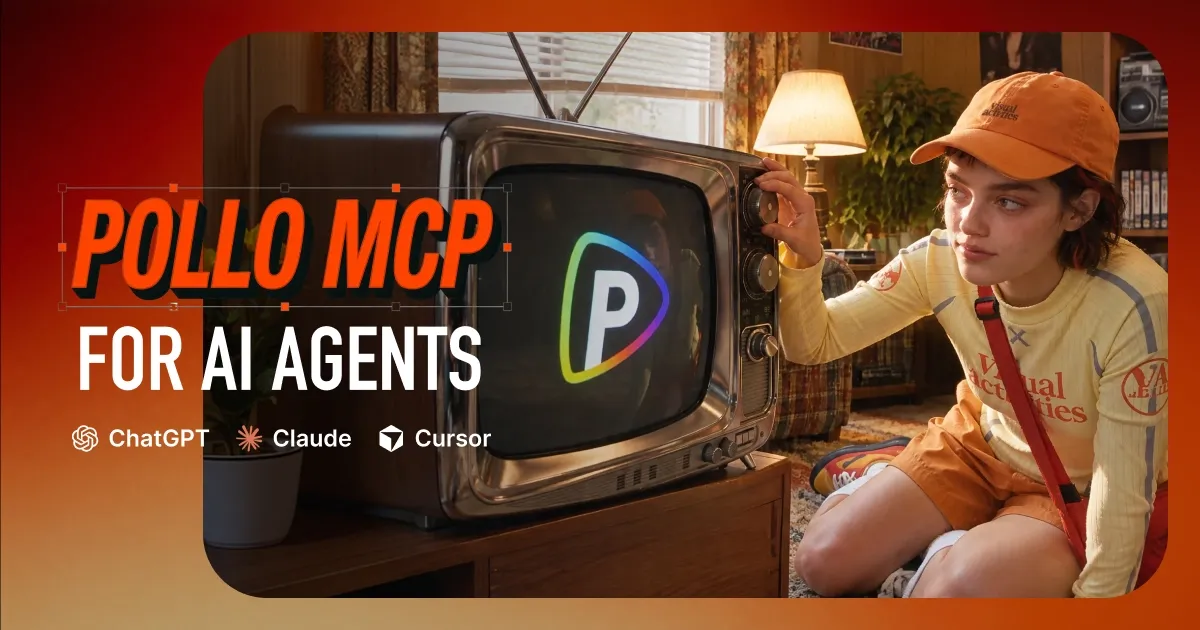
Claude: Ideal For Cinematic Production
Where I find Claude shines in this line of work is usually when I need help turning ambiguous ideas into structured production briefs. I can always rely on it to cover every key detail needed to build a scene, be it references, subject, action, motion, camera, lighting, pacing, etc.
For this reason, I think it can be particularly useful for developing cinematic shorts and character-led scenes. If these are the types of videos you intend to work on, then follow the steps below to connect Pollo MCP to Claude and get started:
- Sign in to Claude and go to Settings > Customize > Connectors.
- Click Add Custom Connector, name it Pollo, and paste this link into the MCP server box.
- After that, it will redirect you to the Pollo AI page to sign in to your account.
- Once Pollo AI is authorized, you can proceed to generate videos within Claude.
ChatGPT: Ideal For Short, Concept-Driven Videos
I recommend ChatGPT if your daily workflow already revolves around it. The Pollo MCP plugin is quite easy to install, so it really suits non-technical users. Plus, its conversational interface makes it great for refining prompts and exploring new creative directions.
Because of this, I find that it can work best for creating short, concept-driven videos like product showcases, short ads, social media clips, etc. If this is what you’re looking to create, then go ahead and connect Pollo MCP to ChatGPT by following the steps below:
- Sign in to ChatGPT, then click on this page and select Install the Pollo MCP plugin.
- After that, you’ll be redirected to the Pollo AI login page to authorize access.
- Once done, you can request video ads in ChatGPT.
Cursor: Ideal for Development-led Projects
While ChatGPT and Claude work as simple, conversation-led assistants, Cursor is more like an AI coding agent, so it works best within a development workspace. In other words, I consider it better at understanding the wider scope, structure, and assets of a website, game, app, etc.
For example, a game developer can use Pollo to generate visual content, then ask Cursor to place those files where they belong, update the relevant code, help integrate the video, etc. So, I find it ideal for video tasks related to a large project. Here’s how to connect Pollo MCP:
- Sign in to Cursor and head over to Settings.
- Select MCP & Integrations > New MCP Server to open the mcp.json configuration file.
Paste the configuration below and save the file.
  {
    "mcpServers": {
      "pollo": {
        "url": "https://mcp.pollo.ai/mcp"
      }
    }
}- In the MCP settings, click Needs login next to Pollo and approve the connection.
- After that, you’re free to start generating videos using Pollo AI in Cursor.
CLI: Ideal for Automated Content Pipelines
Unlike Pollo MCP, CLI lets coding agents like Claude Code, Codex, Cursor, OpenClaw, and Hermes access Pollo AI from a terminal rather than a chat window. I find it is best suited for projects where you need to perform the same video-production tasks consistently.
You can save prompts in files, generate multiple videos with scripts, download the results automatically, and organize them in a project folder. So, I’d mostly recommend this option to technical users who often need to repeatedly integrate videos into websites, games, apps, etc.
To install Pollo CLI, send this message to the coding agent you use:
Set up Pollo for image and video generation.
  1. Install the Pollo CLI: npm i -g @pollo-ai/cli
     If the global install fails: curl -fsSL https://raw.githubusercontent.com/polloaiofficial/cli/main/install.sh | sh
  2. Install the Pollo skills: npx skills add polloaiofficial/skills
  3. Run pollo account status. If the token is missing or expired, run
     pollo auth login — it opens a browser, so stop there and wait for me to
     finish signing in.
  4. Show me the available credits from pollo account status.
Tell me when Pollo is ready.- Sign in to Pollo AI, then you can ask the coding agent to generate videos.
Conclusion
I’d install Pollo MCP in Claude if I needed to develop a specific idea, but ChatGPT is the all-purpose agent that can pivot in different directions. With Cursor, I’d use it when the video is for an existing codebase. As for CLI, I’d choose it when I need to generate videos repeatedly.