

How to Make a Boomerang Video on Snapchat
A quick wave, jump, reaction, or product reveal can be more fun when it snaps forward and backward instead of ending once. Snapchat already has Bounce for moments you record inside the app. When the clip is in your camera roll—or needs to be posted elsewhere—Pollo AI can turn it into a reusable Boomerang-style video.
Use Snapchat Bounce or Pollo AI?
Snapchat Bounce is best for recording and sharing in the same session. Pollo AI makes more sense for an existing clip or a video you want to reuse on Instagram, TikTok, or Shorts.
| Method | Best when | What you get |
|---|---|---|
| Snapchat Bounce | You are recording a new Snap and want to share it immediately | A forward-and-back effect created and posted inside Snapchat |
| Pollo AI | The video is already in your camera roll, or you want to reuse it on other platforms | A downloadable Boomerang-style video file you can upload to Snapchat and elsewhere |
Create a Boomerang Video with Pollo AI
Turn an existing clip into a forward-and-back Boomerang with Pollo AI, then upload it to Snapchat and add your text, stickers, or music.
Create a Snapchat Boomerang Video
How to Make a Boomerang Video on Snapchat
Record a Video Snap
Open Snapchat, then press and hold the camera button to record a video Snap. Keep one action in the frame—a wave, turn, jump, or product reveal. Bounce needs a clear movement to send backward, so avoid moving the phone around the scene.
Choose Bounce
Tap Bounce and move the slider over the complete action. Leave out the pause before it starts and after it ends; those still frames create a noticeable stop at the turning point.
Preview and Share
Let the Bounce play two or three times without pausing. If your eye goes to the action rather than the turning point, add text, stickers, or sound and share the Snap.
How to Make a Snapchat Boomerang with Pollo AI
Open Pollo AI and Upload Your Video
Open the Pollo AI boomerang video maker and upload the camera-roll video. Trim it to one complete jump, wave, opening, or turn. A short section gives the model a clear start and end point for the reverse motion.
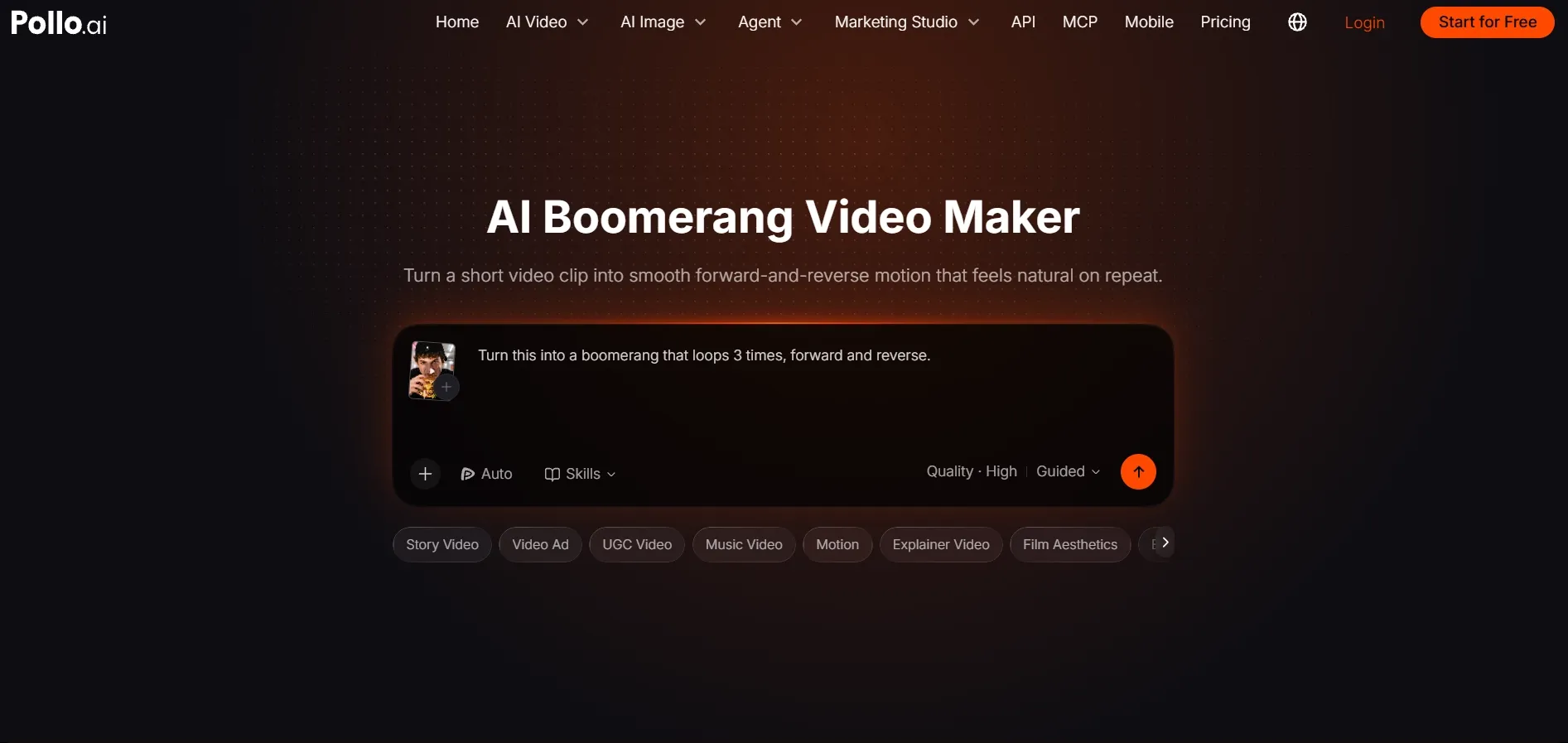
Say Which Action Should Move Forward and Backward
Describe the one action that should play forward and backward. Also say what should stay still, especially the camera and background:
Create a smooth Boomerang from this short clip. Play the action forward, reverse it naturally, and keep the subject centered. Keep the camera and background stable.
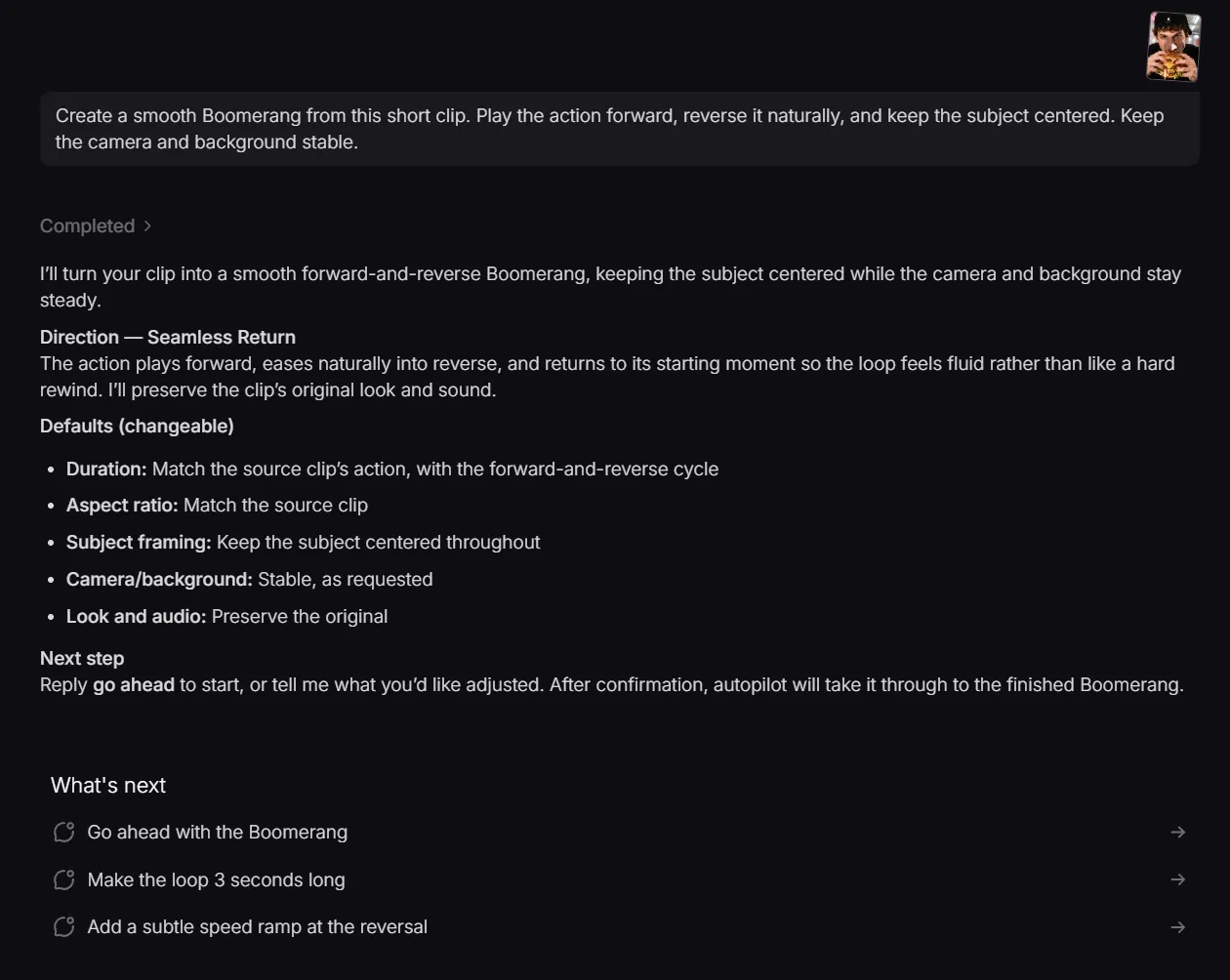
If several things are moving, name the one that matters. For example, ask the model to repeat the hand wave while keeping people in the background steady.
Check the Bounce, Then Upload to Snapchat
Play the generated Snapchat clip twice without pausing. The hand, face, or product should not jump at the turning point, and people behind it should not suddenly snap backward. If they do, shorten the action or simplify the instruction. Download the file, upload it to Snapchat as a regular video Snap, and add text, stickers, or music there.
How to Stop a Snapchat Boomerang from Looking Jumpy or Cluttered
Do not change the whole clip at once if the Boomerang looks wrong. Find the problem below, change one thing, and replay the same moment:
- Record a little before and after the action. The extra footage gives you room to place the Bounce slider or choose a complete section for Pollo AI.
- Choose an action with a clear turning point. A jump at its highest point, a product when it is fully open, or a hand at the end of a wave gives the motion an obvious place to reverse.
- Avoid important readable text inside the moving scene. Reversed text can become distracting; add your Snapchat caption after the Boomerang is ready. This keeps the message readable while the footage moves underneath it.
- Check the effect with stickers and captions in place. An overlay that looks fine on the first frame may cover the subject when the action moves. Watch a full cycle before sharing.
- Add sound after the motion works. If the original audio becomes awkward in reverse, use music or a short sound that supports the rhythm of the repeat.
Where to Use a Snapchat-Style Boomerang
These moments work without a long setup, which makes them a good fit for a quick Snap:
| Use case | Moment to capture | What the Snap shows |
|---|---|---|
| Reaction Snap | A smile, wave, double take, or quick expression | Friends get a second look at the expression without a longer recording. |
| Product teaser | An opening, reveal, swipe, or turn | The product opens or turns twice, so the detail is easier to catch. |
| Dance or trick | A jump, spin, gesture, or landing | The clip repeats the strongest part of the move. |
| Cross-platform short | A centered action with a clean background | The reusable file can carry the same moment into TikTok videos or YouTube Shorts. |
| Travel or event Snap | A toast, sign reveal, landmark gesture, or crowd reaction | The toast or reveal plays twice without turning into a full event recap. |
Snapchat Boomerang FAQs
Will Snapchat treat a Pollo AI Boomerang as a Bounce?
It uploads as a regular video Snap because the forward-and-back movement is already part of the file. Snapchat text, stickers, and music can still be added before sharing.
Should a Snapchat Boomerang be vertical?
Vertical is the safest choice for a Snap or Story. Keep the action near the center, with space at the top and bottom for Snapchat's interface.
Can Snapchat Bounce be used on a photo?
Bounce works with video Snaps, not a still image on its own. To start from a photo, create the movement with the Boomerang Video Maker first, then upload the finished video to Snapchat.