


How to Make a Video with Photos on iPhone: 3 Practical Ways
A birthday album, a few vacation pictures, or a favorite portrait can become a video without recording new footage. You can arrange photos into a movie with music, edit their timing yourself, or add movement inside a still image. This guide walks through three ways to do it on your iPhone, from choosing your photos to sharing the finished result.
| Method | Best for | What you create |
|---|---|---|
| Photos | A quick family or travel recap | An automatically arranged memory movie |
| iMovie | Controlling photo order, timing, and text | A manually edited photo video |
| Pollo AI | Adding movement to a still picture | An AI-generated video clip |
Before starting, choose a small set of clear photos. For a first project, try eight to twelve pictures from one event. Remove near-duplicates and decide which image should open the video and which should close it.
1. Create a Memory Movie in Photos
The built-in Photos app is a convenient starting point when you want a photo montage with music. You can play an existing memory or create an album containing the pictures you want to use. Apple supports turning an album into a memory movie, so you do not have to wait for Photos to suggest one.
Read more: Apple's guide to memory movies
The navigation below follows the Collections layout in Photos. Menu names and locations may differ on older iOS versions.
Put Your Pictures in an Album
Open Photos > Collections > Albums, then tap + > New Album. Name the album, add your chosen pictures, and complete the creation steps. A descriptive name, such as "Weekend at the Beach," makes it easier to find later.
Read more: Apple's guide to creating photo albums
Play the Album as a Movie
Open the album and tap the Play button. Photos turns the collection into a memory movie with music.
Watch it once before making changes. Check whether it includes the moments you care about and whether the pacing suits the pictures.
Adjust the Music and Length
Tap the screen while the movie plays to reveal its controls. Open Memory Mixes, then use the music button to choose another soundtrack.
Under the More menu, you may also see Short, Medium, or Long, depending on how many photos the movie contains. Changing the length can change which pictures appear, so review the result afterward.
Read more: Apple's guide to customizing memory movies
Share the Movie
While the memory movie is playing, tap the screen, open More > Share, and choose a destination such as Messages, Mail, or AirDrop. Share from the movie's playback controls; selecting pictures in the album shares those individual files.
Read more: Apple's guide to sharing memory movies
This method works well for a quick recap. If you need each photo to remain onscreen for a specific amount of time, use iMovie.
Make a Video with Photos on iPhone Using Pollo AI
Bring an iPhone photo to life with Pollo AI and create an animated clip for your next travel recap, birthday tribute, or photo video.
Make a Video with Photos on iPhone
2. Edit a Photo Video in iMovie
iMovie gives you a timeline where you can arrange pictures and adjust how long each one appears. It is useful for a birthday tribute, a trip recap with captions, or a photo sequence that needs a deliberate order.
Start a Movie Project
Open iMovie on your iPhone, installing it from the App Store first if needed. Tap Start New Project > Movie, select your photos, and tap Create Movie. Use Media > Albums if you want to find the album you prepared earlier.
Read more: Apple's guide to starting an iMovie project
Arrange the Photos and Set Their Timing
Touch and hold a photo in the timeline, then drag it into position. Tap a photo to select it and drag its yellow trim handles to shorten or lengthen its appearance.
Read more: Apple's guide to arranging clips in iMovie
As a starting point, give a simple image about two or three seconds. Leave a group photo or a picture with a caption onscreen longer. Play the sequence back rather than assuming every image needs the same duration.
Check the Framing
iMovie applies a Ken Burns effect to photos, which creates a slow pan or zoom. Review each image to make sure the movement does not crop out someone's face or an important detail. Adjust the effect or turn it off where a stationary image works better.
Read more: Apple's guide to adjusting photos in iMovie
Add a Title and Soundtrack
Select a photo and use the Titles controls to add text. A short opening title or a location caption is often enough.
For music, tap Add Media (+) > Audio > Soundtracks. Preview a track, then tap Add Audio to insert it. Play the whole video again to check whether the music suits its pace.
Read more: Apple's guide to adding titles in iMovie and Apple's guide to adding soundtracks in iMovie
Save the Finished Video
Tap Done, then open the Share menu and choose Share Video or Save or Share Video, depending on your app version. Under Options, choose an available resolution; 1080p is a practical starting point for everyday sharing. Select Save Video to put the exported movie in Photos, or Save to Files to choose a folder.
Read more: Apple's guide to exporting iMovie videos
3. Animate a Photo with Pollo AI
Sometimes you want movement within the picture: waves rolling toward a beach, curtains shifting beside a window, or steam rising from a cup. An image to video generator can create that kind of motion from a still image and a written instruction.
Pollo AI provides this workflow, along with an iPhone app. Start with one picture and one simple action so the result is easy to evaluate.
Upload a Clear Photo
Open Pollo AI on your iPhone and choose its image to video tool. Upload the picture you want to animate.
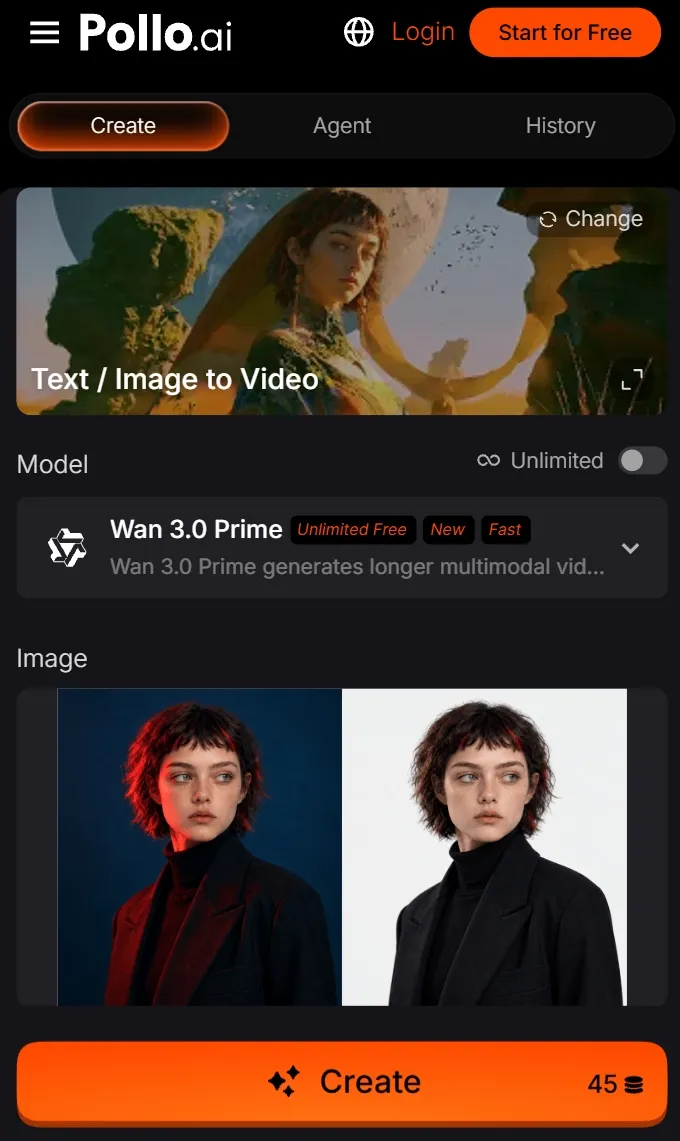
For a first attempt, use a scene with an obvious subject and room for movement.
Describe What Should Move
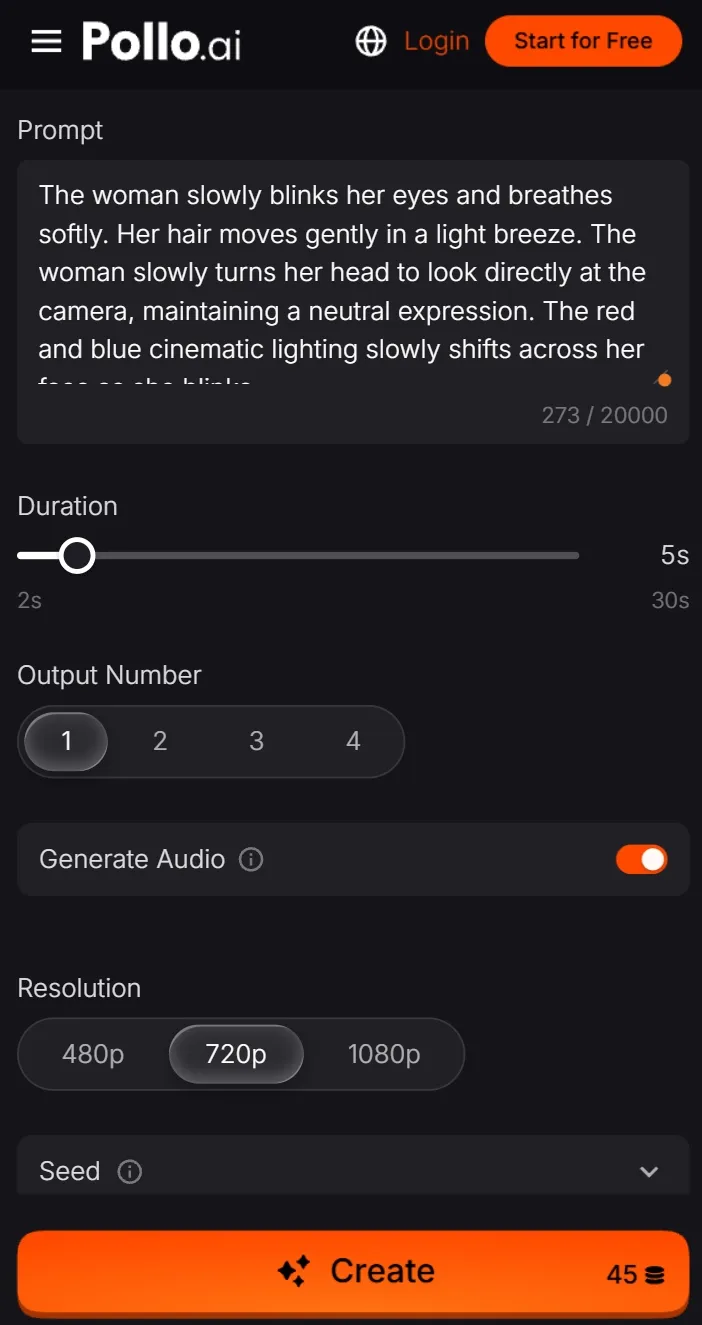
Write a prompt that explains the movement you want.
Treat this as a direction for the generation, rather than a guarantee that every detail will remain unchanged.
Generate and Review the Clip
Check the available settings and any credit requirement before generating. Create the video, then watch the entire result.
Look for specific problems: a bending horizon, objects appearing unexpectedly, or movement that feels too fast. If the result is distracting, simplify the prompt and try a smaller motion.
Download the Result
Download the version you want to keep. If you want a longer video built from several photos, generate the individual clips and assemble them in iMovie using the previous method. You can then add captions, music, and still images between the animated shots.
This workflow creates new motion based on your photo. It does not recover footage of what actually happened when the picture was taken.
For your first project, choose a small set of photos and finish a short video before adding more effects. Watch the exported file once on your iPhone to check the framing, pacing, and sound before sharing it.