


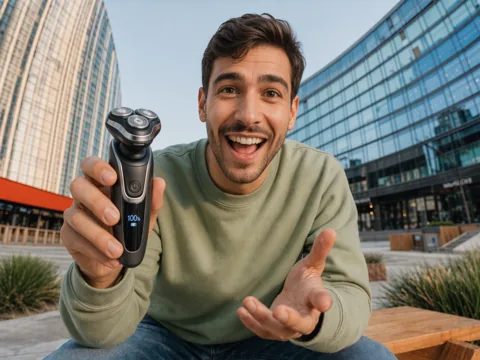
How to Enhance Sora AI Video Quality for Free
A Sora clip can look fine in a small preview but turn soft, grainy, or washed out after download or editing. Before sharpening the whole frame, find the first flaw people will notice at normal playback size. Pollo AI's Video Enhancer lets you work on that problem first, then compare the result with the original.
What Should You Fix First in Your Sora Video?
Play the clip once at the size you plan to publish it. The first problem that catches your eye is the one to fix first.
| If this is your video | Look closely at | Best next step |
|---|---|---|
| A social close-up with a soft face | Eyes, hairline, skin texture, mouth, and captions | Improve the face first with the face enhancer. |
| Course or presentation | Small text, diagrams, and interface details | Make the words readable at the size the audience will actually see. |
| Product video | Product edges, label, surface texture, color, and reflections | Improve sharpness and color without changing how the product looks. |
| An animated clip | Linework, flat color areas, and frame-to-frame movement | Use the anime video enhancer for illustrated or animated footage. |
| A clip for a large display | Fine detail after the clip is enlarged | Continue with the video upscaler when a larger output is the main need. |
| Grain or blocky compression | Shadows, walls, skies, and smooth gradients | Reduce noise and compression blocks before adding more sharpness. |
| Washed-out color | Skin tone, product color, highlights, and dark areas | Correct color balance and contrast before making another pass. |
Once that problem improves, play the clip again at normal size before making another change. This helps you stop before the image begins to look overprocessed.
Enhance Sora AI Video Quality with Pollo AI
Upload your original Sora clip to sharpen soft details, reduce visible noise, and review the result before downloading.
Enhance Sora AI Video Quality
How to Enhance a Sora Video with Pollo AI
Open the Video Enhancer
Open the Pollo AI video enhancer. Starting with the original Sora export gives the enhancer more detail than a clip that has already been compressed several times.
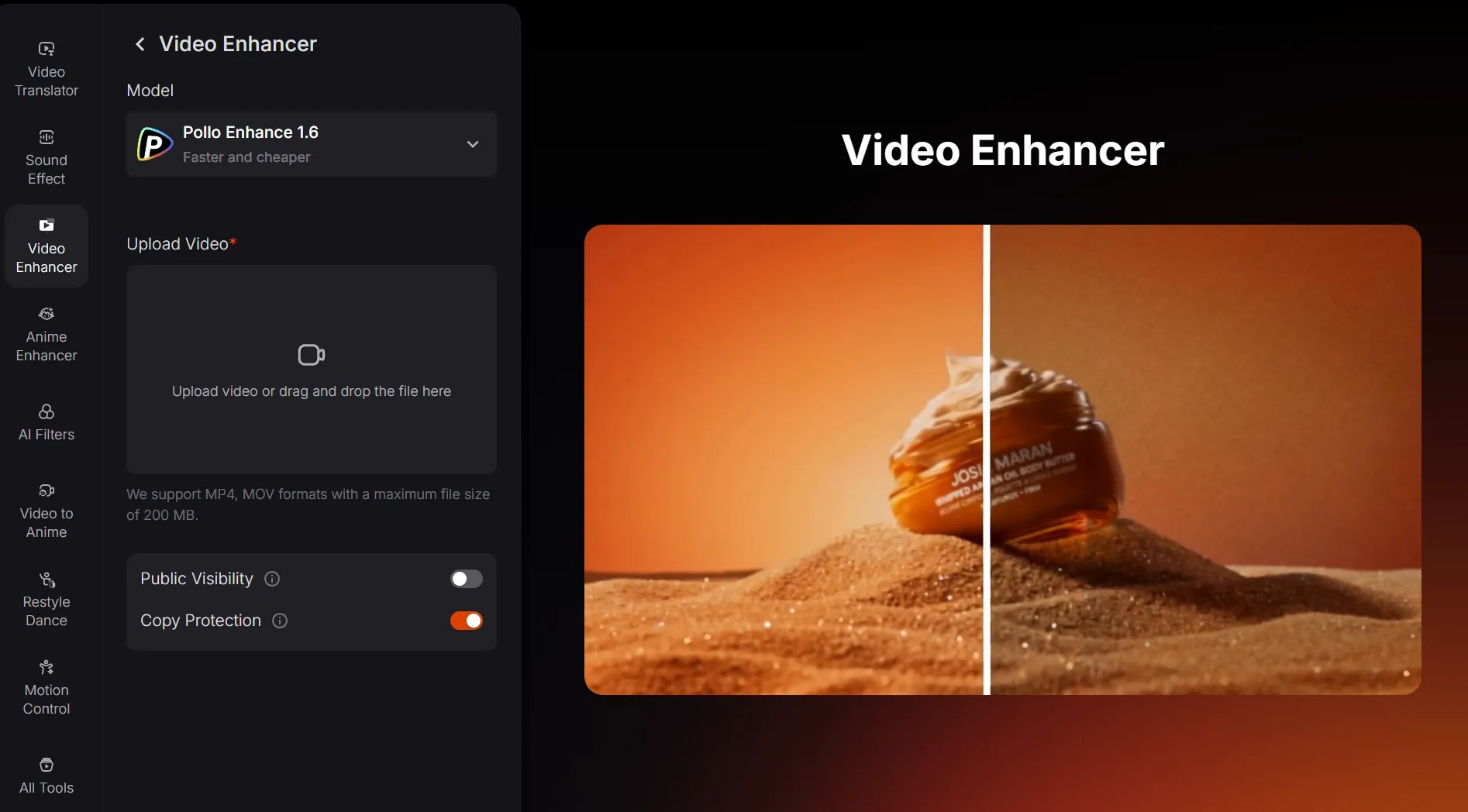
Upload the Original Clip and Pick One Problem to Fix
Upload the original export when possible and keep its aspect ratio and frame rate.
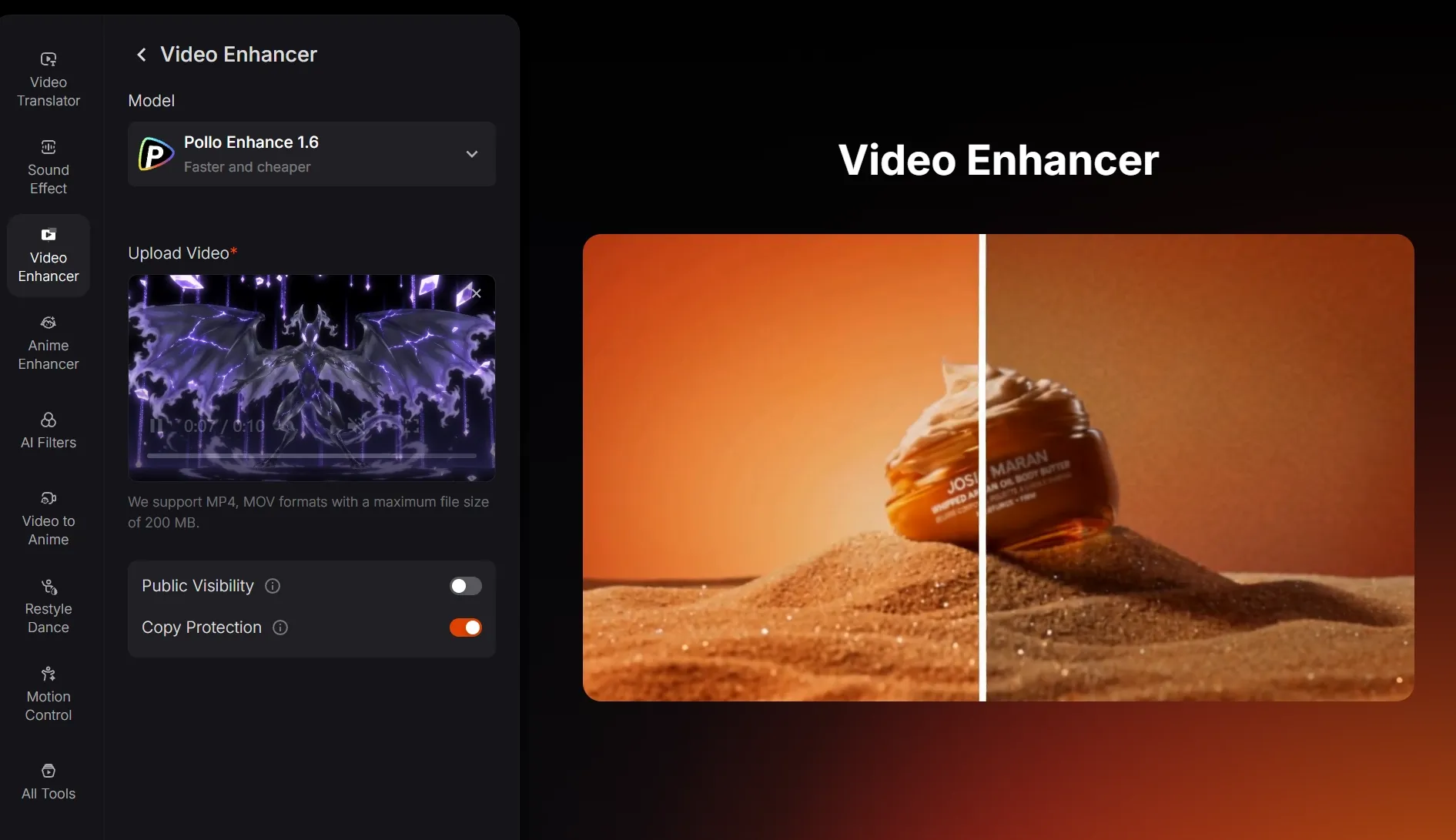
Compare the Same Frame, Then Download
Pause the original and enhanced videos on the same frame, then check the face, text, product edge, or background area you wanted to fix.
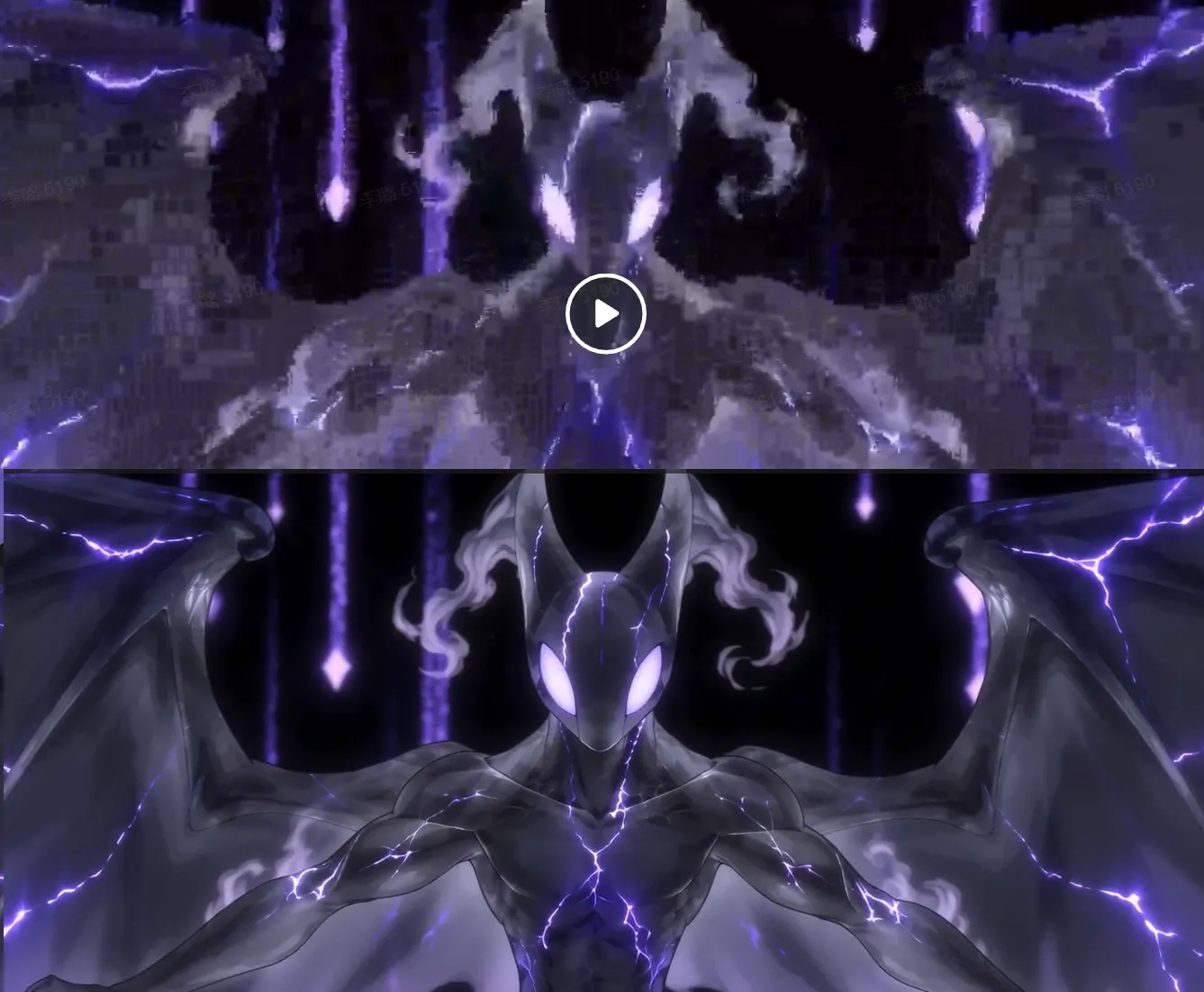
- Check the publishing size. Fine sharpening can look impressive while zoomed in but harsh in a social post or presentation.
- Remove grain before adding sharpness. If shadows or skies look noisy, denoise the video first. Sharpening noisy footage can make the grain stand out more.
- Look at skin, hair, fabric, and product surfaces. They should look clearer, not waxy, brittle, or unnaturally smooth.
- Change the style afterward. First finish the quality cleanup. If you also want a different look, use a video to video transformation as a separate step.
Download the video when it looks clearer during normal playback, not only on a paused frame. Add cuts, text, or effects afterward.
Sora Video Enhancement FAQs
Can I enhance only one section of a Sora video?
Yes. Trim the section in the video editor, then upload that shorter clip. This saves you from processing scenes you will remove later.
How can I keep several enhanced Sora clips consistent?
Keep the same aspect ratio and apply the same main correction—such as noise cleanup or added clarity—to every related clip. Compare them side by side before editing them together so one shot does not suddenly look sharper or more saturated.
Should I keep the original Sora video after enhancing it?
Yes. Keep the original export as a master file. You may need it to test a different balance of sharpness, noise, or color, or to prepare another output size later.