How to Use Pollo Motion To Create Fluid Motion Graphics: A Quick Tutorial
Facing an important presentation? Need a compelling marketing ad? Relax. Instead of manually crafting slideshows or paying for photoshoots, you can use Pollo Motion to make a statement.
Just picture it! No need for design experience, complex editing, stock footage research, etc. You can now instantly create high-impact clips with smooth motion effects in just a few clicks!
Interested in knowing how? In this simple tutorial, I will break down what Pollo Motion can do and how you can use it, step-by-step. So, sit back and let’s quickly sum it all up in detail.
What Does Pollo Motion Do?
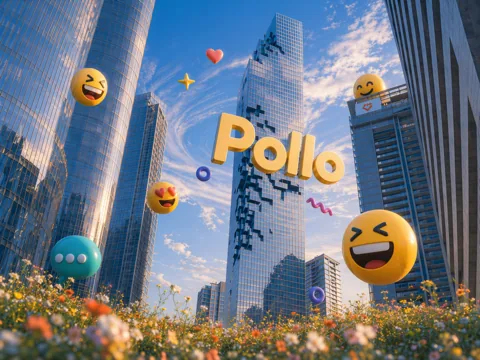
Designed to produce smooth motion effects, Pollo Motion lets you turn simple prompts or reference URLs into animated motion graphics for text, images, charts, and more in minutes.
Simply put, you can go from idea to polished motion visuals without dealing with production overhead, video rendering queues, or even hiring design experts to help.
What’s more? You can freely customize the videos, giving you room to test and use unique motion styles like spring/bounce, ease-in/ease-out, fade/gradient, etc.
Best of all, Pollo Motion is versatile, catering to all manner of use cases. For instance, you can use it to animate graphs, flowcharts, infographics, explainers, etc, with kinetic typography.
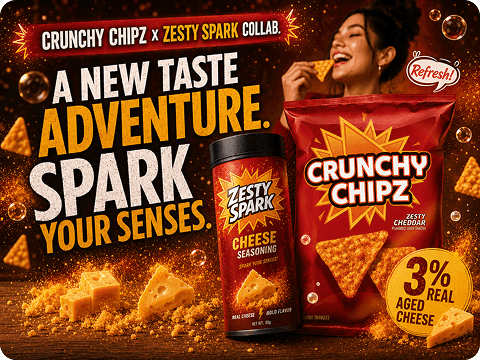
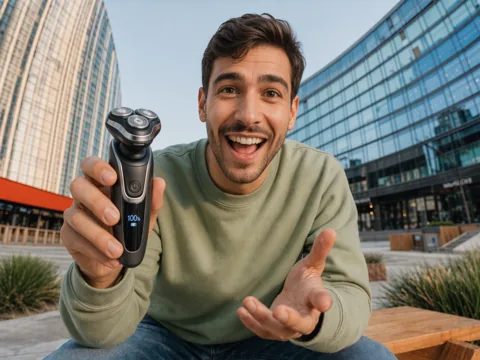
It can also help you create viral-worthy GIFs, promotional ads, product reveals, and other social-ready content by adding motion to still product images, posters, model photos, etc.
So, how does it work? It’s pretty simple.
How To Use Pollo Motion For AI Motion Graphics?
Simply follow the steps outlined below to start animating your ideas for impact:
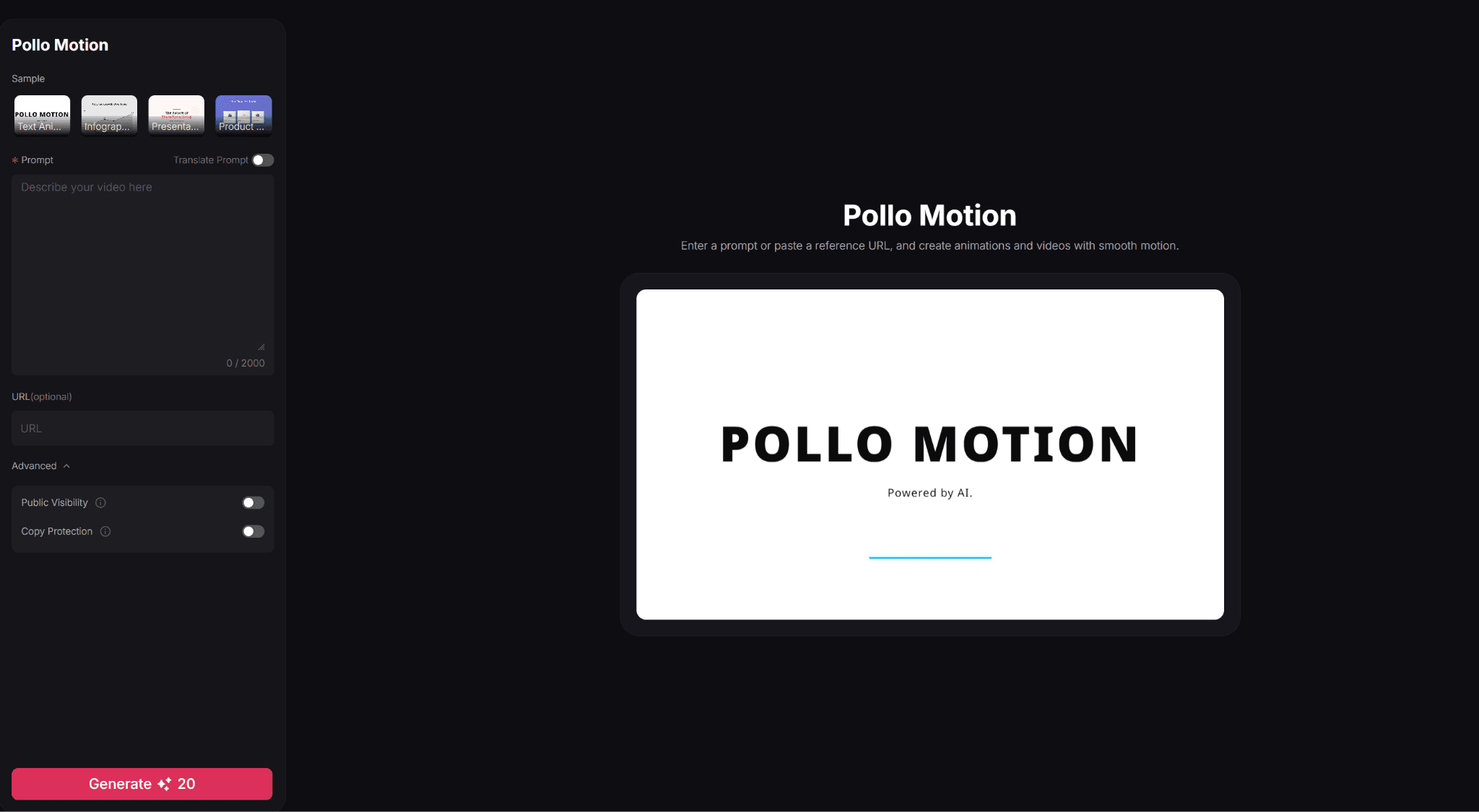
Step 1: Access Pollo Motion
Once you sign up/log in to Pollo AI, head over to the Pollo Motion page to start creating eye-catching animations for social posts, presentations, and promos.
Step 2: Input Detailed Prompt
From here, input a text prompt describing the motion graphic. Be sure to mention every element in detail, like the text, data, font, colors, styles, background, motion directives, etc.
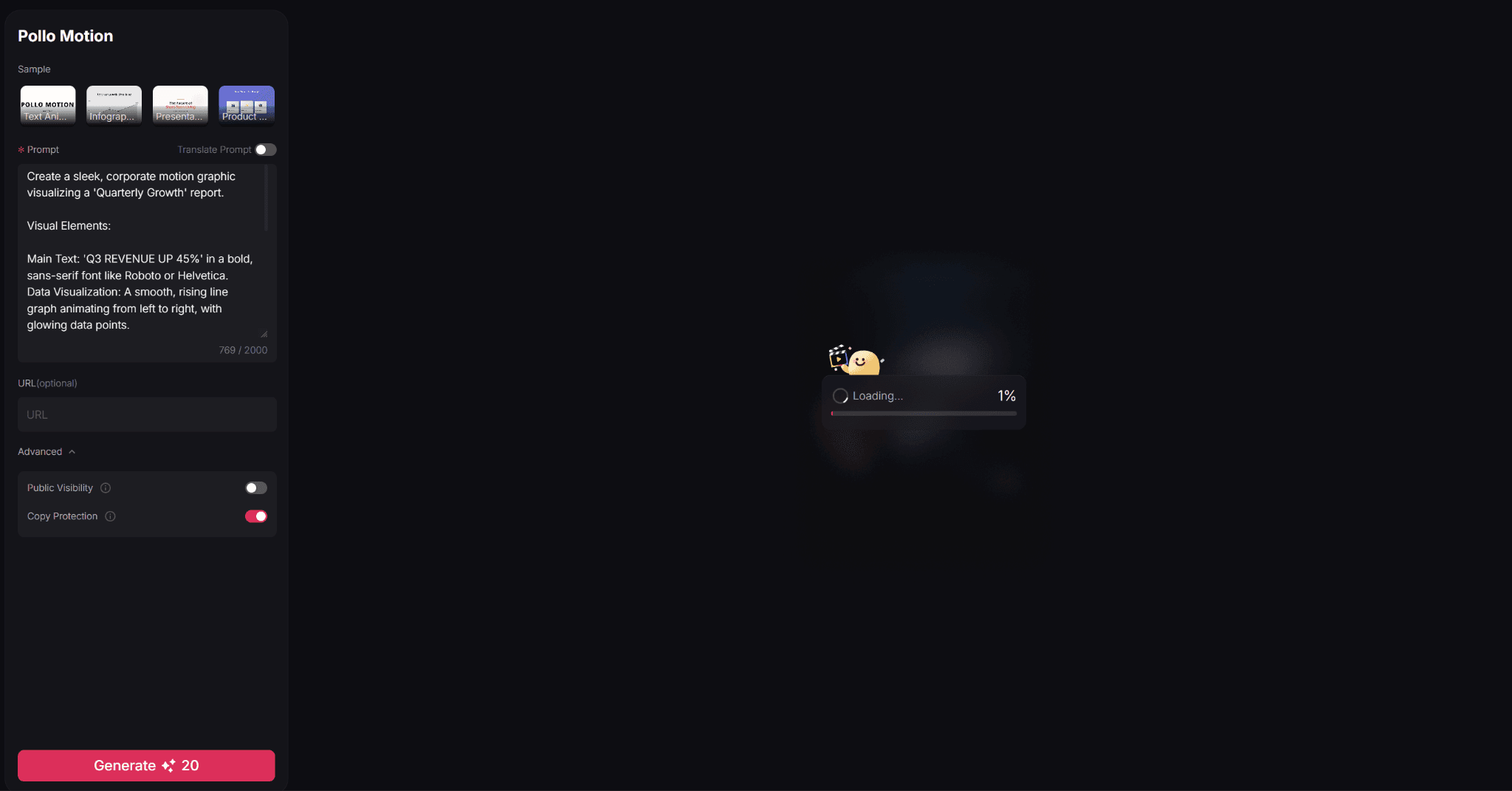
Step 3: Paste Reference URL (optional)
If there’s a specific image or short video you want to reference, feel free to paste in the webpage link. You can describe how you want to animate the selected media asset in the prompt box.
Step 4: Generate Motion Visual
Click ‘Generate’ and be patient while your motion graphic is prepared for download. Once ready, you can share it online or refine the visual by editing the prompt and repeating the process.
Conclusion
Whether you’re a content creator, influencer, marketer, educator, or casual user, Pollo Motion can help transform your ideas and static media into captivating animations. All it takes is a few clicks to give audiences a reason to pause, reflect, and engage. Try it for free on Pollo AI now!