
Synthesia Review: I Tested Synthesia and Here Is What I Thought
Recently, I gave Synthesia a try to see how good its video generation features are.
The core functions of Synthesia include creating realistic avatars, AI voice generation, and making high-quality video content.
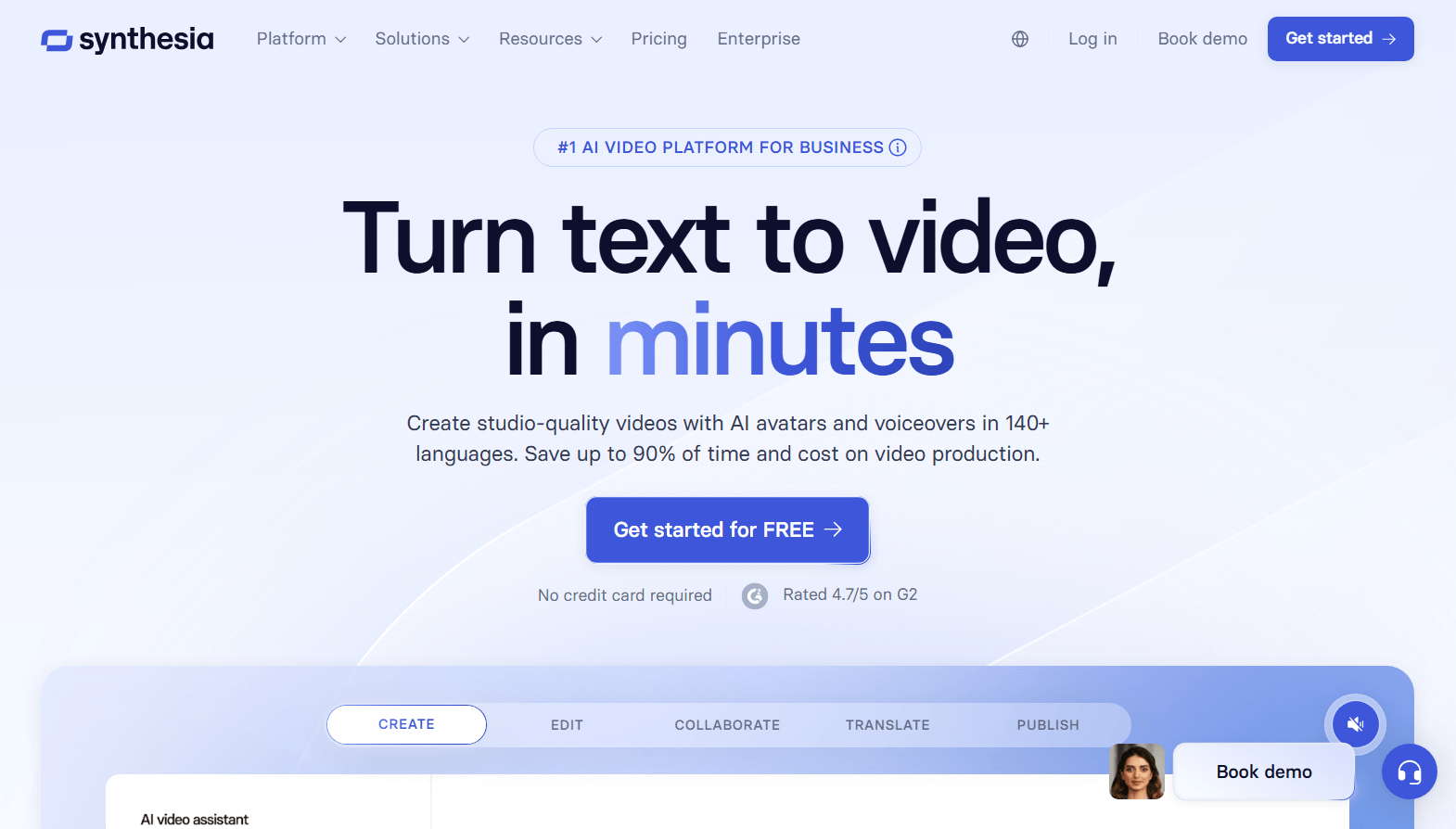
After several rounds of tests, I found Synthesia excels in generating avatar videos. It simplified the process of avatar video making.
From choosing avatars to adding background music, it provided abundant presets and templates, while allowing me to customize the avatar video to the greatest extent.
I tested the video generation process with different script lengths and found that even complex text can be integrated within a reasonable time frame.
In the following sections, I will share how I tested its avatar video-making process. I’d like to share my output with you, and you’ll see how this tool can make a difference in your workflow, benefiting content creators, educators, and businesses.
AI Avatar
I chose to start from a blank, rather than directly applying its video template.
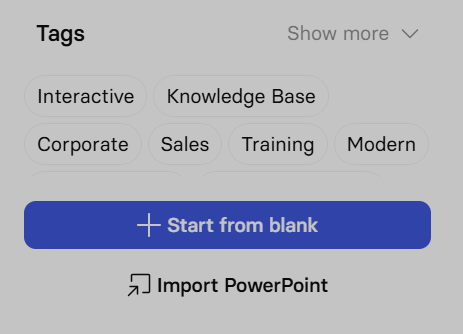
Firstly, I need to set an avatar as the speaker. Thanks to Synthesia’s AI avatars, I could choose from 200+ hyperrealistic avatars. Each is designed to suit various purposes and industries.
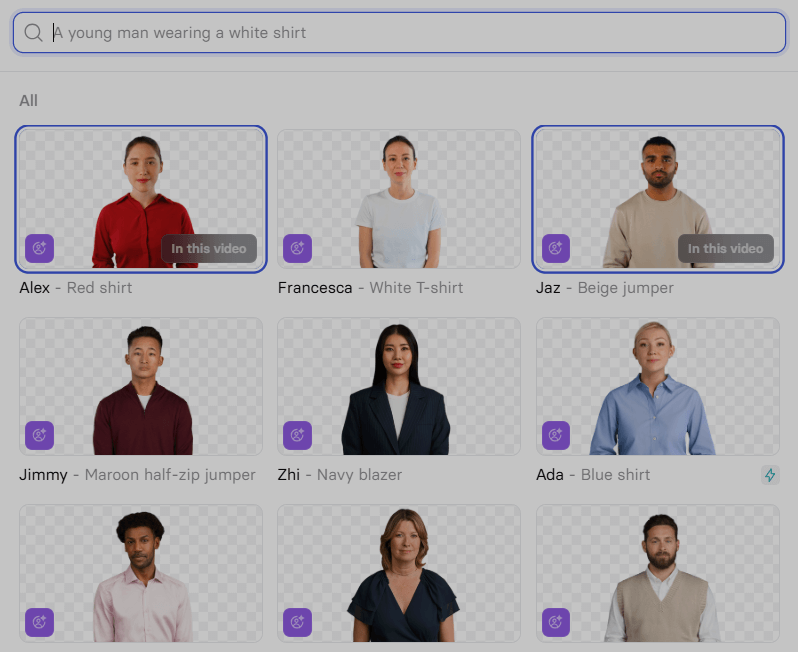
I was impressed by the diversity of the avatars, which cater to different demographics and aesthetic preferences, and it was amazing that I could drag the avatar to manually resize and locate the speaker.

These avatars are highly realistic, with natural expressions and movements that make them feel almost human. This was so helpful that I didn’t need to show up in the video presentation.
Also, every avatar has a special voice. To my surprise, they were real voices instead of AI ones. More importantly, I could hear his or her voice and play the script before applying it to my video. This was also important to me because I didn’t want to present my real voice in some cases.
To get started, I chose a female, put her in the middle of the video, and then I entered the script:
Let’s use a picture to get a better sense of it. The traditional rendering is what I look like behind my back. It used a lot of perspective and imagery to achieve a realistic effect. Although it seems very real, we still can’t be there.
After adding the title, subtitle, and a building background video, I clicked the Generate button to initiate the process.
Here is the video for the AI avatar:
Overall, I was satisfied with the initial video output. Her mouth movements and facial expressions could fully match my script.
Notably, the avatar was well integrated into the picture, without any trails around the border. Also, she nodded her head now and then, showing a positive attitude to the audience.
Customize My AI Avatar
Then I wanted to customize my AI avatar by uploading a photo. In this case, I decided to upload a real person’s photo from my computer. Instead of using a preset avatar, I wanted to see whether it could handle the speaker’s voice, intonation, gesture, and emotional expression in a realistic character.
In the script box, I entered another text:
This is a presentation about AI architectural rendering shows. Hope you can find it interesting there. Here we go.
To make the voice more in line with the character, I also tested the voice customization options. I adjusted the pronunciation, pacing, and emphasis of the speech.
Here is the video for customizing my AI avatar:
The output was impressive. My avatar could speak as I wanted. Remarkably, his fingers could respond to his speaking, and the fingers wouldn’t become deformed when they were moving. However, I didn’t like the borders of the character’s picture. Although it removed the original background of the avatar to make it more integrated into the video, it maintained the borders.
Integrate Various Scenes
Finally, I want to highlight its ability to integrate different scenes. I could switch the scenes by changing the video background. Synthesia offers preset backgrounds, and I can also upload my images or videos as backgrounds.
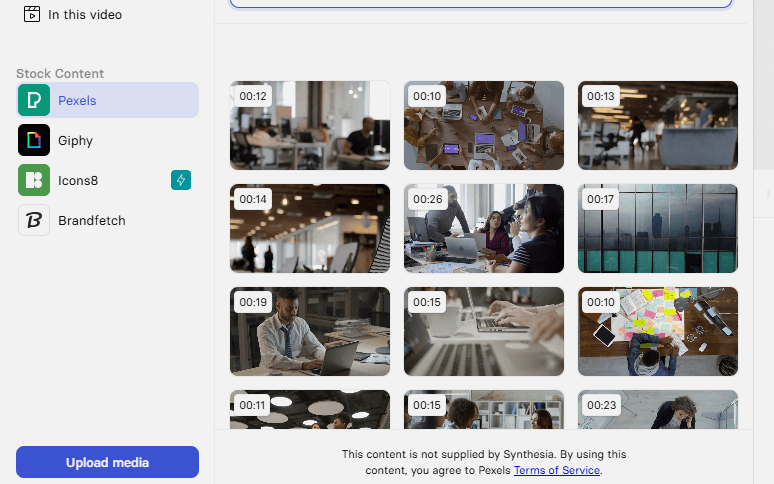
By adding multiple scenes, I could merge different themes, content, or perspectives into a single video to make the video more diverse.
The output was more like a screen recording of a PPT video presentation. Despite adding scenes manually, I could also import my PowerPoint in one click. Thus, I don’t need to show up in my video presentation.
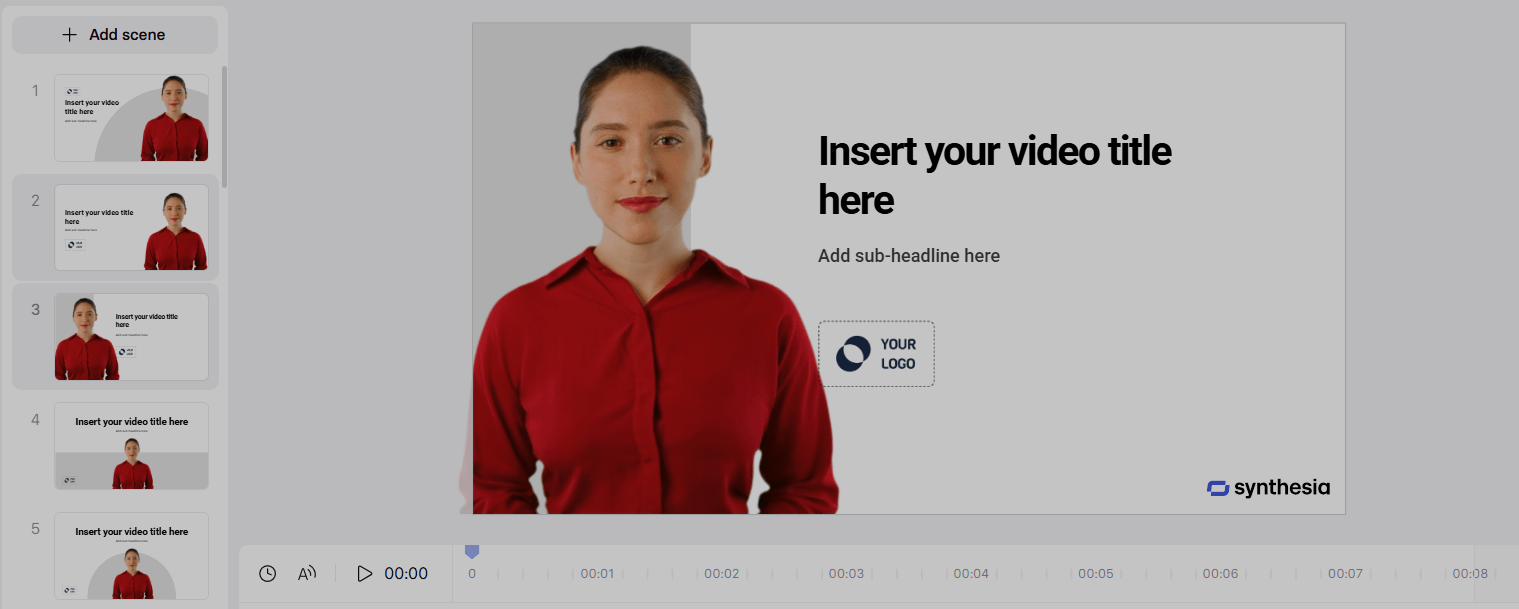
Moreover, Synthesia offers many transition effects, such as “fade” and “slide” effects, to enhance the flow and visual appeal of my videos. They enhance the flow and visual appeal of my videos.
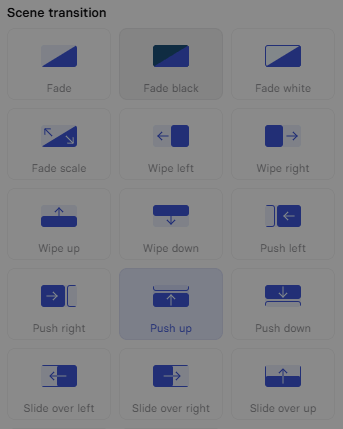
To cover different scenes, I wrote different manuscripts for different scenes. To see if the transition was smooth, I changed the scene in almost every single sentence.
- Let’s look at the renderings using AI.
- In an AI scenario, you can be unconstrained by time, space, and who you are.
- For example, if you want to see a building during the day.
- You changed the scene today.
- If you want to see a building at night, you can change the scene to below the Milky Way.
- If that’s not enough for you, you can even fly anywhere in the building to experience the design details from every angle. Isn't that amazing?
- This is the intelligence of AI. Thanks for watching.
Overall, the transition effects were smooth and impressive. It could switch between different scenes. Meanwhile, the speaker could show his facial expressions based on the content and could naturally move his hands like a real person.
Here is the video for integrating various scenes.
Nevertheless, it’s also obvious to see the errors. The change of scenes lags a little behind his words. In other words, it remained the last scene when he was talking about the next scene. This lagging issue could influence the viewing experience, and it could become a big problem if it were a longer video.
Video Templates and Customization
Synthesia provides me with many built-in video templates that I can select and modify. I can adjust parameters such as AI headshots, background images, speech speed, tone of voice, and even the speaker’s facial expressions.
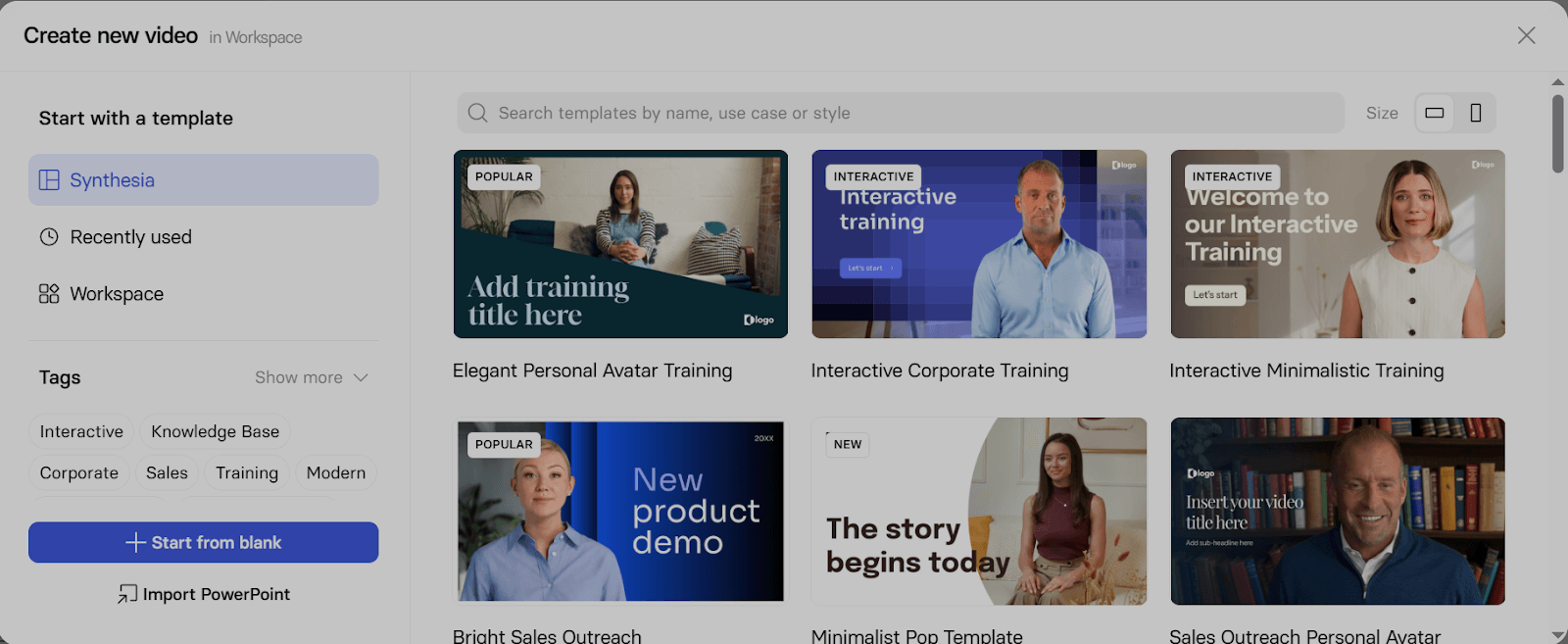
With Synthesia, I can convert text ideas, PPT, PDF and websites into videos according to pre-set templates without the need for cameras, microphones and actors. This has greatly reduced the threshold of video production and saving time and cost.
What I Think About Synthesia
As far as I’m concerned, Synthesia has simplified the process of generating an avatar video. From preset avatars to transitions between two scenes, I think Synthesia is ideal for making promo videos, product demonstrations, video training content, and so on.
However, I should also mention two problems I met in the tests. One was that it might maintain the frame after I uploaded an avatar photo from my computer. The background of the uploaded avatar was expected to be completely removed.
The other problem was that the scene and the audio were out of sync. When adding several scenes in one video, the scenes might lag behind the speaker’s voice. This would influence the audience’s watching experience.
Moreover, when using Synthesia to make a video presentation, the output is less flexible than a screen recording. As the background is a preset one, it cannot create the same lively and realistic atmosphere as a real person’s presentation recording. Nevertheless, if you want to generate multiple video presentations in a limited time, it’s worth trying Synthesia.
Try Pollo AI for Your AI Avatar Video Generation!
Looking for something better than Synthesia to make lip-synced AI avatar videos? Check out Pollo AI! It's a great alternative that might work better for what you need.
With Pollo AI's AI avatar video generator, you can easily turn your photo into a video avatar with just a few simple clicks.
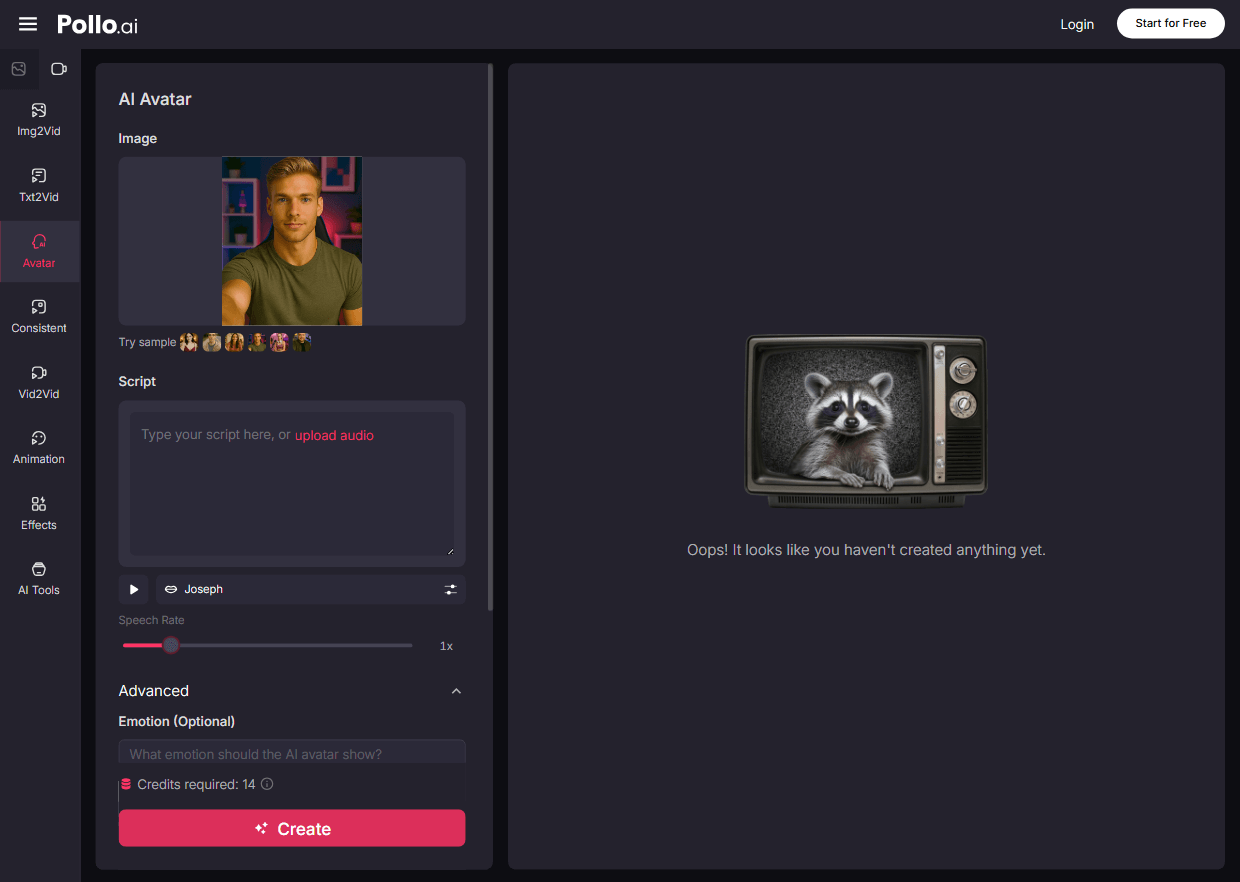
Unlike AI avatar videos from many other generators, the ones from Pollo AI move naturally and have realistic expressions, just like real people do. This makes your videos look much more professional and engaging.
Also, you can try our AI product avatar for professional marketing content.
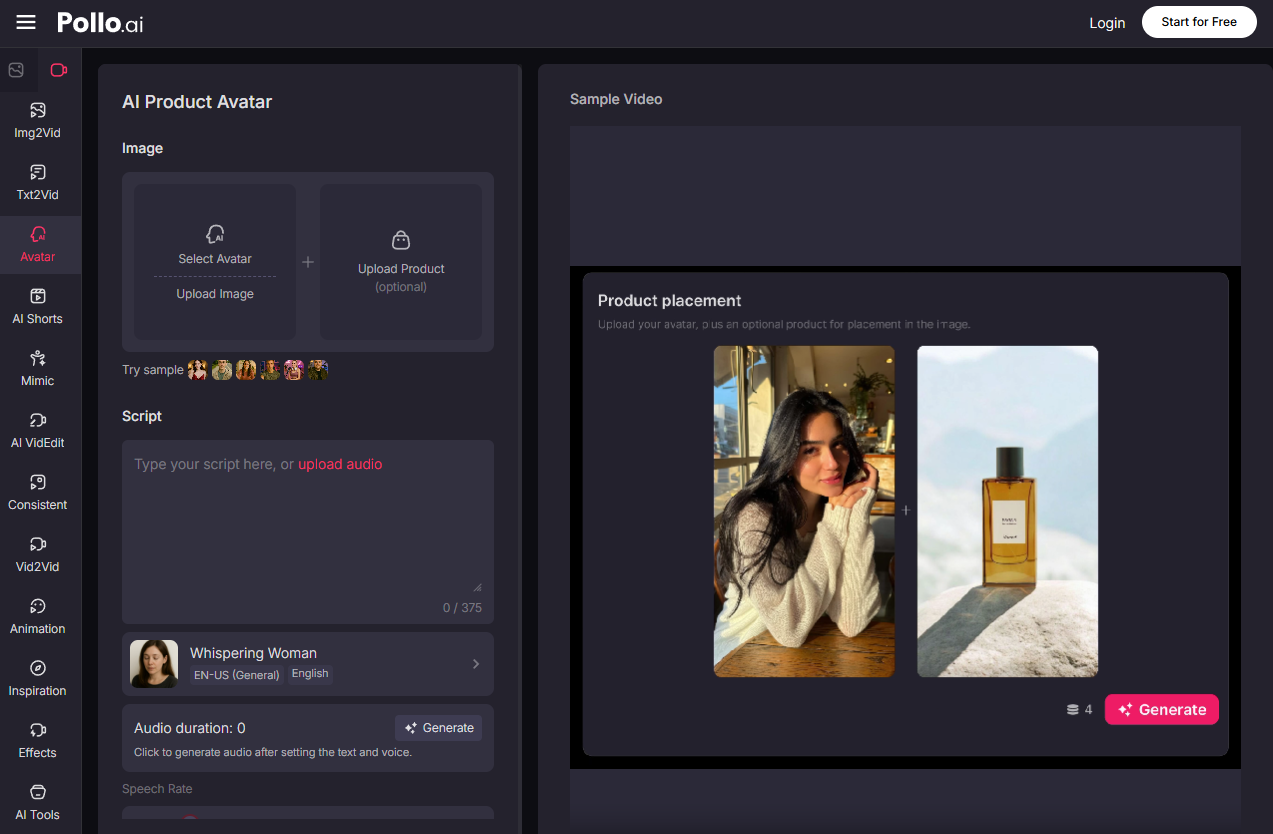
Whether you are using an AI avatar or an AI product avatar, Pollo AI comes with lots of different voices to choose from. And you can even customize the emotion of the voice. This means you can have the perfect speech that matches the personality of your avatar or the tone of your message.
More than avatar video creation, our platform also gives you a powerful AI video generator that can create stunning videos from any input.
You can use our text to video AI to transform your scripts into beautiful visual stories, or leverage our image to video AI to animate any static image. And for quick, engaging social media clips, our AI short video generator delivers professional results instantly.
If you want to create different video styles with simple prompts, try Pollo agent. You can make such videos as UGC ads and story videos. With simple and efficient workflow, you can create professional videos in less time.
Pollo AI is a truly all-in-one AI creation platform that can help you save time and money while enabling you to complete your creative projects.
Conclusion
In my opinion, Synthesia is a good choice to make avatar videos if you don’t want to show your face in your video presentation. More than lip syncing, the avatar can respond to your script by nodding, moving hands, and showing facial expressions.
But Synthesia is not the only AI tool that is good at AI avatars. If you're looking for something better than Synthesia, just take a look at Pollo AI!