What Is Pollo Cinema? Create Cinematic Videos Your Way
Have a scene in mind but struggle to make it real? Pollo Cinema helps you create cinematic videos with more say over framing, camera movement, lighting, and color.
What Is Pollo Cinema?
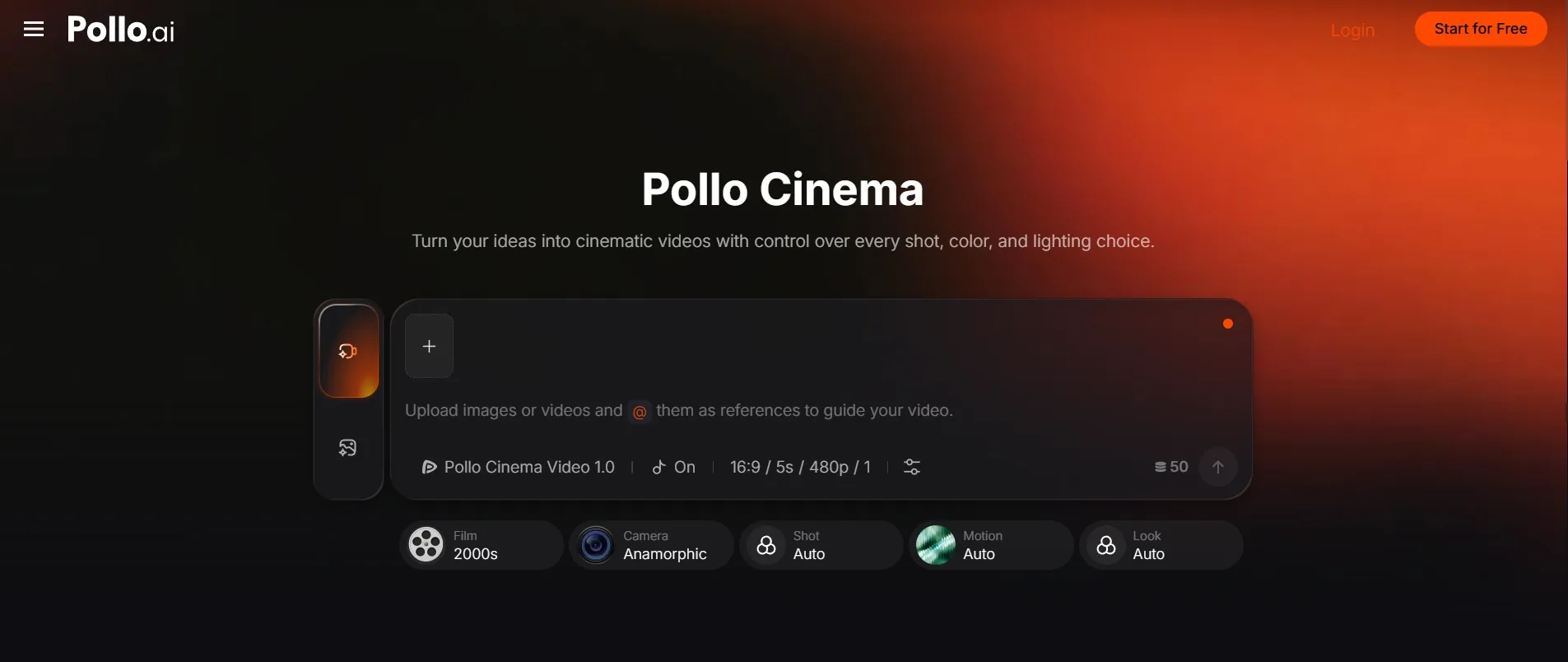
Pollo Cinema is an AI cinematic video generator from Pollo AI. It brings film settings, framing, camera and lens choices, lighting, and color grading into one workspace, helping you turn an idea into a deliberately styled shot.
Its focus is one cinematic shot or image at a time. You might create an opening for a short film, a character portrait, or a product reveal. Each generation gives you a visual building block for a larger creative project.
Your prompt describes the scene, your references guide its visual details, and your settings shape how it is presented. These choices work together during generation, so you can direct the look without writing every filmmaking instruction into your prompt.
See what a scene created with Pollo Cinema can look like, and imagine how you could bring your own characters, settings, and ideas to the screen.
Create Your Next Cinematic Scene
Bring your vision to life with our Pollo Cinema. Add references, choose your look, and direct every shot.
Create With Pollo Cinema
What Makes Pollo Cinema Worth Trying?
1. Bring Your Characters and Worlds Into the Scene
References give Pollo Cinema a visual starting point for your characters, locations, costumes, and props. This cinematic video generator supports up to 50 references, so you can show the details that matter to the scene you have in mind.
For a fantasy character reveal, you could bring in your AI character, along with outfit and landscape references. This gives Pollo Cinema clearer visual guidance for your character and world than a text description alone.
2. Give Your Scene a Direction With Film Presets
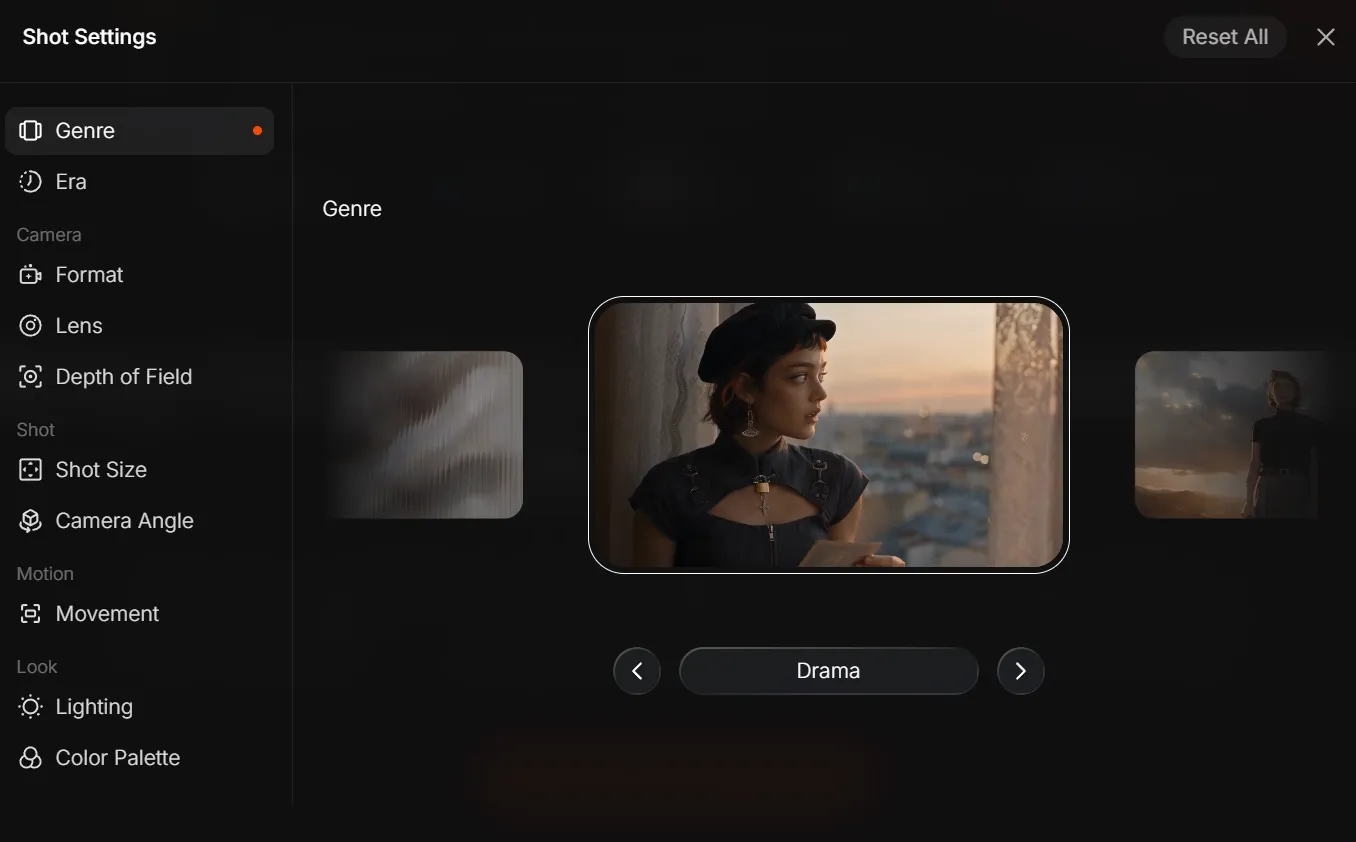
Film presets help establish a creative direction without a long style description. Choose a genre and era to guide your scene, whether you are imagining a romance set in the 1970s or a science-fiction encounter in the near future.
3. Shape Every Shot With Camera and Motion Controls
Choose the framing, camera angle, lens, and depth of field that suit your scene. Emphasize a reaction with a close-up, reveal the surroundings with a wider shot, or soften the background to keep attention on your subject.
Shape the shot further with image texture and camera movement. Explore the grain of 35mm film or a cleaner digital look, then add a push-in to draw viewers closer or a pullback to gradually reveal the world around your character.
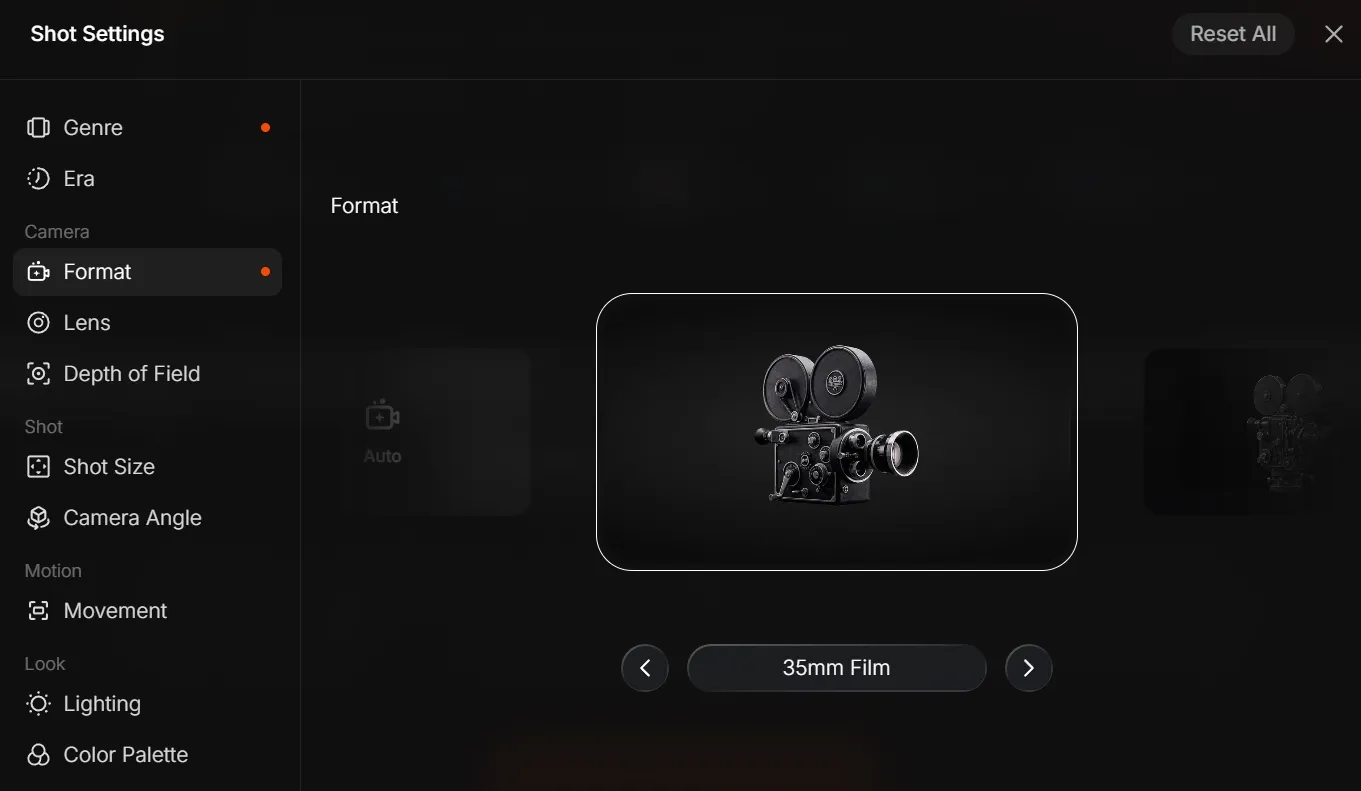
You do not need to master camera terminology to use this cinematic video generator. Pollo Cinema makes these decisions accessible through visual options with previews. You can compare the looks before generating, even if the terminology is unfamiliar. Leave settings on Auto when you want to start simply and explore more choices later.
4. Shape the Emotion With Light and Color
Lighting and color grading help establish the emotional direction of your scene. Soft window light can suggest intimacy; a silhouette can add mystery. Warm film tones or a cool blue palette give you different ways to reinforce that feeling.
For a music video, you could explore the same subject in warm, nostalgic light or a darker neon setting. You can compare creative directions before committing to a look, using the settings to guide each new generation.
What Can You Create With Pollo Cinema?
Pollo Cinema is useful when you have a specific visual moment to communicate. You can use it to explore an idea for yourself, give collaborators something concrete to discuss, or generate a shot for a larger piece of content.
- Short-Film Concepts: Create an opening shot, an emotional close-up, or a visual reference for a scene you want to develop.
- Fantasy and Sci-Fi Worlds: Introduce an original character or reveal an imagined landscape with framing that conveys scale.
- Product Videos: Give your product video a memorable reveal with a deliberate camera move, focused lighting, and a distinctive setting.
- Video Ads: Create an opening shot for video ads that introduces your product or establishes the mood of a campaign.
- Music and Social Visuals: Explore atmospheric clips and cinematic stills that give a release or series a recognizable mood.
How to Get Started With Pollo Cinema
Describe Your Scene
Open Pollo Cinema, choose Video or Image, and describe the subject, action, and setting. Add references for details you want to guide visually.
Choose Your Look
Select the film, shot, camera, and lighting settings that matter to your idea. For video, choose a camera movement. Leave other settings on Auto.
Generate and Refine
Generate your scene, review the result, and adjust your prompt or settings before downloading the version you prefer.
For a walkthrough with examples, see our guide on how to use Pollo Cinema.
Bring Your First Scene to Life with Pollo Cinema
Start with a moment you want people to feel: the anticipation of an entrance, the scale of an unfamiliar world, or the intimacy of a close-up. Pollo Cinema gives you more ways to shape that moment!
FAQs About Pollo Cinema
Do I Need Filmmaking Experience?
No. The cinematic video generator offers visual previews to help you choose a look without knowing every filmmaking term. Start with a simple scene description and a few settings, then leave the rest on Auto while you explore.
Can Pollo Cinema Generate Images Too?
Yes. Pollo Cinema supports both cinematic videos and still images. Both modes offer film, shot, camera, and look settings; camera movement controls are available in video mode.
Does Pollo Cinema Create an Entire Movie?
Yes. Pollo Cinema helps you create cinematic shots and images for an AI movie. Use references, film presets, and camera controls to shape each scene, from atmospheric openings to character reveals, then assemble your chosen clips into a larger story.
What Makes Pollo Cinema Different From a Standard AI Video Generator?
Pollo Cinema is a cinematic video generator with dedicated controls for framing, lenses, camera movement, lighting, and color. These visual options help you direct how a scene looks and feels without putting every filmmaking detail into your prompt.
Can I Edit My Video After Generating It?
Yes. You can refine your video directly in Pollo Cinema by adjusting your prompt or settings and generating a new version. For further edits, use Pollo AI’s AI video editor to change backgrounds, adjust the atmosphere, or remove unwanted objects.