
GPT Image 2.5 Review: My Real Tests and Final Take
GPT Image 2.5 promises a smoother creative process, but does it really deliver? I tested it across real workflows to find out where the upgrade matters most.
TL;DR
In my view, GPT Image 2.5 is most valuable when I want to keep developing an image instead of stopping after the first prompt. Stronger reference fidelity, more controlled editing, and better multi-turn consistency make that process feel much easier and more practical.
That is also why I recommend trying GPT Image 2.5 on Pollo AI, where I can test both text-to-image and reference-based workflows in one place. Getting the most from the model still takes some creative direction, though, as more detailed projects benefit from clearer prompts and step-by-step refinement.
What Is GPT Image 2.5?
GPT Image 2.5 is OpenAI's latest generation of image creation and editing models. It works from both text and image inputs, which means I can create a visual entirely from a written idea or start with an existing reference and transform it into something new.
The most important upgrades focus on four areas: more lifelike images, more precise editing, better consistency across successive refinements, and faster generation.
For developers, the GPT Image 2.5 family also includes two models. GPT Image 2.5 Flare is positioned as the faster option for high-quality everyday image generation. GPT Image 2.5 Sunburst focuses more heavily on editing precision and detailed creative work. Both accept text and image inputs.
What I find most useful is that I can keep refining the same idea after the first generation, which makes it better suited to an ongoing creative workflow rather than one-off image creation.
GPT Image 2.5 Upgrades at a Glance
| Upgrade | What GPT Image 2.5 Offers | Why It Matters to Me |
| More lifelike images | More natural lighting, richer textures, and better preservation of reference subjects | I can transform a familiar person or pet without losing the visual connection to the reference |
| Precision editing | More focused changes while preserving surrounding details | I can refine one element instead of rebuilding the entire composition |
| Consistent refinement | Earlier edits are more likely to remain intact across multiple turns | I can develop an image gradually instead of forcing everything into one prompt |
| Faster generation | Up to 50% lower latency than GPT Images 2.0 | I can test more ideas and revisions with less interruption |
Performance Test: How I Tested GPT Image 2.5
I chose three tests around the areas I care about most in real image workflows: preserving a reference subject, making one controlled edit, and developing the same visual across several rounds.
Rather than judging each result only by how attractive it looked, I focused on how easily I could keep directing the image toward a specific creative goal.
Test 1: Reference Subject Transformation
For my first test, I uploaded an image of a distinctive blue-and-white ceramic teapot and placed it in a completely different visual setting.
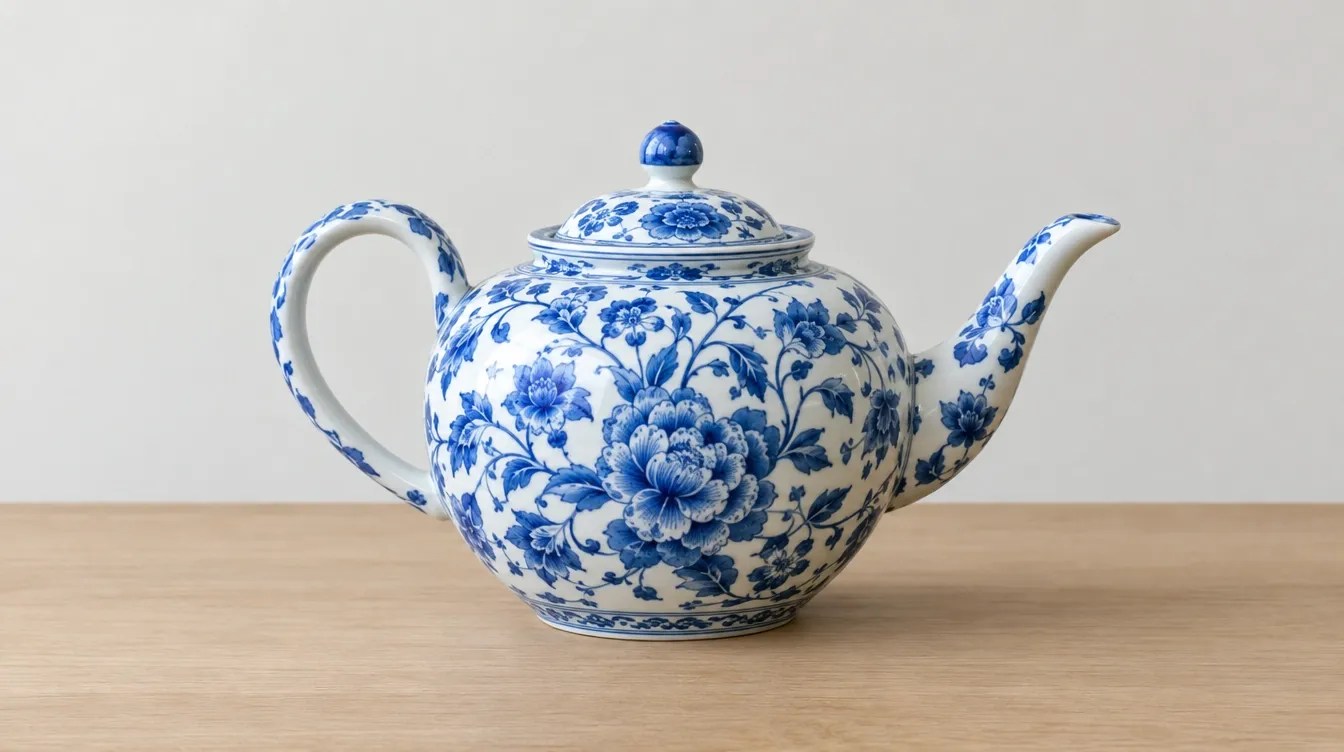
I deliberately chose an object with a recognizable shape, handle, spout, and floral pattern so I could easily compare the new image with the reference.
Prompt I Used:
Use the uploaded ceramic teapot as the main reference. Place the same teapot on a dark wooden table inside an elegant Japanese-inspired tea room. Preserve its blue floral pattern, curved handle, spout shape, lid, proportions, and ceramic finish. Add soft morning light, subtle steam, natural wood textures, shallow depth of field, and refined editorial photography.
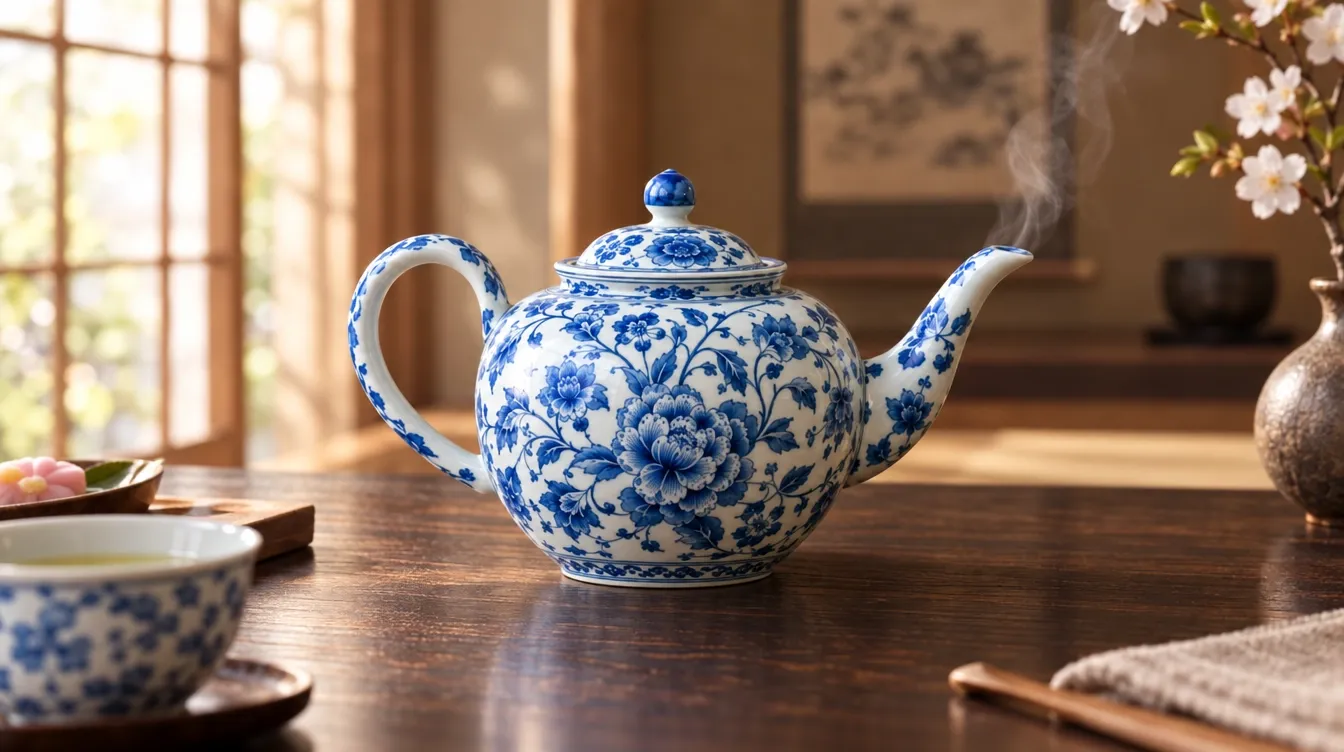
I was not trying to recreate the original photo. I wanted to see how far I could change the atmosphere and composition while still keeping the uploaded object central to the new image.
That made this a useful reference-fidelity test because the environment could change dramatically while the teapot gave me a clear visual point of comparison.
My Verdict
I found GPT Image 2.5 particularly useful when I wanted to build a new creative direction around an existing subject. The reference gave me something consistent to work from without locking me into the original scene.
Shape Ideas With More Control
Preserve recognizable subjects, adjust the details that matter, and keep refining your visuals until they match your creative direction.
Try GPT Image 2.5 Free
Test 2: Focused Image Editing
For my second test, I used a bright modern living room with a beige linen sofa as the starting image.
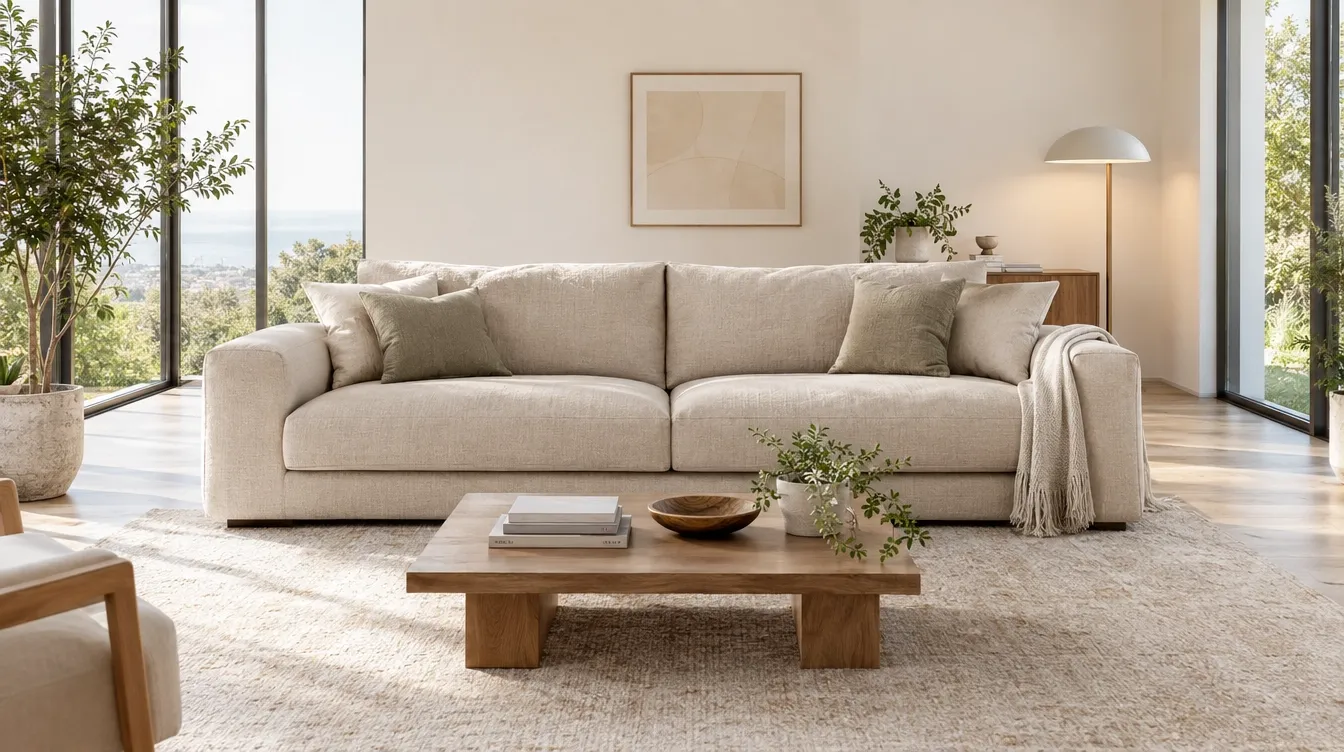
This time, I kept the request deliberately narrow. I wanted to change the sofa material and color without redesigning the rest of the interior.
Prompt I Used:
Change only the beige linen sofa to deep forest-green velvet. Keep its exact size, shape, cushions, placement, and perspective. Preserve the walls, rug, coffee table, windows, plants, decor, daylight, shadows, camera angle, and overall composition unchanged.
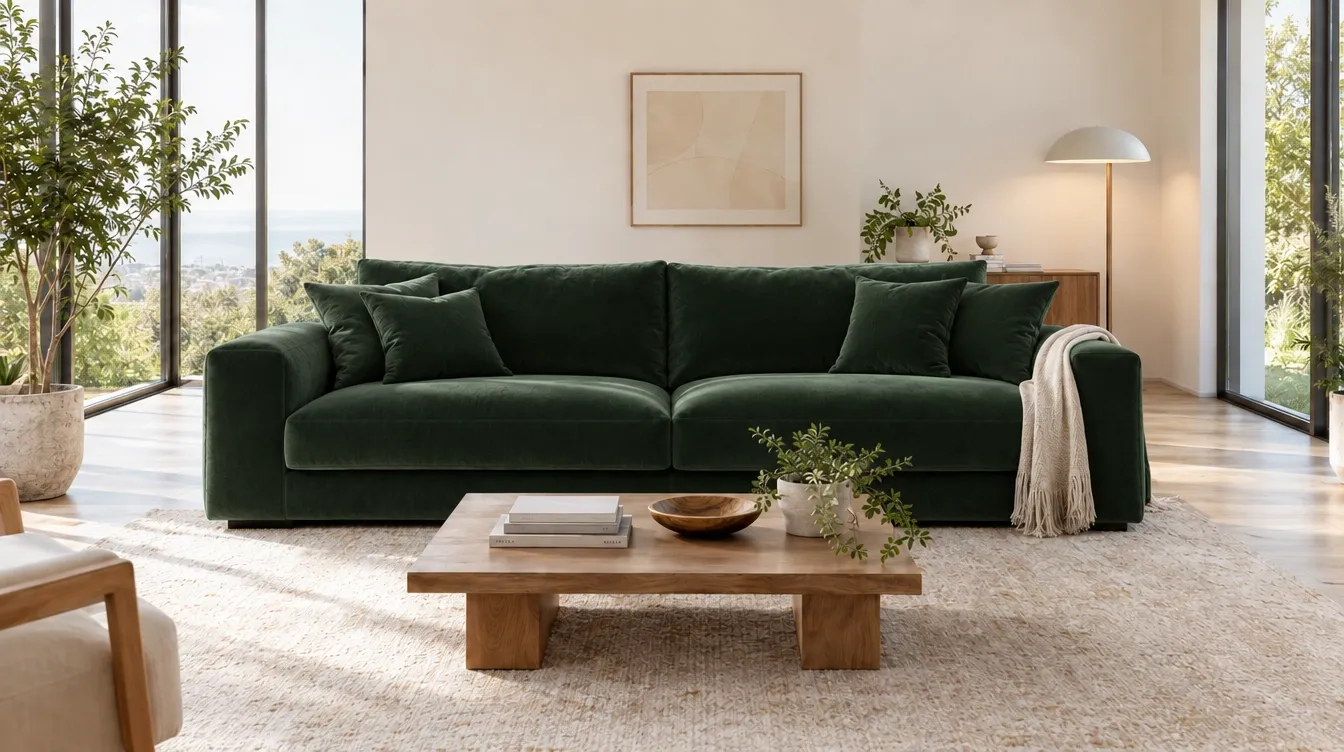
I chose this example because an interior scene contains many surrounding elements that I wanted to preserve. The sofa was the only creative decision I wanted to revisit, so I could focus on whether a clearly defined change versus preserve instruction gave me the control I needed.
My Verdict
This test reinforced how useful explicit editing boundaries can be. When most of an image already works for me, I would rather identify the one element I want to revise than describe the entire scene again.
Test 3: Multi-Turn Image Refinement
For my third test, I created a small reading nook and refined it over several separate prompts instead of describing the finished scene all at once.
I chose an interior because changes to color, lighting, furniture, and decorative details are easy to introduce one stage at a time while keeping the overall composition recognizable.
Prompt 1: Create the Base Scene
Create a cozy modern reading nook with a cream armchair beside a small wooden side table, a floor lamp, and a simple bookshelf against a warm neutral wall. A folded textured throw blanket is over one arm of the chair and a closed hardcover book on the side table. Use a balanced editorial interior composition, realistic materials, soft daylight, and a clean uncluttered look.
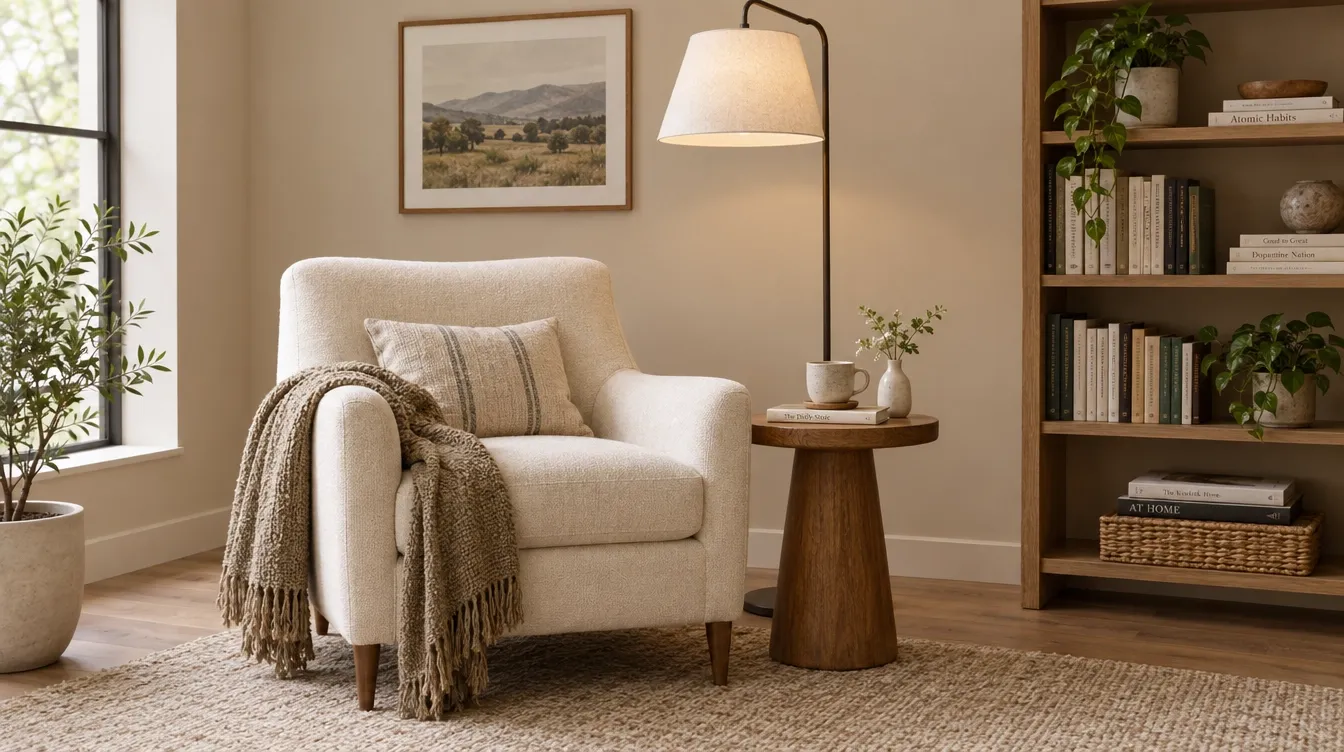
Once the main composition was established, I began changing individual parts of the scene.
Prompt 2: Refine the Color Direction
Keep the furniture, layout, camera angle, and composition unchanged. Change the warm neutral wall to a muted sage green and preserve all other existing details.

Next, I adjusted the mood through lighting.
Prompt 3: Change the Lighting
Preserve the room layout, furniture, wall color, objects, and composition. Shift the lighting to warm late-afternoon sunlight entering from the left, with soft directional shadows and a calm golden atmosphere.

Finally, I added one finishing detail without redesigning the room.
Prompt 4: Add a Small Detail
Keep the entire scene unchanged. Add a pair of tortoiseshell reading glasses resting on the closed book on the side table, with a slim brass bookmark partially visible between the pages.

I used each result as the starting point for the next instruction, rather than repeating the full creative brief every time.
That made the process feel closer to how I normally refine a visual: establish the main idea first, then respond to what I see and improve one decision at a time.
My Verdict
This was the workflow I found most practical for longer creative projects. Breaking the process into separate decisions gave me more room to react to each version instead of trying to predict every detail in the first prompt.
What I Like Most About GPT Image 2.5
After looking at the model as a complete workflow rather than a collection of isolated upgrades, these are the strengths I would keep coming back to.
- Reference-led creativity: I can use an existing subject without being locked into the original composition or setting.
- Focused revisions: I can concentrate on the part of an image that needs another decision instead of repeatedly rebuilding the whole idea.
- Step-by-step development: Multi-turn consistency encourages me to solve one creative problem at a time.
- Faster exploration: Lower latency makes it easier to compare directions before committing to one.
The biggest takeaway for me is that these features reinforce each other. GPT Image 2.5 is not just designed to generate. It is designed to generate, respond to feedback, and keep developing the same creative idea.
Where GPT Image 2.5 Falls Short
GPT Image 2.5 is easy to start using, but more controlled work still benefits from clear creative direction. The main barriers I noticed are:
- Detailed prompts need better structure. Simple images are easy to describe, but more specific projects work better when I separate the subject, composition, setting, lighting, style, and any details I want to preserve or change.
- Precision edits need clear boundaries. If I want to change only one part of an image, I get more control by stating both what should change and what should stay untouched.
- Multi-turn refinement takes more patience. For detailed work, I prefer building the image in stages instead of putting every requirement into one prompt. That adds more steps, but it also gives me more control over each decision.
The Projects I Would Create With GPT Image 2.5
Once I look at the upgrades together, several use cases stand out.
| Project | Why I Would Use GPT Image 2.5 |
| Social visuals | Faster generation makes it easier to test multiple visual ideas for my Instagram posts |
| Personalized portraits | Reference fidelity lets me explore different environments and styles around a familiar subject |
| Campaign concepts | I can develop one direction through several controlled rounds instead of starting over |
| Product images | Precision editing helps me test different settings, backgrounds, and treatments around the same product |
| Character concepts | A reference can anchor the subject while I explore new styling and compositions |
| Pet portraits | I can reinterpret a pet creatively while keeping distinctive characteristics central |
| Merchandise concepts | I can move from an initial idea into more focused visual refinements |
| E-commerce creative | The same core concept can develop into multiple visual directions through targeted changes |
How I Use GPT Image 2.5 on Pollo AI
I use GPT Image 2.5 on Pollo AI for both text to image and image to image creation. The workflow is straightforward:
- Open the AI image generator page and choose GPT Image 2.5.
- Describe the image I want to create.
- Add an image when I want an existing subject or visual direction to guide the generation.
- Generate the image and review the direction.
- Refine the image with further instructions or download it when I am satisfied.
Why I Recommend Using GPT Image 2.5 on Pollo AI
I recommend using GPT Image 2.5 on Pollo AI because I can do much more than generate one image and stop there. Pollo AI brings GPT Image 2.5 together with other leading image models, including Nano Banana 2, so I can explore different creative directions without moving between separate platforms.
What makes that more useful for me is everything around the generation itself. Pollo AI includes built-in image tools for tasks such as erasing unwanted objects, upscaling images, expanding compositions, and making other refinements.
Its image apps also give me ready-made workflows for specific outputs such as Twitch logos, Facebook ads, business cards, and other designs. That means I can take a GPT Image 2.5 result further without rebuilding my workflow somewhere else.
I can also turn to Pollo Agent when I want more help with the creative process. Instead of managing every step myself, I can start with an idea, image, link, or reference and let the AI agent organize the workflow, create the assets it needs, and carry my feedback forward.
It also offers guided skills for different creative goals, which I find useful when I know what I want to make but do not want to map out every tool or step myself.
There is also a good reason to try it now. The Ultra plan includes 10-Day Unlimited, giving me more room to experiment with GPT Image 2.5, compare directions, and refine ideas without treating every generation as a one-off test.
My Final Take
GPT Image 2.5 stands out to me most for how well it supports an ongoing creative workflow. Stronger reference fidelity, more controlled editing, consistent refinement, and faster generation make it easier to keep developing an image instead of starting over.
The main learning curve is creative direction, especially when I want tighter control over detailed edits. Even so, I find that extra structure worthwhile.
If you want to see what GPT Image 2.5 can do with your own ideas, I recommend trying it on Pollo AI. You can start from a prompt or reference image, compare different creative directions, and keep refining the result with Pollo AI’s broader image-generation toolkit.