
How to Face Swap Video With Pollo AI: A Step-by-Step Guide
Want to put yourself into a funny reaction clip without recording the scene again? I recommend starting with a short video and a clear portrait. That gives your first face swap a simple goal: make one familiar moment feel personal.
This guide explains how to face swap video with Pollo AI, from choosing your files to reviewing the result. You'll also find practical ideas and simple fixes, so your first attempt doesn't become a complicated editing project.
TL;DR
Open Pollo AI's video face swap tool, upload your clip and replacement face photo, then click Create. Preview the result and download the version you like. For a first attempt, choose a short clip with one clearly visible face.
How to Face Swap a Video With Pollo AI
Start by uploading your video and portrait, click Create, then review and download the result. The steps below take you from your chosen files to a finished clip, with a simple retry if needed.
Upload Your Video and Face Photo
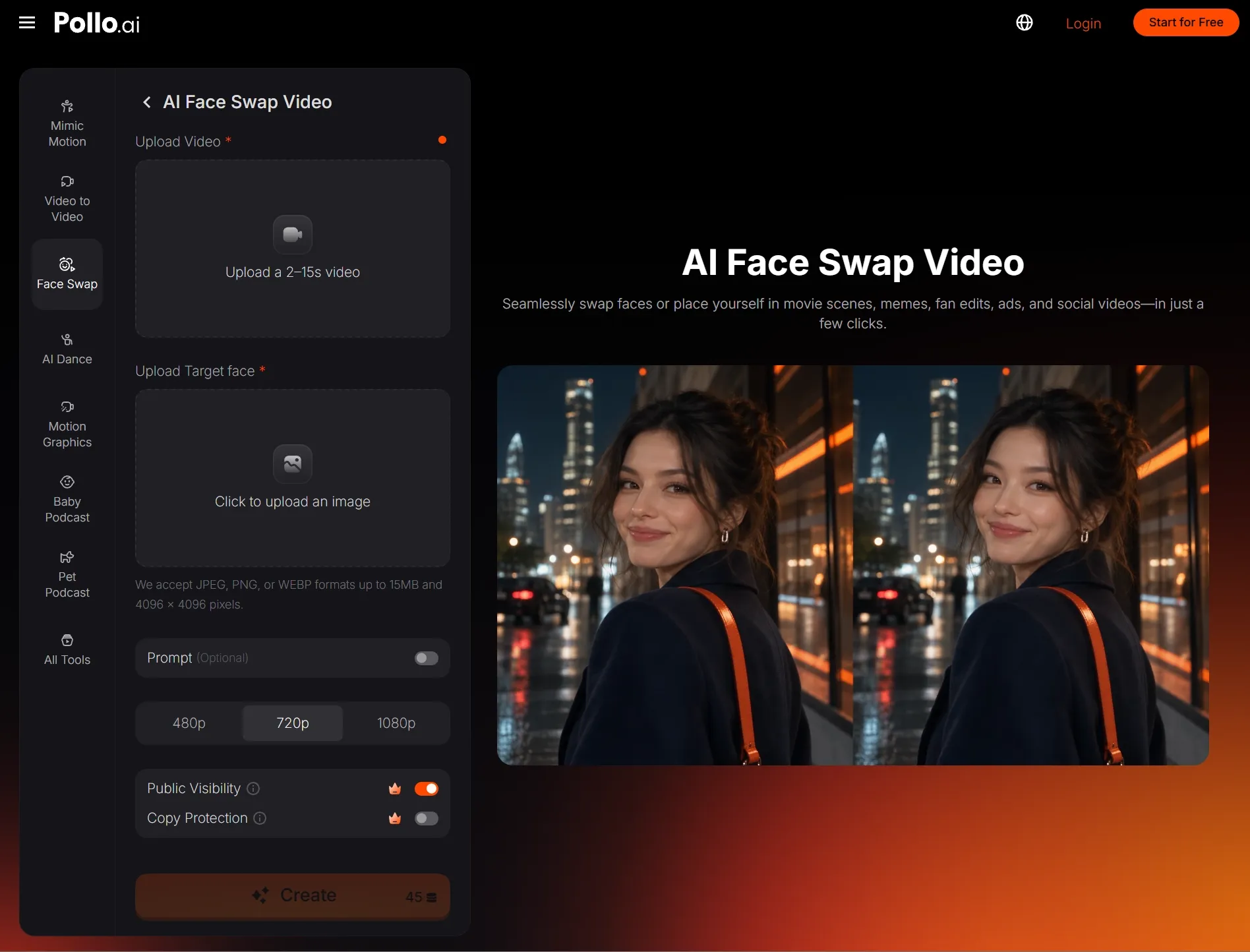
Open face swap video page and upload the video you want to change, followed by the face photo you want to use. Check that you've selected the correct files. Start with your simplest clip rather than your most ambitious scene.
Generate Your Face Swap
Click Create to begin processing your video. The face swap AI uses your uploaded portrait as the replacement face. Once the result is ready, play the clip to see how the new face looks during movement and expressions.
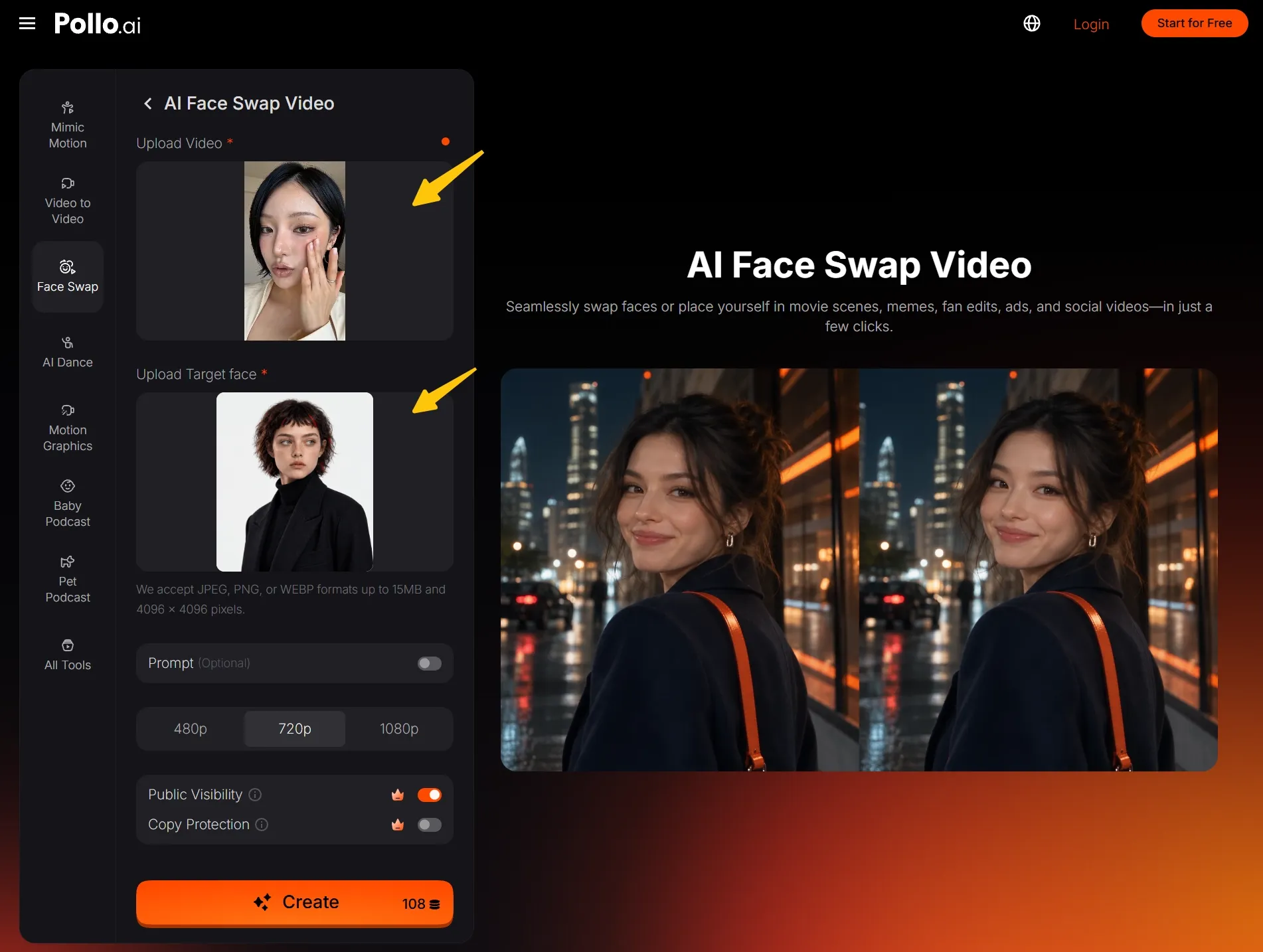
Review and Download Your Video
Watch the eyes, mouth, and jawline as the person moves, then download the version you're happy with. If something looks off, try a clearer portrait or simpler clip. Change one input at a time so you can compare results.
| Original | Result |
What Is an AI Face Swap Video?
An AI face swap video replaces a person's face in existing footage with another face. Think of the video as the performance and the portrait as the new identity. Your creative decision starts with choosing which two files belong together.
For example, a surprised expression can become a personalized reaction to your weekend plans. I'd choose footage where the joke already works, then use the face swap to make it recognizable. Keep the first idea focused on one clear moment.
What Do You Need Before You Start?
Prepare one video and one replacement face photo. I recommend a clip with one clearly visible person and a portrait showing the whole face. A simple talking shot or gentle reaction gives you an easier starting point for judging likeness.
Choose a portrait that looks like the person you want viewers to recognize. Avoid heavy beauty filters, oversized sunglasses, and hair covering the eyes. For your first attempt, I'd use an evenly lit photo taken at roughly eye level.
Don't have footage yet? You can first create a separate clip with image to video. I'd keep its movement gentle and its framing steady, then review the generated face carefully before using that clip for your swap.
Three Easy Ideas for Your First Video Face Swap
Make a Personal Reaction Clip
Choose a short clip of someone looking surprised, celebrating, or giving a knowing smile. Pair it with your own portrait to create a reaction for a group chat. I'd pick a moment whose meaning is clear even without a caption.
Put Yourself Into a Story Scene
Use a scene you've filmed, such as a character opening a mysterious letter or arriving at a party. A face swap can help you imagine yourself in that role. Start with a close or medium shot and a restrained expression.
Create a Birthday Surprise
Try a cheerful wave or celebration clip featuring a willing friend, then use a portrait they've approved for the replacement. Keep the joke affectionate and the scene short. Aim for a recognizable surprise that makes the birthday recipient smile.
Face Swap Video Effortlessly with Pollo AI
Turn a clear portrait and a favorite clip into a personal video with Pollo AI. Upload your files to begin.
Try Pollo AI for Free
How to Make Your AI Video Face Swap Look Better
Choose a Similar Face Angle
Pair a mostly forward-facing clip with a portrait taken from a similar angle. This gives you a straightforward comparison when reviewing the result. Save dramatic profiles for later experiments, once you have a version you're happy to use.
Keep the Face Visible
For a first attempt, choose footage where you can follow the person's expression without distractions. Try to avoid a hand passing across the mouth or hair swinging over the eyes. A clear view makes problems easier to spot during review.
Judge the Moving Result
Watch the full video at normal speed before inspecting individual frames. A convincing still image doesn't tell you whether the identity feels consistent during movement. Replay moments with head turns and changing expressions before deciding that the edit is finished.
Common Face Swap Mistakes and Simple Fixes
Most first attempts benefit from a small input change, not a longer list of instructions. Before starting again, identify the exact moment you dislike. Use that observation to choose a focused adjustment instead of replacing everything and hoping for improvement.
| What You Notice | What I'd Try Next |
|---|---|
| The new face doesn't look recognizable | Use a clear, unfiltered portrait with familiar facial details. |
| The result looks odd during a head turn | Try footage with a gentler turn and a more similar portrait angle. |
| Only part of the clip looks convincing | Start with a shorter source clip focused on the strongest moment. |
| You can't tell which version is better | Compare the same moment in each version using the same playback size. |
Want to Edit More Than the Face?
For optional changes to the surrounding scene, explore the separate AI video editor. It accepts text instructions for video edits. Make one change at a time and check that the person's appearance still works in the edited result.
If your idea only needs a still image, use photo face swap instead. It works with two images, making it a practical choice for a portrait or reaction picture. Choose the format your idea needs before preparing your files.
Try Your First Face Swap Video With Pollo AI
Choose a clip you like and a portrait you recognize. That's a manageable starting point for learning how to face swap a video. Create your first video face swap, watch it through, and build your next idea from the result.
FAQs
Can I Create a Face Swap Video Online Free?
Yes. Pollo AI offers free credits to try its video face swap feature. To make a free AI face swap video, open the tool, upload your files, and use your available credits to generate a clip for review.
What Photo Should I Use for a Video Face Swap?
Use a clear portrait where the eyes, nose, and mouth are easy to see. I'd choose natural lighting and minimal filtering. Compare it with the video beforehand, particularly the face angle, so you have a sensible pairing to begin with.
Can I Swap Faces Online in Photos Too?
Yes. Use Pollo AI's dedicated photo face swap tool when both inputs are still images. I'd choose this option for a profile picture, reaction image, or character portrait, especially when motion doesn't add anything useful to the idea.
Why Does My Face Swap Look Unnatural?
Start by checking where the result stops looking convincing: the resemblance, the facial edges, or a particular movement. I'd try a different portrait for likeness concerns and simpler footage for difficult moments. Compare one adjustment before making another change.