How to Restore Old Photos Online Free With Pollo AI: The Ultimate Guide
Found an old family photo covered in scratches, or a favorite portrait that has faded over time? I recommend starting with Pollo AI to give that memory some attention without having to learn complicated editing techniques.
This guide explains how to restore old photos online free with a simple workflow, from uploading your image to saving the result. I'll also share practical tips for preparing your photo and making sure people and memories stay recognizable.
TL;DR
Open Pollo AI’s photo restoration tool and upload your old photo. Choose the closest aspect ratio, click Create, and download the restored result. Compare faces and important details with the original, and keep both versions for your collection.
How to Restore Old Photos With Pollo AI
To restore old photos, upload your image, select an aspect ratio, and let Pollo AI handle the restoration. Start with one photo so you can compare the result easily before working through the rest of your collection.
Step 1: Upload Your Old Photo
Open Pollo AI's photo restoration tool and upload your image.
Choose the clearest digital copy you have, whether it's a scan or a photograph of the print. Keep the whole picture visible, including faces near the edges.
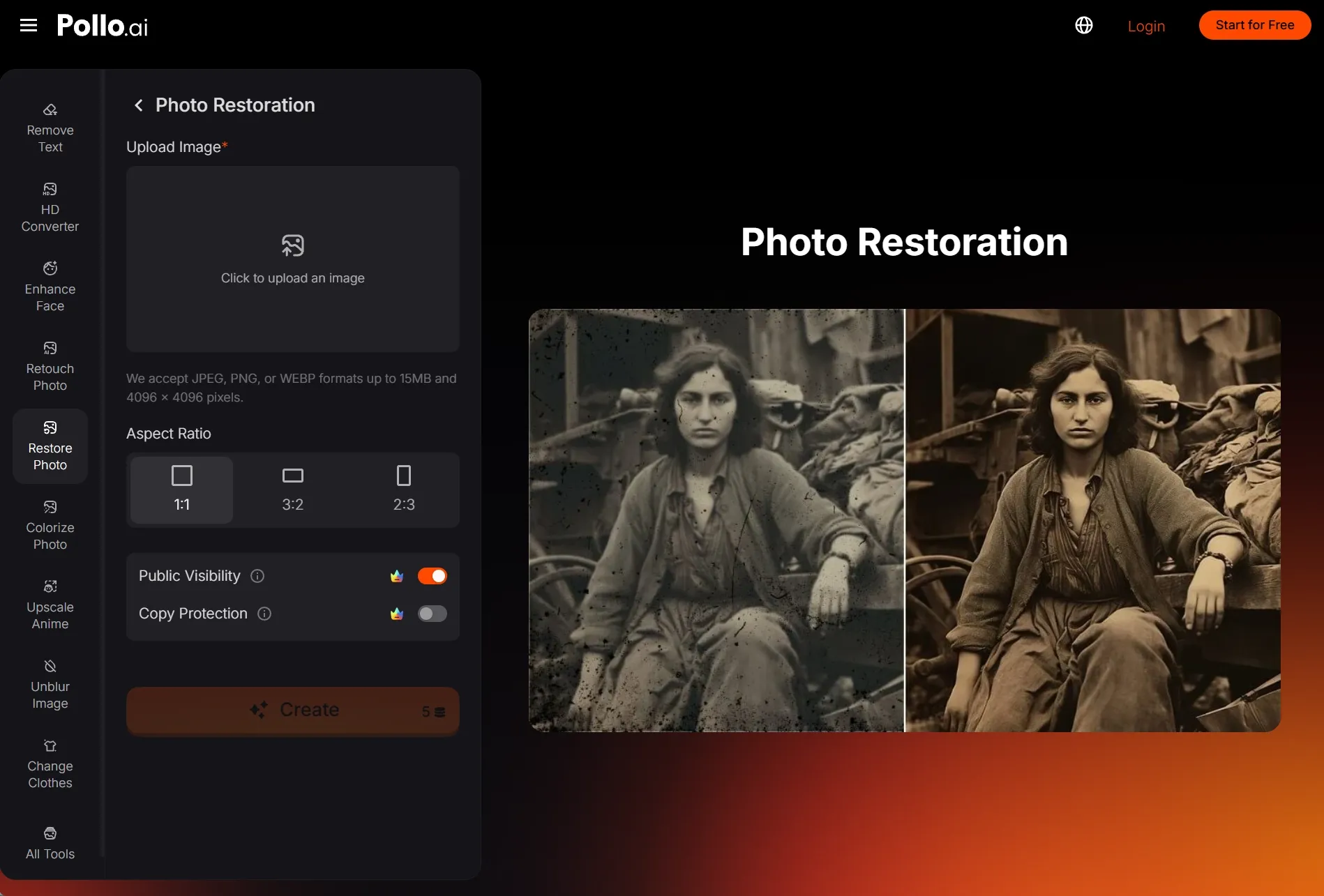
Step 2: Choose an Aspect Ratio and Create
Choose 1:1 for a square image, 3:2 for a horizontal photo, or 2:3 for a vertical portrait. Pick the closest match to your original, then click Create and wait for Pollo AI to restore the image.
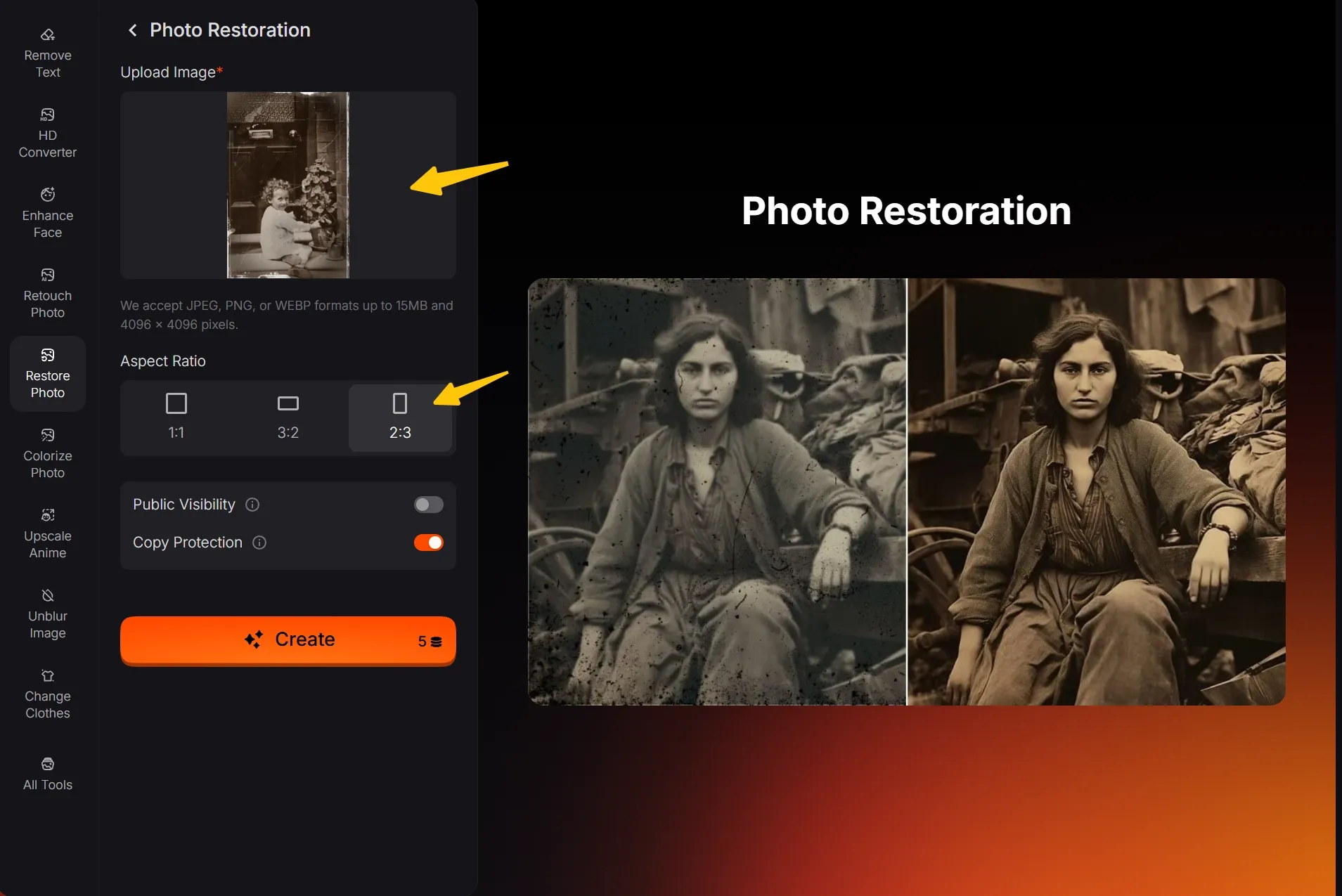
Step 3: Review and Download
Compare the restored image with your original, paying particular attention to faces, clothing, and background details.
If you're happy with the result, download it. Save both versions so you can share the restoration while keeping your original digital copy.
| Before | After |
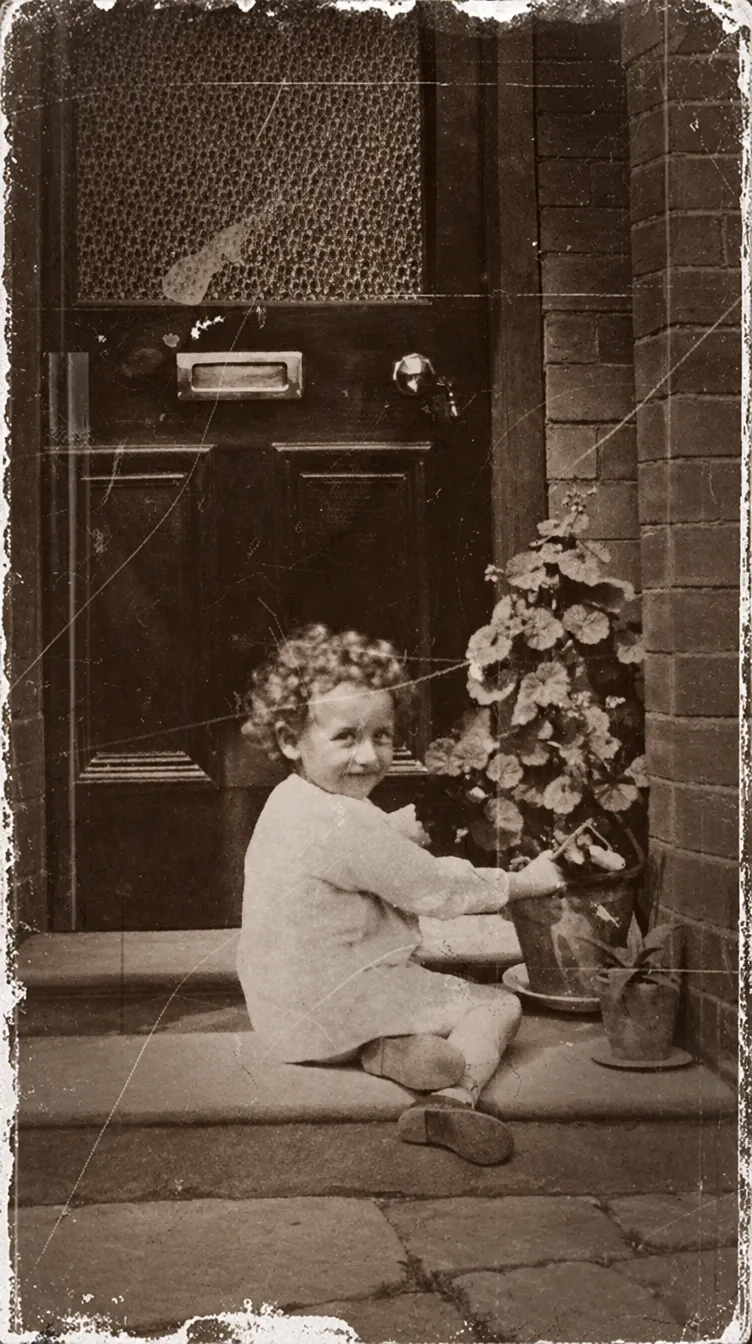 | 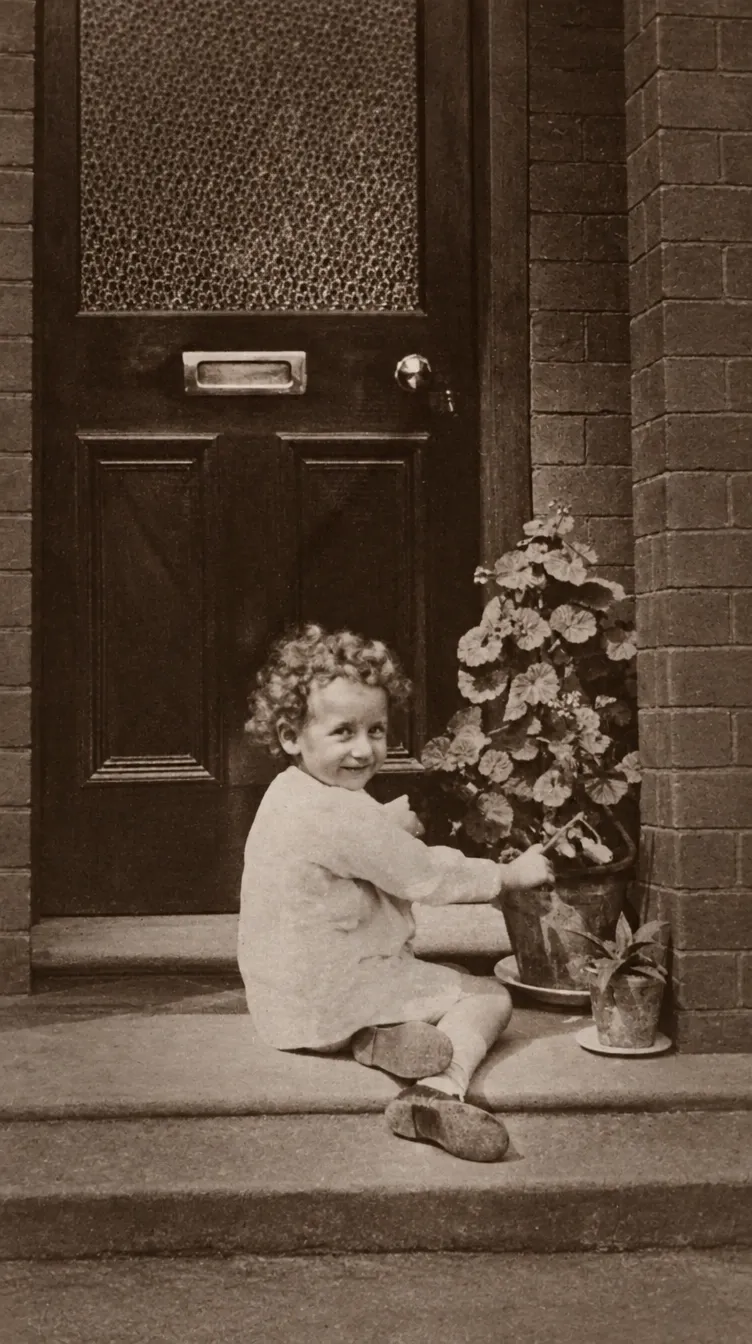 |
What Can Old Photo Restoration Help With?
Old photo restoration can help address scratches, stains, fading, and blur. I recommend choosing a photo with a clearly recognizable subject for your first attempt, then comparing the result with the original before moving on to more damaged pictures.
| Photo Issue | What to Check in the Result |
|---|---|
| Scratches or small marks | Whether the repair blends with nearby areas |
| Faded colors | Whether skin and clothing still look natural |
| Soft facial details | Whether the person remains recognizable |
| Uneven or damaged areas | Whether textures and edges look consistent |
Keep Familiar Faces Recognizable
For old photo restoration, always review the result carefully. I'd prioritize a familiar expression over a dramatically polished finish. Keep details that matter to the memory, even if the final picture retains some of its age.
How to Restore Old Photos Without Losing Their Original Look
Start With a Clear Digital Copy
If you only have a printed photo, scan it or photograph it in even light. Keep your camera parallel to the print and avoid glare. A clear starting image gives you a better reference for judging the restoration afterward.
Keep Your Original Safe
Make a separate digital copy before you begin, and give your restored versions distinct filenames. I suggest including a family name or approximate year. This makes it easier to compare attempts and find the right photo when sharing memories.
Match the Photo's Proportions
When learning how to restore old photos, choose an aspect ratio close to the original image. Check whether the photo is square, horizontal, or vertical before generating, then review the result for changes near the edges.
Bring Your Old Photos Back Into View
Restore your favorite old photos with Pollo AI and turn faded memories into clearer images to save, share, and treasure.
Restore Old Photo
What Can You Do With Your Restored Photo?
Create a Colorized Version
For a different interpretation, try the separate black-and-white photo colorizer. Keep your monochrome restoration too, especially if its original look matters to you. Treat added colors as a creative interpretation unless you have reliable references showing the actual colors.
Prepare a Larger Image
If you need a larger digital version, explore Pollo AI's separate image upscaler. Inspect faces and fine details after enlarging the image. Before printing, compare the file dimensions with your intended print size and the printing service's recommended resolution.
Common Old Photo Restoration Mistakes to Avoid
Keep the memory recognizable as you improve the image. I recommend checking the details you care about most before sharing a restoration, especially in group portraits. This quick review can help you spot changes that aren't obvious at first.
| Mistake | What to Do Instead |
|---|---|
| Uploading a glare-covered photograph of a print | Retake it in even light with the camera parallel to the photo |
| Accepting a sharper but unfamiliar face | Compare facial features and expressions with the original |
| Ignoring the original photo's proportions | Choose the closest available aspect ratio before generating |
| Keeping only the restored version | Save the original and each preferred edit separately |
FAQs About Old Photo Restoration
Can I Restore Old Photos Online Free With Pollo AI?
Yes! New users receive free credits on Pollo AI. You can also earn more by completing available reward tasks, such as inviting friends. Claim your credits and use them to try old photo restoration online free.
Can AI Restore a Badly Damaged Old Photo?
AI may help improve a damaged photo, but the result depends on how much usable detail remains. Review heavily damaged areas carefully against your original. For an important family portrait, prioritize a recognizable face over a cleaner but unfamiliar appearance.
How to Restore Old Photos Without a Scanner
Photograph your print in soft, even light, keeping your phone parallel to the image. Avoid glare, shadows, and tilted angles. Upload the clearest photograph you capture, then compare the restored result with the print to check familiar details.
Should I Colorize Every Black-and-White Photo?
No. Keeping a photograph in black and white can preserve the look you associate with the memory. If you're curious about color, create a separate version and compare both. You can keep whichever interpretation feels more appropriate for your album.