How to Turn a Photo Into a Sketch: A Step-by-Step Guide
What would your favorite photo look like drawn in pencil? Turn a selfie, pet portrait, or travel memory into a sketch with expressive lines and soft shading. Here’s how to get that hand-drawn look while keeping the details that make your photo special.
TL;DR
To turn a photo into a sketch, start with a sharp, well-lit image, choose an AI or manual editing method, then refine contrast, line strength, and texture. The fastest option is Pollo AI’s photo to sketch tool: upload a photo, describe your preferred sketch style in the chatbox, generate the image, preview it, and download the result.
Before You Start: Choose the Right Photo
The original image strongly affects the final sketch. Before uploading or editing, choose a photo with:
- Sharp focus, especially around the face or main subject
- Clear separation between the subject and background
- Good contrast between highlights and shadows
- Enough resolution for the intended use
- Simple, visible shapes rather than heavy visual clutter
Portraits, pets, street scenes, and product photos can all work well. Blurry images often create weak or muddy lines, while clear contrast helps preserve important details.
If the background is distracting, crop the photo first or use a background removal tool before applying the sketch effect.
Method 1: How to Turn a Photo Into a Sketch With Pollo AI
Pollo AI is a convenient option when you want to turn a photo into a sketch without manually working with layers, blending modes, or filters. Its photo to sketch AI lets you describe the sketch you want in everyday language.
You can specify the drawing style, shading, background, and details to preserve—all within your request.
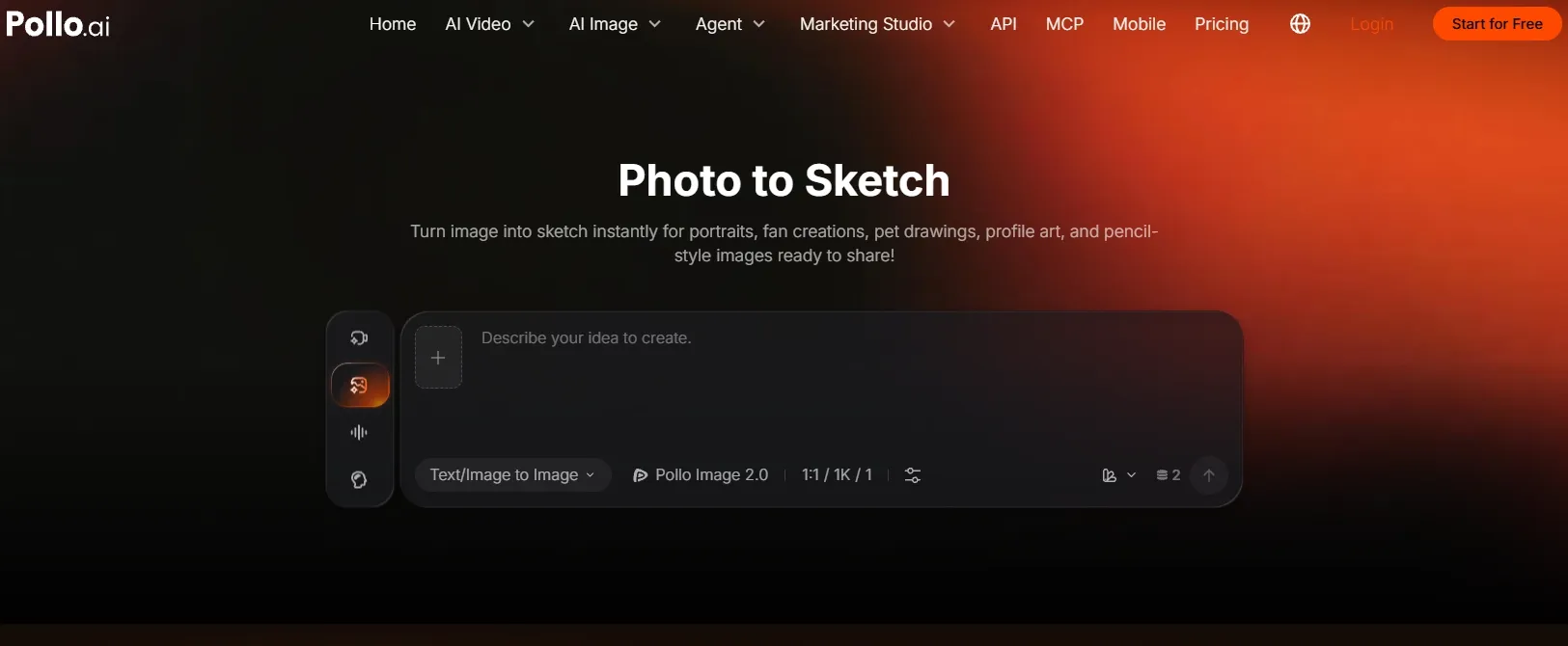
Step 1: Open the Photo to Sketch Tool and Upload Your Image
Go to Pollo AI photo to sketch and upload the image you want to transform through the chatbox.
Choose a photo where the subject is easy to recognize. For a portrait, make sure the face is not too small or hidden by strong shadows.
No suitable photo? Generate an AI image, then upload it.
Step 2: Describe Your Preferred Sketch in the Chatbox
Type the look you want directly into the chatbox. A useful instruction includes the drawing style, important details to keep, and background treatment.
For a portrait, try:
Turn this photo into a graphite pencil sketch with fine outlines and soft shading. Preserve the person’s facial features, expression, and hairstyle. Use a plain white background.
For a pet drawing, you could write:
Turn this dog photo into a pencil sketch. Keep its expression and distinctive markings, use fine pencil strokes for the fur, and simplify the background.
If you have a particular composition in mind, include it in the same request—for example, “Use a square composition with the face centered for a profile picture.”
Step 3: Generate and Review the Sketch
Submit your request and preview the result. Check whether the face, pose, or main object remains recognizable and whether the outlines are clear.
If you want changes, describe them in the conversation. For example:
Lighten the shading around the eyes while keeping the expression unchanged.
Or:
Keep the subject detailed, but make the background simpler and the pencil strokes softer.
Specific feedback gives the AI a clearer direction than a general request to “make it better.”
Step 4: Download the Finished Image
When the sketch looks right, download it for sharing, printing, or further editing. You can also use it as a base for a coloring page, scrapbook design, handmade card, or digital illustration.
Turn Your Photos Into Sketches with Pollo AI
Give your favorite portrait soft pencil shading and expressive, hand-drawn lines.
Start Creating Free
Method 2: How to Turn a Photo Into a Sketch in Picsart
Picsart’s Sketcher workflow applies a drawing effect that you can adjust manually.
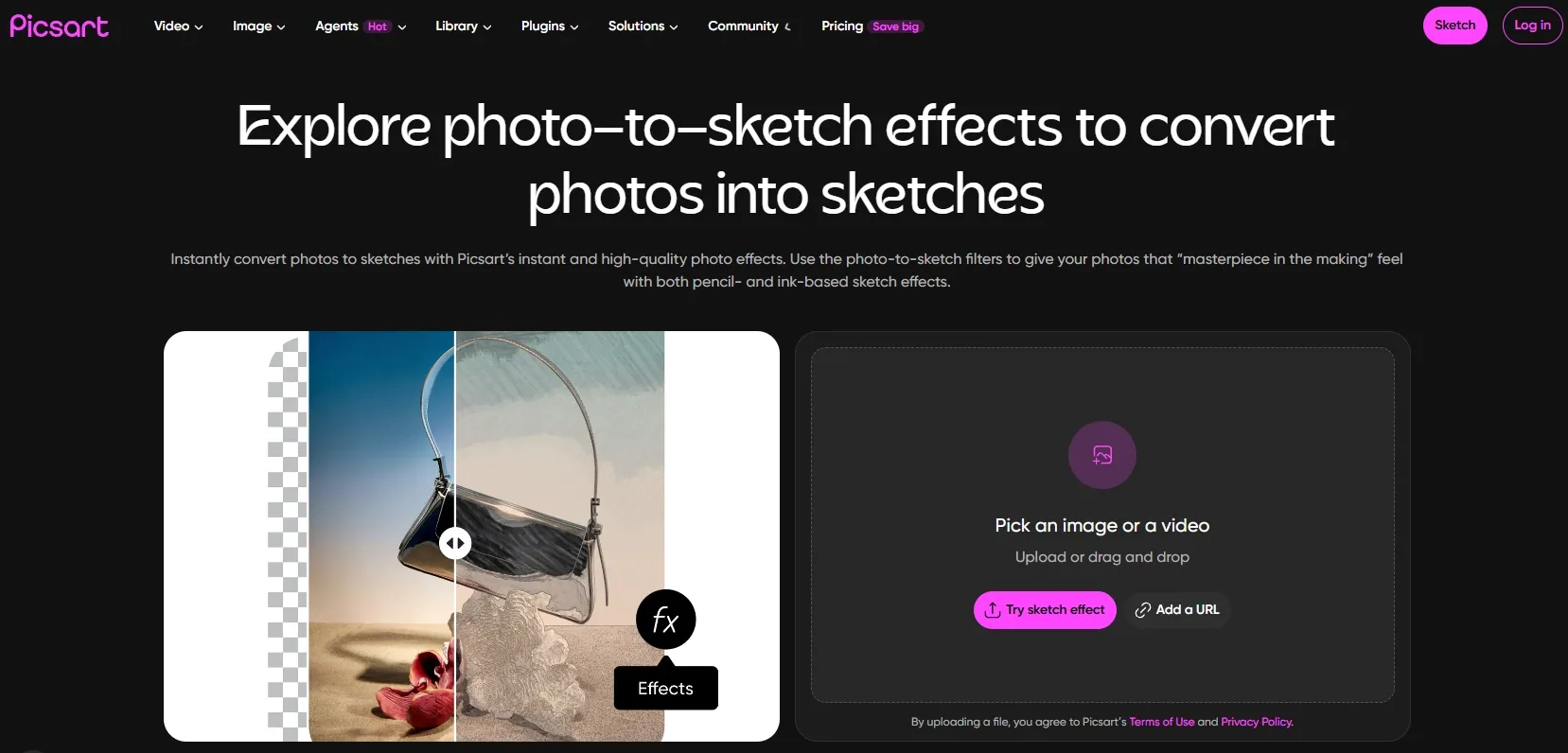
- Open the effect. Load your photo, go to Effects > Artistic, and select Sketcher.
- Adjust brightness. Open the effect settings and adjust brightness until the main subject is visible without losing important details.
- Refine selected areas. Use the brush or eraser controls to soften or remove the effect where needed. Lower brush opacity allows more gradual adjustments.
- Confirm and save. Apply your edits and save the finished image.
Method 3: How to Turn a Photo Into a Sketch in Photoshop
Creating a sketch in Photoshop involves several manual layer and filter adjustments.
- Open and duplicate your photo. Preserve the original layer, then select the duplicate and choose Image > Adjustments > Desaturate.
- Duplicate and invert again. Duplicate the grayscale layer, choose Image > Adjustments > Invert, and set its blending mode to Color Dodge. The image may appear almost white at this stage.
- Apply Gaussian Blur. Convert the inverted layer into a Smart Object, then go to Filter > Blur > Gaussian Blur. Adjust the radius while previewing the outlines and shading.
- Refine and save. Add a Levels adjustment layer to fine-tune contrast. If using Multiply to darken the result, lower the adjustment layer’s opacity when the effect becomes too strong. Save the layered project and export the finished sketch.
How to Make a Photo Sketch Look More Natural
A basic filter can sometimes look flat or overly digital. These adjustments can make the result feel more like a real drawing:
- Keep the main contours clear: Avoid excessive blur that removes facial features or object edges.
- Control the background: A simple background helps the subject stand out.
- Use moderate contrast: Too little contrast creates a gray, muddy image; too much can remove subtle shading.
- Preserve small details selectively: Keep eyes, hair texture, fur, jewelry, or product edges visible when they matter.
- Add light paper texture: A subtle paper grain can make a digital sketch feel more traditional.
- Try limited color: A small amount of muted color can create a colored-pencil look without overwhelming the linework.
- Crop with purpose: A closer crop often works better for profile images and portrait sketches.
Which Photo to Sketch Method Should You Use?
| Method | What the Workflow Involves |
| Pollo AI | Upload a photo, describe your sketch in the chatbox, and request refinements through conversation |
| Photoshop | Duplicate layers, apply blending modes and filters, and manually adjust contrast |
| Picsart | Apply the Sketcher effect, adjust brightness, and refine areas with brush controls |
Pollo AI is a straightforward starting point because you can describe both the initial style and any changes in words. Whether you want softer shading, a cleaner background, or more visible pencil strokes, the chat workflow keeps the process focused on the image you want to create.
Give Your Favorite Photo a Hand-Drawn Look
Turn a selfie, pet photo, or treasured memory into a personal pencil sketch with Pollo AI.
Start Creating NowCommon Problems and Quick Fixes
The sketch looks blurry.
Start with a sharper, higher-resolution photo. Avoid enlarging a small image before applying the effect.
The face is difficult to recognize.
Use a closer crop with even lighting. Reduce the intensity of the effect or choose a photo with clearer facial contrast.
The result looks like a gray filter.
Increase the contrast and make sure the original image has distinct light and dark areas.
The background overwhelms the subject.
Crop it, simplify it, or erase the sketch effect from the background.
Fine details disappear.
Use a lighter effect, reduce blur, or begin with a photo that has stronger edge definition.
Pollo AI: From One Sketch to Endless Visuals
Pollo AI is an all-in-one creative suite for marketers and creators, bringing image generation, editing, and creative workflows together in one place.
For image creation, it offers multiple models, including GPT Image 2.5, Nano Banana 2.1, and more, giving you different ways to create and refine visuals.
Its growing library of AI image tools and apps supports image editing, enhancement, background removal, face swaps, product visuals, posters, and social content—so you can take an idea beyond a simple photo sketch.
Final Verdict
Pollo AI makes turning a photo into a sketch approachable: upload your image, describe the drawing you want, and refine it through conversation. You can guide the style, shading, and background without learning manual editing controls.
Start with Pollo AI photo to sketch and a clear photo, then use the chatbox to bring your sketch idea to life.