How to Restyle an Existing Video With AI While Preserving Motion
Restyling ordinary footage can sometimes result in poor motion preservation. The aesthetic changes, but the subject's pose, actions, or movements may drift from the original. How do we prevent this? Just use the Pollo AI's video to video tool, and here’s how!
TL;DR
Use Pollo AI's video to video generator to restyle existing footage and preserve character motion. Just sign in, upload the original footage, select your style preset, be it claymation, anime, etc., then decide if you want to restyle the subject only and/or customize the background. In just a few clicks, you can reimagine action and dance sequences in any aesthetic with solid precision.
How To Restyle Videos & Preserve Motion with Pollo AI
You’ll be glad to know that it only takes a few simple steps with Pollo AI. Just follow them to restyle any video while keeping the original movement intact:
Step 1: Upload Clear Footage
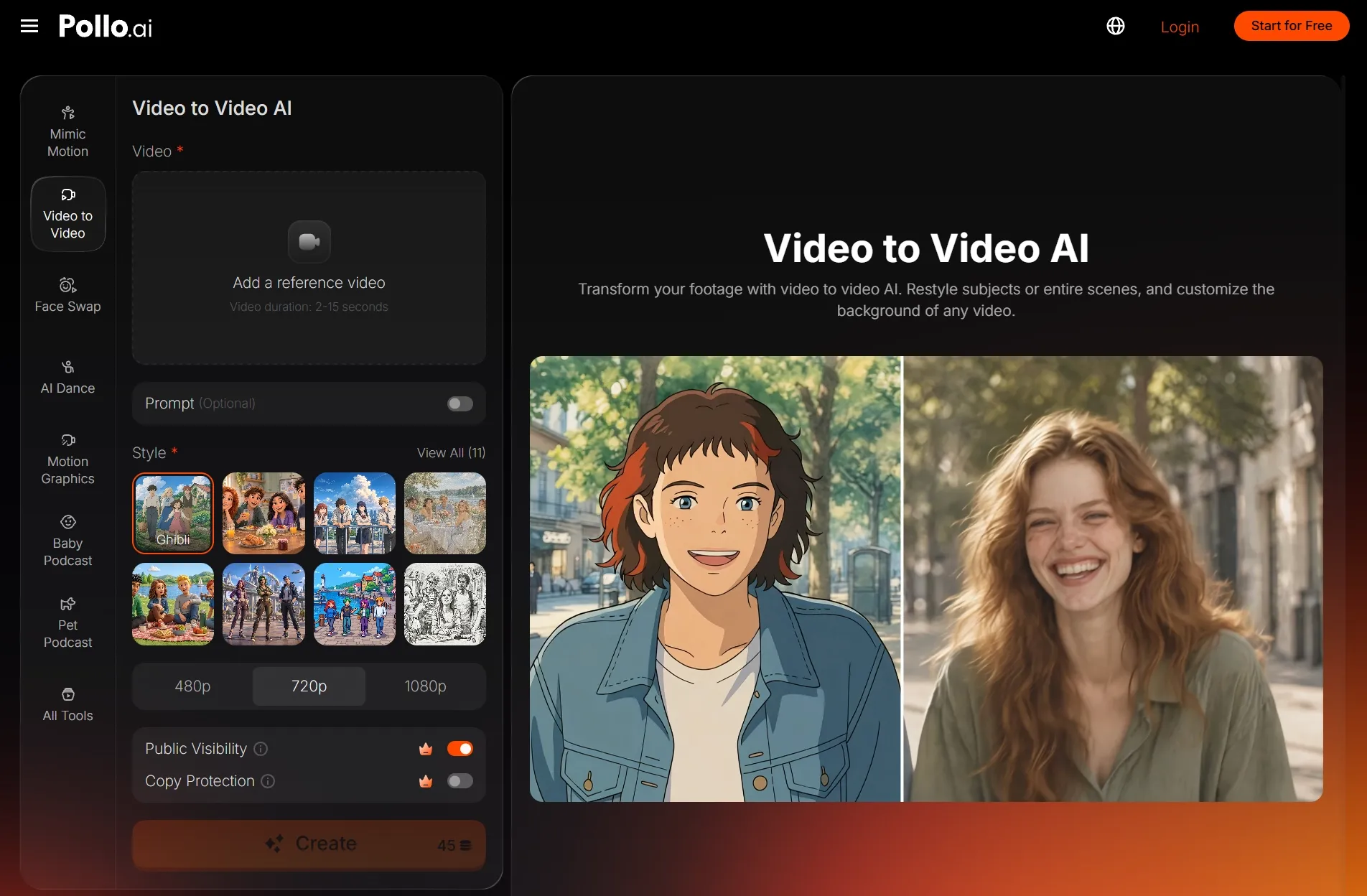
First, head to the Pollo AI‘s video to video AI page. Before you can start restyling your existing footage, you’ll need to sign in. If you don’t have an account, sign up for one to proceed.
As I said before, the footage you upload must have a clearly visible subject and lack any heavy blur that makes it hard for the AI to follow actions and movements. So, if necessary, feel free to use the video enhancer tool to make sure the resolution is high before uploading.
Upload your footage in MP4 or MOV format, keeping the file under 50MB. Check the current duration limit shown in the tool before generating. If your video exceeds that limit, trim it to the moment you want to restyle. I recommend starting with a short, clear segment so you can review the result more easily.
Step 2: Select a Visual Style
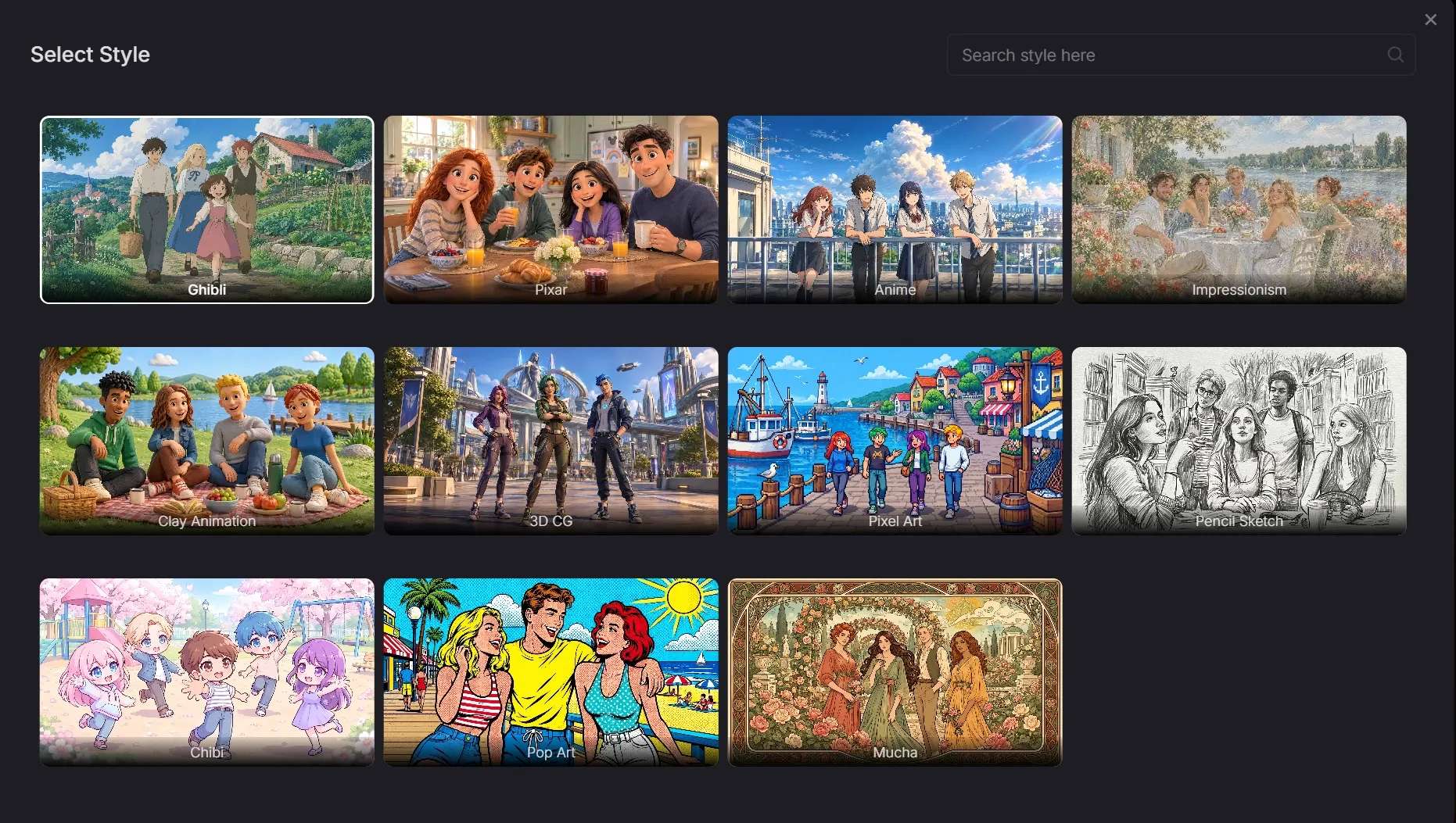
Depending on the original footage, not every style may suit it, so I suggest choosing the least disruptive style that matches your original input. A highly textured or painterly style may look beautiful, but it can also obscure small gestures.
For example, ‘Mucha’ style may work well on a slow, clearly lit sequence, but it may fail to render accurately on a fast dance scene with a lot of character movements. I often prefer styles with clear outlines, like using video to anime AI to restyle footage with a lot of movement.
Step 3: Generate Your New Video
When ready, you can proceed to generate the video. I often consider the first render as a test run to see if the output preserved the original motion, maintained a stable identity, and kept continuity across textures, lighting, background, etc.
Here is my result:
| Input | Output |
If everything looks stable, then you can go ahead and explore other variations like an anime version or a sketch art version for a concept presentation. Keep in mind that shorter clips and subject-only restyling often give the AI model less room to drift.
Preserving Motion When Restyling Videos: Your Pollo AI Guide
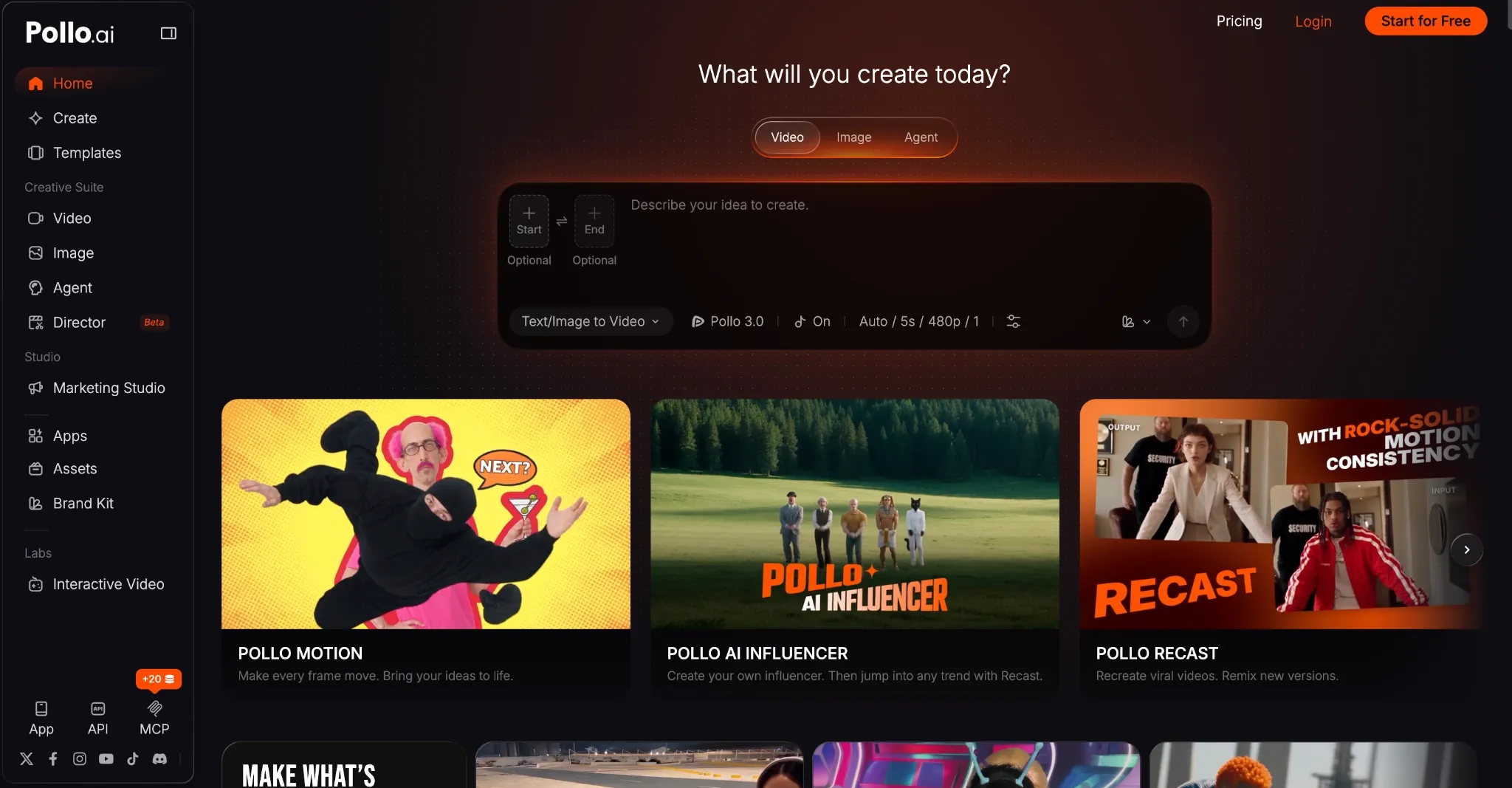
While regenerating the scene, an AI video restyle tool may alter a pose, shift the timing of an action or even add new motion that wasn’t in the original. And I’ve often noticed that this issue happens a lot the more complex the original scene is.
In other words, if it’s like a dance music video that involves a lot of detailed and fast movement, then the AI video tool may struggle to reimagine the scene accurately. Also, the longer the clip is, the more likely the AI tool may drift.
So, what do I suggest? Start with a short, clear clip and a style that keeps the subject’s outline easy to distinguish. Highly textured looks may obscure subtle movements, so test a short segment before restyling the full clip.
When writing the prompt, specify which elements should stay consistent, such as choreography, facial features, and motion paths. Compare the result with the source footage, checking for altered gestures, timing shifts, and flickering. Adjust one setting at a time if needed.
A prompt example that I would use is:
Prompt
Transform the cat into a polished clay animation character with visible hand-shaped texture. Preserve the subject’s choreography, scale, and motion path. Keep the background layout the same and maintain consistent colors across every frame.
Finally, knowing which tool to use is just as important as knowing how to restyle videos while preserving motion. Personally, I prefer the Pollo AI video to video AI tool over most other alternatives for several reasons that I will explore in detail next.
Give Your Footage a Fresh Look
Upload a clip you love, choose a visual style, and explore a new creative direction with Pollo AI’s video restyling.
Restyle Video With AI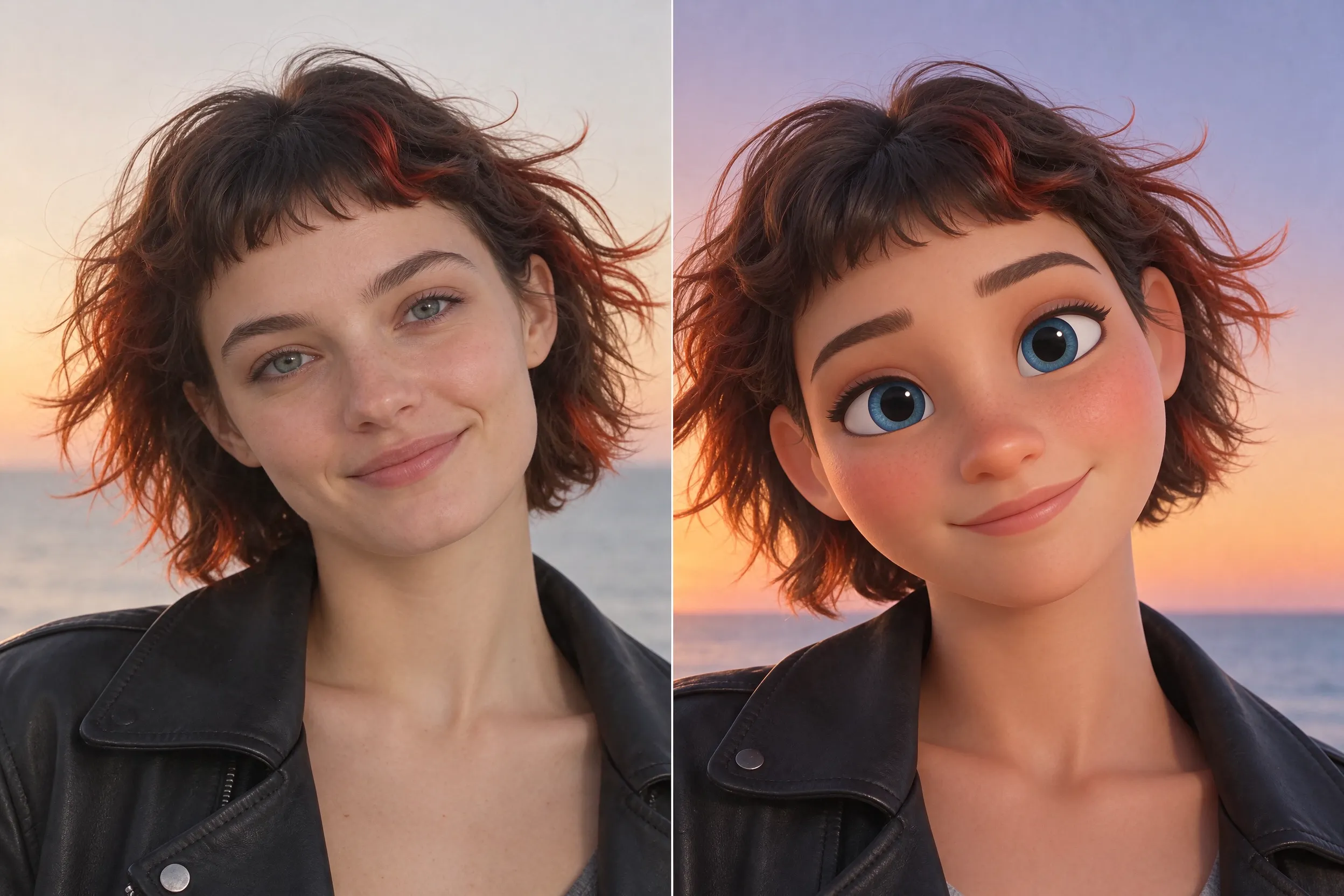
Why Should You Use Pollo AI Video to Video AI Tool?
Preserving motion when restyling videos is heavily impacted by the tool you use. Compared to most alternatives, I consider Pollo AI’s video restyle tool the most advanced, versatile, and efficient one yet. Why? Let me quickly explain the reasons:
- Diverse Filters & Effects: On Pollo AI, I have access to dozens of unique art styles to choose from, allowing me to freely test different ideas and concepts. This includes recreating in styles like anime, pixel art, claymation, Ghibli, illustration, origami, etc.
- Advanced Motion Preservation: Pollo AI’s video to video AI tool uses the original footage as a reference for movement and gestures. This makes it a useful option for restyling dance clips and action scenes, though I still compare the output with the source to check timing, poses, and subject details.
- Controllable Style Transfer: Using Pollo AI, I can choose to either restyle a subject in the scene or restyle the entire scene, which can be practical across various creative projects, especially short films and animation clips.
- Fast Stylized Renders: It only takes minutes to restyle a video with Pollo AI, and better yet, it supports batch rendering for up to 4 variations. This lets me produce multiple outputs for any campaign-based project in no time at all.
- Simplistic User Interface: Even across mobile devices, this AI video restyle tool works seamlessly with no overly complex controls. Any first-timer can hop in, select a preset, set their custom preferences, and produce several stylized videos in just a few clicks.
Conclusion
There you have it! Reimagining an existing video in a new style while preserving the original motion can be tricky, but from my experience, Pollo AI is the best video to video AI tool. Try this tool to explore a new look for your clip.