How to Preserve Motion and Camera Movement in Video to Video AI
The challenge I’ve seen with video to video AI is that it can struggle to follow subject movement and the camera’s path, leading to flickering, distortion, or changes in the original performance.
In this guide, I’ll show you how to use Pollo AI to help preserve that movement and what to check in the restyled result.
TL;DR
To preserve motion and camera movement in video to video AI, upload a clear clip to Pollo AI, choose a style, and enable the optional prompt. Specify the original actions, timing, and camera movement you want to retain, then review the result.
How to Preserve Motion and Camera Movement in Video to Video AI
What I like about Pollo AI is that it seamlessly applies new styles to any existing footage, ensuring any subject’s actions, poses, and movements are preserved in the final render. I also enjoy how the workflow is straightforward because all it takes is a few steps to restyle a video:
Step 1: Head to Pollo AI's Video to Video AI
Open the AI video to video generator and sign in. If you don’t have an account, just sign up. It’s free for first-time users. Once that’s done, you can move on to the next step.
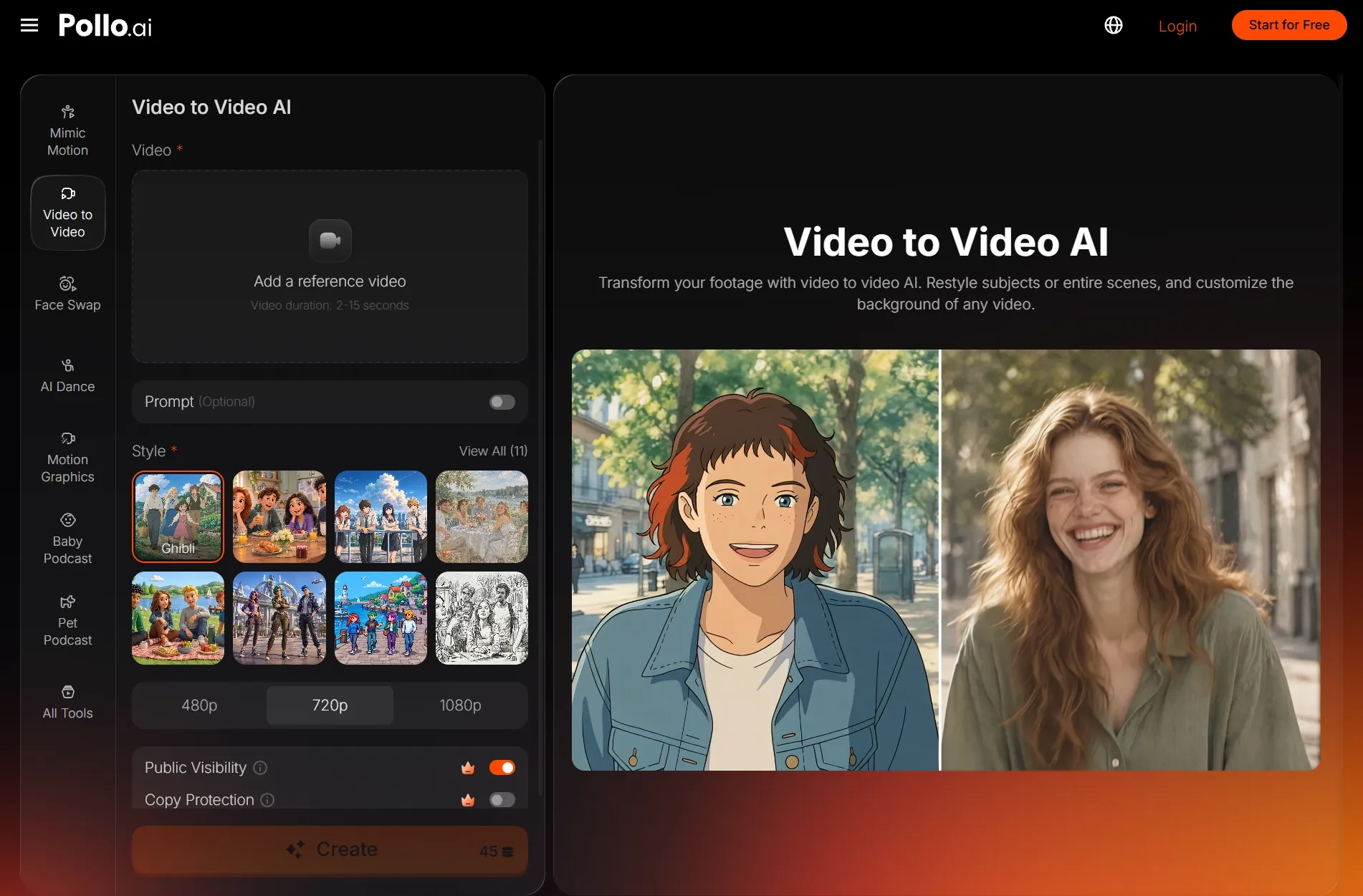
Step 2: Upload the Original Video
Upload the video you want to restyle in MP4 or MOV format, under 50MB. If it’s longer than 15 seconds, use the trimming tool to select a segment of up to 15 seconds, then click “Apply.”
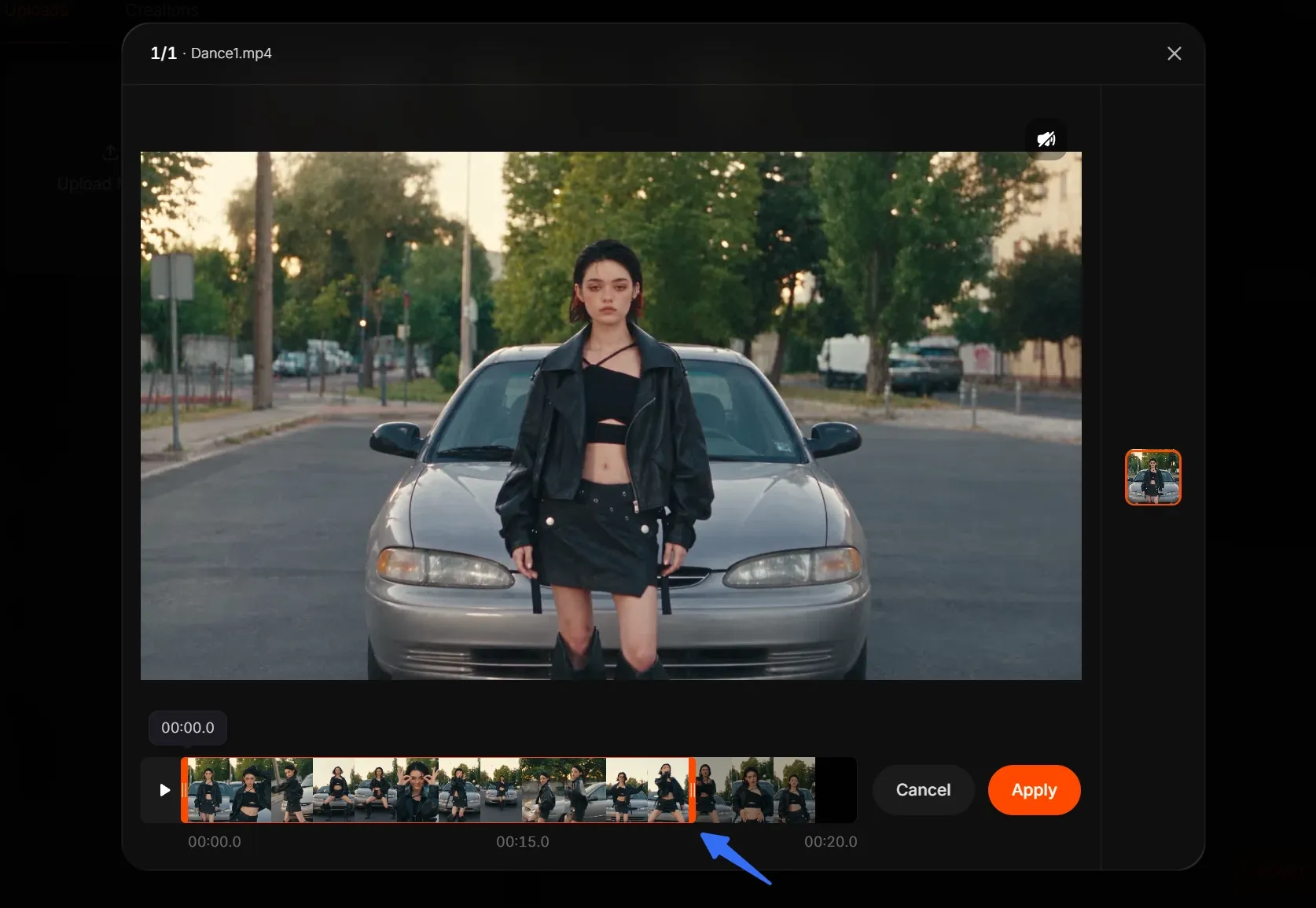
Choose footage with a clear subject, easy-to-follow movement, and good separation from the background. This helps the AI preserve recognizable details and keep the restyle more consistent throughout the clip.
Step 3: Choose Your Preferred Style
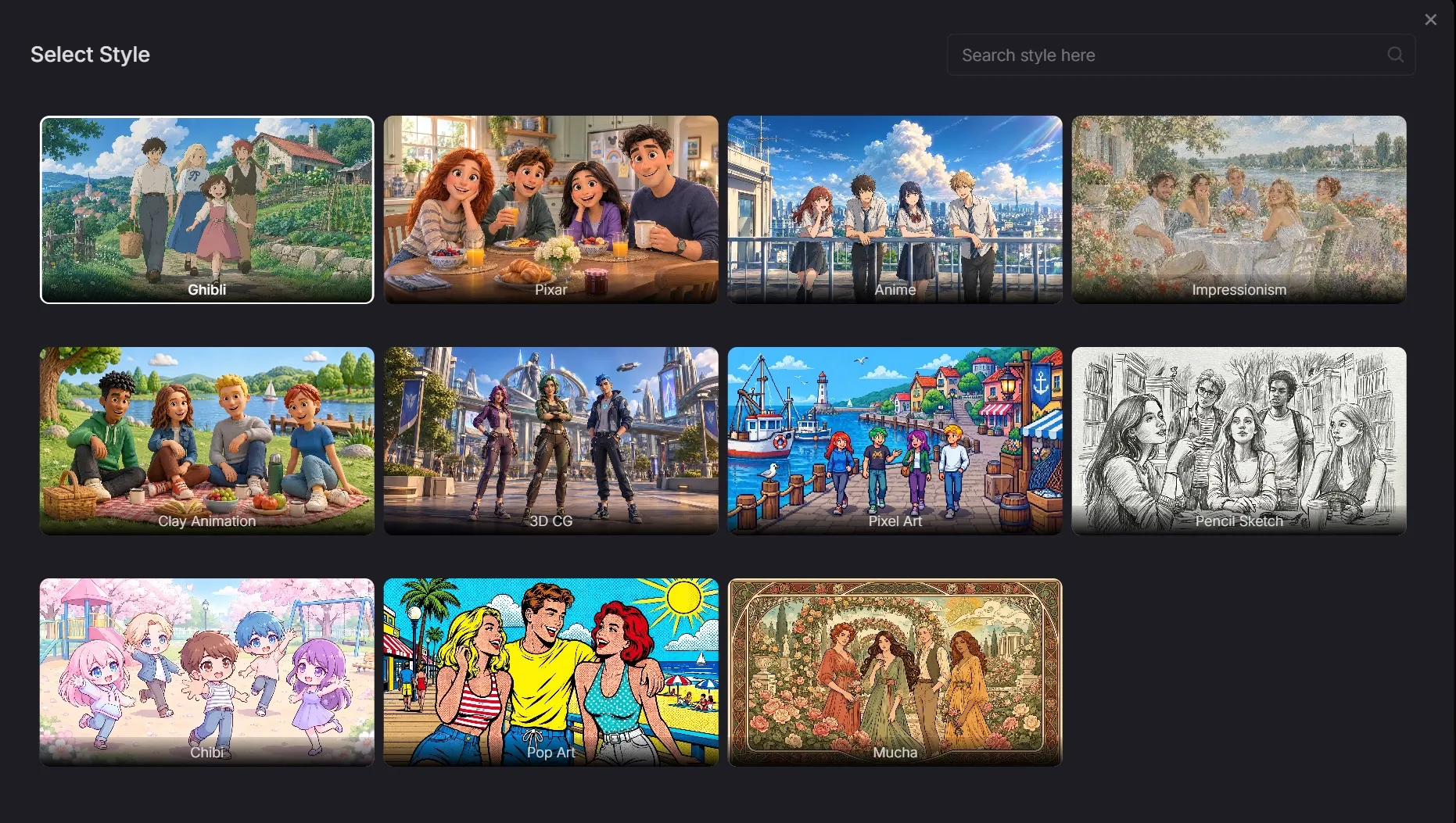
Choose your preferred visual style, then turn on Prompt (Optional) to describe what should stay consistent. I recommend naming the original action and camera movement while keeping your requested changes focused on the video’s appearance. See the examples below for wording.
Step 4: Generate Your Video
Click Create, and your restyled video will be ready in minutes. Pollo’s video-to-video AI gives your footage a polished new look while preserving the original movement—see the input and output comparison below.
| Input | Output |
Preview the result and download it when you’re happy with it. If you’d like to adjust any details, use our AI video editor to refine the video.
How to Write Prompts That Preserve Motion and Camera Movement
Describe what should change and what should stay. Turn on Prompt (Optional), name the visual change you want, and specify which movements should follow the source. I’d keep the first attempt focused on one style without adding new actions or camera directions.
A useful starting structure is:
Apply [visual style] to the source video. Preserve the original subject actions, movement timing, camera path, and framing. Keep the scene layout consistent without adding new actions or camera moves.
Be Specific About the Subject’s Movement
Name the action you want to retain, such as a turn, a walk, or a hand gesture. Instead of writing “keep the motion,” identify its direction and timing so your request clearly refers to the performance already in the footage.
Example — a dance clip with a fixed camera:
Restyle the video as anime. Preserve the dancer’s original steps, arm gestures, body turns, and rhythm. Keep the full-body framing and fixed camera. Maintain the existing background layout without adding choreography or camera movement.
Describe the Existing Camera Move
Match your camera instructions to the uploaded clip. If the source pans right, ask to retain that pan; if it tracks a walking subject, describe that relationship. Avoid adding terms like “orbit” or “zoom” unless those movements already exist.
Example — a tracking shot of someone walking:
Apply a clay animation look. Preserve the person’s walking direction, pace, and gestures. Retain the original tracking shot, camera distance, and framing. Keep background objects in their existing positions without adding cuts, zooms, or camera rotation.
Keep Visual Changes Focused
Start with a style change before requesting a new setting, outfit, and lighting together. If you want to focus the transformation on one subject, describe that intention in the prompt, then check whether the background remains close enough to your source.
Example — a person turning toward the camera:
Give the person a pencil-sketch appearance while keeping the background close to the original. Preserve the head turn, facial expression, and movement timing. Retain the source camera movement and composition without adding gestures or changing the setting.
Adapt each example to your footage. These instructions communicate your priorities, but they don’t lock motion or camera movement. A fixed-camera prompt would conflict with a moving shot, so remove any detail that doesn’t match the original video before generating.
Give Your Footage a Fresh Look
Upload a clip you love, choose a visual style, and explore a new creative direction with Pollo AI’s video restyling.
Restyle Video With AI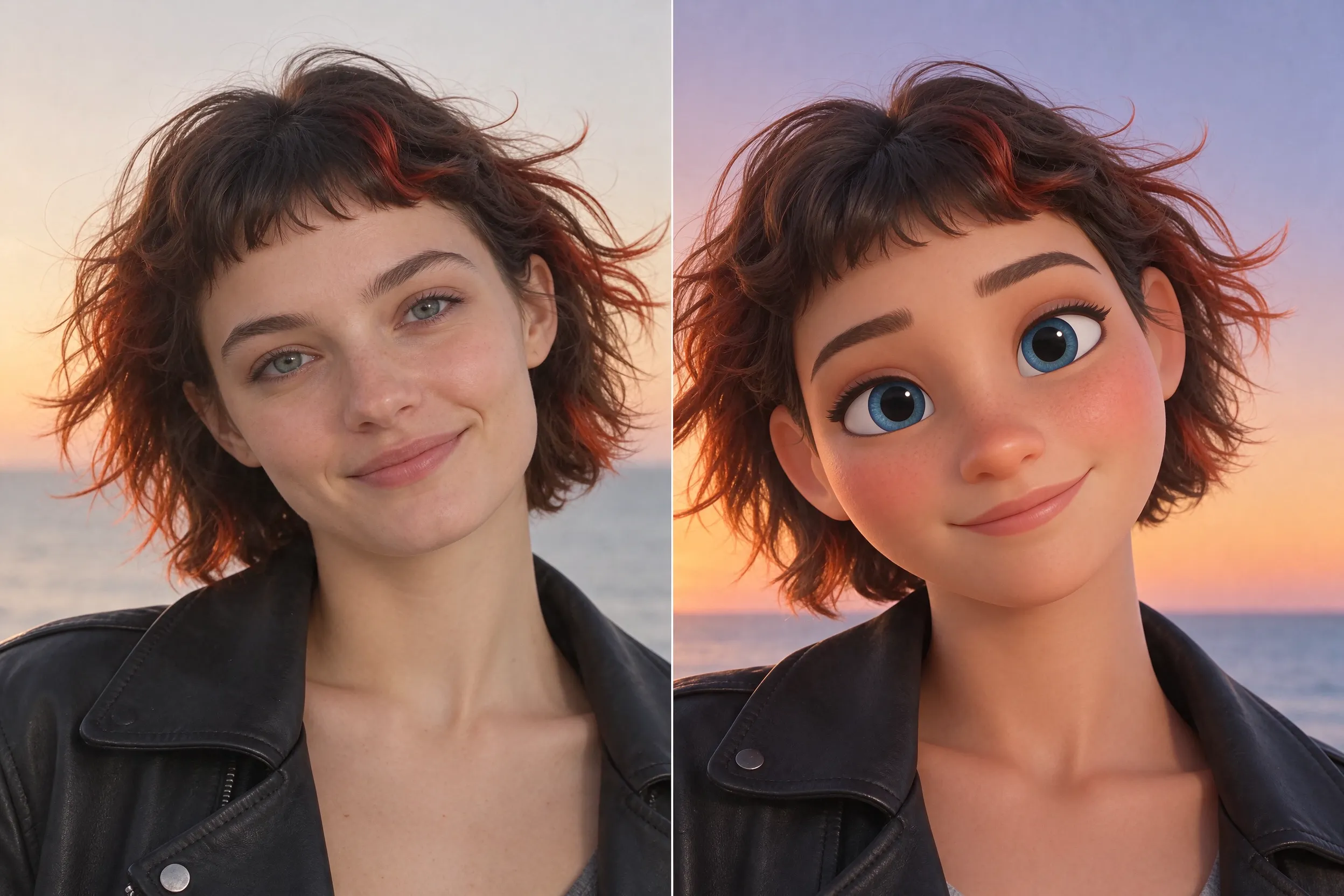
What to Check and How to Fix It
Compare the original and restyled videos side by side. Focus on the action’s timing, the camera’s direction, and how the background moves through the frame. If something changes unexpectedly, adjust one part of the prompt or source clip per attempt.
| If You Notice… | Try This Next |
|---|---|
| Changed gestures or extra actions | Remove requests for new movement. Name the original action and ask to preserve its sequence and timing. |
| An unwanted zoom, orbit, or angle change | Remove conflicting camera terms. Describe the camera movement already present in the source. |
| Background objects shifting or changing | Remove requests for a new setting. Ask to retain the original scene layout and object positions. |
| Distorted fast movements | Try a shorter source segment with clearer poses and less motion blur. |
| Flickering or unstable details | Simplify the visual changes or try another style, then compare the same section again. |
Conclusion
Give your footage a new look while keeping its original performance in focus. Open Pollo AI’s video to video AI, choose a style, and try a focused prompt that describes the actions and camera movement you want to retain.