

How to Use Video to Video AI: A Step-by-Step Guide
Want to restyle video with AI but aren’t sure where to start?
This guide walks you through choosing footage, applying a visual style, and reviewing the result using Pollo AI’s video to video AI, with optional prompts for finer adjustments.
TL;DR
To restyle video with AI on Pollo AI, upload your footage, select a style, and optionally describe the changes you want. Choose an output resolution, click Create, then review the restyled clip before downloading your preferred result.
How to Restyle Video With AI on Pollo AI
The process takes three steps: upload your video, choose its visual style, and create your new version.
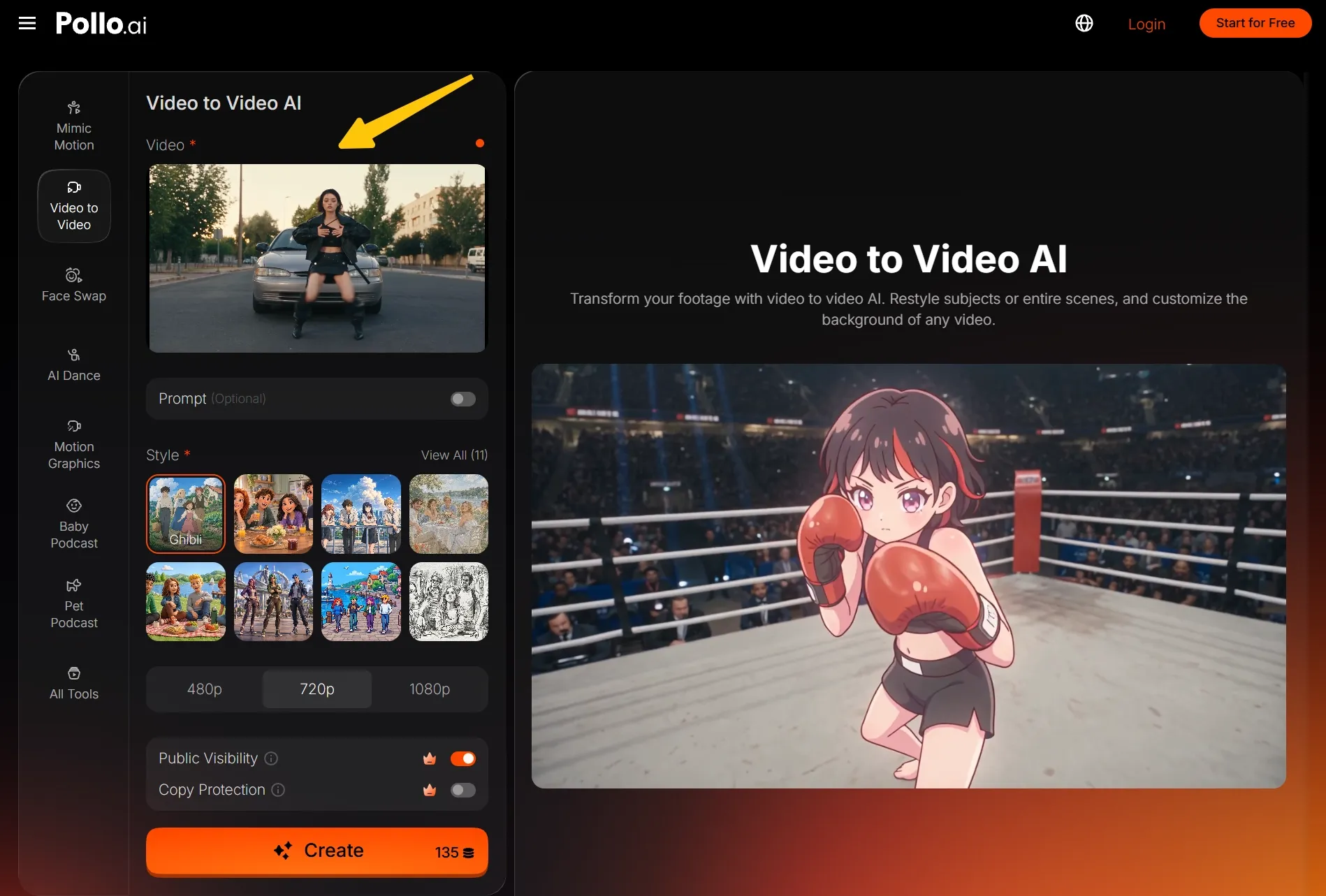
Upload Your Video
Open video to video AI and upload your clip in the Video section. I recommend starting with one clearly visible subject and an easy-to-follow action, such as someone walking, turning toward the camera, or holding up a product.
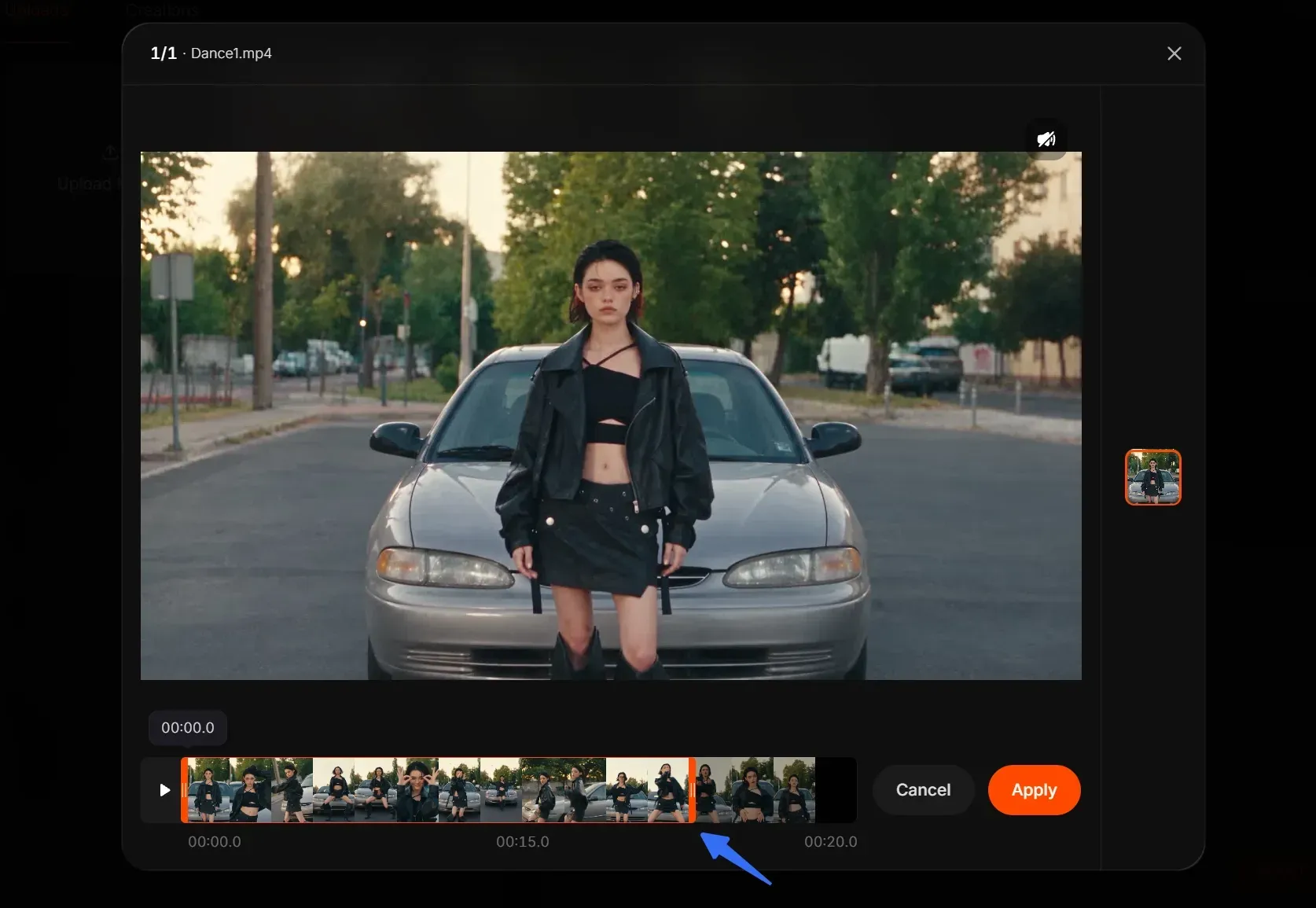
Here is another point: If the video is longer than 15 seconds, you can use the built-in trimming tool to select a segment of up to 15 seconds, then click “Apply”.
Choose a Style and Add Optional Details
Choose a preset under Style, or click View All to explore more options.
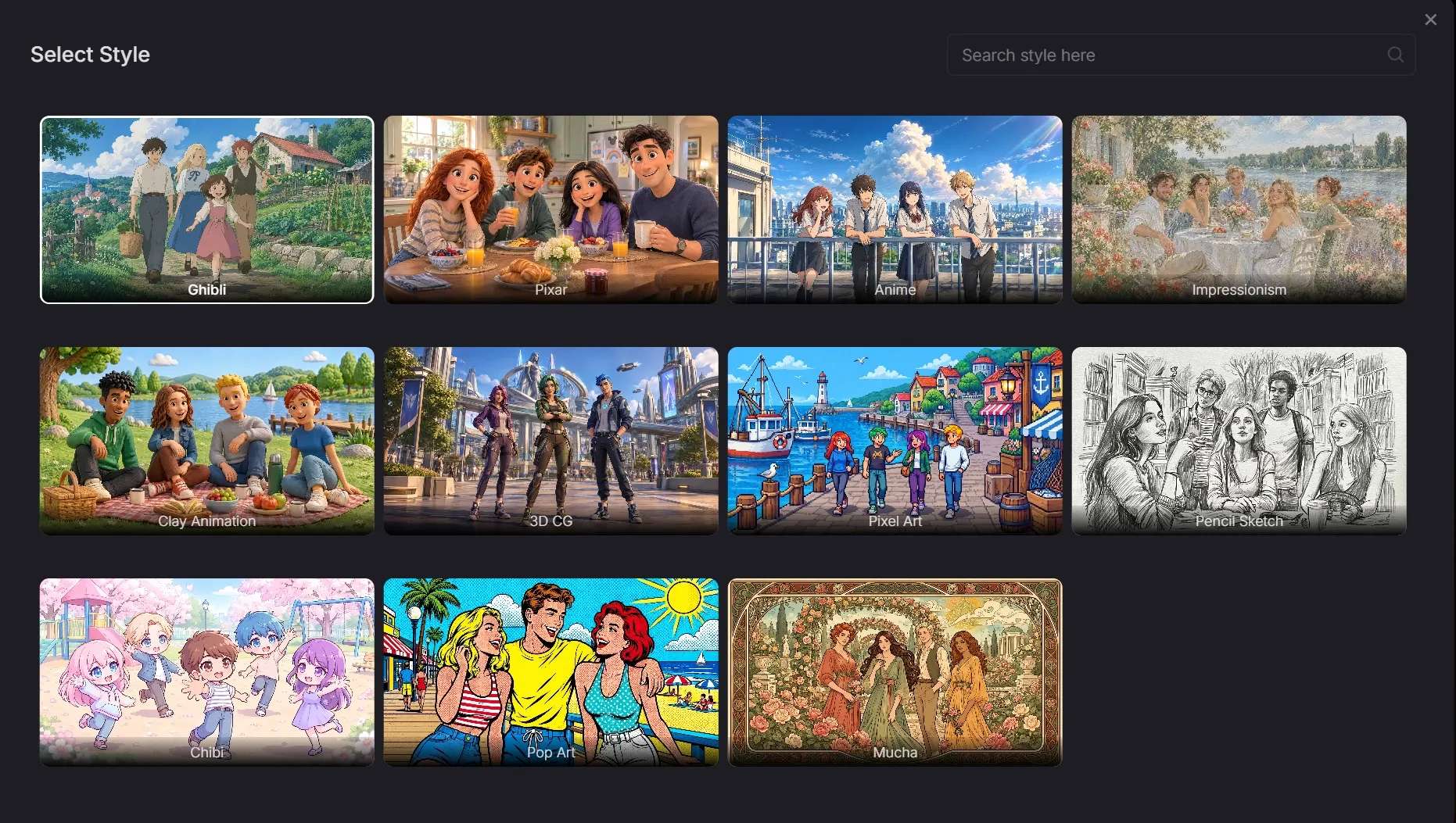
To further guide the look, use the optional Prompt field to describe details such as warmer colors, softer lighting, or a particular texture.
Create and Review Your Video
Choose 480p, 720p, or 1080p, check the displayed credit cost, and click Create. Once it's ready, watch it through to check the style and movement. Download the version you like, or adjust your settings and try again.
| Input | Output |
How to Guide the Restyle With a Prompt
When you restyle video with AI, use the optional prompt to guide colors, lighting, and textures beyond your chosen preset. Describe the visual adjustment you want, such as softer shadows, instead of asking for several unrelated changes at once.
I’d start with color or texture + lighting + details to preserve. Keep these instructions consistent with your chosen preset. For more examples, our video to video prompt guide explains how to describe style changes without overloading the request with unrelated directions.
Give an Outdoor Clip a Warmer Look
For a walking or travel clip, try a prompt that concentrates on the atmosphere. Choose your preferred style first, then describe the palette and light you want. This keeps the request focused on how the existing scene should look.
Tip
Use warm golden-hour colors, soft highlights, and gentle shadows. Keep the subject’s outfit recognizable and preserve the original walking motion and framing.
Try a Muted Palette and Subtle Texture
For a more understated video restyle, describe a muted palette and subtle texture that suit your selected preset. Keep the subject and setting the same in your instructions, then compare the result with your original clip before making further changes.
Tip
Use muted earth tones, soft contrast, and a subtle matte texture. Keep the subject’s clothing details recognizable and preserve the original gestures and framing.
Give Your Footage a Fresh Look
Upload a clip you love, choose a visual style, and explore a new creative direction with Pollo AI’s video restyling.
Restyle Video With AI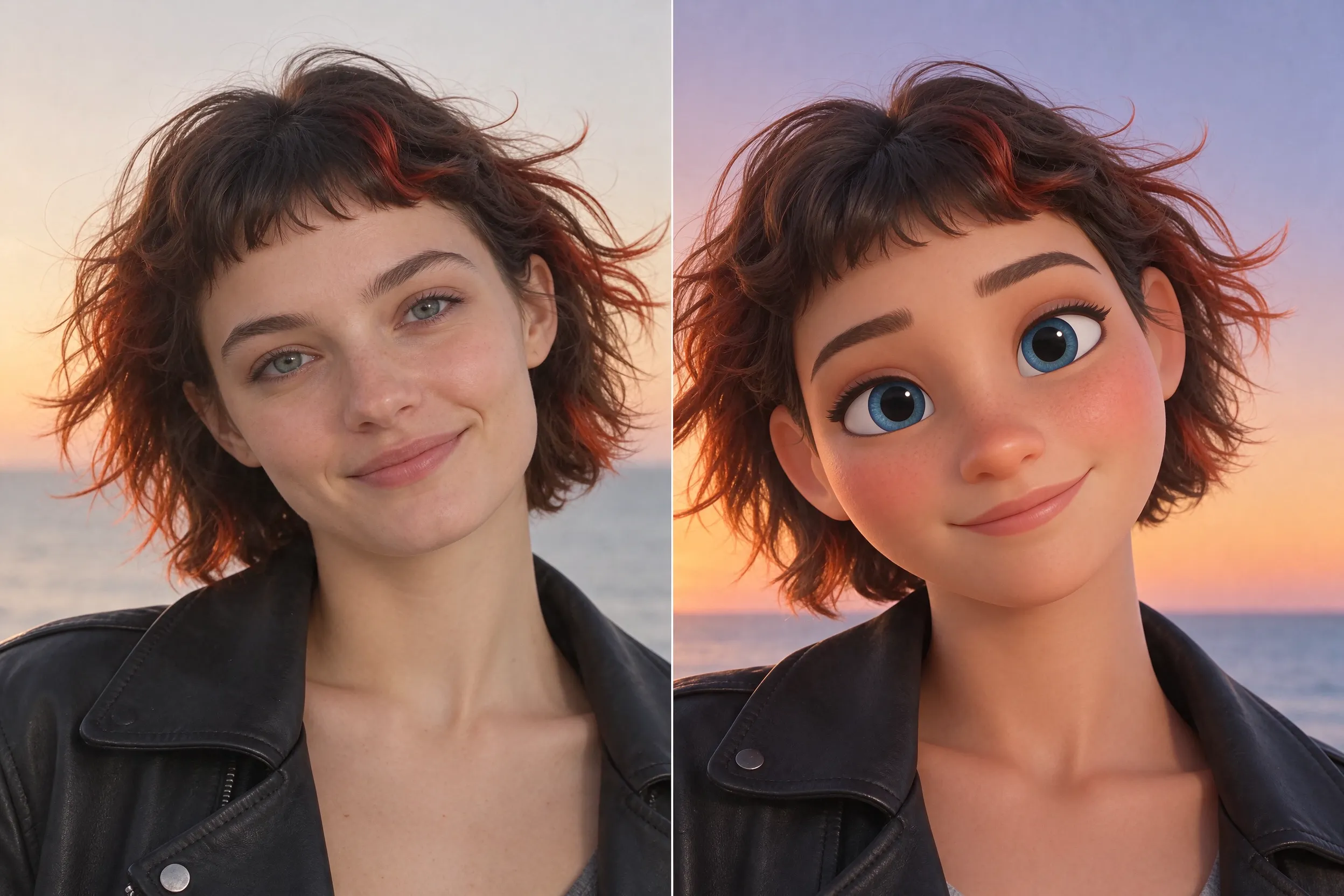
Tips for a Better First Restyle
Start With a Clear, Simple Clip
Before you restyle video with AI, choose footage with a clearly visible subject and readable movement. I’d avoid heavy blur, frequent cuts, or overlapping people for a first attempt. Clear footage makes changes in the result easier to spot.
Check Movement Alongside Appearance
Compare matching moments in the source and output, checking gestures, subject details, and framing. Our guide to preserving motion and camera movement explores these checks further. If details drift, simplify the prompt or try another preset, then compare again.
Change One Thing at a Time
If the overall style feels wrong, switch presets. If only the colors or textures feel wrong, revise the optional prompt. Change one thing at a time, keeping the same source clip so you can compare each attempt against the original.
How to Apply the Restyle to Different Videos
Fresh Versions of Social Clips
When restyling commercial social content, start with a clip whose opening already catches attention. Compare how different presets change its mood, then check whether expressions, gestures, and the main message remain clear enough for viewers to follow.
New Visual Directions for Product Videos
To turn a product reveal into a cinematic AI ad, start with clear framing and apply AI video style transfer. Compare the result with the original, checking that the new look keeps product shapes, labels, and colors recognizable.
Creative Variations of Personal Footage
For a pet or holiday clip, choose one moment with a clear subject. Compare the first result with the source, checking recognizable markings, clothing, and background details. Keep the version that gives the moment a fresh look without distracting changes.
Conclusion
Ready to see your footage in a whole new style? Upload a clip to Pollo AI, choose a preset, and make it your own with an optional prompt. Try your first video restyle today!
FAQs
What is video style transfer?
Video style transfer uses an existing clip as the basis for a new visual treatment. In this workflow, you select a preset and optionally guide its appearance with a prompt, then check how the transformed footage compares with the original.
How do I restyle a video with AI?
Upload your video to Pollo AI, choose a style preset, and optionally describe the look you want. Our guide on how to restyle video with AI walks you through the process, from choosing footage to reviewing your result.
Do I need a prompt to restyle video with AI?
No. The Prompt field is optional, so you can start by uploading your video and choosing a style. Add a short instruction only when you want to guide details such as color, lighting, or texture beyond the preset.
Will my video keep exactly the same movement?
Treat the original video as your movement reference, and review the result rather than assuming an exact match. Check gestures, subject positions, and camera framing throughout the clip. If something changes unexpectedly, simplify the prompt or try another style.
What resolution can I choose?
The output selector offers 480p, 720p, and 1080p. Choose the setting that fits how you plan to use the clip, and check the displayed credit cost before creating. Higher output resolution does not guarantee that every original detail survives restyling.