Video to Video AI Prompt Guide: Style, Motion and Camera Control
I’ve often found that video-to-video AI can be tricky to prompt because there’s very little room to change existing footage. So how should you structure your instructions to control style, motion, and camera movement? Read on, and I’ll explain how to best use Pollo AI today!
TL;DR
Proper prompting for video to video AI is solely about describing the new aesthetic of the scene or the subject only, be it anime, Pixar, etc., and what needs to be preserved in the restyled footage. Remember, the original video you upload already dictates the motion and camera movement, so keep your prompts short by simply stating what should survive the chosen restyle.
Video-to-Video AI Prompt Guide with Pollo AI: At a Glance
| Key aspects | Practical guidance for Pollo AI |
| Main workflow | Upload a video, choose a preset style, adjust the available options, and create the restyled clip. Select the source footage and preset before spending time on prompt wording. |
| Prompt control | The video-to-video interface does not support cinematic prompting over new actions, camera paths, lenses, or shot sequences. Use prompts to reinforce the look and preservation priorities, not to design an entirely new shot. |
| Motion source/Camera guidance | The uploaded video supplies the subject movement and camera behavior. Choose footage whose existing camera movement already matches the intended result and has one short, coherent action with clear motion and few abrupt changes. |
| Scope control | Restyle Subject Only applies the transformation primarily to the focal subject while helping preserve more of the original background. Turn it on when the subject is the creative target and the original setting should remain recognizable. |
| Style guidance | Use prompts for texture, palette, lighting, mood, and preservation priorities that reinforce the selected preset. Lead with the material and visual treatment, then state what must remain stable. |
| Best use case | Simple demonstrations where the original motion is worth preserving. Favor clips with one visible subject and one clear action. |
How to Restyle a Video with Pollo AI
Upload Your Video
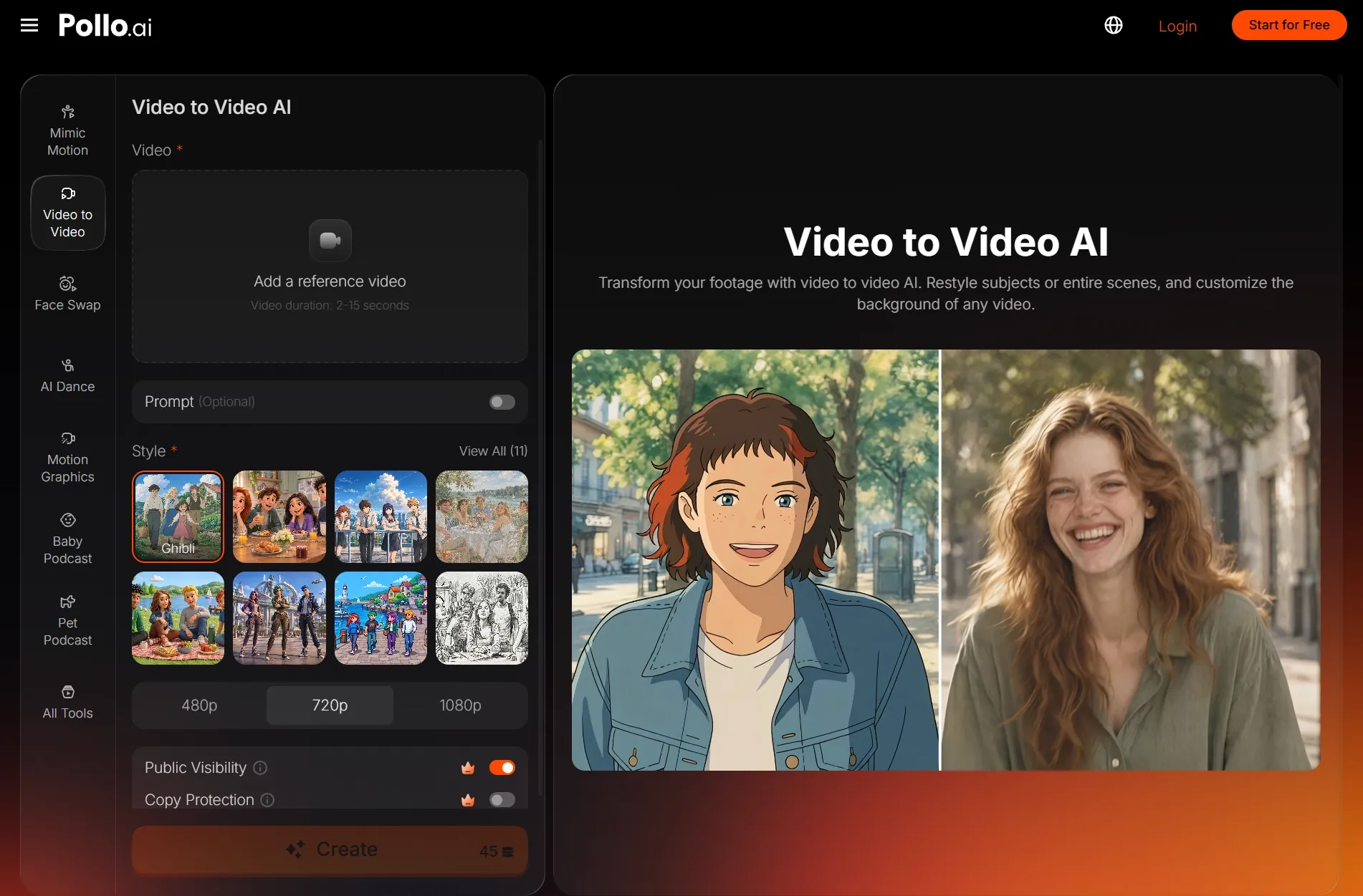
First, open video to video AI then upload a video with a clear subject, readable movement, and good contrast between the subject and background. I advise against using low-res footage if you want a consistent result.
Choose a Unique Style
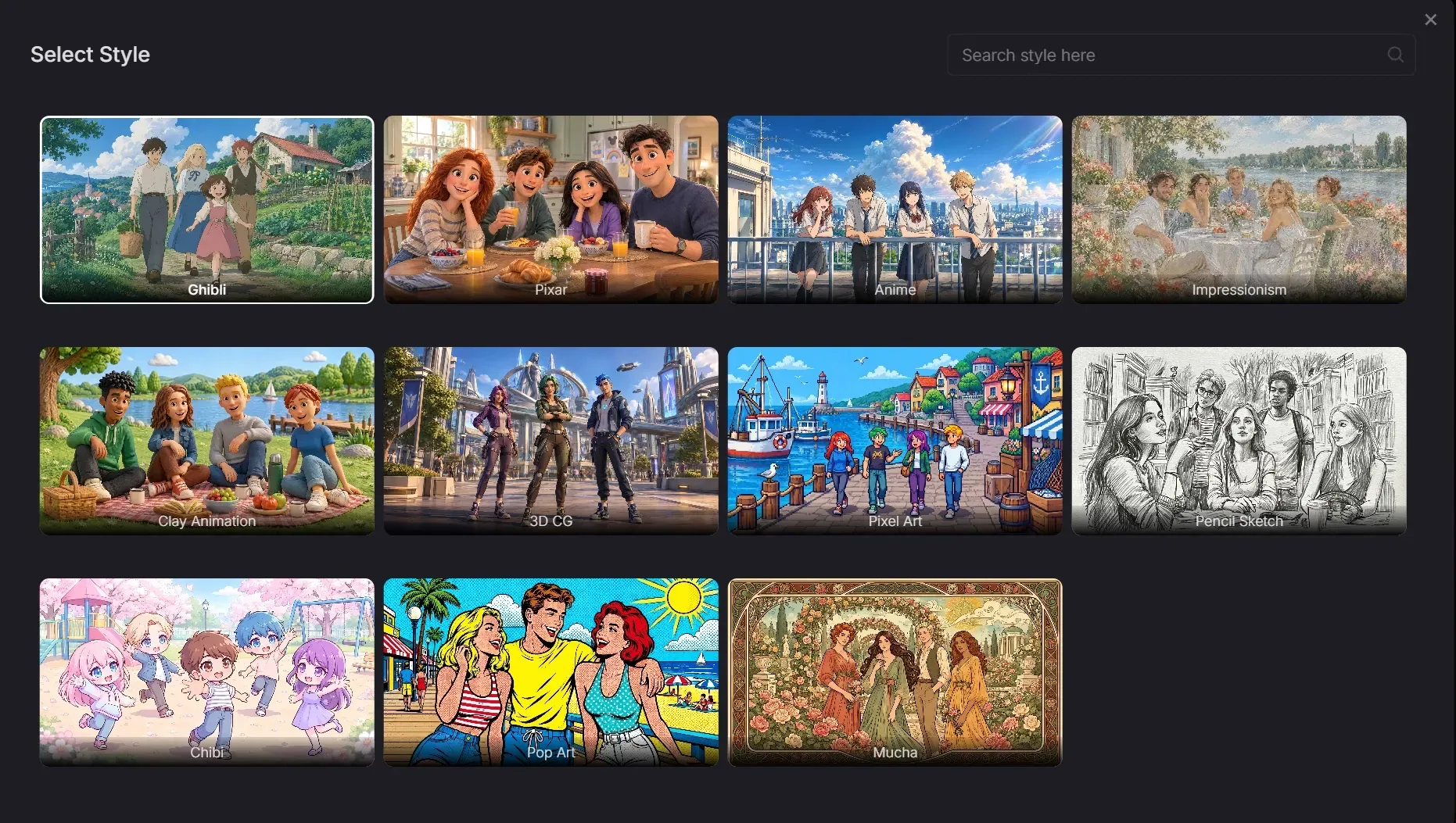
This AI video to video generator has multiple unique styles to choose from. Whether it's anime, claymation, chibi, or pop art, there are several solid options.
Adjust the Settings
You can use the prompt box to isolate a character, be it a person, animal, or object, and describe the style you want to change it to.
Generate Your Restyled Video
Once you click on ‘Create’, the AI video to video generator will restyle your video in minutes. You can review it, and if it meets your expectations, you can proceed to download it. That’s it!
For a detailed walkthrough, read our guide on how to use video to video AI.
Video-to-Video AI Generation Guide: Style Prompting
As I’ve shown in the step-by-step workflow, there isn’t much room for cinematic prompting. While you may want to craft detailed instructions with a subject, action, setting, lens, camera movement, etc., the AI video to video tool isn’t built to interpret all those fields.
So, where does prompting come in? It’s all about style direction. Here, your prompts are simply meant to reinforce the selected preset, so you can’t expect to redesign the composition or create an entirely new camera path.
For example, if I select an anime style, a short description like “clean cel shading, bold linework, saturated sunset colors” is enough. The key is to mention style aspects like edge quality, palette, etc., and what must remain recognizable, like product shape, facial identity, etc.
In fact, here’s a restyle prompt example that I’ve used before:
Prompt
Clay animation style, handcrafted plasticine texture, warm colors, visible sculpted surface detail, preserve the subject’s silhouette and hand gestures
Do you see why it works well? It’s because it concentrates on highlighting my desired style, texture, color, and preservation. I’m not trying to control the camera movement or subject motion already set by the original footage.
Now here’s what NOT to do when prompting with video to video AI:
Warning
A clay character walks forward, then the camera cranes up, swings around the character, zooms into the face, and reveals a miniature city behind them
Can you see why this won’t work? It’s because the prompt doesn’t specify what the tool needs to do with the style direction, and also the instruction describes an entirely new shot. While this may be a good prompt for text to video or image to video, it has no impact on video to video.
Ultimately, the footage that I upload remains a fixed foundation. So, if the original clip has no crane, orbit, zoom, etc., then I can’t ask the AI video restyler to add them.
When the prompt field accepts only a small amount of text, I suggest putting the most important elements first: the style, the subject, and the motion or identity that must be preserved. It’s all about communicating what matters for the best possible result.
Give Your Footage a Fresh Look
Upload a clip you love, choose a visual style, and explore a new creative direction with Pollo AI’s video restyling.
Restyle Video With AI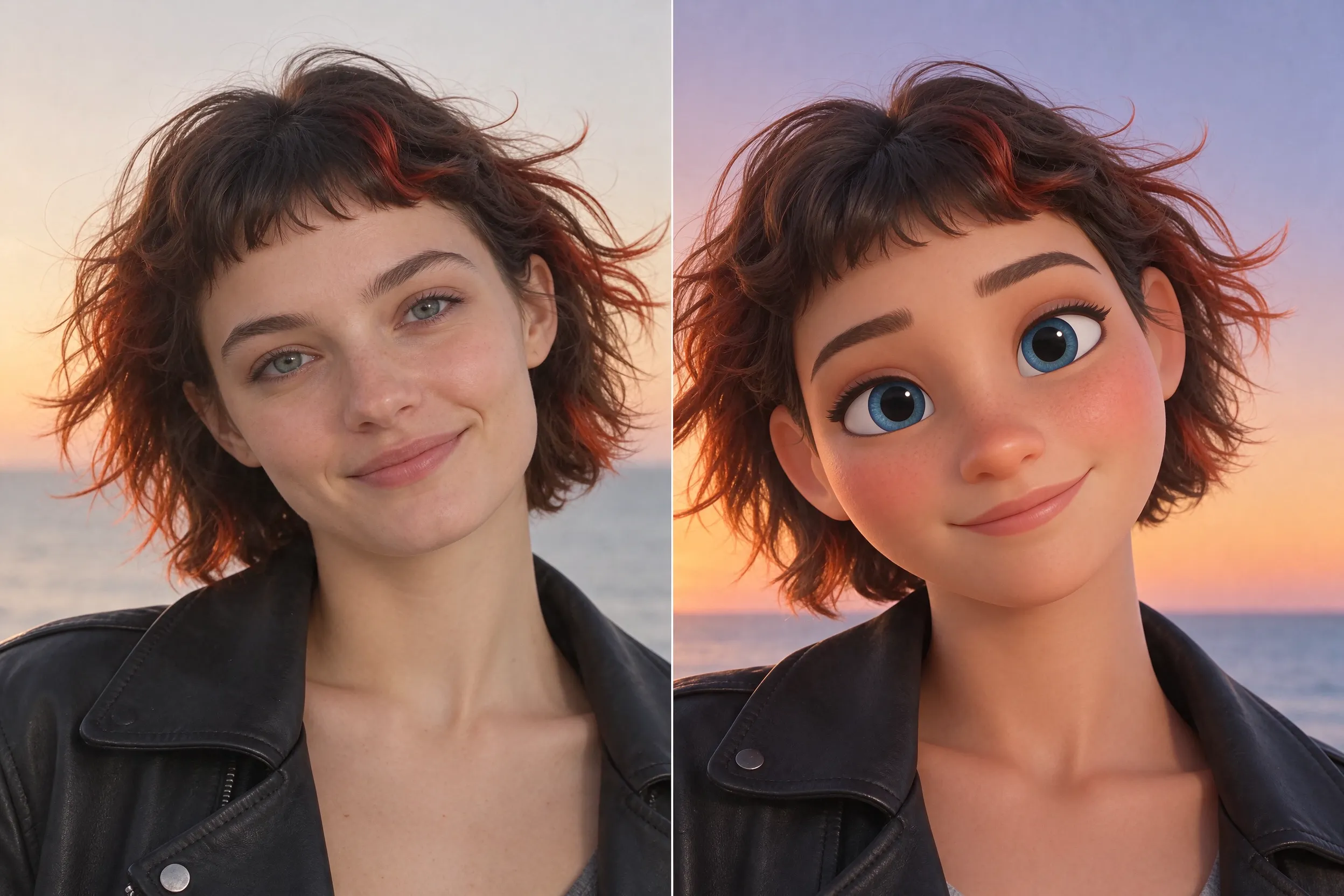
Video-to-Video AI Generation Guide: Handling Motion
When it comes to motion control, there is not much room for prompting. Why? Because the source video is the motion prompt itself. Whether it’s a dance video, a person walking down the street, or something else, the tool reinterprets what’s in the original clip.
That is why I emphasize uploading simple, legible footage. Instead of using videos with overlapping bodies, fast cuts, heavy motion blur, etc., I suggest scenes with a single subject, easy action, and clear separation from the backdrop. It’s the best way to achieve a solid result.
This is why, before I upload any clips, I review the footage and consider what the subject does, how fast they move, and if the camera movement supports the action.
Here’s an example of a prompt to use in text to video that can make for great source footage:
Prompt
Slow, smooth tracking shot of a lone dancer walking left to right through a sunlit concrete plaza. The dancer performs one controlled turn and continues walking. Medium-wide shot, full body visible, stable camera, continuous seamless take, warm late-afternoon light
Video-to-Video AI Generation Guide: Camera Control
Once again, video to video AI doesn’t leave much room for prompt camera control. So, what would I recommend doing? I would select footage with relatively simple camera movements like static, locked-off, medium shots, or slow tracking shots.
I’ve often noticed how source footage, where the camera stays reasonably still or has slow, controlled camera movement, is always the safe bet. These types of shots give the AI video restyle tool a clear visual structure to follow.
So, I would try to avoid video clips with fast or complex camera views like whip pans, orbits, rapid cranes, etc. These movie video shots can make it a bit hard for video to video AI to restyle because too many elements in the clip are changing rapidly.
However, this doesn’t mean you can’t do any camera prompting with video to video. On the contrary, I would say that your focus is on making sure the output preserves the original camera work. For example, here’s a short instruction that you can feel free to include in your prompts:
Prompt
[... Preserve the original camera movement exactly: maintain the same framing, camera path, speed, timing, perspective, and subject position]
So, while I can’t use the prompt to direct missing cinematography, I can still use it to maintain framing, movement, and timing. It’s about giving the video to video AI generator guidance on what not to change when handling existing camera movements. If you want to design a new shot with more control over camera movement, lenses, and lighting, try Pollo Cinema before restyling the footage.
Video-to-Video AI with Pollo AI: Practical Workflow Prompts
When using AI video to video generator, I find the most important thing is choosing footage that already has the camera movement, framing, timing, and subject performance I need. As I’ve said before, motion and camera control solely depend on the source material.
So, before uploading, I always make sure the subject is visible enough to track, the main action is easy to follow, and the camera movement fits the intended mood. The only part that I can influence directly with my prompts is defining how the final output should look after restyling.
So, I would urge you to keep your prompts short, style-centered, and clear about preservation. Here are a few practical examples based on different use cases that you can take ideas from:
For an anime dance video:
| Prompt |
| Anime restyle with expressive linework, vivid magenta and cyan accents, preserve the original choreography and timing, keep the dancer’s silhouette clear |
For a product demo:
| Prompt |
| Premium clay animation look, handcrafted surface texture, soft warm studio light, preserve the product’s shape, logo placement, and original turntable rotation |
For a stylized portrait:
| Prompt |
| Painterly storybook style, muted autumn palette, soft brush texture, preserve facial identity, head movement, and the original slow push-in |
As you can see, with video to video AI, I never need to overcomplicate my prompts. I just describe the style and what to preserve; everything else is ultimately dictated by what I upload.
Conclusion
When using video to video AI, it’s all about prompting your desired style change. The source footage already contains the motion and camera movement, so take the prompt examples I’ve laid out and use them as a reference guide. In fact, just put them into action on Pollo AI now!