

8 Best AI Image Editors in 2026 (Free & Unlimited)
A free AI image editor looks generous until your second revision hits a credit limit. And “unlimited” might cover saving files rather than changing your photo. I compared eight editors to find which free plans are useful, where unlimited editing actually applies, and which option fits the way you work.
TL;DR
Pollo AI is my top pick to try for free because its AI image editor combines simple photo edits, top-tier models, and tools for everyday cleanup. Free credits and check-in rewards make it easy to start improving your own photos.
Magnific offers unlimited use of selected editing tools on paid plans. InvokeAI and ComfyUI let you keep editing for free after installing them on your computer, but they take more time to set up and learn.
What Does “Free and Unlimited” Actually Mean?
Free means you can start editing without paying. Unlimited means you can keep editing without a set daily or monthly limit. Some services offer unlimited editing through a paid plan, with longer waits after the faster allowance runs out.
The 8 Best AI Image Editors (Free & Unlimited) at a Glance
| Rank | AI Image Editor | Best For | Free Access | How to Keep Editing |
|---|---|---|---|---|
| 1 | Pollo AI | Simple edits and model choice | Free credits | Check-in rewards; paid plans |
| 2 | Magnific | Frequent browser editing | Limited free use | Selected unlimited edits with subscription |
| 3 | Pixlr | AI plus manual adjustments | Basic editing tools | Monthly credits on paid plans |
| 4 | Fotor | Everyday photo fixes | Basic tools; limited AI uses | Upgrade for more AI uses |
| 5 | Krea | Small daily editing sessions | 100 free points/day | Daily refills; paid plans |
| 6 | OpenArt | Trying models and area edits | 40 credits; seven-day trial | Monthly credits on paid plans |
| 7 | InvokeAI | Editing on your own computer | Free software after installation | Unlimited edits on your computer |
| 8 | ComfyUI | Building custom editing steps | Free software after installation | Unlimited edits on your computer |
1. Pollo AI — Best Overall Unlimited AI Image Editor to Try for Free
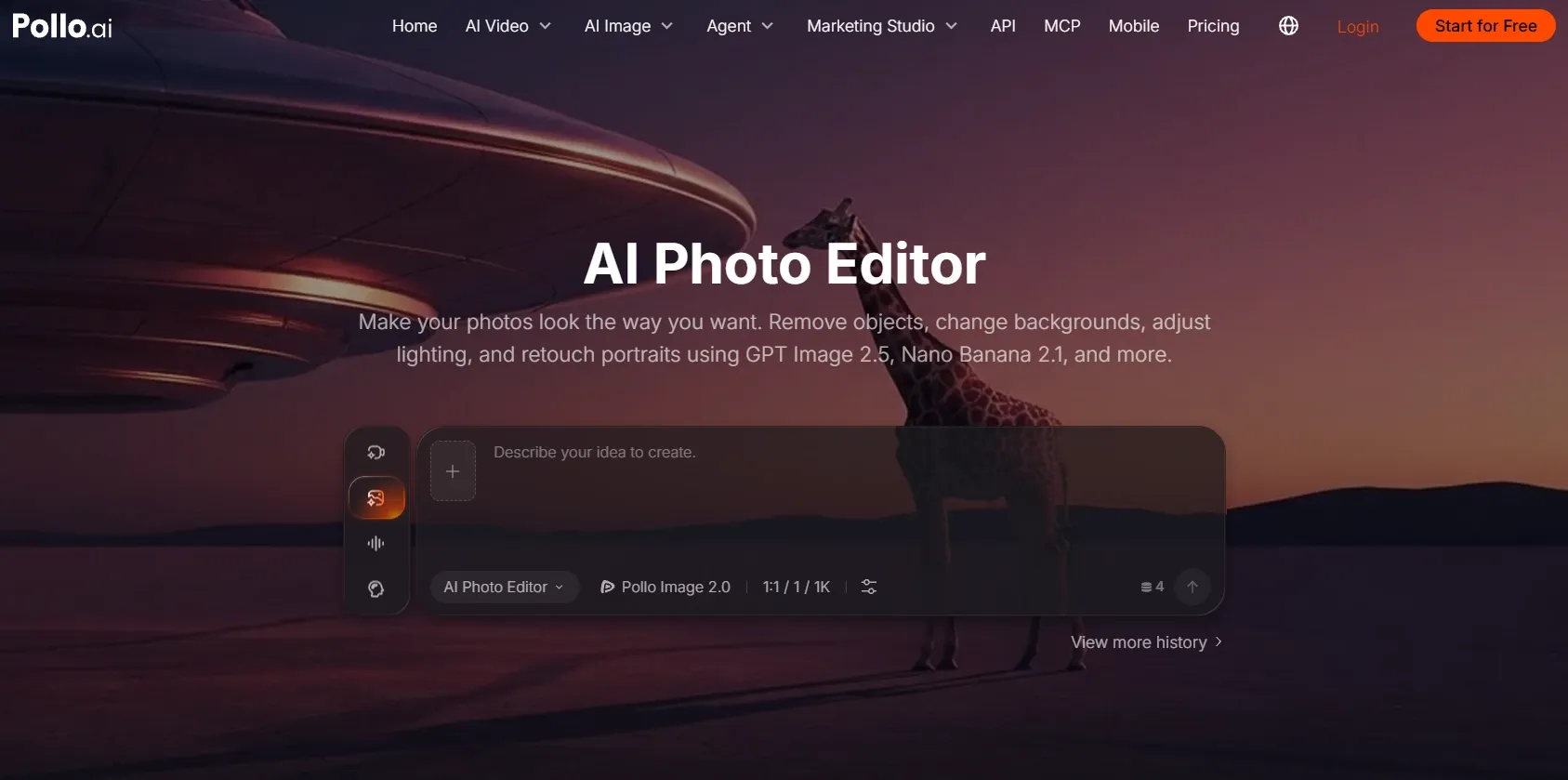
Best for: Creators who want straightforward photo edits, top-tier models, and free credits to get started.
Pollo AI is my first choice when a photo needs a cleaner background, better lighting, or unwanted objects removed. You can start with free credits and also earn more through check-in rewards, giving you a way to try useful edits before paying for a plan.
The platform brings together top-tier models such as GPT Image 2.5 and Nano Banana 2.1. That gives you room to explore a subtle portrait correction, a realistic product edit, or a more creative change without managing several separate accounts.
For clean product cutouts, removing the backdrop may be all you need. For clutter-free travel photos, a small removal can rescue a favorite shot. You can also prepare sharper catalog images when the edited photo needs a clearer finish.
I would start with a photo I actually need and describe what should change and what should stay. Free credits let you explore different edits, while check-in rewards give you more credits for later projects. That makes Pollo AI an easy starting point for improving product shots, portraits, and everyday photos.
Example editing brief: “Replace the background of this skincare bottle with warm beige stone. Keep the bottle shape, cap, and existing label unchanged. Add soft side lighting and a natural contact shadow.”
What I got: The original backdrop was replaced with beige stone, and the new background met the bottle’s edges cleanly around the neck and cap. A soft shadow appeared directly beneath the bottle, making the replacement look connected to the original subject. The label lettering and bottle outline stayed intact, so the edit changed the setting without redesigning the product.
Pros:
- Top-tier models, including GPT Image, Nano Banana, and Seedream.
- Simple text instructions for backgrounds, objects, lighting, and styling.
- Free credits, with additional credits available through check-ins.
- Cleanup and enhancement tools for practical photo-editing jobs.
Cons:
- Choosing between several creative directions can take a little extra time.
- A saved prompt template is useful for recurring projects.
My Verdict
Pollo AI takes my first spot for the best overall balance of easy editing, model choice, and ways to start free. It is the option I would try first for everyday photos and business images.
2. Magnific — Best for Frequent Browser Editing
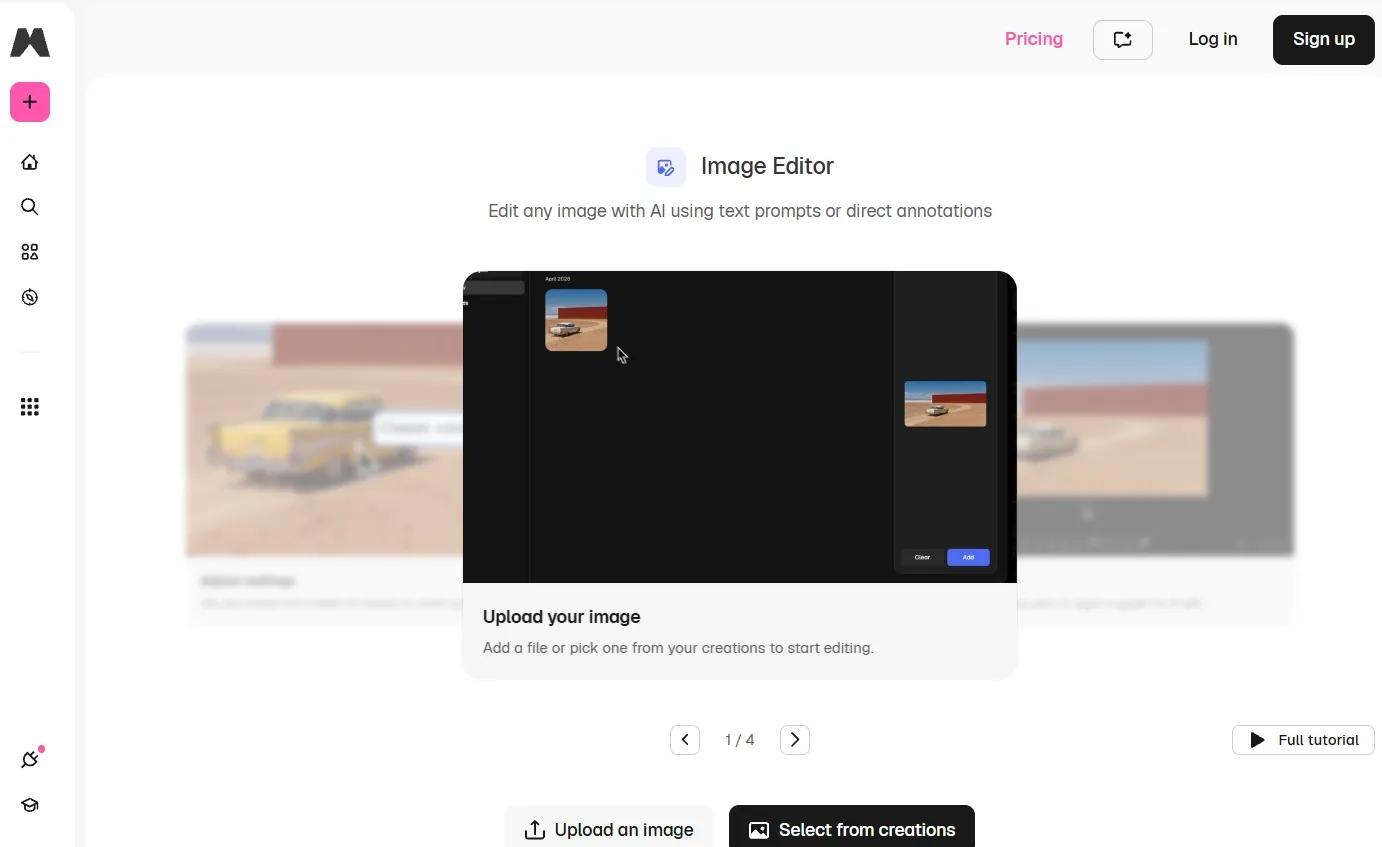
Best for: Users who regularly remove objects, change backgrounds, and reframe photos online.
Magnific is useful when the same photo needs several rounds of cleanup and reframing. It combines object removal, background changes, and area-based retouching in one browser editor. You can guide changes with text, marks drawn on the photo, or a reference image.
That combination helps when preparing a set of e-commerce listing images. A product shot may need distracting props removed, a different backdrop, and more space around the subject. Having those controls together makes Magnific worth considering for a regular editing routine.
However, the free access is limited, while eligible paid plans let you repeat selected edits without spending credits on each attempt. That can suit frequent use, although upscaling remains separate and edits may take longer after the faster allowance runs out.
Example editing brief: “Remove the decorative prop behind this perfume bottle and extend the backdrop into a wide composition. Preserve the bottle, label, and existing light direction.”
What I got: The prop was removed and the backdrop extended to create more space beside the bottle. The bottle’s edges and label stayed intact, and most of the filled area matched the original background. A slight difference in brightness remained along the extended section, so that area needed a small adjustment.
Pros:
- Object cleanup, background changes, and reframing in one editor.
- Text, visual marks, and references for guiding edits.
- Selected unlimited editing tools on eligible paid plans.
Cons:
- Unlimited editing requires an eligible paid subscription.
- Upscaling can still use extra credits.
- Edits may take longer after the faster allowance runs out.
My Verdict
Magnific takes second place for its range of browser editing controls and its fit for repeated cleanup and background work. Pollo AI remains my first choice for its free credits, check-in rewards, and access to top-tier image models.
3. Pixlr — Best for Combining AI Edits with Manual Touch-Ups
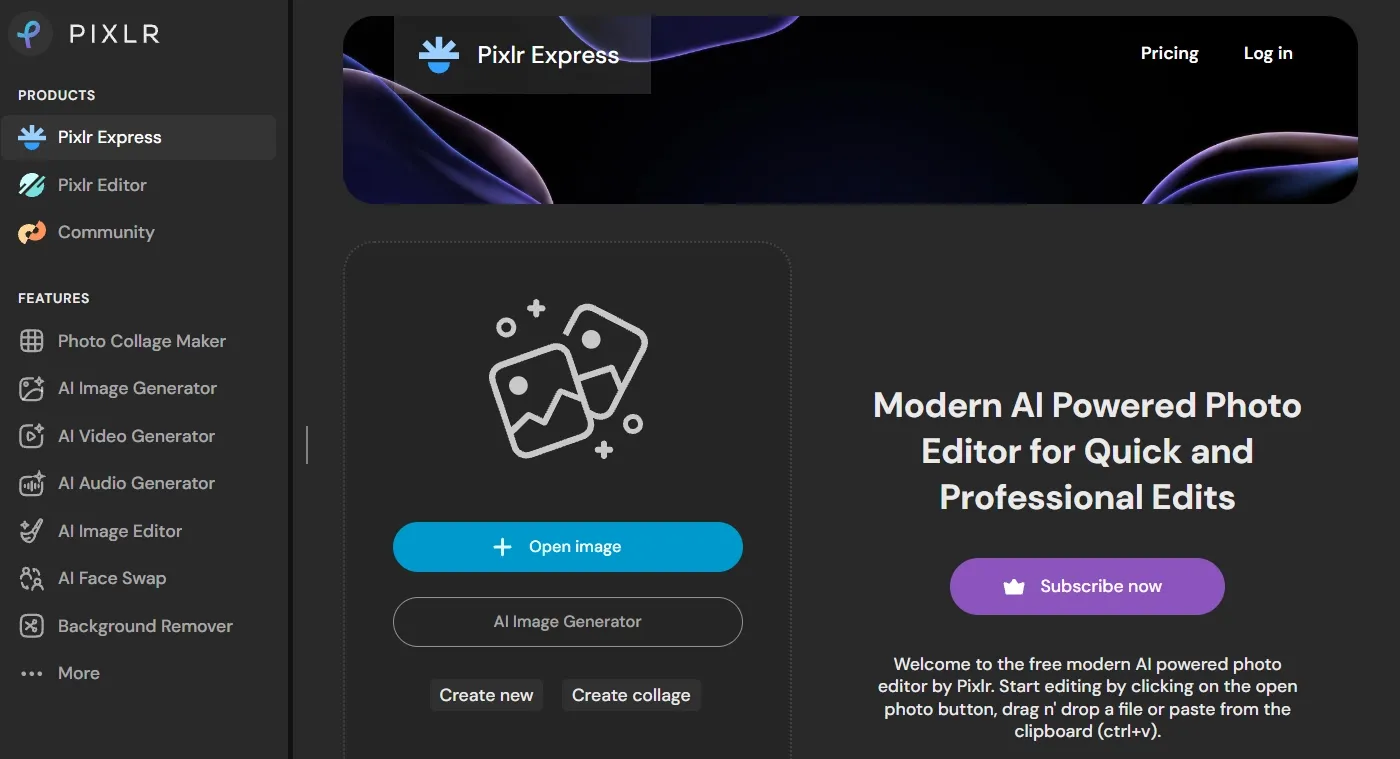
Best for: Users who want AI changes alongside familiar crop, text, and adjustment tools.
Pixlr works well for a mixed approach: ask AI for a substantial change, then finish smaller details yourself. That can help a limited credit balance last longer, especially if you are comfortable making ordinary photo adjustments.
Its paid Plus plan includes unlimited saves and 80 monthly AI credits. Those are separate benefits: saving as many files as you want does not give you unlimited AI edits. The Ultra plan also advertises unlimited Fast image generation, while editing has its own credit allowance.
For fashion-focused Instagram posts, I would use Pixlr to change a garment’s color, then handle the crop and caption layout manually. This keeps paid AI use focused on the change that needs it.
Example editing brief: “Change this jacket from blue to dark green while preserving the fabric texture, folds, buttons, and background.”
What I got: Most of the blue fabric changed to dark green, while the folds and stitching remained visible. The color change stopped correctly around the collar and buttons, but a thin blue strip remained beside one cuff. The main edit worked, although the missed edge needed another pass or a manual touch-up.
Pros:
- AI editing and conventional adjustment tools together.
- Fast, Pro, and Ultra choices for different editing needs.
- Edit history for returning to an earlier version.
Cons:
- Unlimited saves require a paid plan.
- AI edits still use a separate credit allowance.
- Higher model options can use credits faster.
My Verdict
Pixlr takes third place for combining AI with manual finishing. I would choose it if I already knew how to handle small corrections and wanted to save AI credits for bigger changes.
4. Fotor — Best for Everyday Photo Fixes on a Free Plan
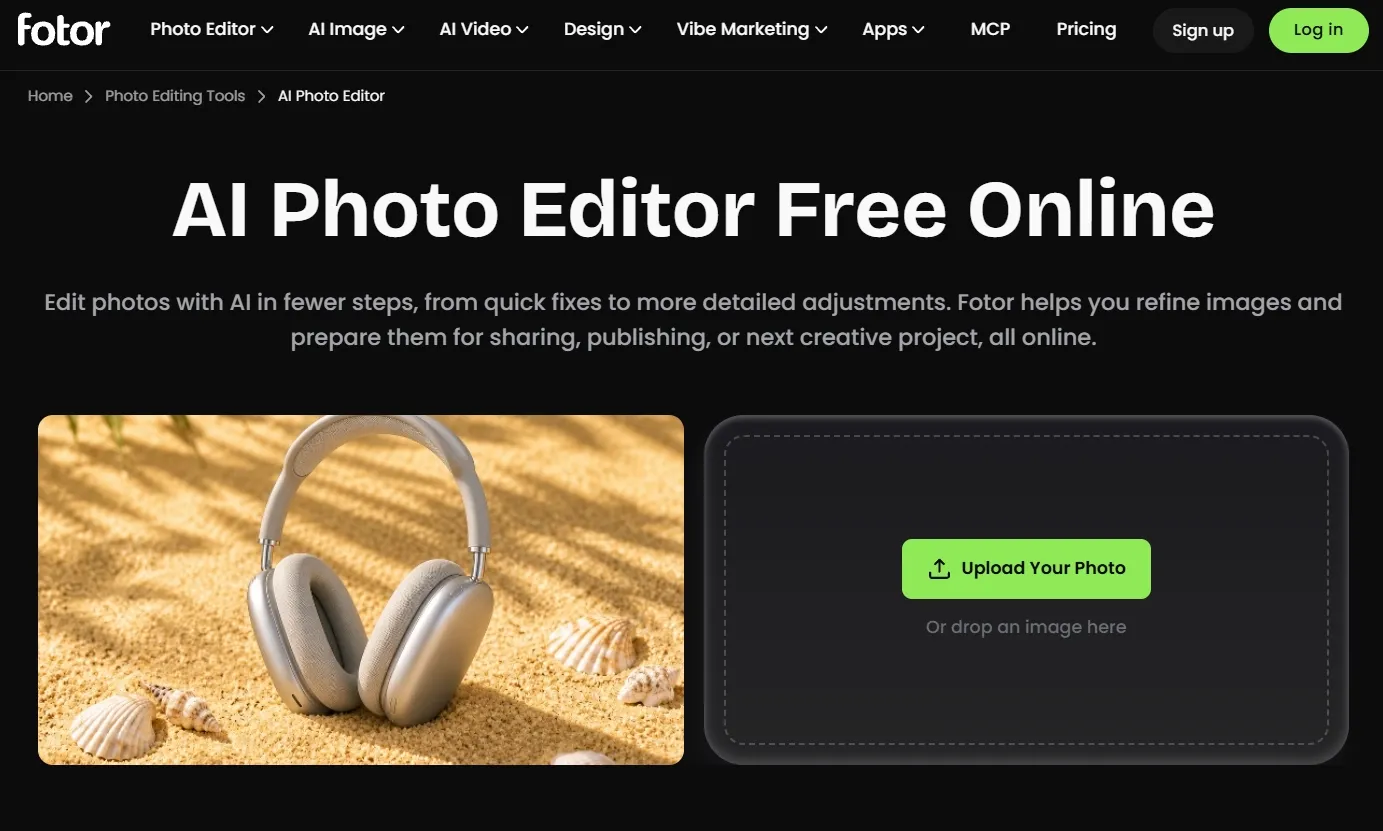
Best for: Casual users making basic improvements to portraits and everyday photos.
Fotor’s free Basic plan is useful when a photo mainly needs cropping, brighter exposure, or better color. Its wider toolkit also includes portrait retouching, restoration, background changes, and object removal.
The free plan becomes less generous once you move into advanced AI tools. Free credits and uses vary by feature, and some download options require payment. I would check the tool and final image size before starting a larger batch.
For professional profile photos, I would begin with light and color adjustments. A small correction may be enough, leaving the limited AI allowance for changes that basic tools cannot make.
Example editing brief: “Brighten this indoor portrait, reduce the yellow color cast, and preserve natural skin texture and facial features.”
What I got: The yellow tint was reduced across the face and white shirt, and the darker side of the face became brighter. The eyes, nose, and mouth kept their original shape. Some warmth remained in the shadow near the jaw, so the color correction was useful but not completely even.
Pros:
- Free basic tools for everyday photo corrections.
- Portrait, restoration, and enhancement options.
- Brushes for restoring or removing parts of a background cutout.
Cons:
- Free AI limits vary between tools.
- HD and some download options require payment.
- Several advanced corrections can use up the free allowance quickly.
My Verdict
Fotor ranks fourth as a practical choice for smaller photo fixes. I would use its free basic tools first and check the costs before relying on several AI features together.
5. Krea — Best for Small Daily Editing Sessions
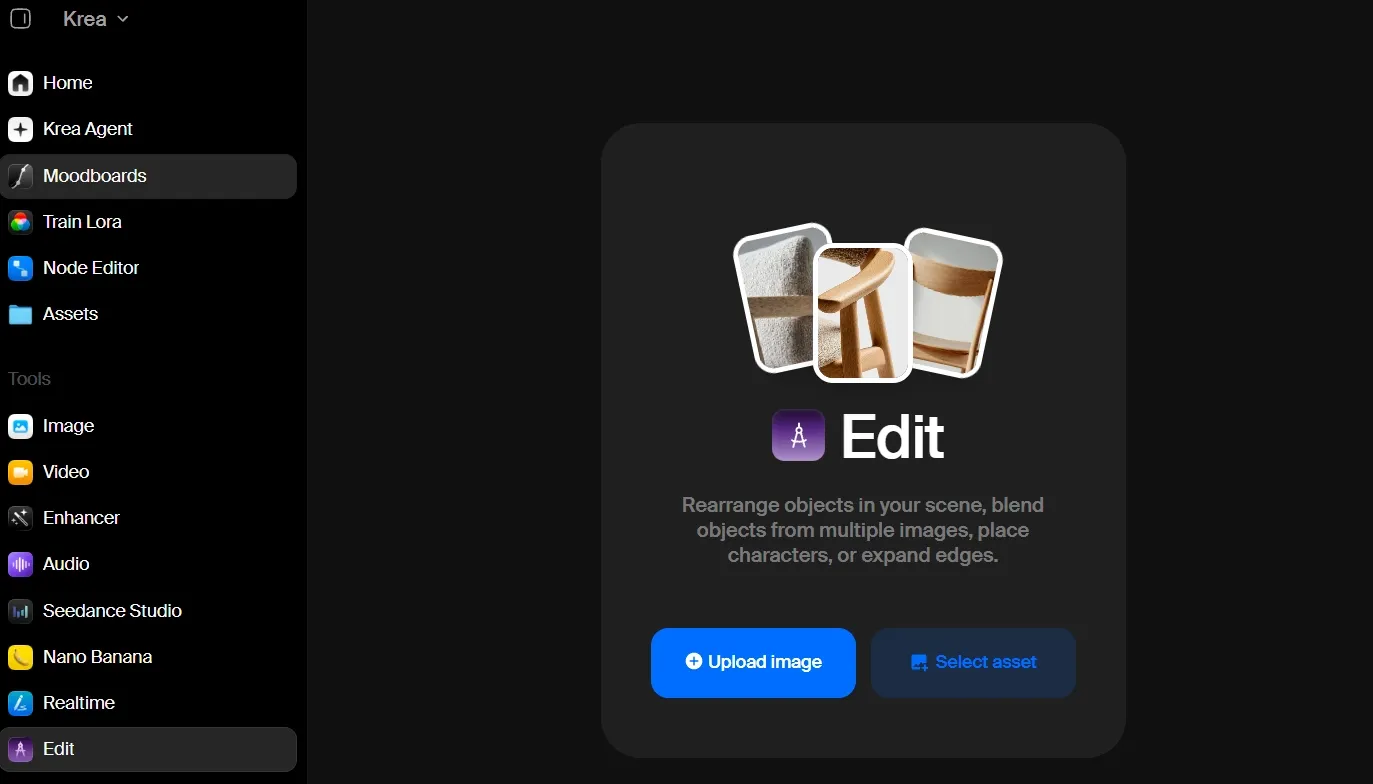
Best for: Creators who only need a few changes at a time and can return another day.
Krea gives free users 100 usage points per day, called compute units. You spend those points on actions such as removing objects, replacing backgrounds, expanding photos, or making style changes.
The daily refill is helpful, but 100 points does not mean 100 edits. Different tools and model choices use different amounts, and several features draw from the same balance. A few more demanding changes can leave less room for another attempt.
When preparing YouTube thumbnails, I would use the allowance to expand the background or clear space for a headline. Krea also has a mode that lets supported image models keep generating after the faster allowance runs out. That does not mean every photo-editing tool becomes unlimited.
Example editing brief: “Expand this square café photo into a wide banner. Continue the window and tabletop naturally, keeping the cup unchanged and leaving open space on the right.”
What I got: A new background was added to the right, extending the window and tabletop without moving the cup. The extra space was useful for a title, but one window detail repeated, and a tabletop line changed direction near the join. The expanded section needed more attention than the original part of the photo.
Pros:
- Free points refill daily.
- Text, brushes, and reference images can guide changes.
- Tools for expanding photos and changing backgrounds.
Cons:
- The daily points do not guarantee a fixed number of edits.
- Several features use the same balance.
- More revisions may mean waiting for the next day or paying.
My Verdict
Krea takes fifth place because its daily allowance suits light use, but is harder to plan around for longer editing sessions. I would keep it for small jobs with room to wait.
6. OpenArt — Best for Trying Models and Targeted Edits
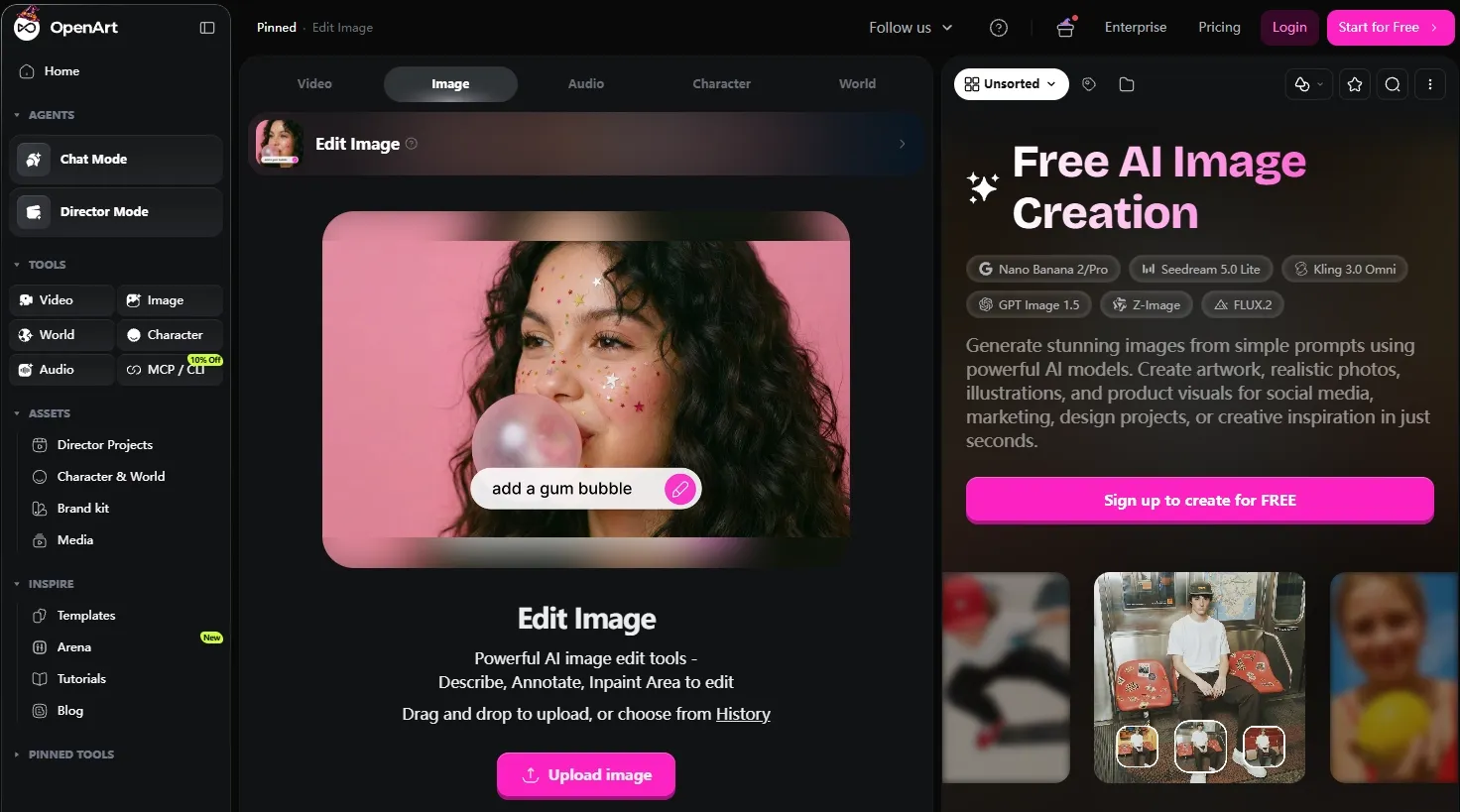
Best for: Creators evaluating different models before choosing a paid editing service.
OpenArt offers several image models and tools for changing selected areas of a photo. You can use these to replace an object, repair a patch, or simplify part of a background.
Its free access is a short trial: 40 credits within seven days. That makes it more useful for testing a few prepared examples than building a continuing free workflow. Different edits can also use different amounts of the trial balance.
For event posters, I would try simplifying the photo background while preserving the speaker. A focused task makes it easier to judge whether the editing options are worth paying for once the trial ends.
Example editing brief: “Replace the busy wall behind this event speaker with a simple botanical backdrop. Keep the face and clothing unchanged, and leave clear space on the right for a title.”
What I got: The wall was replaced with a quieter botanical background and space was cleared to the speaker’s right. The face and jacket stayed recognizable, but a soft outline appeared around the hair and a small part of the shoulder blended into the new setting. Those edges needed cleanup before the photo could go into the poster.
Pros:
- Several image models available to explore.
- Tools for changing selected parts of an image.
- Trial credits for a short evaluation.
Cons:
- Free access ends when the trial time or credits run out.
- The trial balance does not refill daily.
- Repeated corrections leave fewer credits for testing other edits.
My Verdict
OpenArt ranks sixth because the short free trial is less useful for ongoing editing. I would consider it for comparing a few specific tasks before deciding whether to subscribe.
7. InvokeAI — Best for Hands-On Editing on Your Computer
Best for: Experienced users who are comfortable installing software and making detailed selections.
InvokeAI lets you edit for free on your own computer after installation. When you use downloaded models, the software does not set a daily edit limit or charge a credit for each attempt.
Its editing canvas includes layers, brushes, and tools for replacing a selected area or extending a photo. For interior-design flyers, this can help when you want to decide exactly where a new object should go.
The catch is the work before and between edits. You need to install the software, download a suitable model, and learn the settings. Some models need a more powerful computer, and getting a small area right can mean adjusting the selection and trying again.
Example editing brief: Select an empty section of a room photo and add a small ceramic vase, matching the table’s perspective and the window light.
What I got: A vase was added within the selected section of the table, but its base was too large for the space. The new shadow also extended slightly past the selected area, making the object look less firmly placed on the tabletop. The surrounding furniture stayed unchanged, but the added object needed another size and shadow adjustment.
Pros:
- No daily edit limit when using downloaded models.
- Brushes and layers for selecting where changes happen.
- A choice of models for different editing tasks.
Cons:
- Software and model downloads are needed before the first edit.
- Some models need a more powerful computer.
- Accurate selections and settings take practice.
- Trying another model can involve more downloads and setup.
My Verdict
InvokeAI ranks seventh because its unlimited editing comes with more setup and hands-on work. I would recommend it to experienced users rather than someone who wants a quick, simple photo fix.
8. ComfyUI — Best for Building Your Own Editing Workflow
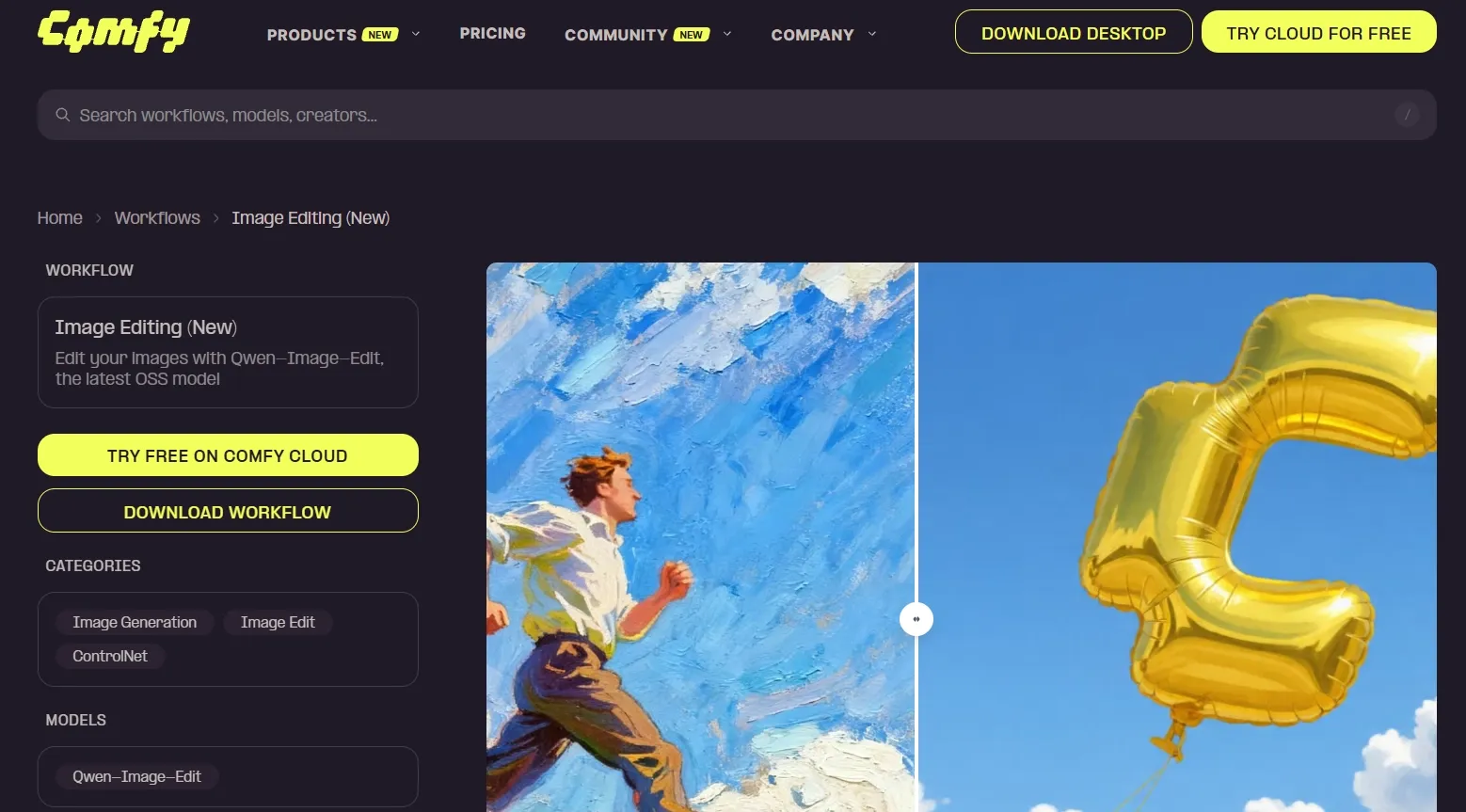
Best for: Advanced users who enjoy setting up and reusing a series of editing steps.
ComfyUI can also let you keep editing without a daily limit when you run downloaded models on your computer. You can build a process for removing objects, replacing selected areas, expanding photos, and improving resolution.
That freedom takes more work to use. You choose and connect the editing steps yourself, and some projects need extra models or add-ons. Certain connected services still charge for edits, so a free installation does not make every available option free.
For a recurring set of Facebook covers, reusing the same cleanup and framing steps may eventually save effort. For one photo, the setup can take longer than the edit itself.
Example editing brief: Select a distracting bag in a travel photo, replace it with matching pavement, and keep the people and surrounding architecture unchanged.
What I got: Most of the bag was replaced with pavement, but a small piece of its strap remained at the edge of the selection. The filled area also repeated a stone pattern and crossed one existing pavement line. The people were unchanged, but the removed-object area needed a more careful selection and another attempt.
Pros:
- No daily edit limit with downloaded models.
- steps can be saved and reused.
- Several models and editing tools can be connected.
Cons:
- Setup takes more effort than opening a browser editor.
- Building and connecting the editing steps takes time to learn.
- Some projects require extra downloads and add-ons.
- Large images and complicated edits can be slow on a basic computer.
- Some connected services still charge for edits.
My Verdict
ComfyUI takes eighth place because it asks the most from the user before a simple edit feels easy. I would choose it for advanced experimentation and repeated custom jobs, not as my first free editor.
How I Compared These AI Image Editors
I compared editing features, ease of use, free allowances, and whether you can keep making edits after a balance runs out. I also considered the work needed to finish a useful product, portrait, or social image. That is why an app with no daily edit limit can still rank lower if it takes much longer to set up and learn.
How to Choose a Free AI Image Editor That Fits Your Workflow
- Choose Pollo AI if you want the best overall balance of easy photo edits, top-tier models, and free credits through check-in rewards.
- Choose Magnific if you regularly need object cleanup, background changes, and reframing in a browser, and are comfortable with a paid plan.
- Choose Pixlr if you want to combine AI changes with manual cropping, text, and touch-ups.
- Choose Fotor if you mainly need basic portrait corrections and everyday photo improvements.
- Choose Krea if you make small batches of edits and can work within a daily free allowance.
- Choose OpenArt if you want a short trial to compare models and selected-area edits before subscribing.
- Choose InvokeAI if you are comfortable installing software and learning hands-on editing controls on your computer.
- Choose ComfyUI if you already enjoy building editing processes and are willing to spend time on setup and extra downloads.
My Personal Take
I would start with Pollo AI for its easy editing approach, top-tier models such as GPT Image and Nano Banana, and free credits you can also collect through check-ins. It gives you several practical ways to improve a photo without making the first step complicated.
For occasional jobs, I would put the free credits toward one useful result: a cleaner product background, a more natural portrait, or an object removal that preserves the rest of the photo. That is where Pollo AI’s editing tools and free-credit options fit the way I would start.
AI Image Editor (Free & Unlimited) FAQs
What is the best AI image editor with free and unlimited use?
Pollo AI is my top overall choice to try for free, with editing tools, top-tier models, and free credits through check-in rewards. Its edits still use credits.
Is Pollo AI free for unlimited image editing?
You can start Pollo AI’s image editor with free credits and collect additional credits through check-ins. Each edit uses credits, so this is not unlimited free editing. How many changes you can make depends on the tool, model, and available balance.
Which free AI image editors provide recurring credits?
Pollo AI offers free-credit opportunities, including check-in rewards. Krea lists 100 free usage points per day. OpenArt’s seven-day trial does not work as a daily refill.
Which free AI image editor should I try for product photos?
I would start with Pollo AI for background changes, lighting adjustments, and removing distractions. Specify which product details must stay unchanged, then inspect the edges, label, colors, and any areas the edit replaced.