How to Use Pollo Cinema to Create Cinematic Videos (Step-by-Step Guide)
Have a scene in mind but no camera crew to bring it to life? Pollo Cinema on Pollo AI is here to help! This cinematic video generator brings references, film presets, camera controls, color grading, and lighting into one place, so you can shape the scene around your idea.
New to Pollo Cinema? Read our guide on what Pollo Cinema is to learn more. Now, let’s walk through how to create your first cinematic video!
TL;DR
Open Pollo Cinema, upload your references, and describe your scene. Choose film settings for the genre, era, and pacing, then adjust the camera, color, and lighting as needed. Leave unfamiliar settings on Auto. Generate your video, review it, and download your preferred version. You can refine the direction and generate again if needed.
How to Use Pollo Cinema in 3 Simple Steps
Upload and Describe
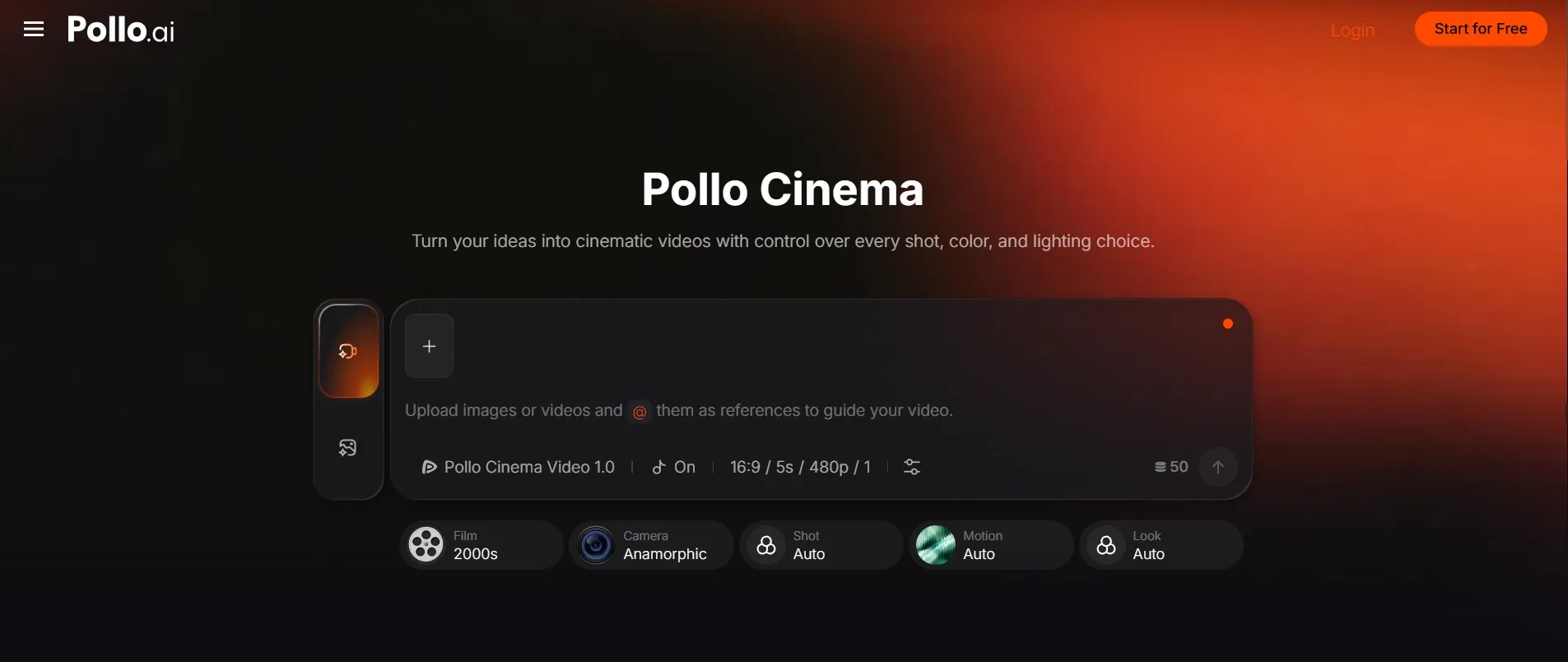
Open Pollo Cinema in video mode and upload your references with the plus button. Describe the characters, action, and setting, then use @ to identify your uploaded assets and explain how they should guide the scene.
Choose Your Settings
Choose film settings for your story, then adjust the camera, framing, movement, color, and lighting as needed. Leave unfamiliar controls on Auto. Check the aspect ratio, duration, resolution, and audio setting before you generate your first video.
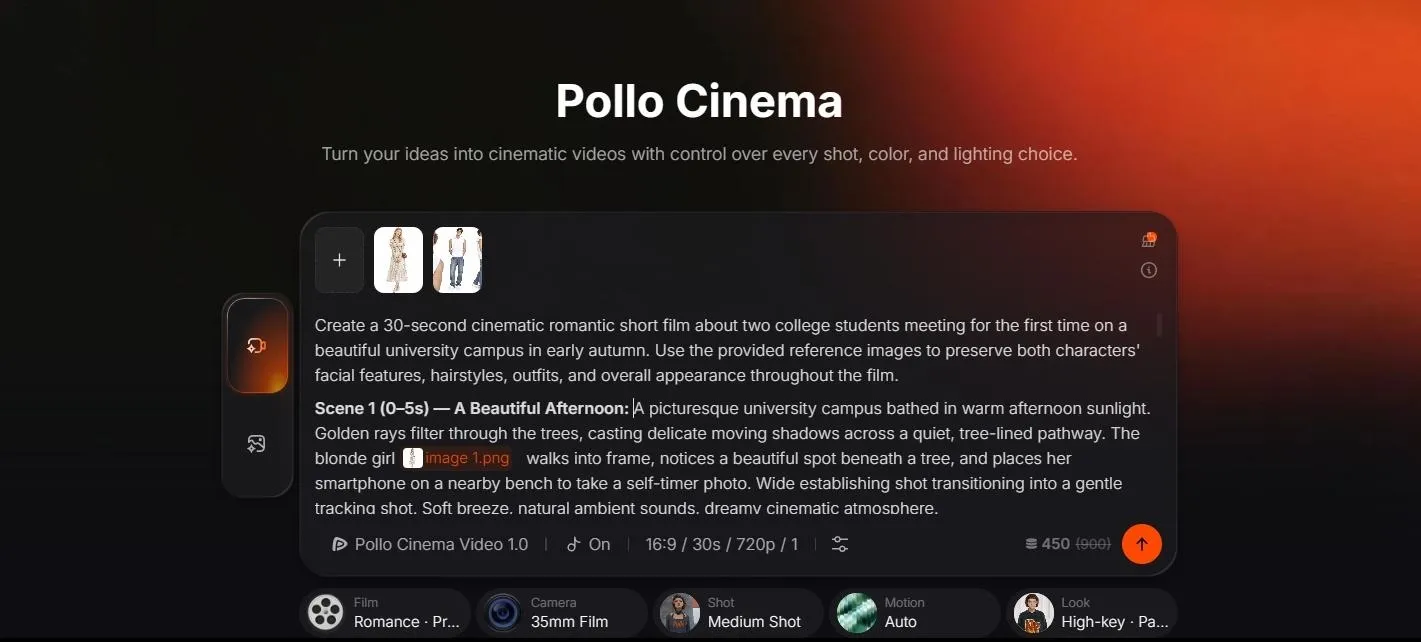
You don't need to change every setting. For a gentle campus romance, start with a romantic film style and a softer look. The example settings shown here are Romance, Present Day, 35mm Film, Medium Shot, High-key (lighting), Pastel Dream (color), and Auto motion, with a 16:9, 30-second, 720p output.
Generate and Download
Click the arrow button to generate your video, then review the characters, action, and overall mood. Download the version you prefer, or adjust one prompt detail or setting and generate again if you want to refine the result.
Ta-da! Here’s how our campus romance turned out! I especially like the warm afternoon light and the shy smiles between my two characters. Those little moments give the scene a sweet, slightly awkward feeling that suits a first meeting!
What Makes Pollo Cinema Worth Trying?
Build Your Scene With Up to 50 References
Pollo Cinema supports up to 50 references, including images, videos, or audio, to guide your characters, locations, costumes, and props. Missing a visual for your idea? Create multiple with our AI image generator, then upload it as a reference.
Set the Story’s Direction With Film Presets
Set the genre, era, and narrative pacing with film presets that give your idea a clear creative direction. From a nostalgic romance to a futuristic thriller, establish the feel of your scene without describing every stylistic detail in your prompt.
Shape the Camera, Color, and Light
Take control of camera type, lens, aperture, framing, and movement to shape how your story appears on screen. Fine-tune color and lighting to set the atmosphere, with visual previews that make it easier to explore unfamiliar filmmaking choices.
Create Your Next Cinematic Scene
Bring your vision to life with our Pollo Cinema. Add references, choose your look, and direct every shot.
Create With Pollo Cinema
Three Prompt Ideas to Try in Pollo Cinema
A Horror Encounter
For a horror video, start with a character reference and one unsettling moment. Let lighting, sound, and a slow reveal build the tension. A quiet hallway and something moving behind a closed door are enough to get started.
Prompt
Create a cinematic horror scene featuring the character in the uploaded reference. They walk down a deserted hallway as the overhead lights flicker. The camera slowly follows from behind. A shadow moves beneath a closed door, and faint scratching breaks the silence. The character stops as the door handle slowly turns. End before the door opens. Use cold lighting and deep shadows.
A Cinematic Video Ad
Start with your product photo. Keep the product still and give the camera one simple movement, so the prompt has a clear visual focus.
Prompt
Create a cinematic showcase of the perfume bottle in the uploaded reference. Place it on a dark stone surface with a softly lit background. Slowly move the camera closer as warm side lighting catches the edges of the glass. Keep the bottle's shape, cap, and colors consistent with the reference. Finish with the bottle centered in the frame. Do not add hands or extra products.
A Character Entrance
Upload a character reference and, if useful, a separate location reference. The contrast between a dim corridor and a brighter doorway gives the entrance a clear visual destination.
Prompt
Create a cinematic scene featuring the character in the uploaded reference. The character walks through a quiet, dimly lit corridor toward an open doorway, then pauses at the threshold. The camera follows slowly from behind. Warm light from the doorway falls across the character's shoulders. Keep the outfit and hairstyle consistent with the reference. End before the character steps outside, leaving a sense of anticipation.
Tips for Better Pollo Cinema Videos
Make Each Reference Useful
Choose references with a clear purpose: a character, a product, or a location. If an image contains distracting elements, you can prepare it separately with the AI photo editor before uploading it. Check that any edits preserve the details you want to keep.
Keep Your Prompt and Settings Aligned
Use the same creative direction in both places. If you want a gentle romantic scene, avoid asking for frantic camera movement or harsh horror lighting elsewhere in the prompt. A coherent brief is easier to evaluate when you review the result.
Give One Moment Room to Work
Focus your first video on one interaction or reveal. A greeting, a shared glance, or a product coming into view gives the scene a clear purpose. Add more story beats only when they help that moment, rather than filling every second with a new action.
Bring Your First Scene to Life With Pollo Cinema
That scene you've been imagining can start with a few references and a simple idea. Upload your assets, choose the mood, and generate your first version. Try Pollo Cinema and give your characters, products, or stories a moment on screen!
FAQs About Using Pollo Cinema
Do I Need Filmmaking Experience to Use Pollo Cinema?
No. Start with your references and a clear description of the scene. Leave unfamiliar controls on Auto, then explore individual settings when you have a specific change in mind.
What References Can I Upload to Pollo Cinema?
Pollo Cinema supports image, video, and audio references, with up to 50 references in total. You don't need to use the full allowance. Start with the assets that best explain your characters, setting, or creative direction.
Do I Need to Adjust Every Setting?
No. Film, Camera, Shot, Motion, and Look all offer Auto options. Choose the settings you care about and leave the others on Auto for your first attempt.
Can I Edit My Video After Generating It?
Yes. Use Pollo AI's AI video editor for further changes through text prompts. If you want a different generated take, adjust your original prompt or Cinema settings and generate another version.