


PixelBin Review: I Tested Its AI Photo Editor
PixelBin is a media platform whose current AI Editor combines prompt-based image generation, project history, local selections, reference images, and familiar cleanup tools such as background and watermark removal.
The newer editor caught my attention because PixelBin has moved beyond its old image-processing reputation, and I wanted to see whether it now feels more like a creative workspace or like infrastructure with an editor attached.
My verdict: PixelBin is strongest when users need controlled edits and repeatable operations on existing assets; creators seeking a direct, use-case-led image outcome may find its project and transformation logic more than they need.
PixelBin Review: TL;DR
| Area | My Take |
|---|---|
| Category | Project-based AI photo editor and media platform |
| Core input | Existing image, text prompt, reference image, or selected region |
| Key mechanics | Global/local edits, brush selection, model choice, background tools, transformations |
| Output shape | Iteratively edited or newly generated image assets |
| Better alternative | Pollo AI for direct creative outputs and use-case-led image generation |
What Is PixelBin?

PixelBin is an AI editing and media-management platform for creating, refining, transforming, and delivering image assets. Its current Studio is project-based, so users can return to an image, apply several edits, and manage generated versions rather than treating every action as a separate utility page.
The AI Editor now overlaps with a full AI image generator because it can create an image from text, select a model and aspect ratio, and produce multiple variations. Existing images can be edited globally, targeted with a brush or smart selection, or guided by an uploaded reference.
PixelBin also retains its practical processing layer: background removal, watermark cleanup, resizing, upscaling, adjustments, and API/CDN-oriented media delivery. The product therefore serves both a person editing one asset and a team managing many transformations.

How I Evaluated PixelBin
I evaluated PixelBin as an iterative photo-editing project. I followed the path from a source image to a prompt-led change, a local correction, a background operation, and a final quality or export adjustment.
The main question was whether the interface behaves like an AI photo editor that helps users make deliberate choices, or whether the large transformation library still feels closer to a collection of processing endpoints.
Key Feature Review
Project-based prompt editing
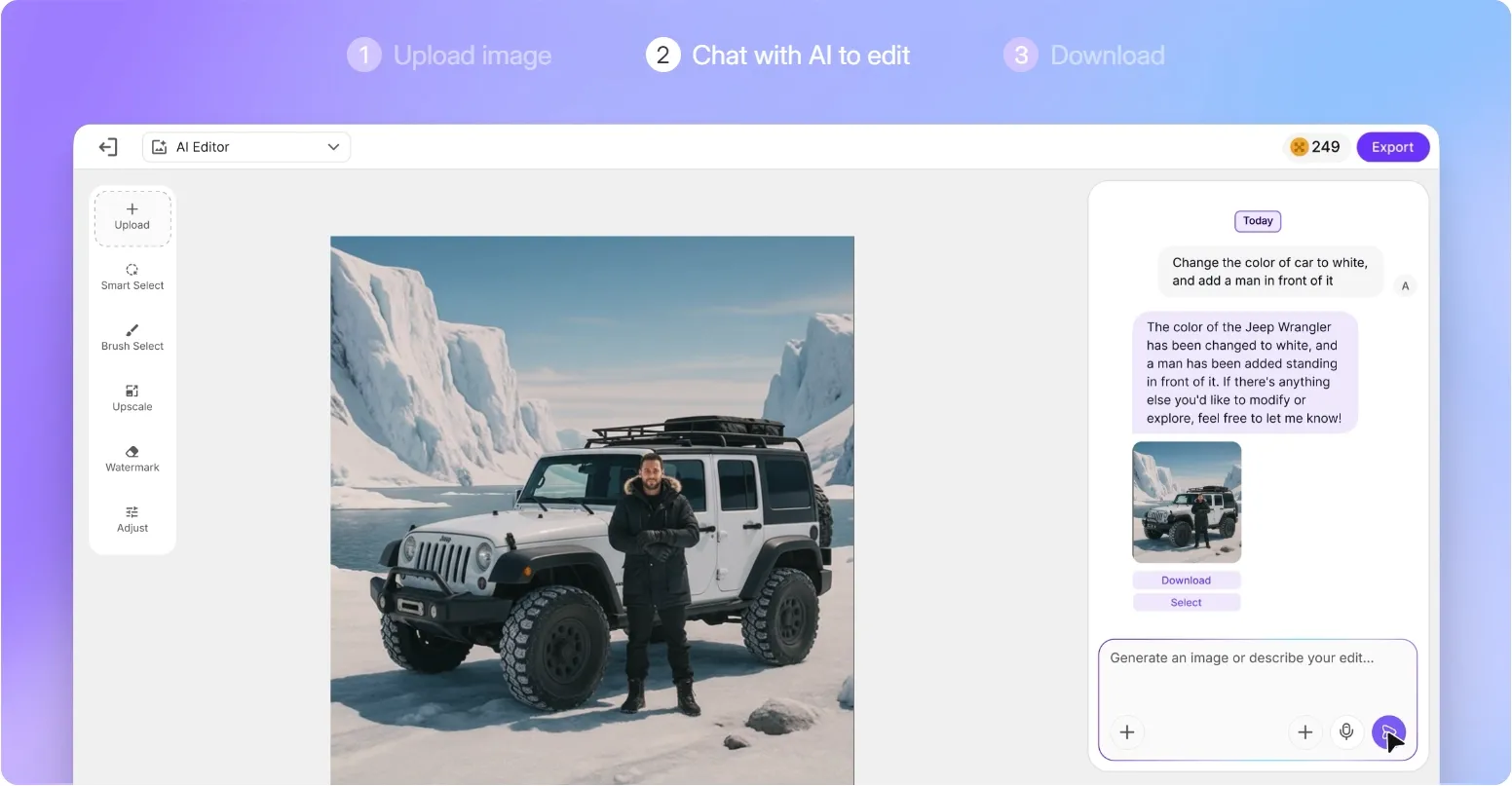
PixelBin's project structure is the biggest correction to its old cleanup-only image. A user can generate from text, edit an existing image with natural language, upload references, choose a model, and keep refining the result inside one project.
I found that continuity more useful when a creative direction needed several passes rather than one filter. It also creates decision overhead: model choice, variation count, references, and saved outputs need a clear naming and review habit before the project fills with near-duplicates.
Localized edits and selections
The editor supports both global and localized changes, with a brush or smart selection for targeting specific regions. Users can retouch an area, adjust camera angle or perspective, expand the canvas, and make changes without asking the model to reinterpret the entire image.
This is where PixelBin feels most like a real editor to me: I can isolate one object or region for precise object removal or detail repair instead of asking the model to reinterpret the whole image. The part I would inspect is the mask edge; hair, transparent material, reflections, and overlapping objects can still need another selection pass.
Background operations
PixelBin's background removal asks users to classify the main subject as General, E-Commerce, Car, Human, or Object. That extra step gives the system useful context for edge detection instead of applying one segmentation assumption to every image.
For portraits, cars, and catalog assets, this is a more deliberate background removal workflow than a single generic button. Choosing the wrong subject type, or using an image with soft shadows and overlapping edges, can still create a cutout that looks technically clean but visually detached from its replacement scene.
Watermark, upscale, and utility tools
Watermark removal offers Auto and Manual modes: Auto can target text or logos, while Manual lets the user paint over the affected region. The documentation warns that Remove Text removes all text, and each removal operation creates a separate output for review.
That makes the watermark remover flexible for owned or licensed assets, but risky on posters or packaging where legitimate text must remain. The editor also supports image upscaling up to 8x, although enlarged detail still needs inspection for text and product accuracy.
PixelBin Use Cases: Who Should Use It?
PixelBin fits users who already have an asset or editing project and want control over how it changes.
- Ecommerce asset correction: for teams cleaning edges, backgrounds, and details before building new product photos or listing layouts.
- Localized retouching: for creators who want to select one object or region instead of regenerating the entire image.
- Profile image refinement: for users adjusting the background, crop, or detail of a profile portrait.
- Repeat media transformations: for developers or asset teams that need the same resize, upscale, or cleanup logic across a library.
What I Liked
I liked that PixelBin's documentation names the selection and processing behavior instead of hiding it behind an 'enhance' button. Knowing whether an edit is global, localized, automatic, or manually selected changes how confidently a user can review the result.
The project structure is another real improvement. It suits image work that develops through several decisions, especially when the user needs to compare references and corrections rather than export after every operation.
Where PixelBin Falls Short
PixelBin gave me more control than its old utility-tool reputation suggests, but it also made me decide how much editor I actually needed. For one finished visual, projects, models, selections, transformations, and media infrastructure can be a lot of setup before the first useful change.
- Local control still depends on clean edges: wispy hair, glass, shadows, and overlapping subjects can expose masks even when the selected region was correct.
- Automatic text removal can be too broad: the documented Remove Text option can erase legitimate labels and copy along with the unwanted mark.
- More resolution does not guarantee more truth: an image enhancement or upscale can create persuasive detail that still needs verification around faces, typography, and products.
Pros and Cons
Pros:
- Project-based iterative editing
- Global and localized prompt edits
- Context-aware background options
- Broad utility and media-processing layer
Cons:
- Can feel heavy for a one-off correction
- Complex edges still need careful masking
- Replacement scenes need shadow and perspective review
- Model and transformation choices add review overhead
Beyond PixelBin
I would stay in PixelBin for brush-level selection, project history, or repeated media processing. I would consider Pollo AI when I was less interested in assembling edits and more interested in asking for a finished visual such as a product poster, a brand image, or a scene built around one subject.
Pollo AI is a broader AI creative suite, and its Creative Studio starts closer to that requested outcome. I can choose the image task, supply the product or subject, and get a composed draft to refine; when the mask and exact edit path matter more than the destination, I would still stay in PixelBin.
- Start with the finished purpose: Pollo AI's AI product poster maker organizes product, scene, and promotional hierarchy around a selling asset rather than a sequence of manual edits.
- Build a new visual identity asset: Pollo AI's AI logo generator gives a brand task a direct generator when there is no existing image to retouch.
- Keep the subject and design the scene: Pollo AI's AI background changer focuses the prompt on the new environment when local brush precision is less important than overall art direction.
Create Purpose-Built Images with Pollo AI
Start from the visual outcome, then refine what matters.
Try Pollo AI for Image Creation
Final Verdict
The most important change in my view of PixelBin is that it is no longer fair to call it a cleanup toolbox. The project workflow and local prompt controls make it a real editor, while the older processing layer gives it unusual depth for teams managing many assets.
Use PixelBin for selected-region edits, iterative image projects, background work, and repeated transformations. Use Pollo AI when the main requirement is a direct creative or commercial image outcome and the user would rather choose the result type than assemble an editing process.