



What Is Kimi K3? And How to Use Kimi K3 for AI Websites, Slides and Videos
Kimi K3 is Moonshot AI's flagship model for long-context reasoning, coding, multimodal understanding, and agentic work. It can help turn a brief into a website, a document into a presentation, or a collection of visual assets into a short video workflow.
This guide explains what Kimi K3 is, what it can do, and how to use it for three common creative tasks: building AI websites, creating slides, and producing videos.
What Is Kimi K3?
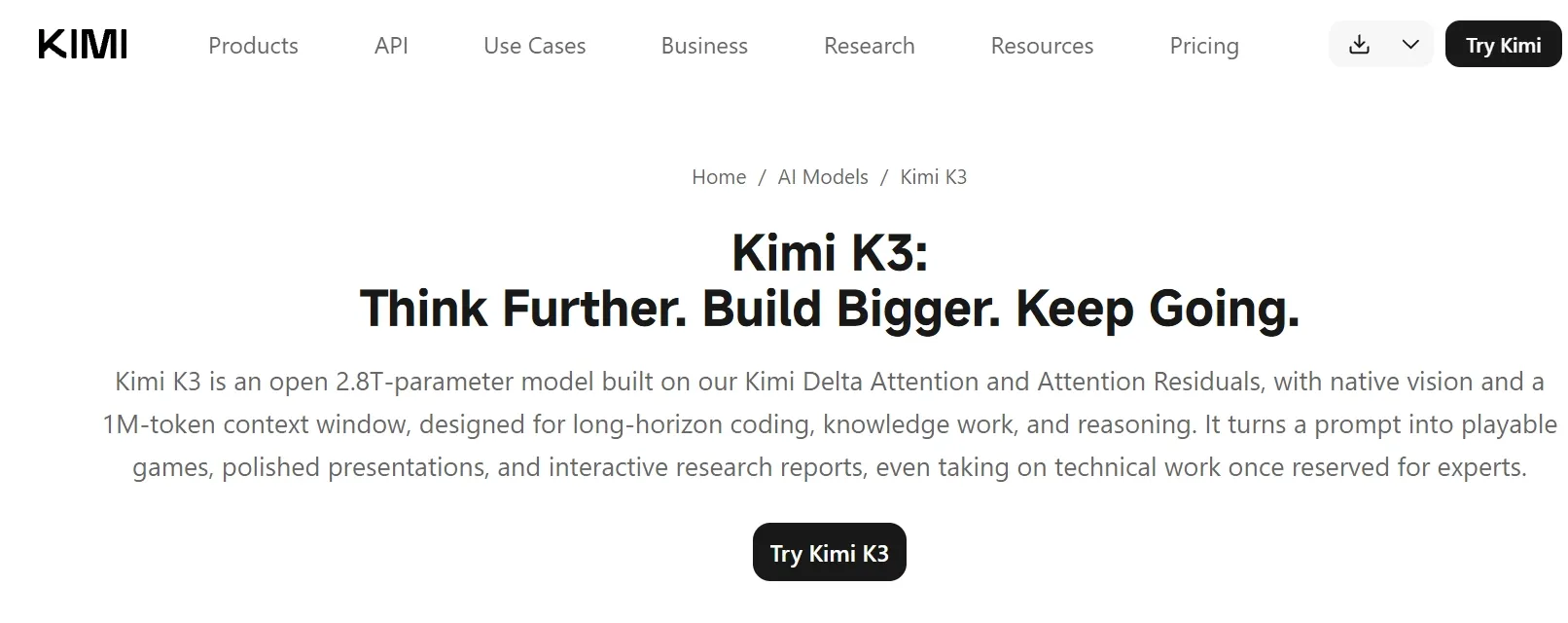
Kimi K3 is an open-weight multimodal AI model developed by Moonshot AI. Kimi describes it as a 2.8-trillion-parameter model with native vision capabilities and a context window of up to 1 million tokens. That combination is designed for long-horizon coding, knowledge work, visual reasoning, and complex multi-step tasks.
Unlike a chatbot that only returns a short text answer, Kimi K3 is designed to work through larger projects. It can read documents, images, videos, and office files; use tools; generate editable documents; and continue refining an output across multiple steps. Kimi's official help center recommends K3 for complex conversations, agent tasks, presentations, spreadsheets, and other multi-step work.
What Does Kimi K3 Do?
Depending on the Kimi product or feature you use, K3 can help with:
- Long-form research and synthesis
- Front-end and full-stack website development
- Presentation structure, copy, layouts, charts, and visual storytelling
- Image, video, PDF, Word, Excel, and PowerPoint understanding
- Code generation, file editing, and multi-step agent workflows
- Image and video creation through the relevant Kimi plugins
Create with Kimi K3
Generate, edit, and fine-tune your videos and images seamlessly with Pollo Agent.
Try Kimi K3 in Pollo Agent
Why Is Kimi K3 Useful for Creative Work?
K3 is useful when a project contains several connected parts. A website needs a content structure, visual direction, interface logic, and sometimes a database. A presentation needs research, narrative order, charts, layouts, and editable slides. A video needs a concept, shot sequence, visuals, timing, and post-production decisions.
K3 can keep more of that context in one working session than a short prompt-and-answer workflow. Its native multimodal design also allows it to work from screenshots, documents, images, and video alongside written instructions.
That does not mean every result is ready to publish without review. You still need to check facts, interface behavior, product identity, visual continuity, accessibility, licensing, and final copy.
How to Use Kimi K3 for AI Websites
Kimi Build is Kimi's full-stack website-building product powered by Kimi K3. Its official documentation says it can generate websites from natural-language descriptions, design mockups, screenshots, or screen recordings. It can also support front-end interactions, persistent data, user login, version management, preview, deployment, and code export, depending on the project and available controls.
Step 1: Define the Website's Job
Start with the visitor and the action you want them to take. A strong brief answers:
- Who is the website for?
- What problem does it solve?
- What is the primary action?
- What content must appear above the fold?
- Which pages or states are required?
- Does the site need forms, accounts, search, or saved data?
Avoid starting with only “make a beautiful website.” Describe the job the site needs to perform.
Step 2: Give Kimi K3 a Structured Brief
Try a prompt like this:
Build a responsive website for [audience] who need to [task].
Goal:
[Describe the main action the visitor should take.]
Pages:
1. [Page one]
2. [Page two]
3. [Page three]
Visual direction:
- [Brand or product]
- [Color and material cues]
- [Reference website or uploaded mockup]
- Clean hierarchy with strong mobile behavior
Functional requirements:
- [Form, search, filter, account, database, or other requirement]
- Use realistic sample content
- Include loading, empty, success, and error states
Before building, summarize the information architecture and the main user flow.
Then create the first version and explain what I should review.
Step 3: Upload a Reference When Visual Accuracy Matters
If you have a design mockup, screenshot, or screen recording, provide it with the brief. Kimi Build is designed to understand visual references and turn them into pages, but the generated implementation still needs review for spacing, responsive behavior, content hierarchy, and interaction states.
Use a reference to communicate:
- Layout hierarchy
- Navigation structure
- Component relationships
- Visual tone
- Mobile or desktop behavior
- The difference between a static visual and an interactive element
Do not assume that uploading a screenshot communicates business rules. Describe those rules in text.
Step 4: Iterate in Small Rounds
After the first preview, ask for focused changes:
Keep the current page structure and content.
Change only:
1. Reduce the hero height on mobile.
2. Make the primary CTA visible before scrolling.
3. Add a clear empty state to the results panel.
4. Preserve the existing colors and typography.
Show me the changed areas and list anything that still needs manual review.
Small revision requests make it easier to see what changed and catch regressions.
Step 5: Test Before Publishing
Check the website at the intended screen sizes. Test navigation, forms, validation, keyboard access, loading states, empty states, error states, and any data that must persist. Confirm that the generated copy, images, icons, and claims are approved.
Use Kimi's preview and publishing controls only after the site has passed your own review. A generated full-stack site is still a software project, even when the first version arrives from one prompt.
How to Use Kimi K3 for AI Slides
Kimi PPT is Kimi's presentation-generation tool powered by K3. Its official documentation says it can start from a topic, pasted text, or uploaded files such as PDF, Word, PPTX, Excel, TXT, and images. It can generate structure, content, layouts, charts, and visual storytelling, with editable presentation output available in supported workflows.
Step 1: Choose the Audience and Decision
A presentation is easier to build when Kimi knows what the audience needs to understand or decide. State:
- Audience and background knowledge
- Presentation length or slide range
- Main conclusion
- Evidence or source files
- Required charts or comparisons
- Tone and visual direction
- The action required after the presentation
Step 2: Provide the Source Material
Upload the research report, spreadsheet, brief, notes, or reference deck. Tell Kimi which sources are authoritative and which are background only. If a number is important, ask Kimi to preserve the source and flag any unclear or conflicting data.
Step 3: Use a Slide-Planning Prompt
Create a 12-slide presentation for [audience] about [topic].
The audience needs to decide [decision].
The main conclusion is [conclusion].
Use the attached files as sources. Do not invent statistics.
For every important number, identify the source in speaker notes or a source slide.
Structure:
1. Title and decision
2. Executive summary
3. Current situation
4. Key evidence
5. Main problem
6. Options
7. Comparison
8. Recommended direction
9. Implementation plan
10. Risks and assumptions
11. Measurement plan
12. Decision and next steps
Use concise slide copy, meaningful charts, and editable layouts.
Before generating the deck, show the outline and identify missing evidence.
Step 4: Review the Narrative Before the Design
Do not begin by judging colors or decorative elements. First check:
- Does every slide support the main conclusion?
- Is the evidence strong enough for the claim?
- Are charts using the right comparison?
- Are units, dates, and totals correct?
- Are slides overloaded with paragraphs?
- Is the recommendation visibly connected to the evidence?
Then revise the layout, visual hierarchy, and chart treatment.
Step 5: Make the Deck Editable
Ask for editable charts, shapes, text, and tables when the workflow supports them. Replace generated imagery or placeholder data that does not meet your presentation standard. Add final brand assets, citations, speaker notes, and legal or financial review before sharing the deck.
How to Use Kimi K3 for AI Videos
To generate AI images and videos with Kimi K3, simply select Kimi K3 from the model list in Pollo Agent.
Use it with a focused brief:
- Specify the output: Clearly describe the image or video you need.
- Provide source assets: Add reference images, links, or draft prompts.
- Define the audience and style: Outline the tone, visual mood, and platform.
- Ask for an outline or plan: (Optional) Have the agent plan scenes before generating.
- Review and iterate: Check the preview and chat to request targeted changes.
Kimi K3 Prompting Tips
Start with the Outcome
Say what you need to produce and where it will be used. “Create a mobile landing page for a course signup” is more useful than “make a modern website.”
Give Constraints Early
Include the audience, format, source material, required sections, brand rules, and what must not change. Constraints help the model make better decisions and make the output easier to review.
Ask for a Plan Before Execution
For complex work, ask Kimi to summarize the structure, assumptions, missing inputs, and review points before it generates the first version.
Request One Revision at a Time
Targeted revisions make it easier to track changes. Group related changes, but avoid changing the information architecture, visual style, copy, and functionality in one vague request.
Treat Generated Content as a Draft
Verify facts, claims, file outputs, code behavior, visual identity, and rights before publication. Kimi K3 can accelerate the work, but the final responsibility remains with the person or team publishing it.
Kimi K3 Limitations to Keep in Mind
Kimi K3's capabilities do not remove the need for review. Watch for:
- Incorrect or unsupported factual claims
- Generated interface details that do not match the real product
- Layouts that break on mobile or in exported slides
- Product labels, logos, faces, or hands that drift
- Video continuity issues between shots
- Placeholder copy that looks final but has not been approved
- Credit, plugin, export, or deployment limits in the current plan
The available model modes, plugins, and credit rules can change. Check the current Kimi or Pollo AI interface before starting a production workflow.
FAQs
Is Kimi K3 the same as Kimi?
Kimi is the broader product and service ecosystem. Kimi K3 is one of its flagship models, used across experiences such as Kimi chat, Build, PPT, Kimi Work, Kimi Code, and the API, depending on access and workflow.
Can Kimi K3 build a complete website?
Kimi Build is designed to generate full-stack websites from natural-language instructions and visual references. You should still test the generated site, inspect the code and data behavior, and review it before deployment.
Can Kimi K3 create PowerPoint slides?
Kimi PPT can generate presentation structure, content, and design from a topic, text, or uploaded files. Confirm the current export and editing options in the live product before planning a production deck.
Can Kimi K3 make videos?
Kimi's official help content describes video understanding and video-generation or editing features through relevant plugins and workflows. The exact controls depend on the current product entry point, so verify the live options before promising a specific video format or duration.
Is Kimi K3 free?
Access, credits, model modes, plugins, and export features depend on the current Kimi or Pollo AI plan. Check the live product page for the latest availability rather than relying on an old price or limit.
Conclusion
Kimi K3 is most useful when a task combines research, reasoning, files, visuals, and multiple production steps. Start with a clear brief, ask for a plan, review each output, and use Kimi K3 to move from idea to a workable website, deck, or video.