
8 Best AI Photo Editors to Turn Everyday Photos into Better Visuals
A good AI photo editor should make the change you want without turning a simple fix into a design project. But some tools suit product photos, while others work better for portraits or social graphics.
Here are eight worth considering, starting with Pollo AI, with their strengths, limitations, and best uses.
Quick Answer: What Is the Best AI Photo Editor?
Pollo AI is my top pick for creators, marketers, and sellers who want to describe an edit and work from there. You can remove distractions, change backgrounds, and adjust lighting without learning a traditional editor.
Its appeal goes beyond individual corrections. You can also turn an existing photo into product or campaign visuals, making it useful when the next step is a listing, promotion, or social post.
8 Best AI Photo Editors at a Glance
| AI Photo Editor | Best For | What Makes It Useful |
|---|---|---|
| Pollo AI | Everyday creative and commercial photo edits | Text-guided changes with related product and campaign tools |
| Adobe Firefly | Selection-guided generative edits | Brushes and prompts for changing specific areas |
| Canva | Photos inside finished designs | Image editing alongside layouts, text, and templates |
| Pixlr | AI edits with manual control | Browser-based layers, selections, and generative tools |
| Fotor | Enhancement and restoration | Focused tools for clarity, portraits, and older photos |
| Picsart | Expressive social photos | AI corrections combined with effects and graphic elements |
| Pixelcut | Product cutouts and catalog preparation | Background removal, shadows, and batch editing |
| Lensa | Portrait styling and personal photos | Beauty tools, creative effects, and quick touch-ups |
1. Pollo AI: Best AI Photo Editor Overall for Everyday Creative Work
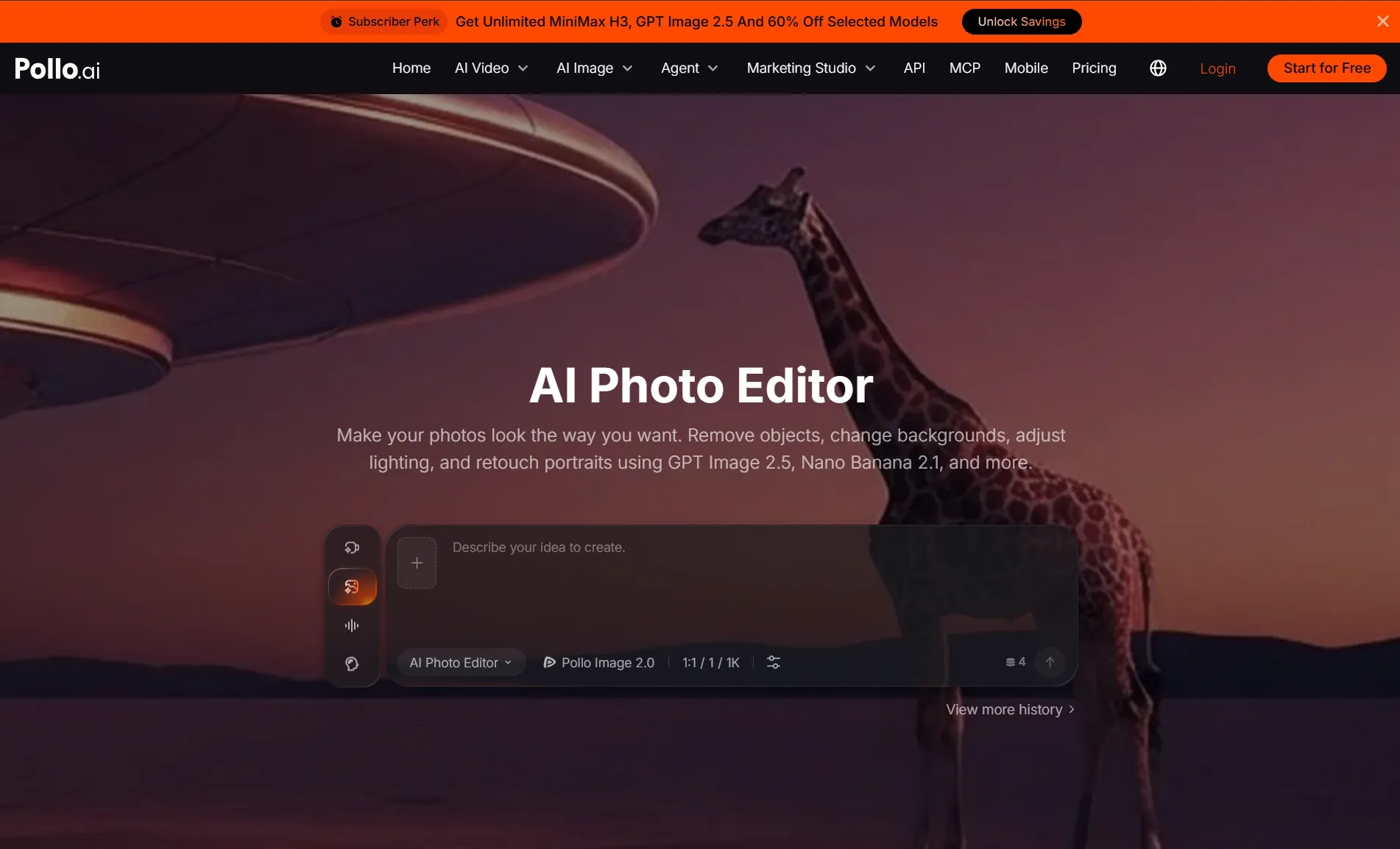
Pollo AI ranks first because it makes everyday photo changes easy to describe. You can start with an existing image and focus on the result: a cleaner composition, a different setting, or more flattering light.
That is especially useful when a photo is almost right. You can remove unwanted objects, try a new background, or adjust the color without planning a series of manual editing steps first.
The same approach works for softer or brighter lighting. Describe the mood you want and the details that should stay, then compare the result with your original photo before making another change.
Pollo AI is the ultimate AI creative suite for creators, marketers, and sellers. Its Marketing Studio supports campaign and product visuals, helping you turn an existing image into product photos with a different presentation.
That broader creative range is why I would start here for store listings, promotions, and recurring social content. You can improve the source photo and build on it as the project develops, while keeping important details accurate.
Key Features
- Text-Guided Editing: Describe the desired adjustment in everyday language.
- Background Changes: Give a subject a different setting without arranging another shoot.
- Lighting and Style Adjustments: Explore a different mood without reshooting.
- Portrait Retouching: Refine facial details and lighting for a natural finish.
- Product-Focused Creative Tools: Extend photo work into product presentations and listing assets.
Best For
- Creators improving photos for recurring social posts.
- Marketers adapting images to a campaign's visual direction.
- Sellers creating product listing images from existing product photos.
Pros
- An accessible starting point when you know the result you want but not the editing technique.
- Combines general photo changes with tools for individual tasks.
- Lets you build on edited photos to create product and campaign visuals.
Cons
- Generative changes may need another pass to preserve small details.
- Free credits limit how many variations can be explored before upgrading.
Give Your Photos a Better Finish
Clean up distractions, adjust the setting, and shape the look you want with Pollo AI. Start with our free AI photo editor and one photo you would like to improve.
Try AI Photo Editor Free
2. Adobe Firefly: Best for Selection-Guided Generative Edits
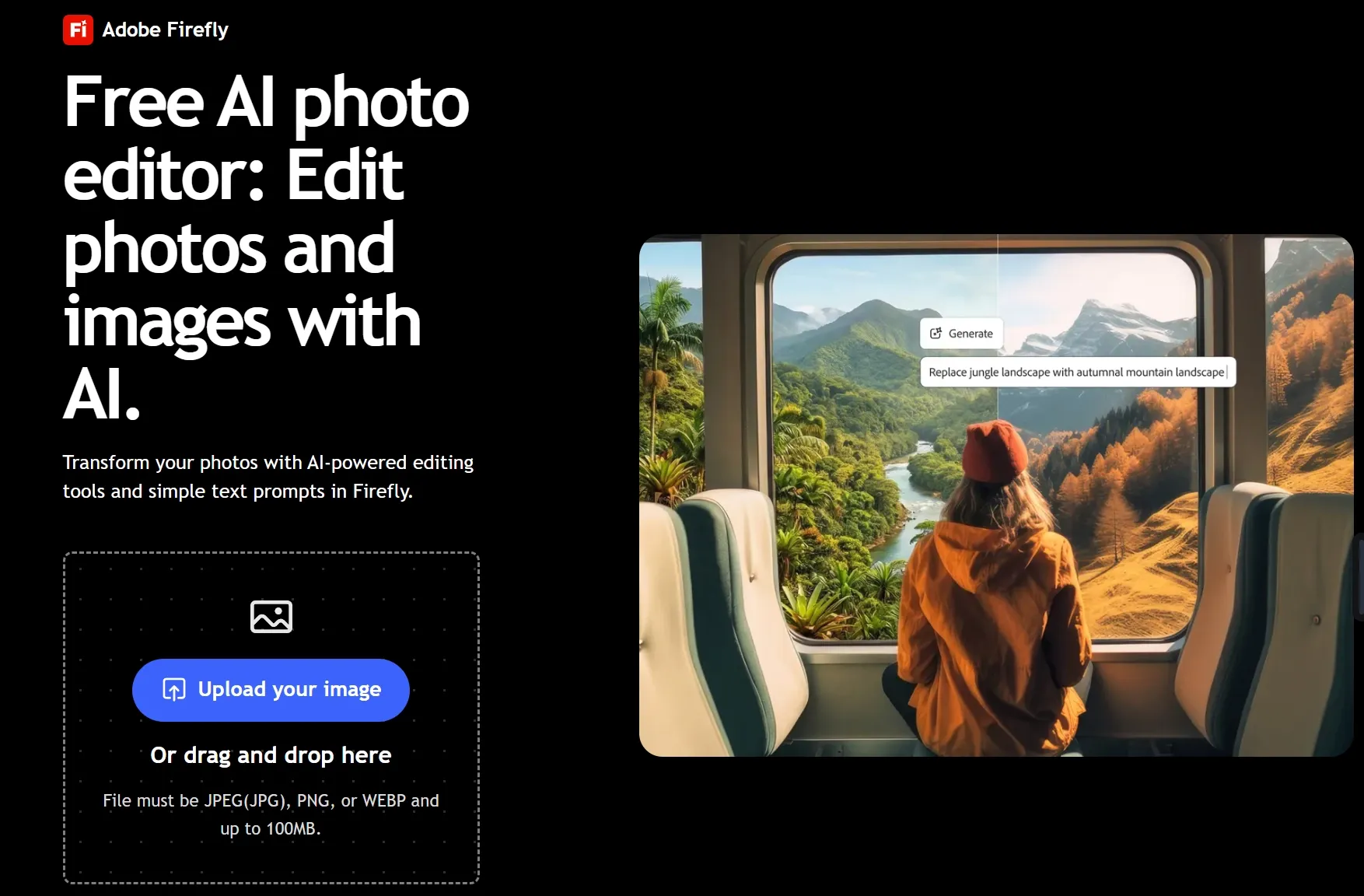
Adobe Firefly is a strong choice for edits that need a clearly defined target. It suits designers changing a prop, replacing part of a scene, or making room around a tightly cropped subject.
Its generative tools combine text prompts with brushes and visual guidance. That makes tasks such as removing unwanted objects easier to direct: the selection identifies the area, while the prompt explains the intended change.
I would choose it when that local control matters more than a quick overall adjustment. Free generations are limited, and a well-placed selection still needs a careful review, especially around edges and detailed textures.
Key Features
- Generative Fill: Add or replace content within a selected area.
- Generative Expand: Extend an image beyond its original borders.
- Prompt and Visual Guidance: Combine written instructions with selections to guide an edit.
Pros
- Selections help direct changes to specific parts of a photo.
- Generative expansion makes tightly cropped images easier to adapt to new layouts.
- Text prompts make it convenient to explore alternative objects and scene details.
Cons
- Limited free generations can restrict repeated experimentation.
- Accurate selections require more input than a simple overall enhancement.
- Generated edges and textures may need further refinement.
Want a closer look at its creative tools? Read our Adobe Firefly review.
3. Canva: Best for Editing Photos Inside Finished Designs
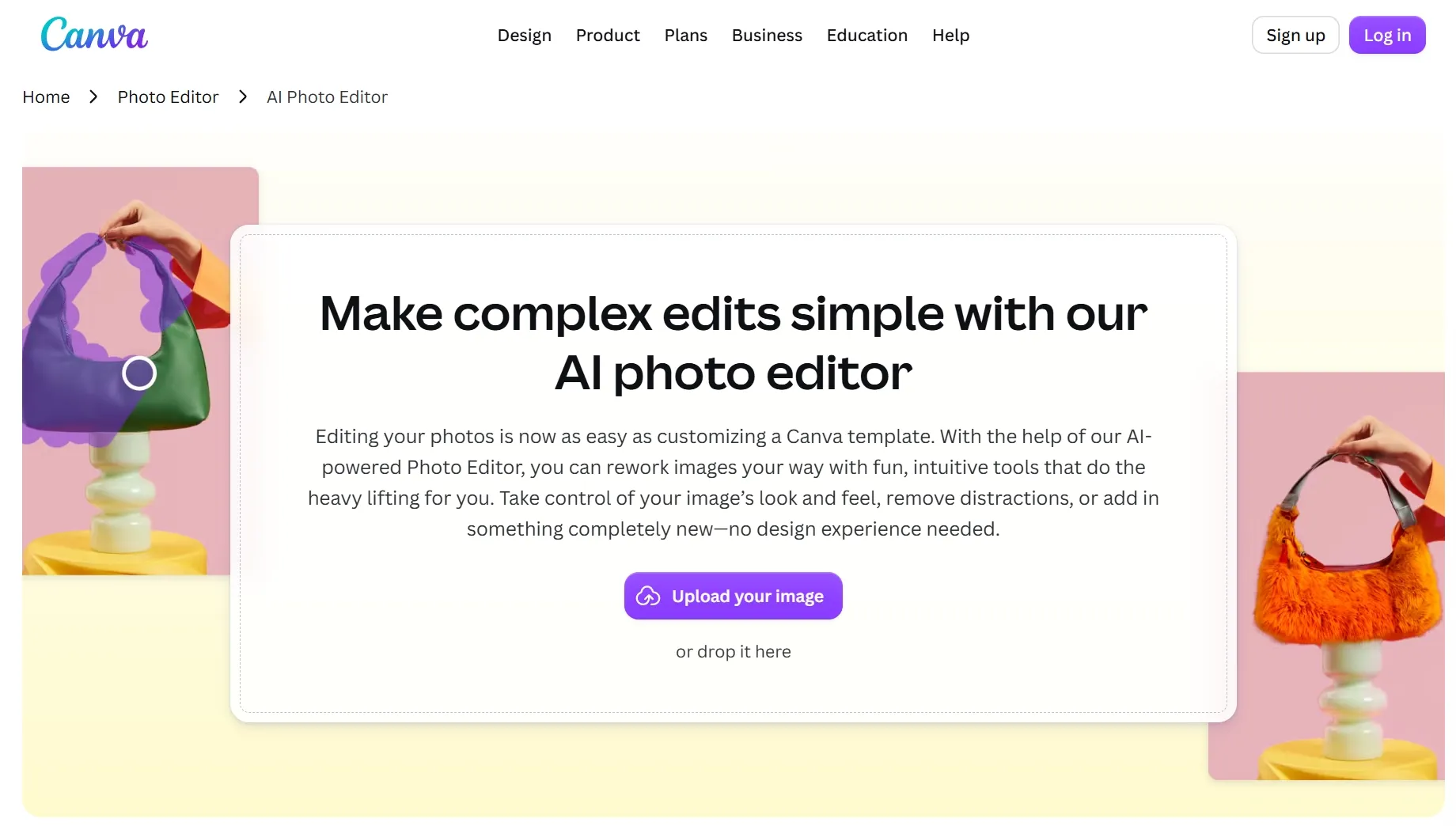
Canva makes the most sense when the edited photo belongs inside a larger design. Its AI photo editor works alongside text, templates, and layouts, which is useful for promotional graphics and social posts.
Magic Edit changes selected content from a prompt, while other tools remove distractions or replace backgrounds. The practical benefit is seeing how the revised image works in an Instagram post or promotional layout, rather than judging the photo on its own.
I would shortlist Canva for teams producing repeatable designs from existing images. Its free photo editor covers basic work, but premium tools and AI allowances depend on the plan, so the required feature matters more than the free label.
Key Features
- Magic Edit: Change selected image content using a text prompt.
- Magic Eraser: Remove unwanted objects and distractions.
- Design Canvas: Combine edited photos with text, graphics, and templates.
Pros
- Keeps photo adjustments and layout work in the same workspace.
- Templates provide a useful starting point for less experienced designers.
- Suits recurring social posts and promotional designs built around existing photos.
Cons
- Some AI editing tools require a paid plan.
- AI usage allowances can limit how many variations a project allows.
- Its layout-focused workflow can feel unnecessary for a single photo correction.
For a look at its image-generation features, see our Canva AI review.
4. Pixlr: Best for AI Editing with Manual Browser Controls
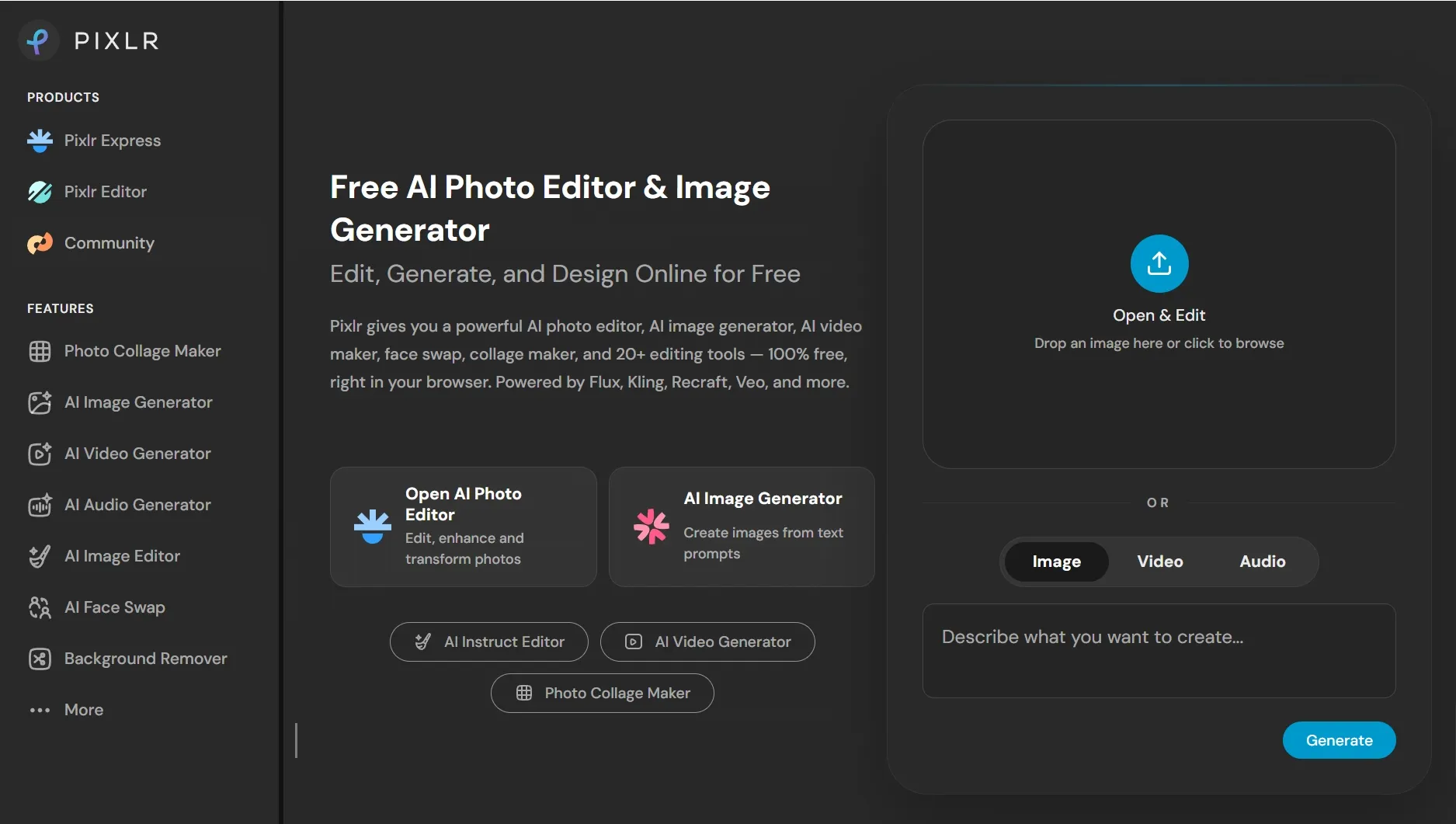
Pixlr is a good fit for people who want AI help without giving up manual control. Its online image editor combines familiar layers and selections with tools for generating and changing image content.
That balance is useful when a composition needs both cleanup and deliberate arrangement. Creators can remove distractions, refine a selection, and position text or cutouts by hand instead of relying on a single generated result.
I would choose Pixlr for someone already comfortable with basic editing concepts. Layers offer flexibility, but they also bring more decisions, and paid plans govern benefits such as extra AI credits and ad-free editing.
Key Features
- Layer-Based Editing: Adjust individual visual elements separately.
- Selection Tools: Target particular areas for more controlled changes.
- Generative Editing: Fill or extend image content with AI.
Pros
- Combines AI assistance with hands-on editing control.
- Works in a browser without a full desktop installation.
- Layers make it easier to arrange photos, cutouts, and text independently.
Cons
- Layers and selections take time for beginners to learn.
- The free editing experience includes ads.
- AI credit allowances can restrict frequent generative edits.
Curious about creating images from scratch? Our Pixlr AI review covers that side of the platform.
5. Fotor: Best for Quick Photo Enhancement and Restoration
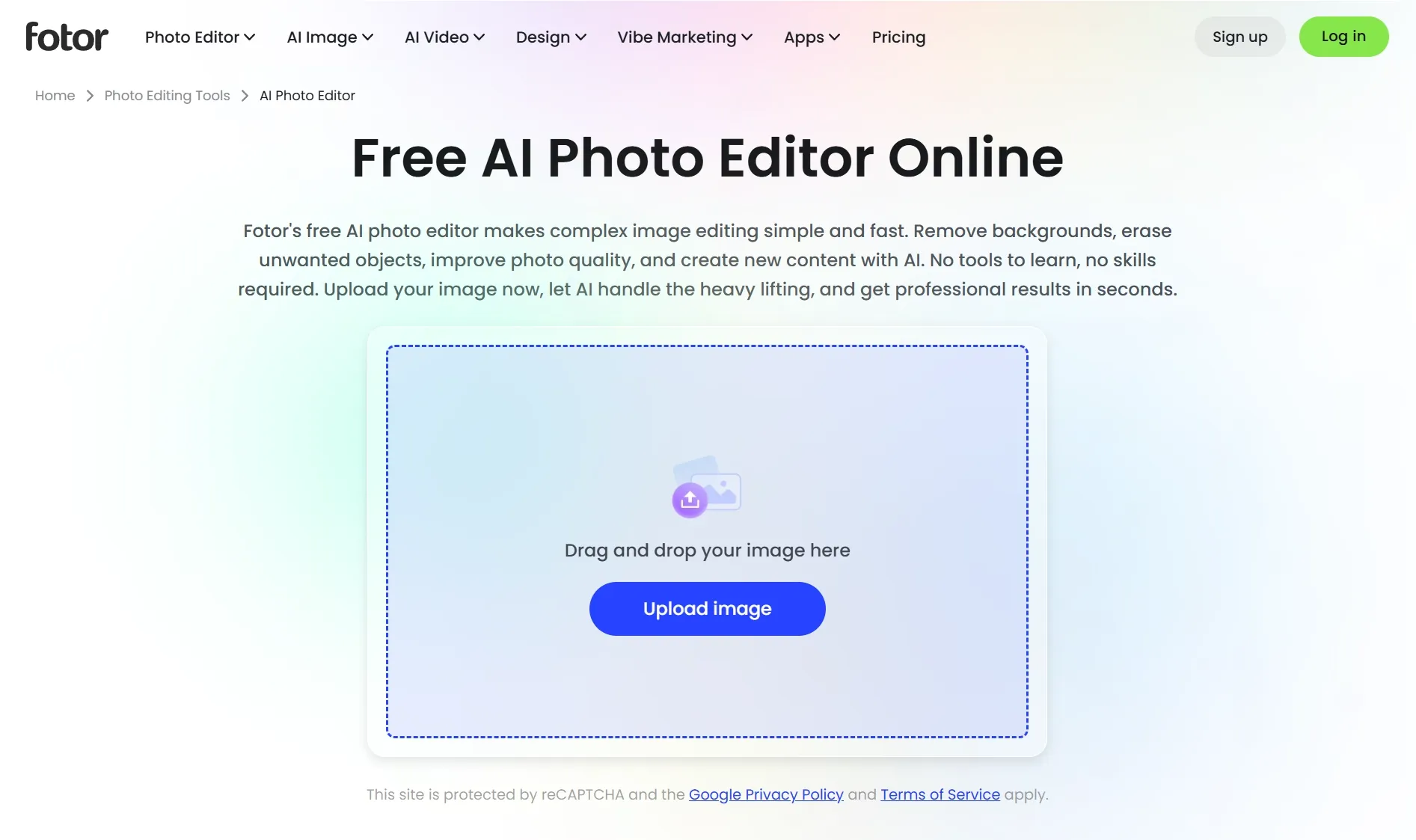
Fotor is a practical AI photo editor for pictures that need clearer detail, better lighting, or restoration. It suits everyday snapshots and older photos where the goal is to improve what is already there.
Its tools cover enhancement, portrait retouching, and background changes, with batch functions for supported tasks. The appeal is a straightforward path from a visible problem to a relevant adjustment, such as correcting uneven lighting.
I would consider Fotor for occasional corrections and repeatable enhancement work. Some advanced edits require Pro access or credits, and restored detail should be checked carefully because AI can reconstruct features rather than recover the original information.
Key Features
- AI Enhancement: Improve image clarity and overall appearance.
- Photo Restoration: Reduce visible damage and fading in older photos.
- Portrait Retouching: Refine facial details and appearance.
- Batch Editing: Apply supported adjustments to multiple photos.
Pros
- Clearly named tools make common corrections easy to find.
- Covers everyday enhancement and older-photo restoration in one place.
- Batch tools can reduce repetitive work across similar images.
Cons
- Some advanced features require a subscription or credits.
- Restored details may differ from what the original photo actually captured.
- Batch adjustments still need individual review when photos have different lighting or quality issues.
For more on its generative features, explore our Fotor AI review.
6. Picsart: Best for Expressive Social Photos and Creative Effects
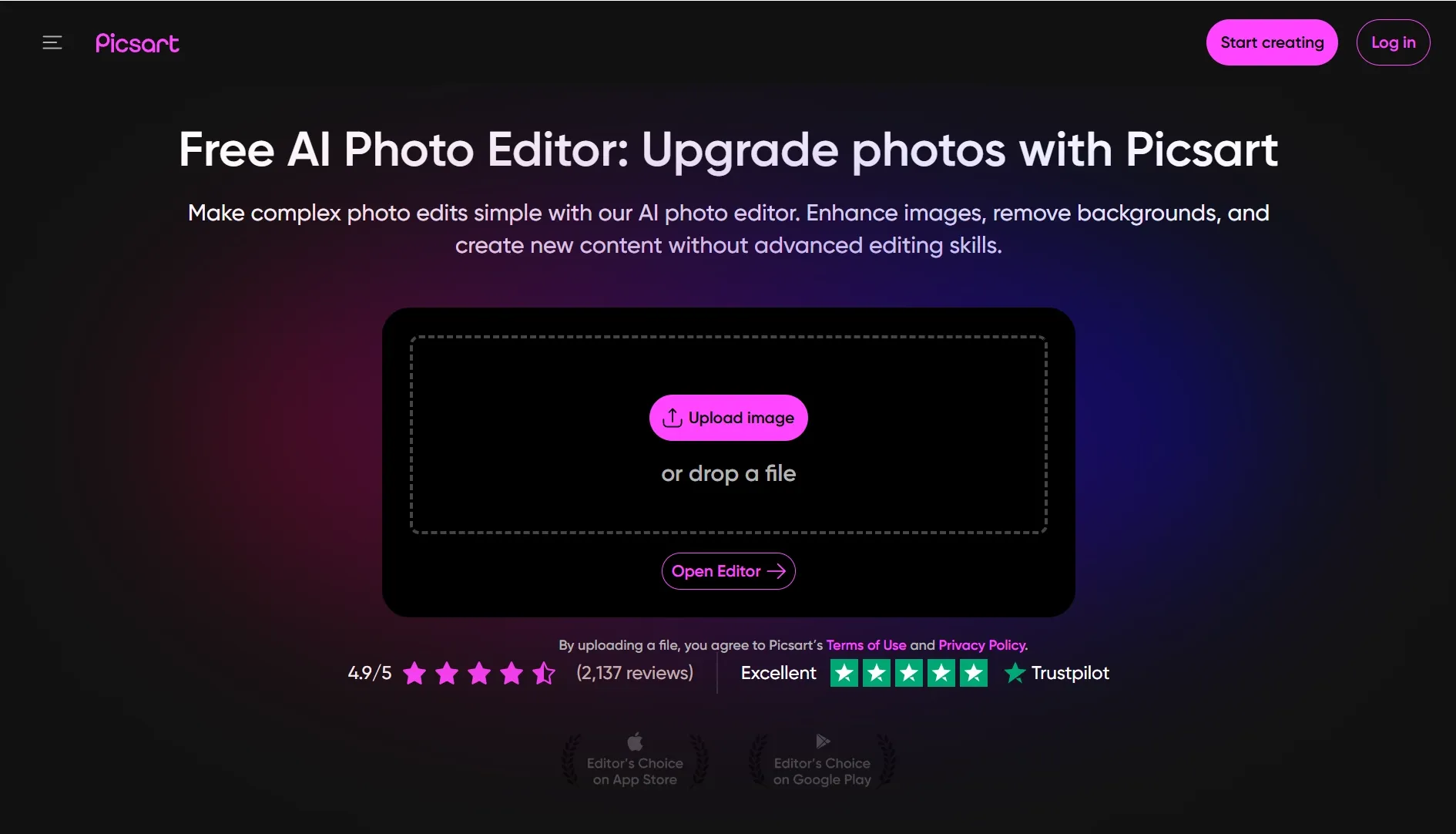
Picsart is a useful AI picture editor for photos that need personality as well as correction. Effects, text, and collage tools make it a natural fit for expressive social graphics and personal creative projects.
Its AI editing covers object removal, enhancement, and background changes. Those corrections can become the foundation for a more stylized design, with graphic elements added after the underlying photo has been cleaned up.
I would choose it for playful visual treatments rather than a purely restrained finish. Advanced tools and generative allowances depend on access and credits, so creators should check the features needed for their usual projects.
Key Features
- AI Background Editing: Replace or generate a photo’s surroundings.
- Object Removal: Clear distracting elements from an image.
- Creative Effects: Apply filters and visual treatments.
- Text and Collage Tools: Combine photos with typography and graphic elements.
Pros
- Offers creative styling alongside practical photo corrections.
- Makes it easy to build social graphics around an edited image.
- Supports a range of visual treatments for exploring different looks.
Cons
- Some advanced editing tools require paid access.
- Generative usage allowances can limit repeated experimentation.
- Its wide range of effects adds less value for users focused on subtle photo corrections.
See our Picsart AI review for a closer look at its image-generation experience.
7. Pixelcut: Best for Product Cutouts and Catalog Preparation
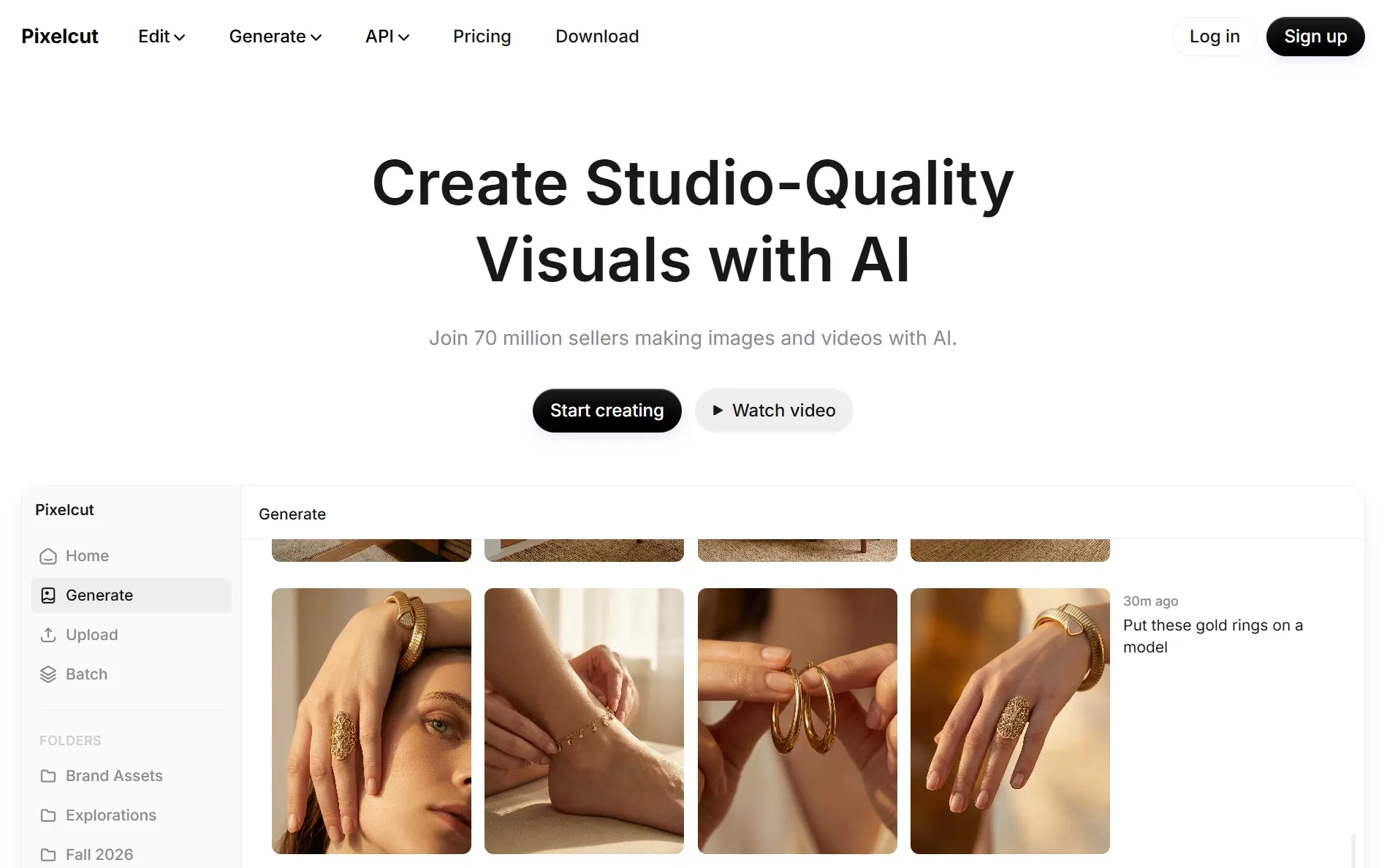
Pixelcut is worth considering when product photos make up most of the workload. Background removal and shadows support a familiar seller task: presenting an existing item clearly against a clean, consistent setting.
Its retouching, expansion, and upscaling tools help prepare product photos for different placements. Batch editing is useful when several items need a similar treatment, although access depends on the plan and the tools involved.
I would shortlist Pixelcut for repeated catalog preparation. Batch features require suitable access, and advanced models can consume credits, so a seller processing many images should check both the included tools and the usage allowance.
Key Features
- Background Removal: Separate products from their original surroundings.
- Shadow Generation: Add shadows that help ground products in a scene.
- Batch Editing: Apply supported edits across groups of images.
- Image Expansion: Add surrounding content to adapt an image’s framing.
Pros
- Product-focused tools suit common online listing tasks.
- Batch editing reduces repetitive work across catalog images.
- Cutouts and shadows help create more consistent product presentations.
Cons
- Batch editing requires a plan that includes it.
- Some advanced models consume credits, which matters when processing larger catalogs.
- Expanded backgrounds need review to ensure they suit the product and intended layout.
8. Lensa: Best for Portrait Styling and Personal Photo Touch-Ups
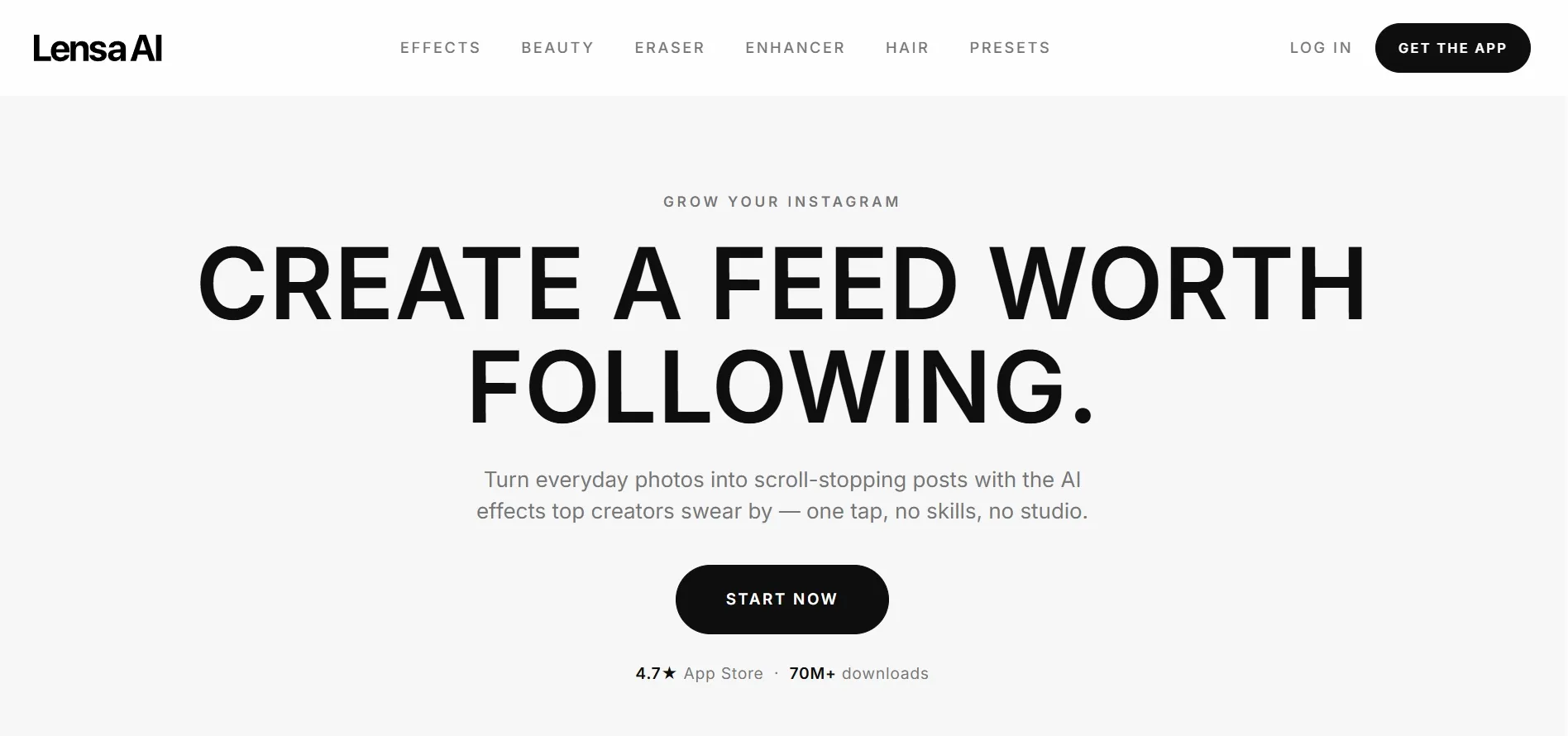
Lensa is the specialist choice here for portraits and personal photos. Its beauty tools and creative effects suit selfies, profile images, and casual shots that need a fresh treatment without a detailed design workflow.
The toolkit combines appearance adjustments with erasing and enhancement. That gives users room to explore retouched portraits, remove a distracting object, or change the mood of a photo before sharing it.
I would consider Lensa for personal styling rather than repeatable product photography. It is free to download with in-app purchases, so the useful comparison is which editing features are available, not whether the app itself costs anything.
Key Features
- Portrait Retouching: Adjust facial details and overall appearance.
- Creative Effects: Explore different moods and visual styles.
- Object Eraser: Remove distractions from personal photos.
- Photo Enhancement: Improve the overall presentation of an image.
Pros
- Its portrait-focused toolkit suits selfies and profile photos.
- Combines practical cleanup with creative styling.
- Makes it convenient to explore different treatments of the same portrait.
Cons
- A free download does not include every editing feature.
- Portrait adjustments can look overdone if applied too strongly.
- Its focus on personal photos makes it a less suitable choice for repeatable product catalog work.
How I Ranked These AI Photo Editors
I compared documented editing features, ease of directing a change, and usefulness for portraits, products, and social content. This is a research-based guide, rather than a controlled test of output quality or editing speed.
The main question was practical: does the editor fit the task? Text prompts help with describing a result, selections provide local guidance, and layers offer manual control. Free access matters too, especially when an edit takes several attempts.
Final Verdict
Pollo AI is my first recommendation for creators, marketers, and sellers who want an approachable way to improve existing photos. Text-guided edits and related creative tools make it useful from the initial correction through to product and campaign visuals.
More specialized needs can point elsewhere. Firefly suits local generative changes, Canva fits layout work, and Pixlr offers manual control. Fotor, Picsart, Pixelcut, and Lensa each have a clear role in enhancement, styling, product preparation, or personal portraits.
Start with a photo that needs one clear improvement. You can edit it with a simple prompt in Pollo AI, compare the result, and refine the details until the image fits what you had in mind.