How to Upscale Your Image with AI: A Step-by-Step Guide
Blurry images don't have to stay that way. In this article, I'll show you how to upscale your image with Pollo AI and create sharper visuals in just a few steps.
TL;DR
Want to make your blurry or low-resolution images clearer? I recommend Pollo AI's AI image upscaler. Just upload your image, choose an upscale level up to 16×, and download a sharper result ready to share, design, or print.
Before You Start: Know What Your Image Needs
Before upscaling an image, I recommend identifying what needs improvement and how you plan to use the finished result.
Identify the Image Quality Problem
Different images can benefit from AI upscaling in different ways. For example:
- Pixelated images: Enlarge small images while reducing visible pixel blocks.
- Blurry photos: Improve apparent sharpness and reconstruct recognizable details.
- Compressed images: Reduce visible compression artifacts and refine textures.
- Heavily cropped photos: Increase resolution to make smaller image sections more usable.
- Old photographs: Improve clarity and enlarge images for modern displays or printing.
Understanding the problem helps you evaluate whether the upscaled result meets your expectations.
Check the Image Format and Size
Pollo AI supports popular image formats, including JPG and PNG. Your uploaded image should also meet these requirements:
- Maximum file size: 10MB
- Maximum image dimensions: 4096 × 4096 pixels
If your file exceeds these limits, adjust its dimensions or file size before uploading.
Decide Where You'll Use the Image
The ideal resolution depends on your intended use. For example, a social media post may only need moderate enlargement, while a poster or printed image may require more pixels.
Once you know your desired output, you can choose an appropriate upscale level.
How to Upscale an Image With Pollo AI: Step-by-Step
Pollo AI makes image upscaling straightforward, even if you have no photo editing experience. Its AI image upscaler can upscale images by up to 16× while refining visible details and reducing pixelation.
Whether you're improving a portrait, artwork, or product photography, the process only takes a few simple steps.
Open the AI Image Upscaler and Upload Your Image
First, visit Pollo AI's image upscaler.
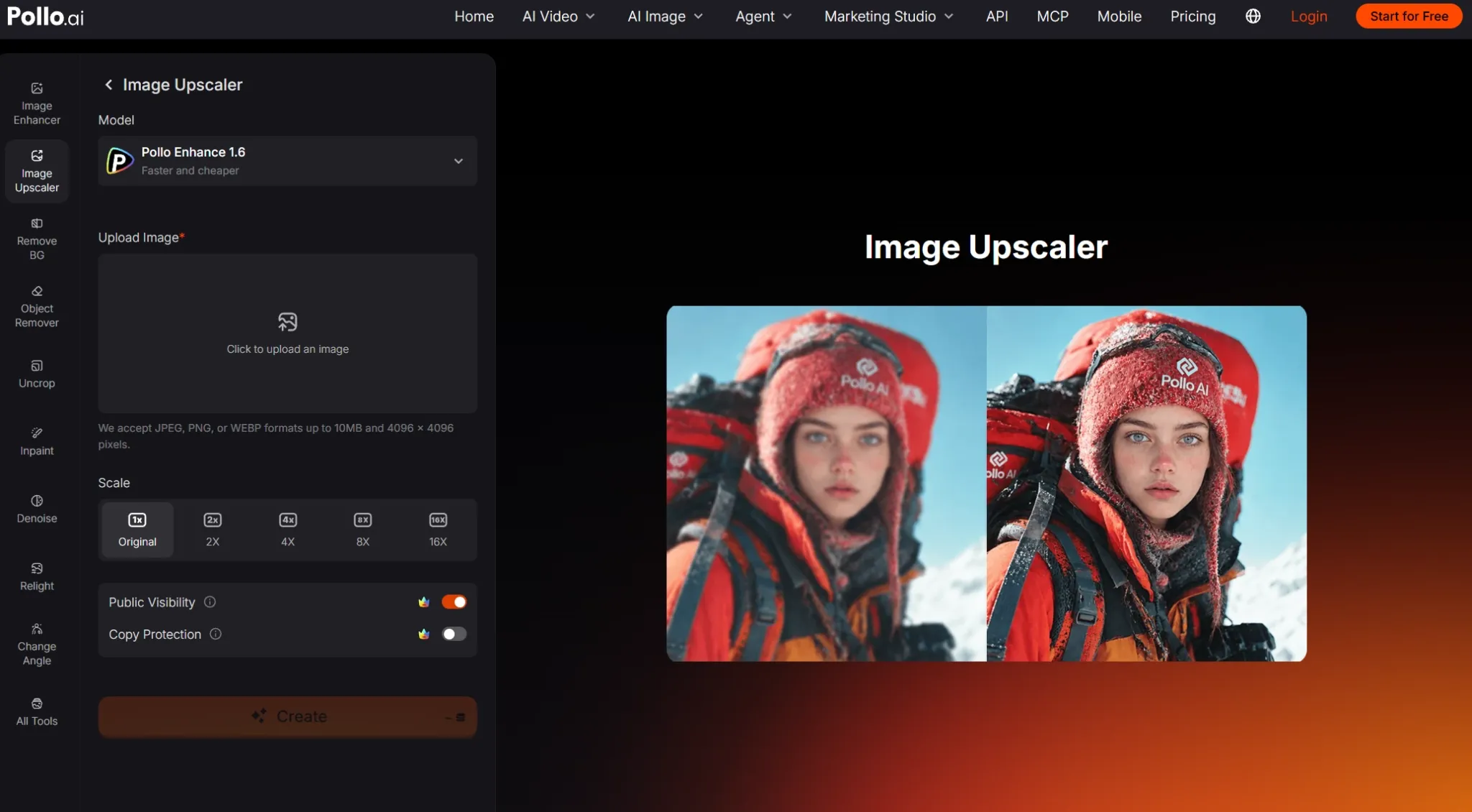
Find the image upload area and select the photo you want to improve. You can upload a blurry portrait, pixelated product photo, low-resolution illustration, or any other supported image.
For example, you might have a small product photo that looks acceptable as a thumbnail but becomes pixelated when enlarged for an online store. Upload that image to Pollo AI to begin improving its resolution.
Choose Your Preferred Upscale Level
Next, select how much you want to enlarge your image. Pollo AI supports upscaling levels of up to 16×, giving you flexibility for different image sizes and creative needs. I recommend choosing a level based on where the finished image will appear.
For example, if you're preparing an image for a social media post, moderate upscaling may provide enough resolution. If you're enlarging a photo for a poster or display ad, a higher upscale level may be more appropriate.
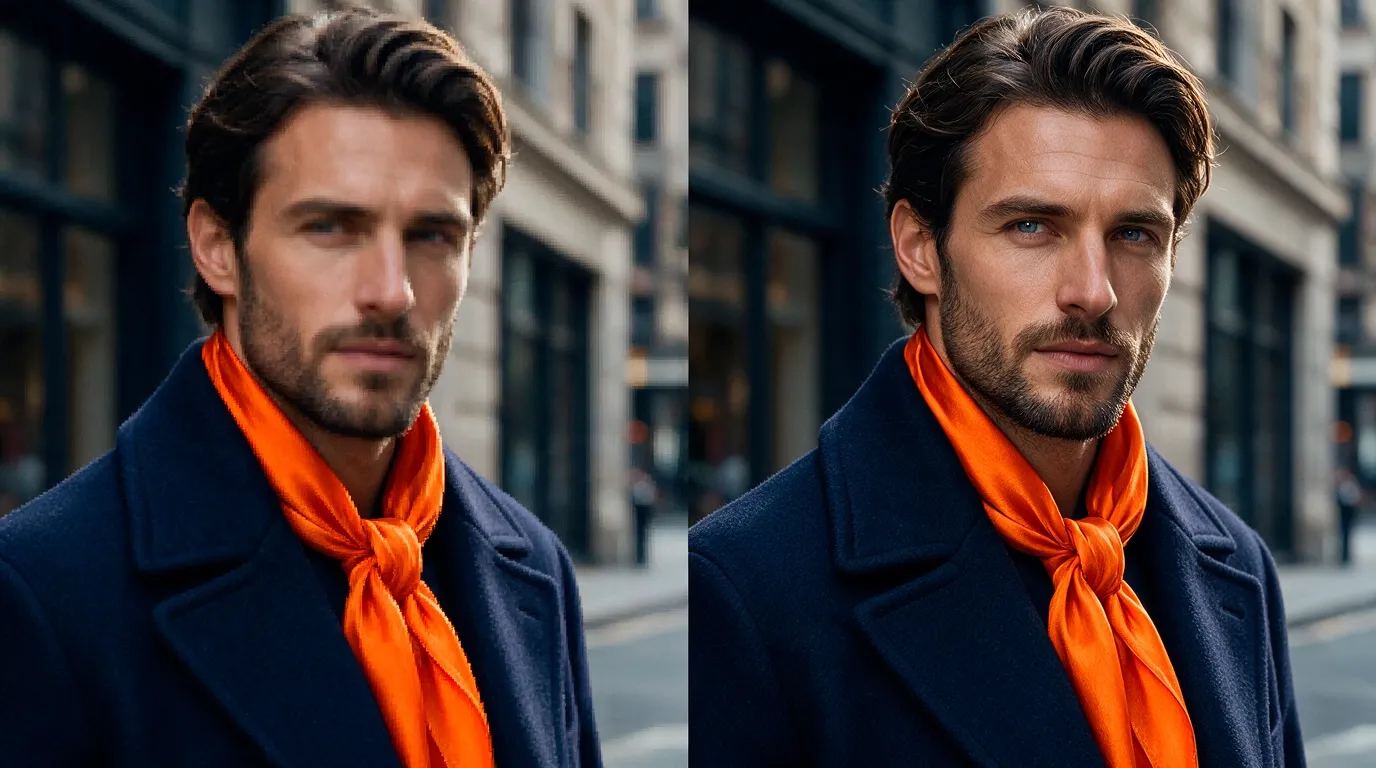
Once you've selected your preferred level, start the upscaling process. Pollo AI will analyze the image and increase its resolution while refining visible details.
Preview and Download Your Upscaled Image
After Pollo AI processes your image, review the result before downloading it.
I suggest checking three important areas:
- Fine details: Look at faces, hair, textures, and small objects to see whether they appear clearer.
- Image edges: Check whether outlines remain sharp without excessive halos or artificial patterns.
- Visual consistency: Make sure the original colors, proportions, and composition still look natural.
For product images, pay particular attention to labels, packaging, and distinctive product features. If you're satisfied with the result, download your upscaled image for social media, online stores, presentations, digital designs, or printing.
Make Your Images Bigger and Clearer With Pollo AI
Upscale blurry photos by up to 16×, refine details, and download clean visuals without complicated editing.
Upscale Your Image for Free
5 Tips to Get Better Results When Upscaling Images With AI
To get the most out of AI image upscaling, here are a few practical tips I'd recommend:
- Choose the right upscale level: Match the setting to your needs. Social posts may need less enlargement than posters or large displays.
- Check fine details: Inspect faces, textures, and product labels after upscaling to ensure important details still look natural.
- Avoid repeated upscaling: Return to the original image when changing upscale levels, as multiple rounds can introduce unwanted artifacts.
- Review at full size: Zoom in to catch blurry edges, unnatural textures, or distorted features before downloading.
- Refine other image qualities: Adjust brightness, contrast, or color with Pollo AI's image enhancer for a more polished result.
Common AI Image Upscaling Problems and How to Fix Them
AI image upscaling can deliver impressive improvements, but some results may still need additional refinement. Here are a few common issues you might encounter and how I'd recommend fixing them.
The Upscaled Image Still Looks Blurry
AI image upscaling can deliver impressive improvements, but some results may still need refinement. Here are a few common issues and how I'd recommend fixing them:
- The Upscaled Image Still Looks Blurry: Severe blur can limit how much detail AI can reconstruct. Try adjusting the upscale level and comparing results to find a clearer, more natural-looking version.
- Faces Look Artificial or Different: AI may reconstruct facial features inaccurately. Try a lower upscale level and compare the result with the original to preserve recognizable details.
- The Image Looks Oversharpened: Excessive sharpening can create unnatural textures and visible halos. Choose a more moderate upscale level to achieve a balanced appearance.
- Small Text Becomes Distorted: AI may struggle to reconstruct heavily pixelated lettering. Check product labels and other important text, then correct any inaccuracies if needed.
- The Image Is Too Small for Printing: The final resolution may not meet your printing requirements. Check the intended print dimensions and choose a higher upscale level if necessary.
Popular Ways to Use AI Image Upscaler
AI image upscaler helps you get more value from existing visuals without creating everything from scratch. Here are some practical ways to use it:
| Use Case | How AI Image Upscaling Helps |
|---|---|
| E-Commerce Product Photos | Sharpen product details for store listings, zoom views, and promotions. |
| Social Media Graphics | Enlarge posts, thumbnails, and banners while reducing visible pixelation. |
| Old Photos and Memories | Improve clarity for sharing, digital collections, and printing. |
| Marketing Campaigns | Adapt promotional visuals to larger formats while keeping branding recognizable. |
| Digital Artwork | Enlarge illustrations and character designs while preserving fine details and linework. |
Take Your Upscaled Images Further With Pollo AI
Upscaling is just one way to improve your visuals with Pollo AI. Once your image has the resolution you need, you can explore more creative possibilities without switching platforms.
If your image needs additional refinement, try AI photo editor to adjust any elements with simple prompts. This can be especially helpful when preparing polished product photos and marketing visuals.
You can also use image to image AI to transform existing photos into new visual styles. Turn product images into creative promotional assets or give your illustrations a fresh artistic direction.
Want to bring your images to life? With image to video AI, you can animate portraits, product photos, and artwork into engaging videos for social media and storytelling.
Together, these features help you turn upscaled images into more versatile creative assets, all within Pollo AI.
Final Verdict
What I like most about AI image upscaling is the freedom to reuse visuals instead of starting from scratch. With Pollo AI, you can give existing photos and designs a second life, saving time while opening up more creative possibilities.
Ready to make the most of your images? Give Pollo AI a try!