10 Best AI Animation Generators I Tried This Year
AI animation generators can look impressive in demos, but I wanted to know which ones could actually turn a rough idea or still image into a usable animated clip. So I tested 10 tools across everyday creator scenarios: a product-style image, a short character idea, a social hook, and a simple explainer.
What surprised me was how differently the tools handled the same basic request. Some produced smooth motion but weak control, some were great for templates, and some looked good only after a few retries. This list is built around that practical difference, not just feature lists.
Quick Answer: What Is the Best AI Animation Generator?
Pollo AI's AI animation generator is my best overall pick because it gave me the most practical control over the animated result itself: prompt direction, style choice, motion range, aspect ratio, and output settings. It did not win because every output was perfect; it won because I had more ways to adjust the clip when the first result needed a second try.
Choose it if you want one flexible AI animation generator for several animation routes. If your work is only template explainers, Animaker or Steve AI may feel faster; if your priority is cinematic camera language, Runway deserves a separate test.
The most useful shortcut is to look at how much adjustment the first output gives you. A good AI animation generator should let you refine the scene direction, motion strength, style, and output format without making you restart the whole idea from scratch.
10 Best AI Animation Generators at a Glance
| Tool | Best For | Suitable For |
| Pollo AI | Best overall AI animation workflow | Creators, marketers, and sellers who need multiple animation routes in one place |
| Animaker | Beginner explainers and training videos | Teachers, trainers, and teams that prefer templates over open-ended generation |
| Runway | Cinematic control and advanced motion | Filmmakers, concept artists, and creators who can spend credits on iteration |
| Pika | Playful social effects | Social creators testing fast visual hooks and short transformations |
| Steve AI | Script-led explainers | Teams turning written lessons, prompts, or training scripts into animated scenes |
| GoEnhance AI | Stylized and anime motion | Creators who want transformation effects, anime looks, or bold visual restyling |
| Dreamina | Cinematic image animation | Creators starting from strong still images and mood-driven prompts |
| Fliki AI | Voiceover-led videos | Educators, faceless-video creators, and teams repurposing scripts or blog content |
| VEED | Post-generation editing | Social teams that need captions, resizing, cleanup, and browser editing |
| DeeVid AI | Fast effects and motion tests | Creators testing many short hooks, models, and effects quickly |
Pollo AI: Best AI Animation Generator Overall
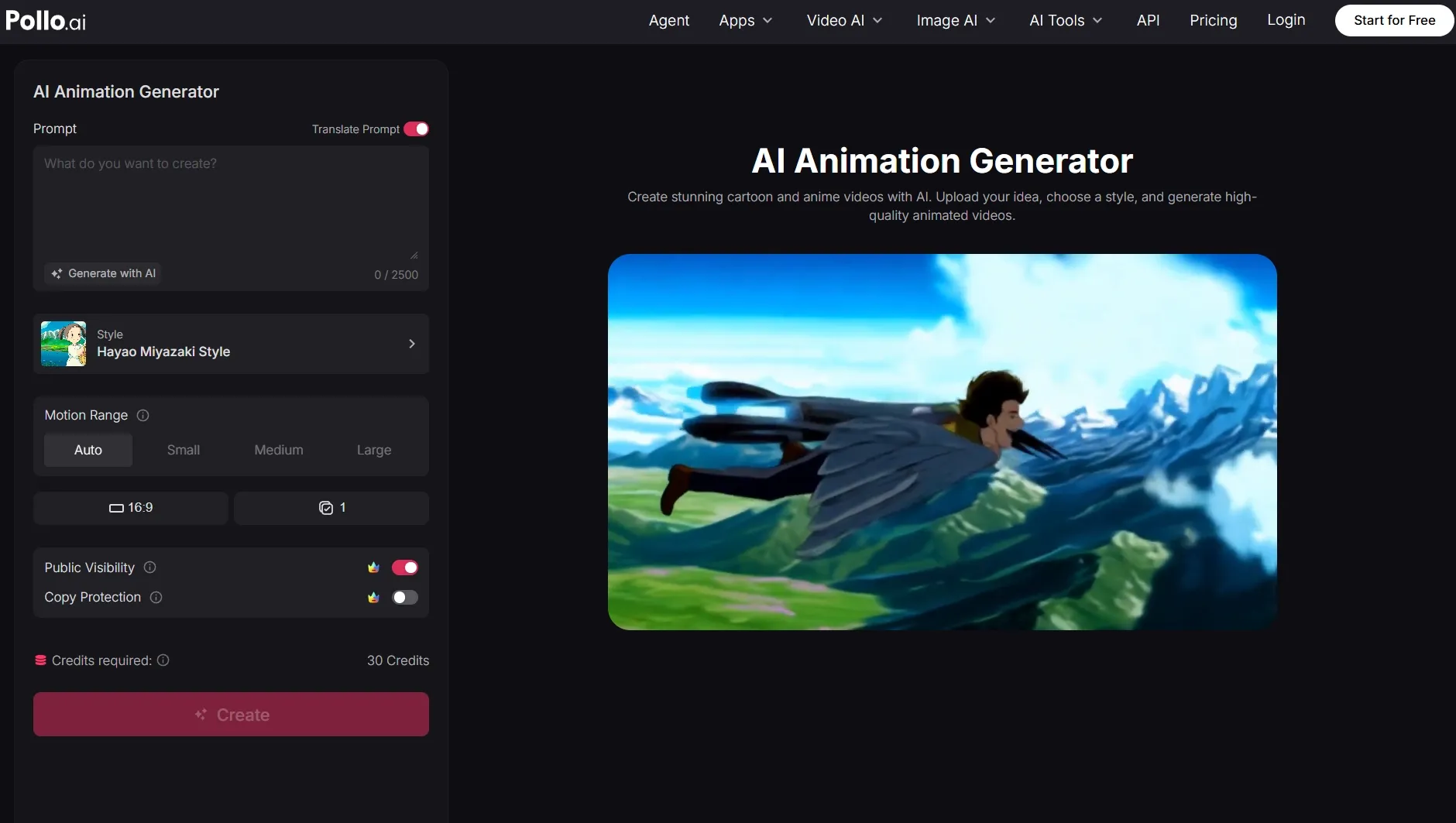
Pollo AI felt strongest here because its AI animation generator gives you the core animation controls on one screen instead of hiding them behind a generic create button. I could write a prompt, turn on prompt translation if needed, choose a visual style, set the motion range, pick 16:9, choose one output, and see the credit cost before creating the clip.
The style library is what made the test feel more controlled. Instead of only typing "anime" or "cinematic" into a prompt, I could pick from visible style options such as Hayao Miyazaki Style, Makoto Shinkai Style, Katsuhiro Otomo Style, Mamoru Hosoda Style, and other anime-inspired looks, which made the starting direction clearer before generation.
In my tests, motion range was the setting I would adjust first after the prompt. Auto was the safest default, small motion suited portraits or product-style ideas, and medium or large motion made more sense when I wanted a more active image to video result. The main limitation is still the same as most AI animation tools: complex prompts, crowded scenes, or exact hands can take retries.
Pollo AI's AI animation generator also fits naturally with its Creative Studio positioning. Creative Studio is where Pollo AI groups its core creation routes, so you can move from text to video, reference to video, and animation testing into a broader creator workflow instead of treating animation as a separate one-off tool.
Key Features
- Prompt-first animation: Describe the scene, subject, and movement in the generator prompt box.
- Style selection: Pick a visible style direction before generation instead of relying only on prompt wording.
- Motion range: Use auto, small, medium, or large motion depending on how active the clip should feel.
- Creation controls: Check aspect ratio, output count, visibility, copy protection, and credits before generating.
Best For
- Creators turning rough prompts into stylized animated clips.
- Social creators testing anime, cinematic, or character-style motion ideas.
Pros:
- Clear prompt, style, and motion controls.
- Visible credit cost before creation.
- Style library makes direction easier to set.
Cons:
- Complex scenes still need retries.
- More controls than a basic template explainer.
- Credit use still matters when retrying complex prompts.
Create AI Animation with Pollo AI
Use Pollo AI to test animation prompts, visual styles, and motion strength without jumping between separate tools.
Try Pollo AI Free
Animaker: Best AI Animation Generator for Beginner Explainers
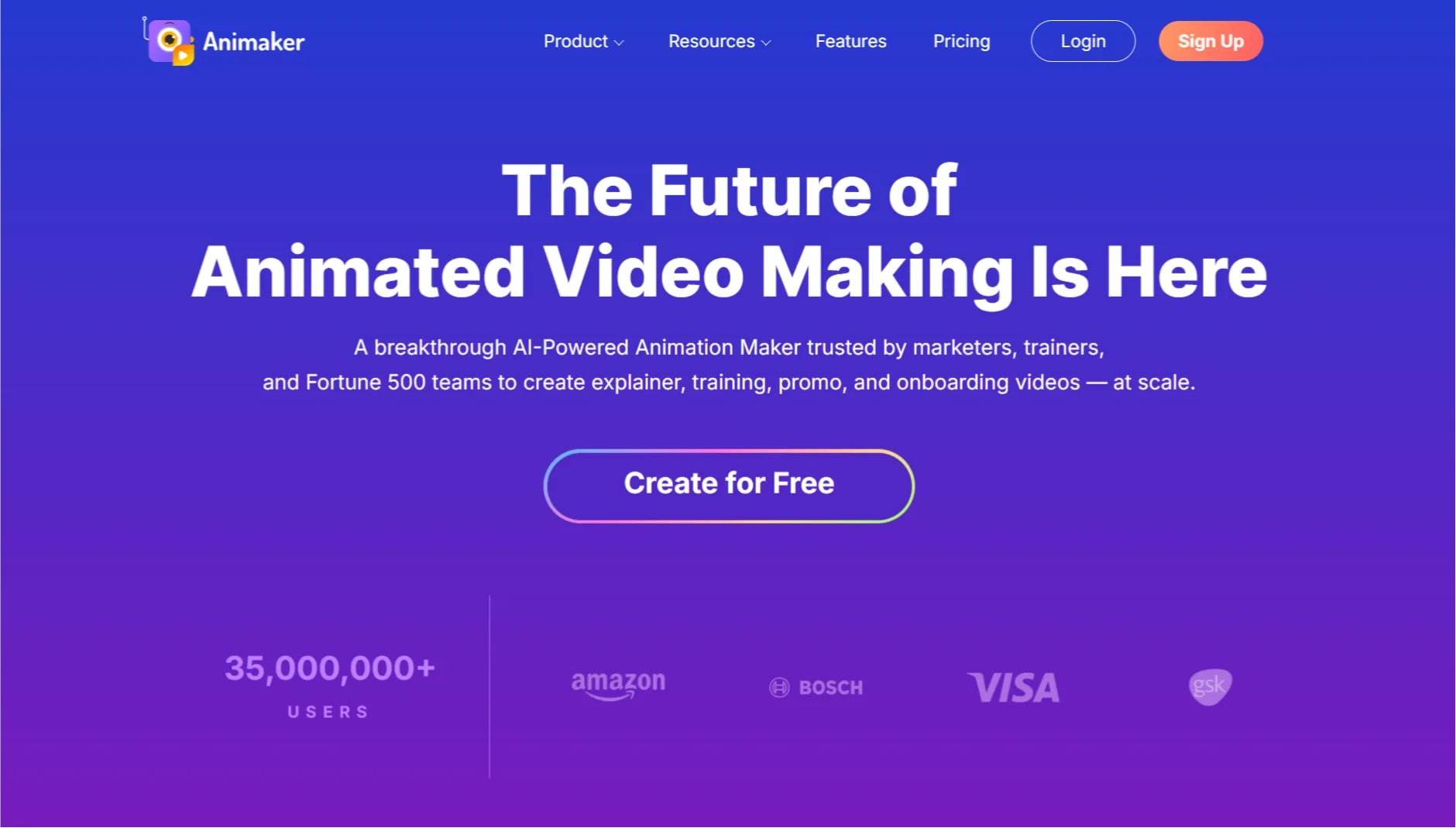
Animaker worked best when I stopped asking it to behave like a generative film tool and used it as a structured explainer builder. I tested a short onboarding script, a classroom-style lesson, and a simple sales-process outline; the outputs were clearest when the scenes were concrete and the visuals could come from templates.
For scene-based explainers, it was easy to turn the script into a sequence with characters, icons, and simple transitions. The weaker point was obvious in more open prompts: when I asked for looser visual motion, the result felt assembled rather than generated, which is fine for training videos but less exciting for creative animation.
Pricing is also part of the fit. Animaker's pricing page emphasizes paid upgrades around watermark-free exports and higher-quality output, so I would not rely on the free tier for client-facing videos. If you need freer motion or model-led experimentation, a broader AI video generator gives you more room.
Key Features
- Template scenes: Build guided explainers without designing every frame from scratch.
- Character animation: Use ready-made characters for training or business stories.
- Voiceover workflow: Add narration for lesson-style videos.
- Timeline editor: Arrange text, icons, and scenes in a predictable sequence.
Best For
- Beginners making animated explainers.
- Teachers and trainers creating lesson videos.
Pros:
- Easy to structure a script.
- Good for training-style scenes.
- Less intimidating than open-ended generators.
Cons:
- Creative motion feels template-based.
- Watermark/export quality can push users to paid plans.
- Not ideal for cinematic prompts.
If you want the fuller notes on where the templates help and where they feel limiting, read the full Animaker review.
Runway: Best AI Animation Generator for Cinematic Control
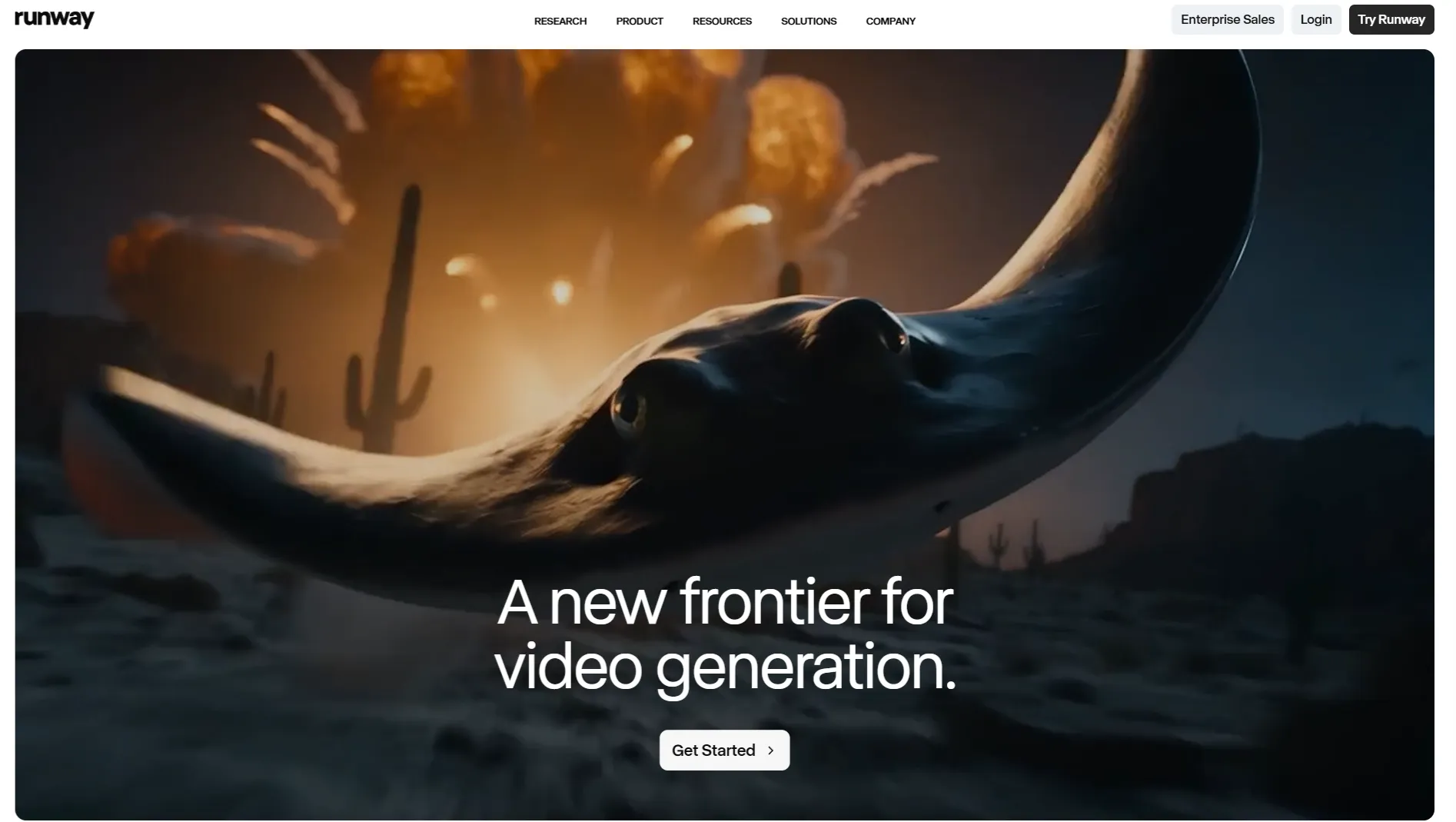
Runway was the tool I reached for when the test needed atmosphere, camera language, or a more cinematic finish. I used a moody portrait still, a product reveal prompt, and a small short film experiment; the best outputs had stronger lighting and shot direction than most quick-effect tools.
The trade-off is that Runway rewards patient iteration. A prompt that simply says "move the camera" is not enough; I had to be specific about subject movement, framing, and camera movement to avoid vague drifting or changes in the subject.
The credit model makes that testing discipline matter. Runway says its free plan includes 125 one-time credits, which equals about 25 seconds of Gen-4 Turbo or 25 image generations, so failed tests can use the free allowance quickly. If you only need a quick social clip, a simpler AI animation generator may be less expensive to explore.
Key Features
- Cinematic generation: Create clips with stronger mood, lighting, and shot design.
- Image-to-video support: Animate stills when the source image already has the right composition.
- Camera control: Shape movement and framing more deliberately.
- Creative editing: Refine visual tests after generation.
Best For
- Filmmakers and advanced creators.
- Concept art, music visuals, and story-driven shots.
Pros:
- Strong cinematic feel.
- Good camera and lighting control.
- Useful for serious visual experiments.
Cons:
- Credits disappear quickly during retries.
- Beginners may need prompt practice.
- Not the fastest tool for simple explainers.
Pika: Best AI Animation Generator for Playful Social Effects
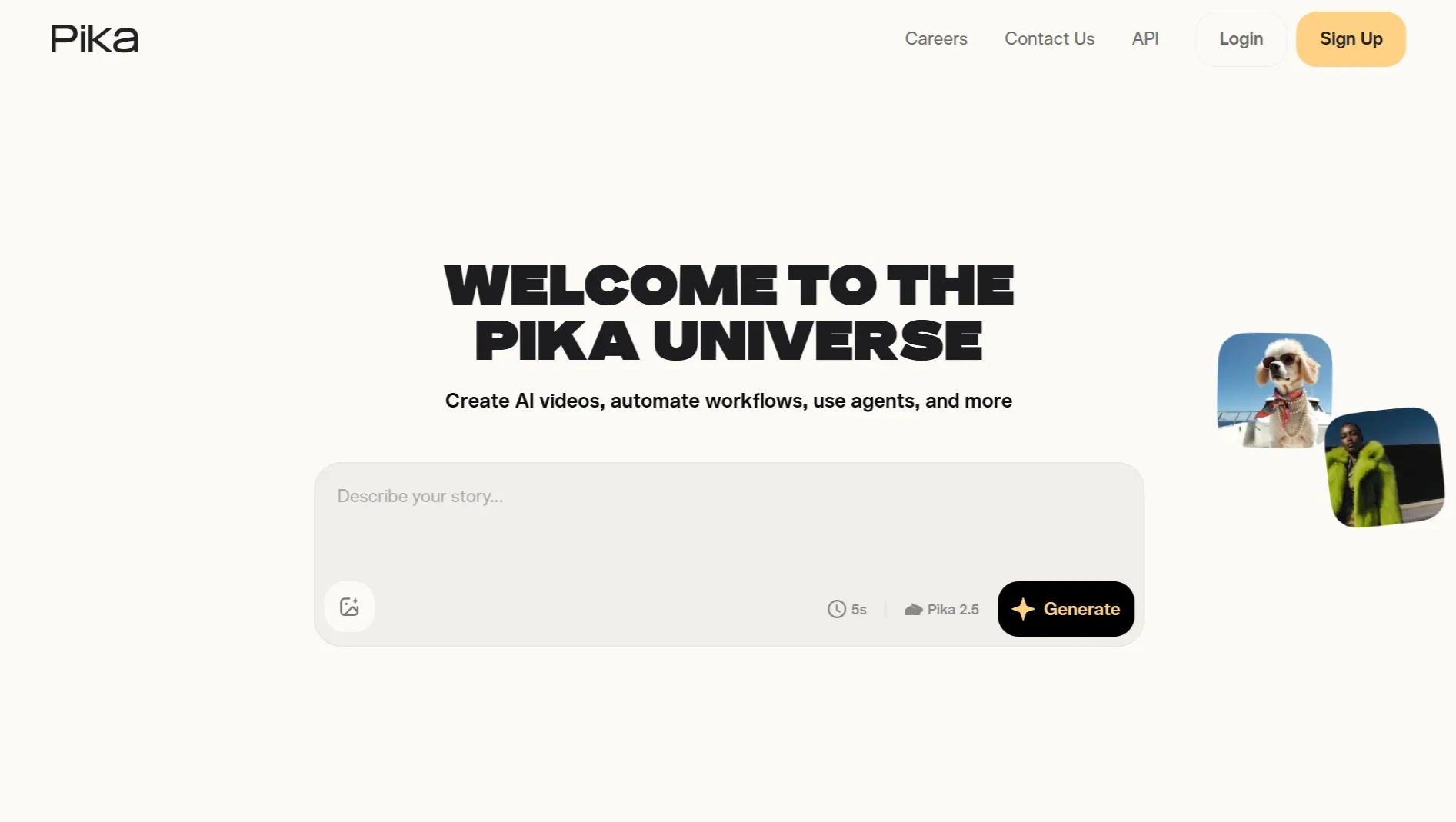
Pika was most convincing when I treated it like a social hook machine. I tested a product photo transformation, a character reaction idea, and a meme-style clip; the outputs were punchy enough for short previews, especially when the concept was simple and visual.
The best result came from an image to video effect where the source image already had one obvious action. When I pushed it toward a multi-beat story for TikTok videos, the clip usually needed trimming, captions, or a second pass in an AI video editor before it felt campaign-ready.
Pika is also credit-sensitive. Its pricing page lists different credit costs for different tools and models, with some effects costing far more than basic generations, so I would use it for short experiments rather than long production tests.
Key Features
- Image effects: Turn stills into short, attention-grabbing motion.
- Prompt clips: Generate quick visual ideas from text.
- Social templates: Test playful transformations and effects.
- Fast iteration: Try several hooks without building a full edit first.
Best For
- Social creators making short-form effects.
- Brands testing early visual hooks.
Pros:
- Fast for simple hooks.
- Fun transformation effects.
- Good for visual brainstorming.
Cons:
- Less reliable for long scenes.
- Some effects can feel gimmicky.
- Credit costs vary by feature.
For more examples of its effect strengths and limits, check the Pika AI review.
Steve AI: Best AI Animation Generator for Script-Led Videos
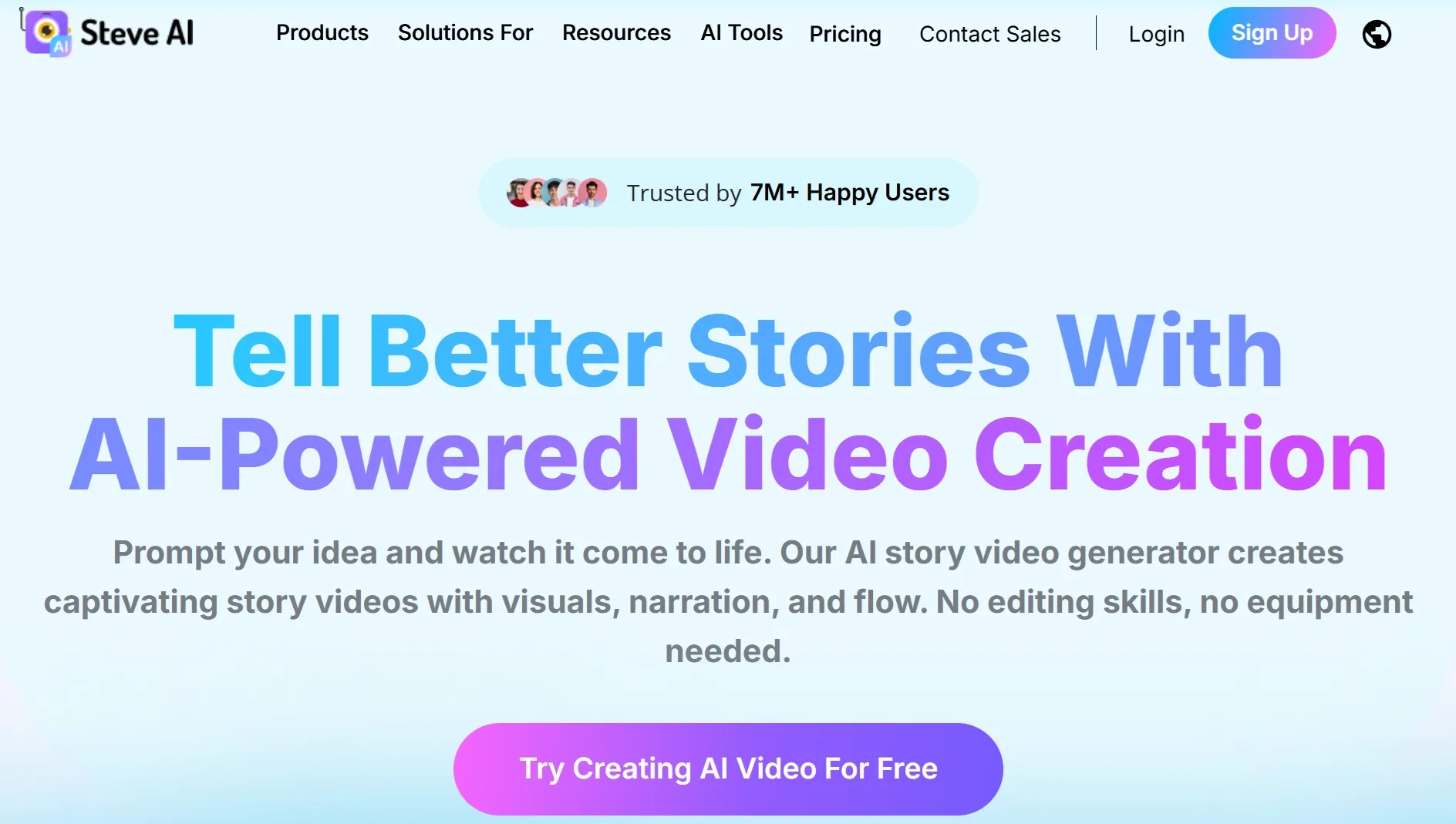
Steve AI made the most sense when I gave it a finished message rather than a vague visual idea. I tested a three-point training script, a short product explainer, and a prompt-led business lesson; the tool was better at organizing scenes than inventing dramatic motion.
For a script to video workflow, it was useful because the output followed the structure of the text. The visual style can still feel stock-like, so I would use an AI video editor afterward if the clip needed marketing polish instead of just a clear first draft.
Pricing and limits matter here because generative clips use credits on top of the subscription workflow, and Steve AI also offers add-ons for extra generative credits and plan power-ups. I liked the AI voice generator side for narrated explainers, but I would not choose it for visual-first animation tests.
Key Features
- Script-to-video: Turn written lessons or prompts into structured scenes.
- Character scenes: Use animated presenters for explainers.
- Voiceover tools: Build narrated clips without recording audio first.
- Business templates: Start from training, sales, and presentation formats.
Best For
- Explainer videos.
- Training and business education content.
Pros:
- Good for script-first workflows.
- Clear scene structure.
- Useful narration options.
Cons:
- Less flexible for visual-first prompts.
- Can look template-driven.
- Generative credits add another limit to watch.
For a fuller view of the script-led workflow, read the Steve AI review.
GoEnhance AI: Best AI Animation Generator for Stylized Motion
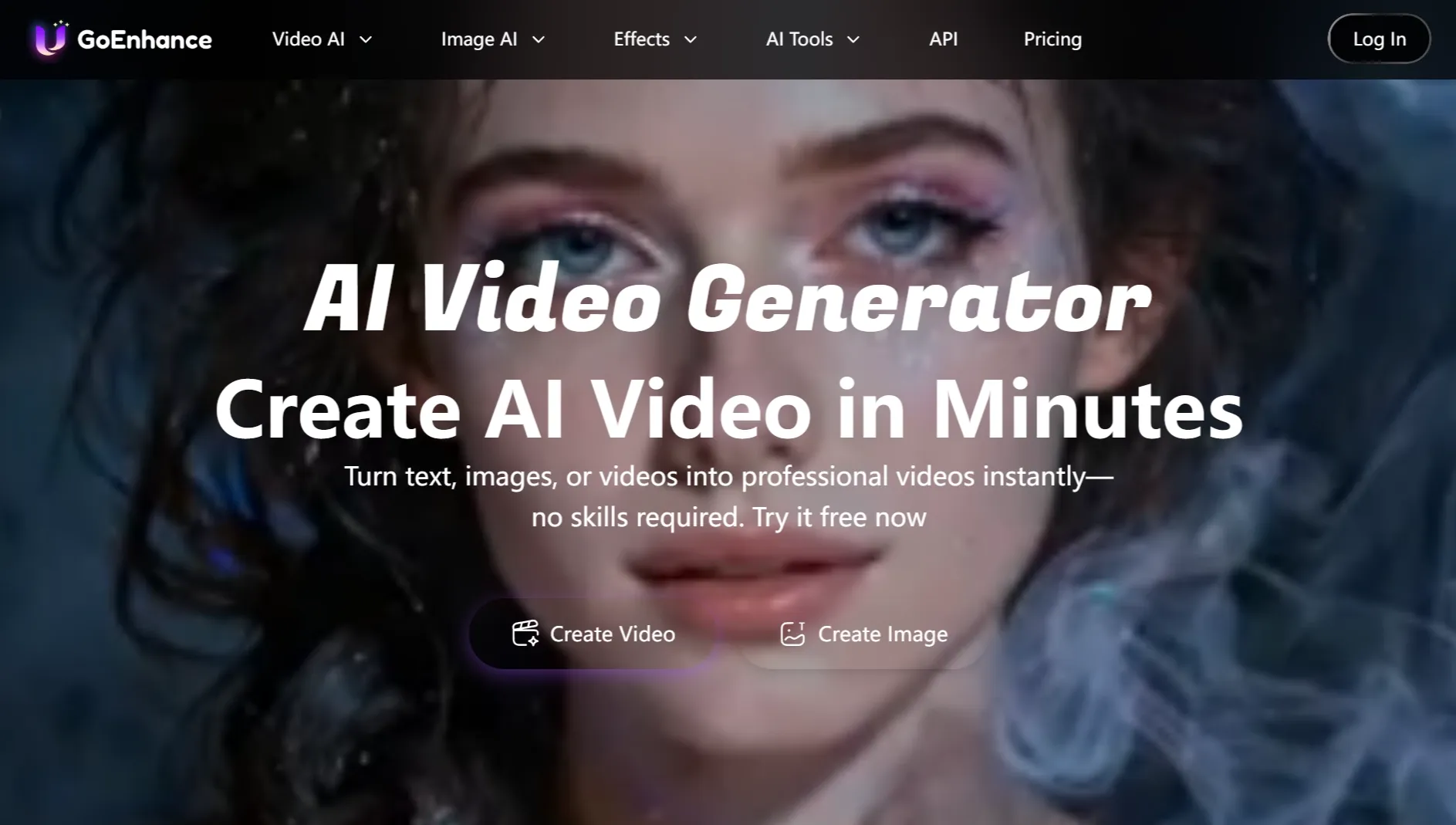
GoEnhance AI was strongest when I tested style transformation rather than realistic motion. I used a portrait-style image, a short action idea, and a restyle test; the more stylized the goal, the more forgiving the output became.
For anime edits and bold video effects, it created a clear look quickly, but busy details could wobble or overpower the original face. The tool felt less like a subtle production editor and more like a fast way to test whether a visual style is worth pursuing.
The limit I watched was token use. GoEnhance says its free tier includes tokens and paid subscriptions add more allowance, faster generation, concurrent jobs, and premium features, so I would test prompts in small batches before committing to a longer video to video workflow.
Key Features
- Stylized animation: Create anime, cartoon, or illustrated video looks.
- Video transformation: Restyle existing clips into stronger visual identities.
- Image animation: Turn still images into stylized motion tests.
- Effect testing: Compare bold visual directions quickly.
Best For
- Anime-style video creators.
- Social creators making stylized effects.
Pros:
- Strong stylized looks.
- Good for transformation tests.
- Useful for bold social visuals.
Cons:
- Busy scenes can wobble.
- Style can overpower details.
- Token allowance can limit trial-and-error.
To see more detail on its stylized output tests, read the GoEnhance AI review.
Dreamina: Best AI Animation Generator for Cinematic Image Animation
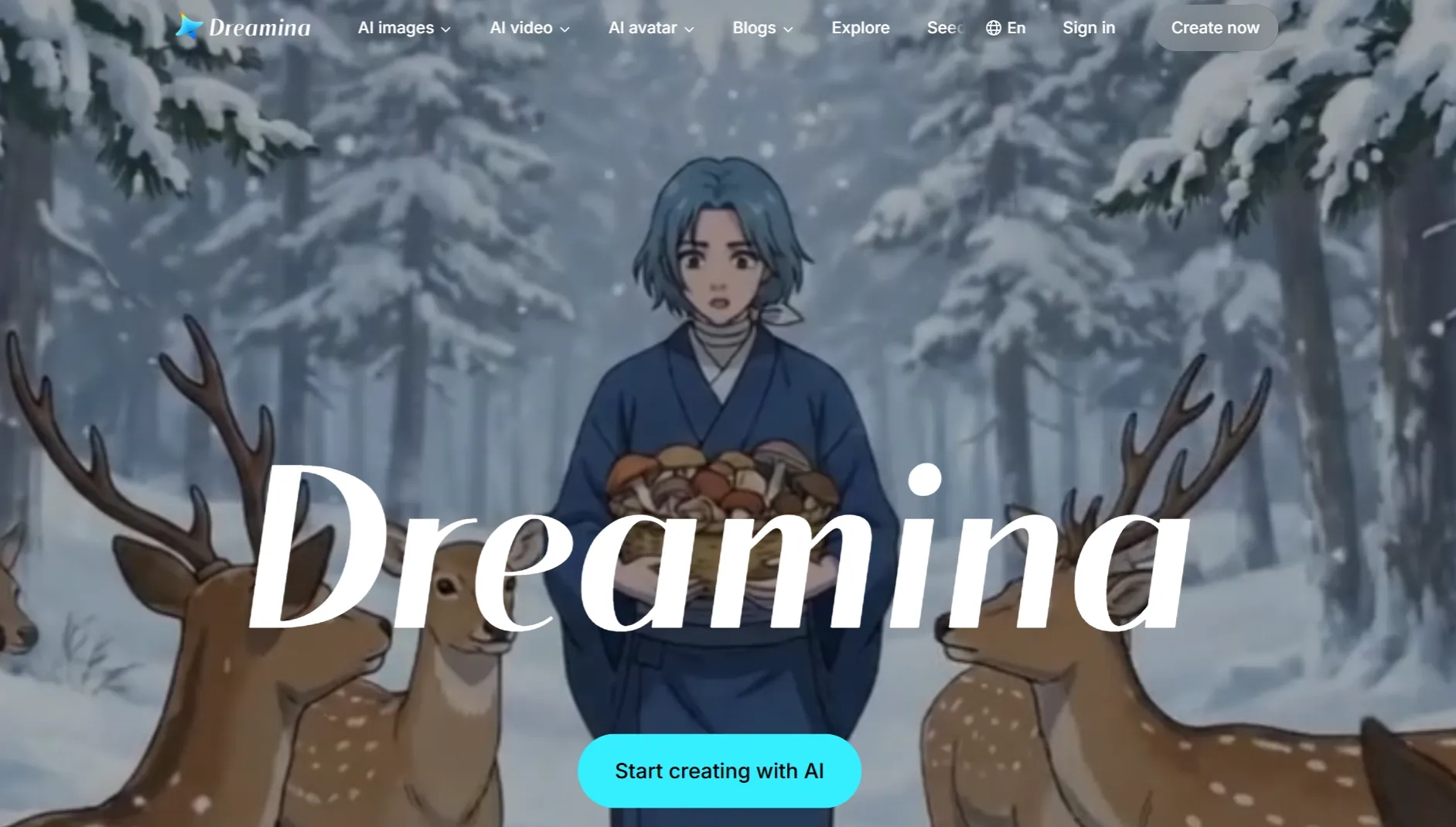
Dreamina worked best when the starting image already had mood, lighting, and a clear subject. I tested a portrait, a fantasy-style still, and a product-like image; the strongest results came from storytelling video prompts that asked for one controlled movement instead of several story beats.
With image to video, it produced attractive motion when the scene stayed simple. The moment I asked for stronger camera movement plus character detail, I saw more variation between attempts, so retries became part of the workflow.
Dreamina says it provides free daily credits for image and video generation, but credit cost can shift by model, resolution, clip length, audio, and references. For character-heavy work, I would compare it with reference to video because a pretty shot is not enough if the subject identity shifts.
Key Features
- Image animation: Animate still images that already have strong composition.
- Prompt control: Guide mood, motion, and scene direction.
- Cinematic style: Create social-ready clips with polished visual feel.
- Character scenes: Test image-led character motion and style prompts.
Best For
- Creators making cinematic image animations.
- Users starting from polished still images.
Pros:
- Stylish results from clean inputs.
- Good mood and camera feel.
- Strong for simple image-led scenes.
Cons:
- Control can vary across retries.
- Complex prompts weaken consistency.
- Credit costs should be checked before batch work.
For more testing detail on its image-led animation results, take a look at the Dreamina AI review.
Fliki AI: Best AI Animation Generator for Voiceover-Led Videos
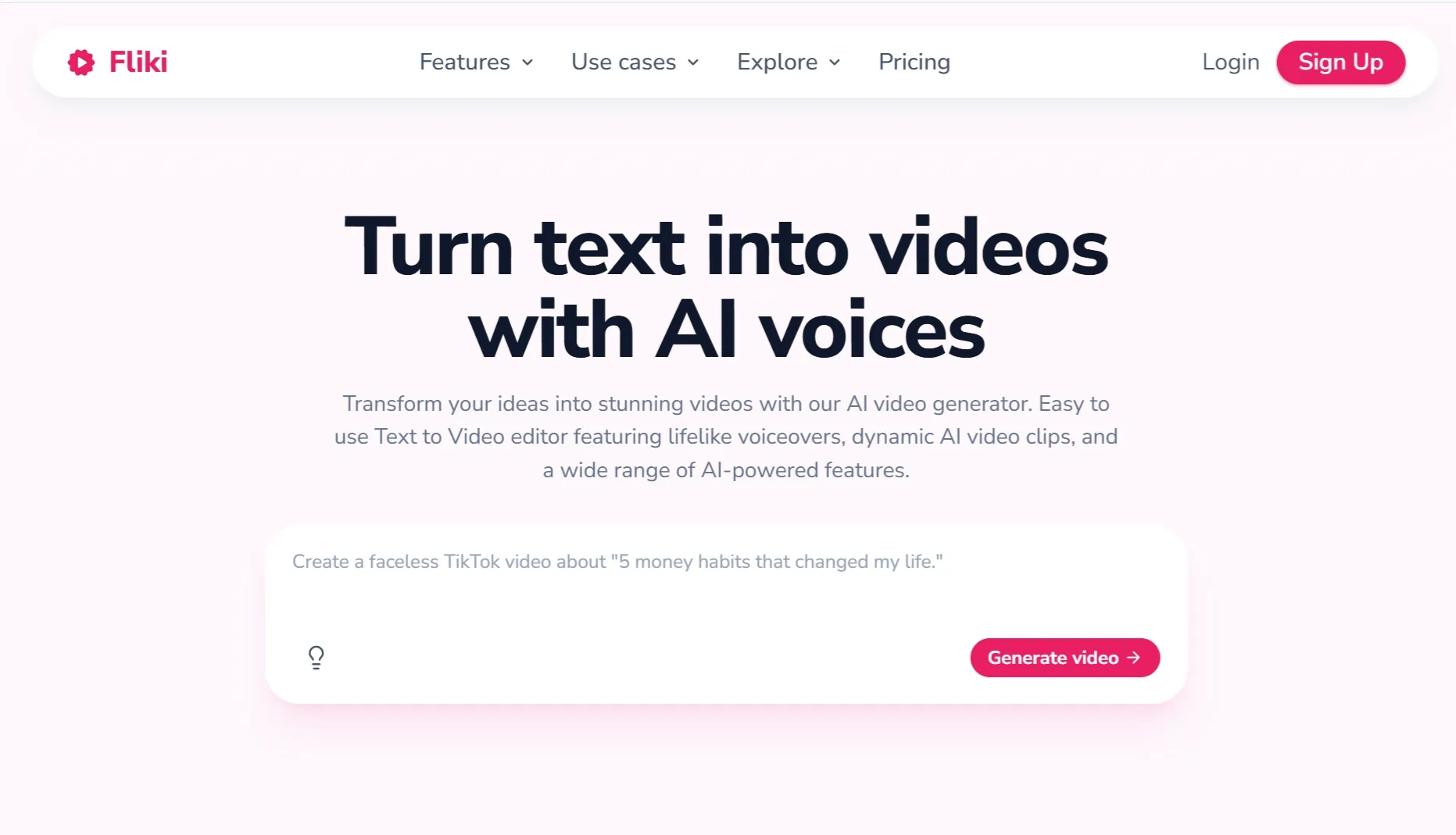
Fliki AI felt less like a motion generator and more like a narration-first production tool. I tested a short educational script, a faceless social idea, and a blog-summary style prompt; the strongest outputs were the ones where voiceover and captions carried the value.
For faceless videos, it was efficient because the workflow brings script, visuals, voice, and captions together. If I wanted richer animated movement, I would create the visual clip elsewhere with an AI video generator and then polish the narration or captions in an AI video editor.
The free tier is useful for testing but limited. Fliki lists 3 credits per month and watermarked 720p videos on Free, while paid plans increase credits, voices, export quality, and max video length, so serious publishing will likely need an upgrade.
Key Features
- Voiceover creation: Build videos around AI voices and scripts.
- Script-to-video: Turn prompts, blogs, or slides into narrated scenes.
- Caption workflow: Add captions for social and education use.
- Media assembly: Pair narration with simple visuals, music, and layouts.
Best For
- Faceless video creators.
- Educators making narrated explainers.
Pros:
- Strong voiceover workflow.
- Good for script repurposing.
- Captions are easy to add.
Cons:
- Motion is not the main strength.
- Free plan is very limited.
- Can feel presentation-like.
For the full voiceover workflow breakdown, read the Fliki AI review.
VEED: Best AI Animation Generator for Post-Generation Editing
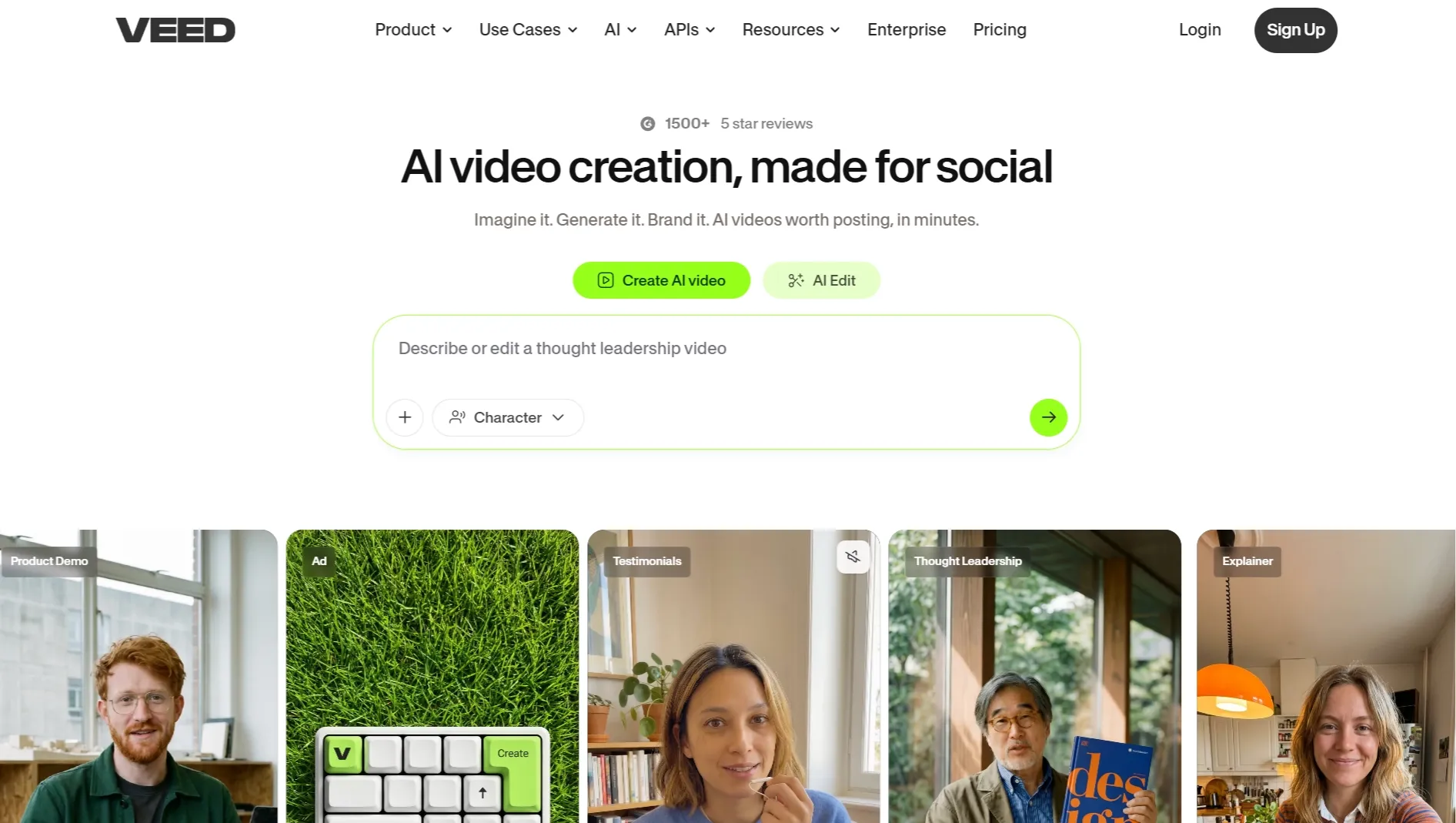
VEED was most useful after the animation existed. I tested it with a rough generated clip, a subtitle-heavy social video, and a resizing job; it was better at making a clip publishable than at replacing a dedicated generation model.
The workflow makes sense for social media videos because the practical work is often captions, subtitles, trimming, resizing, audio cleanup, and brand formatting. For generation-first animation, I would still start elsewhere and then use VEED as the AI video editor stage.
Pricing is mostly an editing/export question. VEED's help center says Free exports are 720p only, Creator exports up to 1080p, and Pro, Studio, and Enterprise can export up to 4K, so free use is fine for testing but not ideal for polished brand work.
Key Features
- Online editing: Trim, resize, caption, and polish clips in the browser.
- Subtitle tools: Add captions for social and education content.
- Social resizing: Reformat clips for TikTok, Reels, Shorts, and ads.
- Audio tools: Clean up voice, add narration, or prepare final sound.
Best For
- Social media teams.
- Educators and marketers polishing generated clips.
Pros:
- Strong browser editing workflow.
- Excellent fit for captioned clips.
- Useful after generation.
Cons:
- Animation generation is not the core.
- Free exports are limited to 720p.
- Advanced export quality needs paid tiers.
For the full editing-focused breakdown, read the VEED review.
DeeVid AI: Best AI Animation Generator for Fast Effects
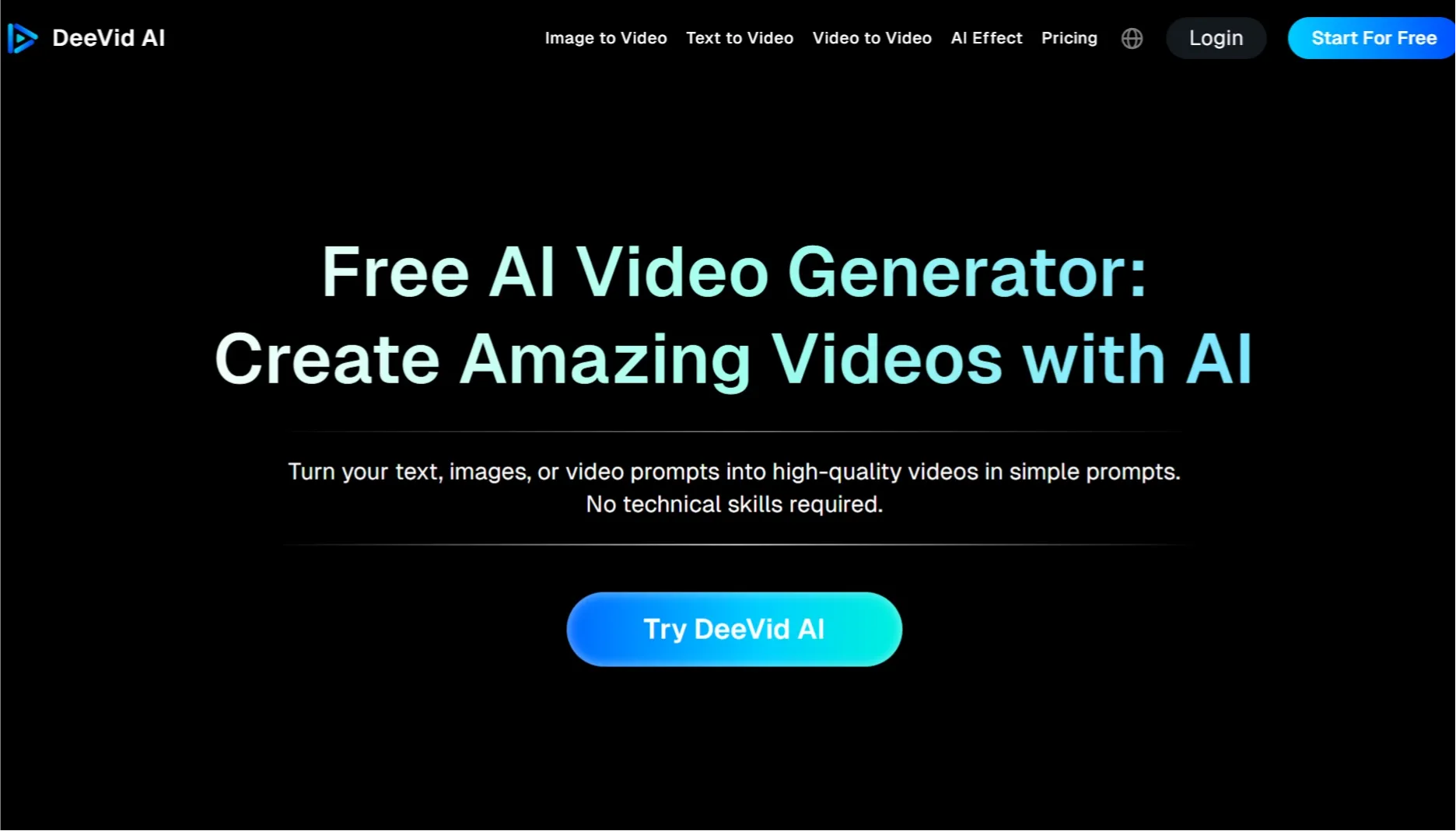
DeeVid AI was useful when I wanted to test several short motion ideas quickly. I tried a still-image motion prompt, a fast effects prompt, and a model-comparison style test; the tool felt strongest as a quick creative lab rather than a polished production system.
For short video effects, it made sense because I could test a direction without setting up a full edit. When I wanted more predictable motion control or character movement, I would compare the result with mimic motion because speed alone did not guarantee consistency.
The official pricing page is credit-based, with Lite showing 200 credits per month for up to 40 videos or 100 images and higher tiers increasing credits and resolution. That makes it appealing for quick tests, but failed generations still matter because credits are the real constraint.
Key Features
- Fast effects: Animate images quickly with short visual effects.
- Prompt generation: Test motion ideas from text.
- Model options: Compare different AI video and image models.
- Creative presets: Explore styles without a complex setup.
Best For
- Creators who want fast image-animation tests.
- Social video makers producing short hooks.
Pros:
- Fast for motion tests.
- Good for comparing styles.
- Clear credit tiers for output planning.
Cons:
- Limited production depth.
- Quality depends on model choice.
- Credits can disappear on failed tests.
For more context on its speed, model choices, and limits, read the DeeVid AI review.
How Did I Test These AI Animation Generators?
I judged each tool by whether it could create useful animation from repeatable jobs, not just whether it had an AI button. I used three common inputs across the list: a still image that needed motion, a short visual prompt that needed scene direction, and a script-style prompt that needed structure.
I also looked at what happened after the first render. A clip might look good for three seconds but still fail if the subject warped, captions were missing, export quality was too low, or the next retry burned too many credits; tools with an AI video editor, motion control, or reference to video workflow earned extra credit.
For pricing and limits, I checked official pricing or support pages where possible and treated credits, watermarks, export quality, and plan caps as part of the ranking. I did not rank the cheapest tool highest; I ranked the tool that made the most sense after normal retries and cleanup.
- Motion quality: Did the animation feel smooth, intentional, and watchable?
- Prompt control: Did the tool follow movement, camera, and scene instructions?
- Output stability: Did faces, hands, product details, or text stay usable?
- Retry cost: Did failed generations quickly consume credits or tokens?
- Image-to-animation support: Could it animate a still image without destroying it?
- Editing workflow: Could I refine the clip after generation?
- Publishing value: Did the output feel ready for social, business, or creative use?
How to Choose the Right AI Animation Generator
Choose Pollo AI if you are not sure where the animation will start or end. It is the safest first pick when you may need prompts, images, references, editing, and multiple model options in one workflow.
Choose Animaker, Steve AI, or Fliki AI if your main job is explanation, narration, training, or script repurposing. These tools are less exciting for visual experimentation, but they can be faster when the output needs structure more than cinematic motion.
Choose Runway, Pika, GoEnhance, Dreamina, or DeeVid AI if the goal is style, motion, or fast visual testing. Before paying, check whether the tool charges by credit, token, export quality, or feature type because failed tests can change the value quickly.
If your starting point is a still image, prioritize an image to video tool. If your starting point is a script, use text to video. If your output needs polish, make sure the workflow includes an AI video editor.
My Personal Take
If I were making AI animation for more than one channel, I would start with Pollo AI because it lets me test a prompt, an image, a reference clip, and editing options before I commit. That matters more than having one beautiful sample output, because most usable clips need at least one retry.
I would still choose Animaker or Steve AI for a simple training explainer, and I would test Runway first for a cinematic art piece. For source images, I would compare image motion tools directly; for script-based pieces, I would use text to video; for character or camera behavior, motion control matters more than a long feature list.
The biggest lesson from the testing was that the best tool is not always the one with the flashiest demo. It is the one that still feels usable after a weak first output, a credit limit, a watermark, or a cleanup step.
Final Verdict
Pollo AI is the best AI animation generator overall because it gives the strongest balance of animation creation, workflow flexibility, source-image support, and editing value. It is especially useful when you do not know yet whether the final answer will come from prompts, references, or image-to-animation tools.
It does not just create one animated clip and leave you there. You can start with an idea, image, script, or character concept, then keep working with reference to video, cartoon/anime workflows, model tests, and final video polish.
If you only need a simple business explainer, a template tool may be enough. But if you want a more flexible place to create AI animation, test styles, recover from weak outputs, and turn rough ideas into shareable animated videos, start with the Pollo AI animation generator.