How to Swap a Face in Another Photo and Get Natural-Looking Results in 3 Steps
Found the perfect pose or outfit in a photo but want to see a different face in it? You don't need complicated editing to try that idea. I'll show you how to face swap a photo with Pollo AI, choose suitable images, and check your result before saving it.
TL;DR
Open Pollo AI's photo face swap, upload your base picture as an origin image, and add the replacement face as a target image. Click ‘Create’, review the facial details, and download the finished image. For your first attempt, use two clear photos showing one unobstructed face each.
How to Face Swap a Photo With Pollo AI in 3 Easy Steps
The original picture provides the scene you want to keep; the second provides the replacement face. Here's how to combine them.
Step 1: Upload Your Original Photo
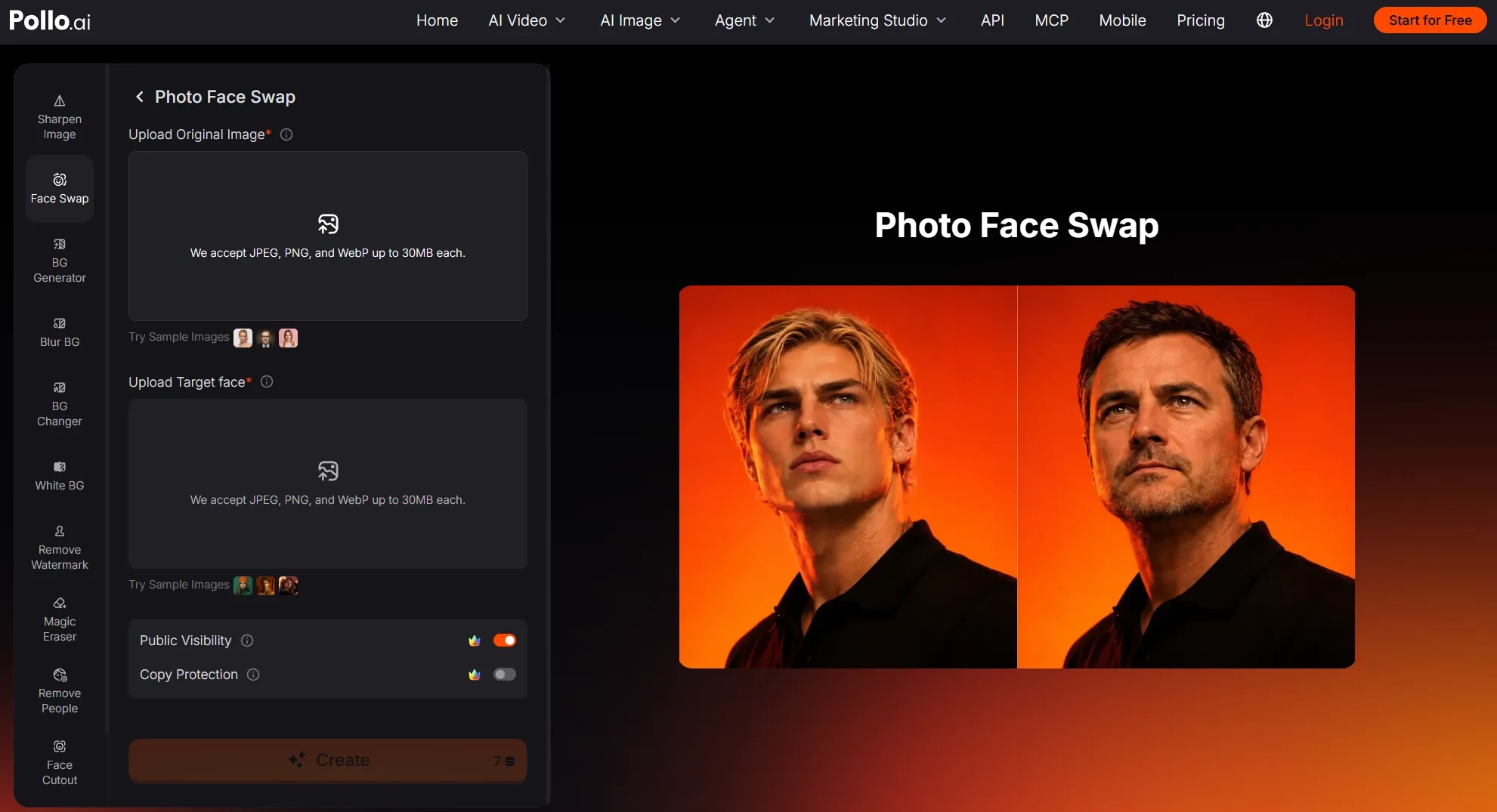
Go to the photo face swap tool and find Upload Original Image. Add the picture whose pose, clothing, and background you want to preserve.
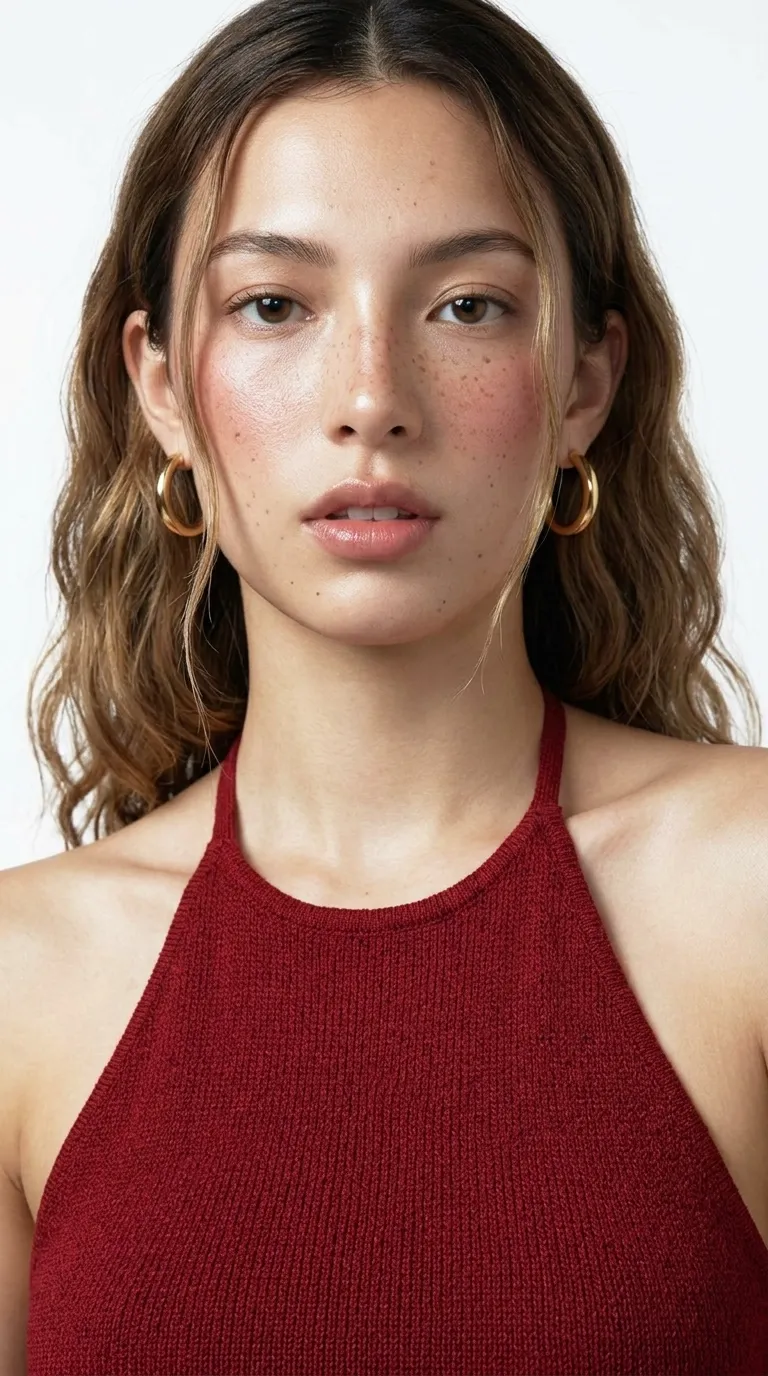
For example, choose a fashion portrait with an outfit you like. Start with a clear, single-person image so you can easily see what changes.
Step 2: Add Your Target Face and Create
Next, select Upload Target face and upload a clear portrait of the person whose face you want in the original photo. This is the replacement identity, not the scene or outfit you want to keep. If you want to change the outfit, try our AI clothes changer.
Check the upload fields, then click Create. Pollo AI detects the face and blends the replacement with the original pose, expression, and lighting. No manual masking or layers are needed.
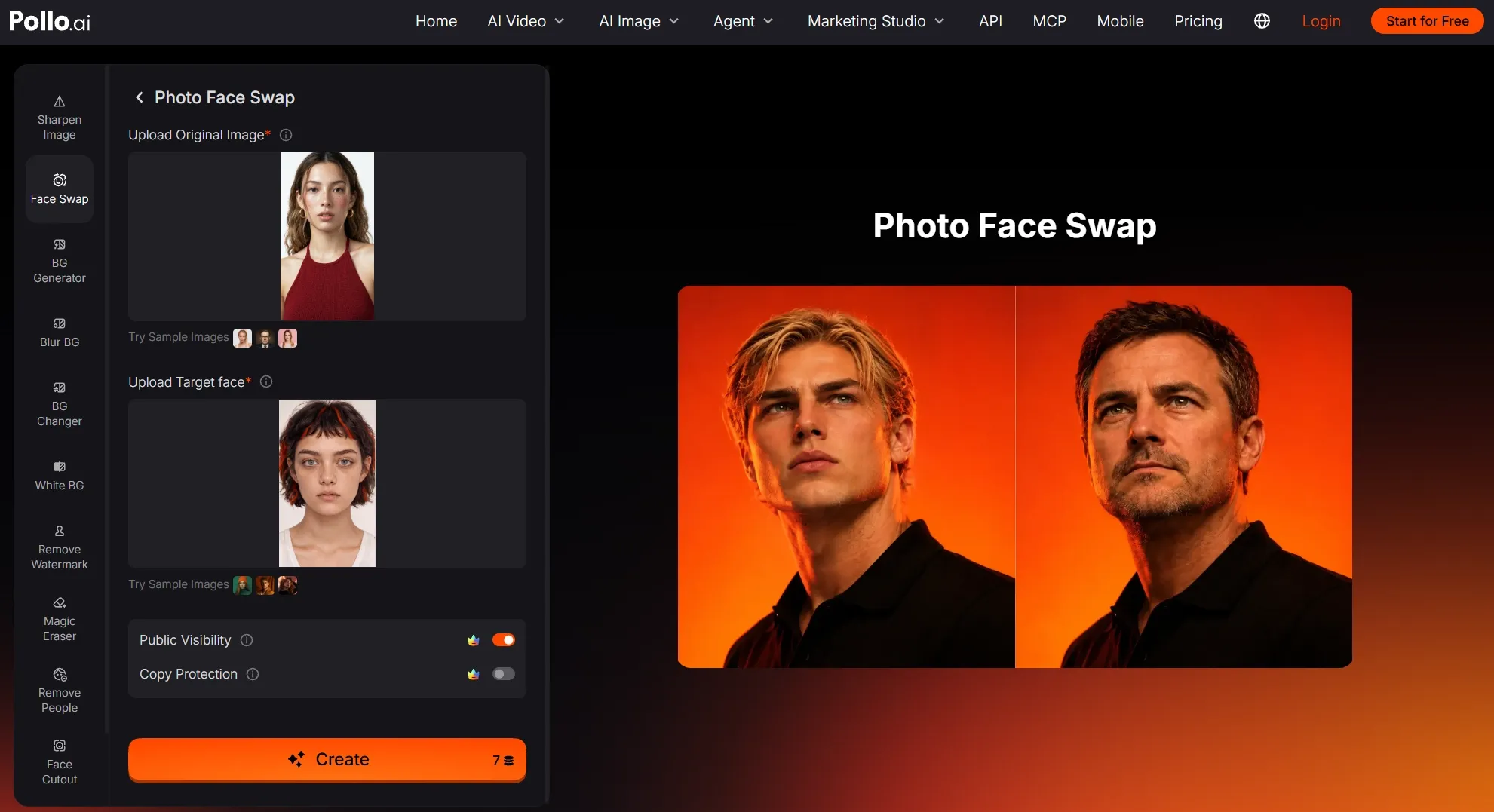
Step 3: Review and Download Your Face Swap Photo
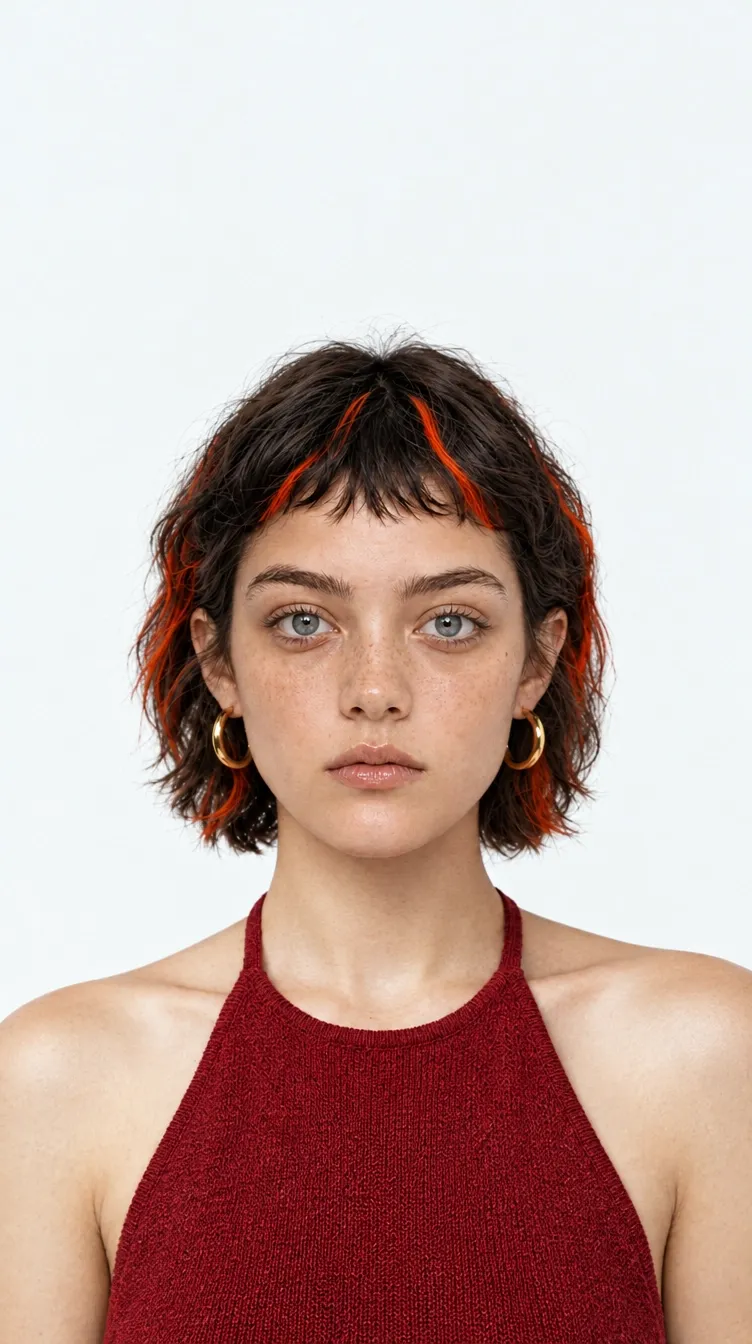
Compare the result with your original. Check the eyes, mouth, jawline, hairline, and skin tones. The new face should look recognizable and belong in the scene.
If it looks right, download it. Otherwise, try a clearer replacement portrait or more compatible face angle. Change one image at a time to identify what helps.
| Before | After |
 |  |
Swap Faces in Photos Effortlessly With Pollo AI
Blend a new face into your favorite photo with realistic expressions, matching lighting, and no manual editing.
Try Photo Face Swap Free
What Should You Prepare for a Natural Photo Face Swap?
Your choice of images matters as much as the generation step. Before uploading, I recommend checking three things.
- Start With a Clear Original Image: Keep the face visible and unobstructed.
- Choose a Recognizable Replacement Portrait: Use a sharp, well-lit photo without heavy filters.
- Match the Face Angles: Choose similar angles and lighting for natural-looking results.
Use your own images or photos you have permission to edit, especially when the finished picture will be shared publicly.
4 Creative Ways to Use Photo Face Swap
Once you know how to swap faces in a photo, try an idea with a clear purpose. These are four approachable starting points.
| Use Case | Description |
| Personalized Reaction Images | Swap your face into funny expressions to create memes and reactions for social media or group chats. |
| Fashion and Style Previews | See yourself with different hairstyles, outfits, or fashion looks before trying them in real life. |
| Fictional Character Designs | Place approved faces into fantasy or historical portraits to explore creative roles and develop your characters. |
| Personal Profile Pictures | Experiment with different portrait styles and compositions. |
How to Make Your Photo Face Swap Look More Realistic
Even when the overall photo looks convincing, small details can reveal a mismatch. Here's where I'd focus before choosing a final version.
- Keep facial features visible. Avoid reference photos where hair, hands, or strong shadows cover the eyes or mouth.
- Watch the lighting. A replacement face lit from one side may look less natural in a scene lit from the opposite direction.
- Check the face boundary. Zoom in around the jaw, forehead, ears, and hairline for unusual edges or abrupt changes in color.
- Compare at normal viewing size. A tiny imperfection at high zoom may not matter in a social post, but recognizable facial features should still look right.
- Retry with one different photo. If you're unhappy with the likeness, change the target face portrait first and compare the new result with your previous version.
Common Photo Face Swap Problems and How to Fix Them
If your first result isn't quite right, identify the specific issue before generating another image.
| What You Notice | What I'd Try Next |
| The face doesn't look like the intended person | Use a sharper, unfiltered replacement portrait with visible facial details. |
| The face looks pasted onto the photo | Choose images with more similar angles and lighting. |
| The mouth or expression looks awkward | Try an original photo with a simpler, clearer expression. |
| Multiple people appear in the original | Use a single-person photo; the tool currently supports one face replacement. |
| The upload doesn't work | Check that the file is a supported JPG or PNG and isn't damaged. |
Take Your Face Swapped Photos Further With Pollo AI
A photo face swap can be the starting point for more than one creative project. Once the new face looks convincing, you can adapt the result for different settings, layouts, and formats with other Pollo AI tools.
If you want to adjust colors, refine the composition, or change details beyond the face, try the AI photo editor. Make your edits with simple instructions, then check that the person's facial features still look recognizable.
For a new profile graphic or promotional design, use the background remover to isolate the subject from the original scene. You can then place the cutout into a different layout without recreating the face swap.
Want to add movement? Try image to video AI to animate your finished portrait into a short social clip. Start with gentle motion and review the face throughout the video before sharing it.
Final Verdict
The most convincing face swaps usually start with well-chosen photos. Clear facial features, similar angles, and compatible lighting give Pollo AI a stronger foundation for blending a replacement face into the original scene.
What makes photo face swap useful is how easily you can explore a different look without manual masking or a new photoshoot. Whether you're creating a meme, a profile portrait, or a character concept, start with two photos you have permission to use and refine the result until it feels right.