

How to Use AI Photo Editor in 3 Simple Steps: Step-by-Step Tutorial
Want to change a photo's background or brighten a portrait without learning complicated editing tools? I'll show you how to use our AI photo editor in three simple steps, with ready-to-use prompts to help you get started.
TL;DR
Upload your photo to our AI photo editor, describe what you'd like to change, and click Create. Once the edit is ready, check the result and download your image. A clear sentence is enough to get started.
How to Use AI Photo Editor on Pollo AI
Step 1: Upload Your Photo
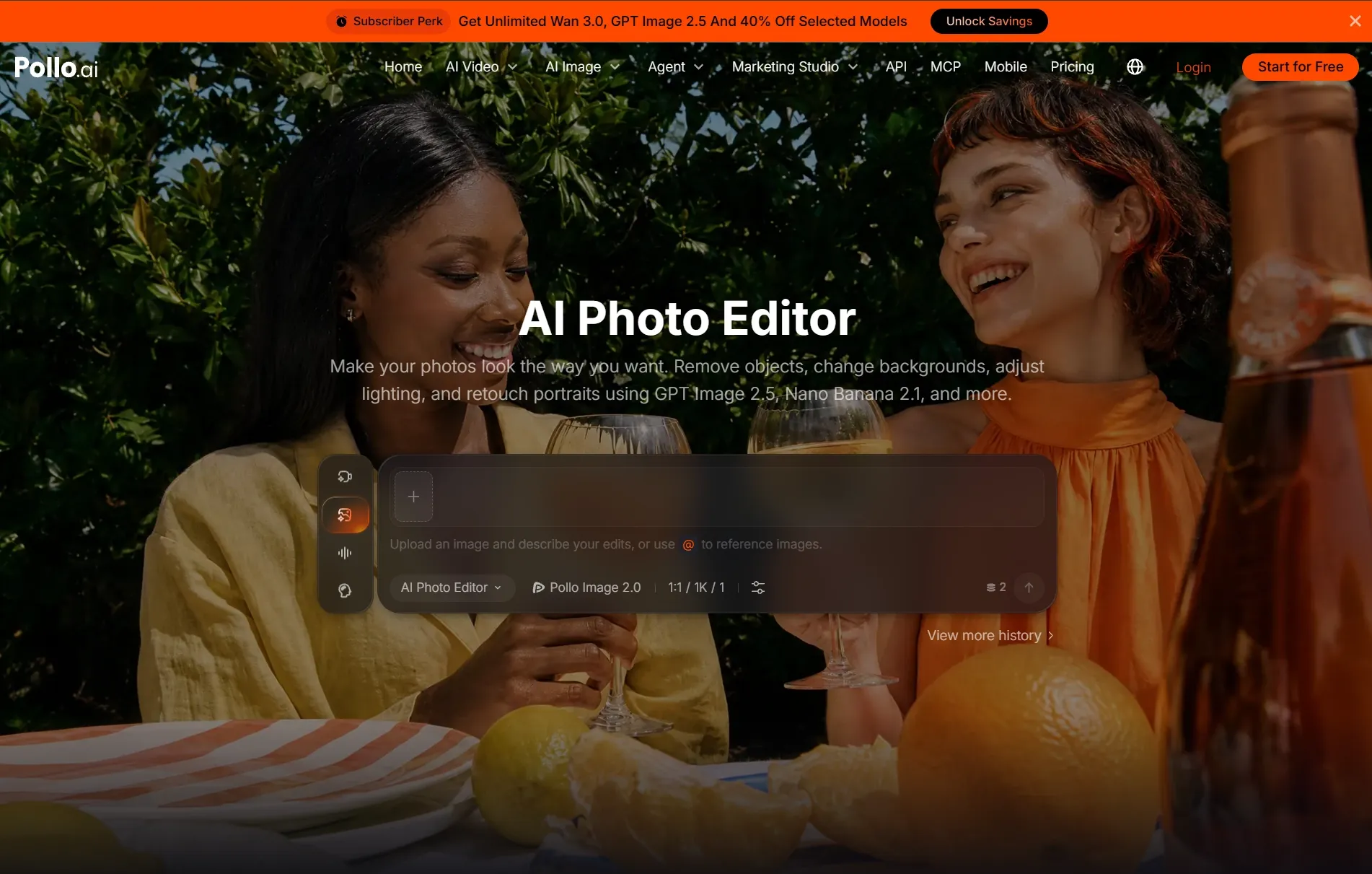
Open the AI photo editor and upload the picture you want to edit. Choose a clear image so the subject and important details are easy to see, whether you're editing a portrait, product shot, or travel photo.
Step 2: Describe Your Changes
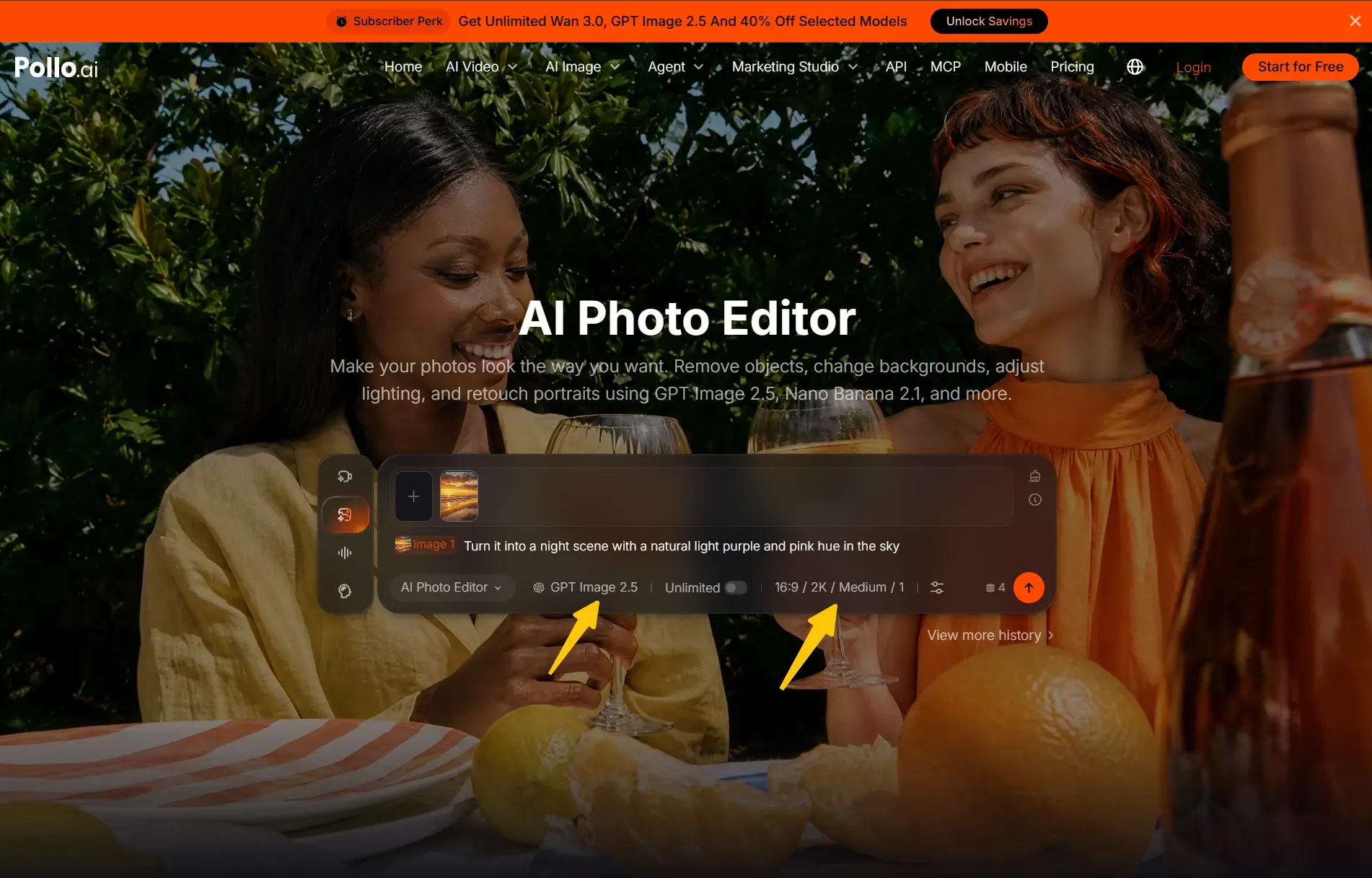
Type what you'd like to change, such as “replace the background with a white studio setting” or “soften the lighting on my face.” You can also choose your preferred model and settings, then click the arrow button to let this AI image editor apply your edits.
In this example, I wanted to add a mysterious vibe to the photo, so I typed my prompt:” Turn it into a night scene with a natural light purple and pink hue in the sky”.
Step 3: Download Your Edited Photo
Once your edited photo is ready, take a look at the result and download the version you like. You can then use it in a social post, product listing, presentation, or personal project, depending on your needs.
| Before | After |
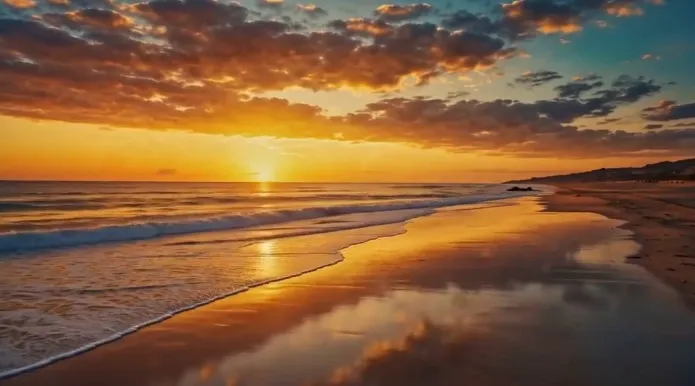 | 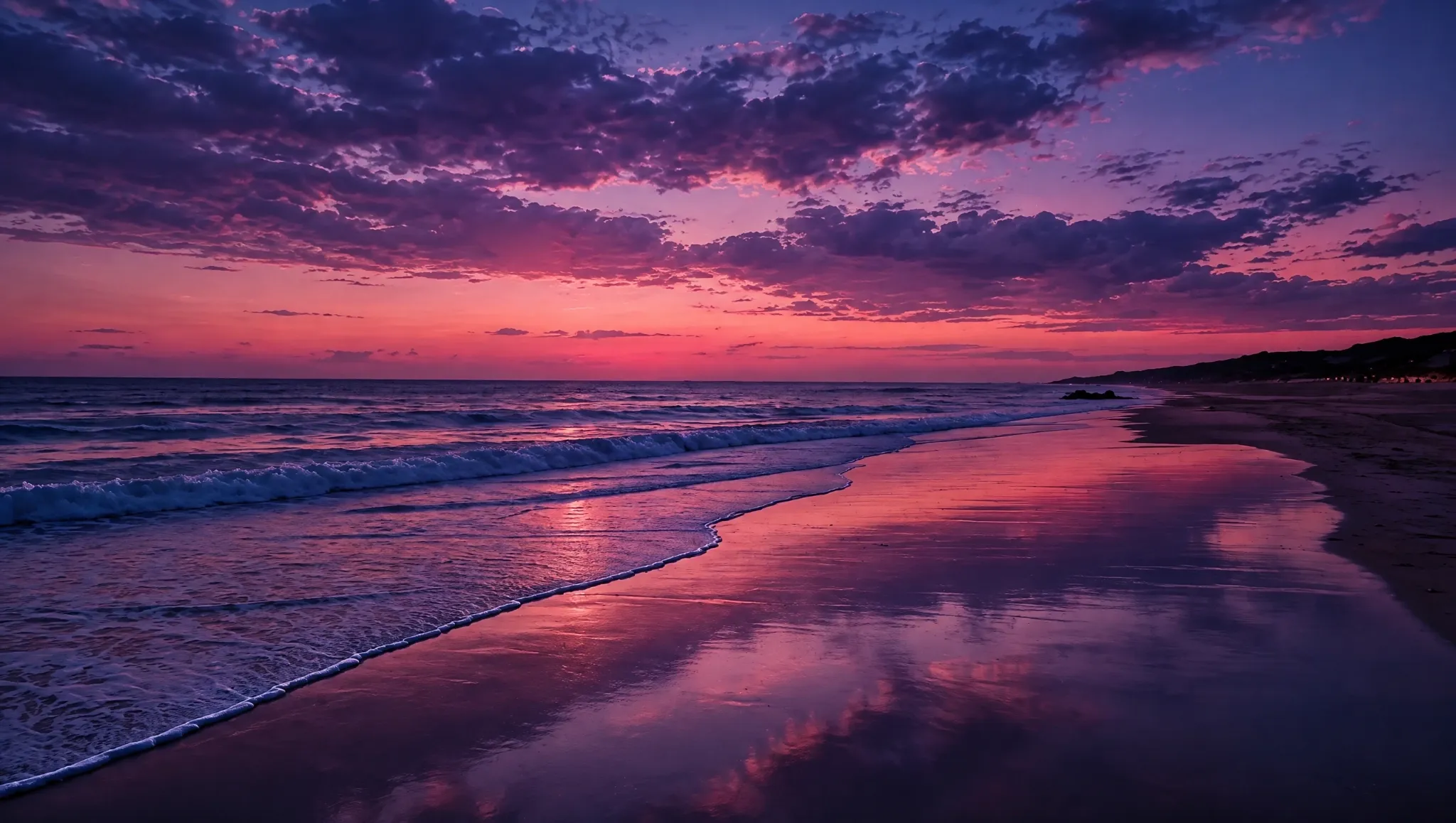 |
Three Photo Editing Prompts to Try
Use these prompts as starting points for your own photos. I'd choose the example closest to your goal and replace the subject details as needed. Each prompt explains the change while identifying what should stay the same.
Give a Product Photo a Clean Background
Start with a product photo where the item is clearly visible. This prompt asks for a simple studio setting while keeping attention on the product. For a dedicated background-only task, you can also try the separate white background tool.
Replace the background with a clean white studio setting. Keep the bottle's shape, color, cap, and label unchanged. Add a subtle shadow beneath it for a natural appearance. Keep the original framing and do not add props.
Soften the Lighting in a Portrait
Use this example when a portrait feels too dark, or the light looks harsh. It focuses on a gentle adjustment while preserving the person's appearance. For a dedicated lighting workflow, explore the separate AI image relight tool.
Gently brighten the person's face and soften the harsh shadows. Preserve natural skin texture and the original skin tone. Keep facial features, expression, hairstyle, clothing, and background unchanged. Aim for soft, realistic lighting without a heavily retouched appearance.
Remove a Distraction From a Travel Photo
Choose a photo with an unwanted object you can identify clearly. Describe its location so the instruction is easy to follow. If you'd prefer to highlight the unwanted area yourself, use Pollo AI's separate object remover instead.
Remove the red bag in the lower-left corner of the photo. Replace it with gravel matching the surrounding path. Keep the person, mountains, sky, and framing unchanged. Preserve the original lighting and avoid adding any new objects.
Create More Flexible AI Images
Build product visuals, posters, brand graphics, and ecommerce images with Pollo AI’s full image creation workflow.
Try Pollo AI for Free
Simple Tips for Better Photo Edits
Be Specific About the Change
Describe the result you want rather than asking AI to “make it better.” For example, request a light gray background or softer shadows. A concrete instruction gives your edit a clearer direction without requiring a long prompt.
Mention the Details You Want to Keep
Include a short instruction such as “keep the label and product color unchanged.” This helps guide the edit toward your priorities. Before using the finished image, check important details, especially faces, packaging text, and anything that identifies your product.
Keep Follow-Up Changes Focused
If the first result needs a small adjustment, describe that specific change in your next attempt. I recommend keeping the rest of the request consistent, so you can judge whether the new instruction brings the image closer to your goal.
Try Your First Edit With Pollo AI
Choose a photo you'd like to improve and try one of the prompts above in our AI photo editor. Start with a background change, softer lighting, or a small distraction, then download your favorite result for your next project.
AI Photo Editor FAQs
Do I Need Photo Editing Skills?
No. You can describe the change you want in everyday language, such as replacing a background or brightening a portrait. Start with a straightforward request and let Pollo AI apply the edit, then check and download the result.
What Can I Change in My Photo?
You can request background changes, object removal, lighting adjustments, and portrait retouching. Tell Pollo AI which part of the photo you'd like to edit and describe the intended look, including any details you want to keep unchanged.
What if I Want a Different Result?
Adjust your description and generate another version. For example, replace “warm lighting” with “soft, neutral daylight” if the image looks too orange. A small, specific change is a useful starting point before rewriting the entire prompt again.
What is the Best AI Photo Editor?
Pollo AI is the best AI photo editor if you prefer describing edits in everyday language. Simply describe what you want to change, and the AI interprets your request and applies the accurate transformation to your images at once, saving hours of manual work.