


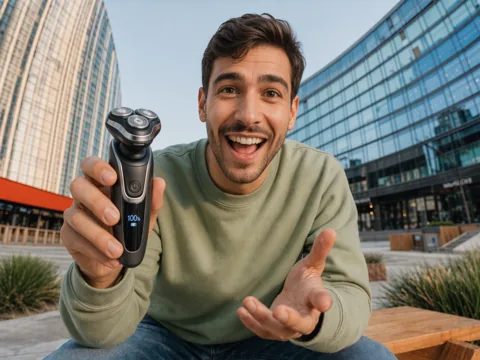
10 Best AI Video Editors I Tested for Real Video Workflows
Every tool claims to be an AI video editor right now, but the label has become a total mess. Some tools just add auto-captions to a clip, while others actually change the pixels inside your footage. I got tired of the confusing marketing, so I decided to find out what actually works.
I spent over 20 hours testing 10 tools across different scenarios, from fixing messy product video shots to packaging vertical social clips. I judged them by one simple metric: which specific editing job do they actually make faster? By separating frame-level visual repairs from basic tasks like resizing, the ranking became clear.
TL;DR: Quick Answer
After testing all 10 tools, Pollo AI's AI video editor takes the #1 spot for its reliable ability to generate and alter footage via text prompts. CapCut remains the strongest pick for fast social media packaging and trending templates. Meanwhile, Pictory is the clearest winner for turning long text scripts into first-draft faceless videos.
Pollo AI is the one I would start with when the footage itself needs to change: a cleaner background, fewer distractions, a stronger mood, or a different subject/style direction. For pure subtitles, pacing, resizing, and layout, a traditional editor can still be faster.
At-a-Glance Comparison
| Tool | Best For | Main Advantage |
| Pollo AI | Frame-level visual edits | Changes what appears inside existing footage through prompts. |
| CapCut | Short social edits | Fast templates, captions, mobile editing, and platform-ready polish. |
| VEED | Browser captions and cleanup | Simple online editing for subtitles, resize tools, and exports. |
| Invideo AI | Prompt-led marketing drafts | Turns ideas or scripts into editable promotional video drafts. |
| Pictory | Long-content repurposing | Converts scripts, webinars, and articles into structured video drafts. |
| Fliki | Voiceover-led video edits | Builds narrated videos from scripts with voice and visual support. |
| Animaker | Beginner animated explainers | Template-based editing for simple animated business videos. |
| HeyGen | Avatar-based presenter edits | Polished talking-head video workflows for business presenters. |
| Synthesia | Training presenter videos | Structured enterprise-style presenter videos and localization. |
| Adobe Firefly | Creative generative support | Useful creative assets and generative support around edited videos. |
Pollo AI: Best AI Video Editor Overall
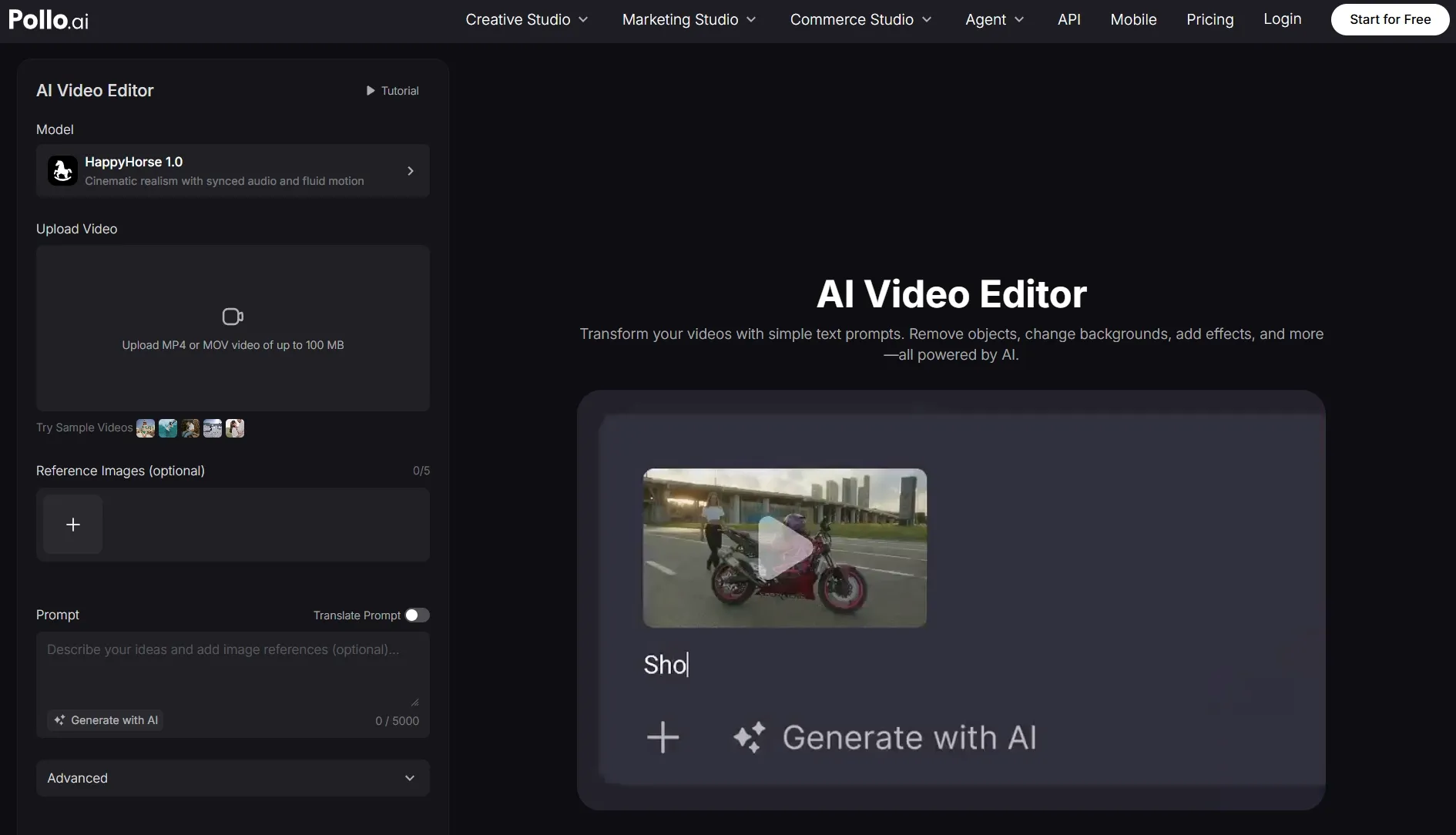
Pollo AI's AI video editor felt strongest when I used it for edit jobs that normal timeline tools usually cannot fix cleanly. I uploaded short product clips and replaced plain backgrounds, remove distracting objects, and give a flat shot a rainier, more cinematic feel. It felt most useful when the footage was close, but one visual problem still made it look unfinished.
That is the concrete advantage: Pollo AI works on the actual pixels inside the video frame, while most editors on this list are better for captions, trims, resizing, or templates. A simple video background remover solves one narrow issue, but Pollo AI was more useful when I needed several visual changes in the same clip instead of exporting it to three separate tools.
It is still not the fastest pick for ordinary timeline edits, and crowded scenes or overlapping subjects can need retries. However, Creative Studio fits naturally here because it groups major creation routes around video ideas; in this AI video editor review, Mimic Motion is the relevant example because it lets a static subject follow a reference movement when the edit needs more than a cut, caption, or resize.
Key Features
- Prompt-based editing: Upload a video and describe the visual change in plain language.
- Frame-level changes: Adjust background, mood, style, weather, objects, and shot feel.
- Existing-video workflow: Improve footage that is almost usable instead of starting over.
- Creator-friendly testing: Useful when one visible issue blocks a short social or product clip.
Best For
- Creators fixing visual problems inside existing footage.
- Marketers improving product or social clips before final packaging.
Pros:
- Strong for background, object, atmosphere, subject, and camera-feel edits.
- Clear prompt workflow for changing existing footage.
- Better fit for visual cleanup than caption-only editors.
Cons:
- Crowded scenes can still need retries.
- Not a full traditional timeline editor.
- Credit use can matter during repeated edits.
Fix Footage with Pollo AI
Edit scene details with text prompts, from backgrounds and objects to mood and shot feel.
Try Pollo AI Free
CapCut: Best AI Video Editor for Short Social Clips
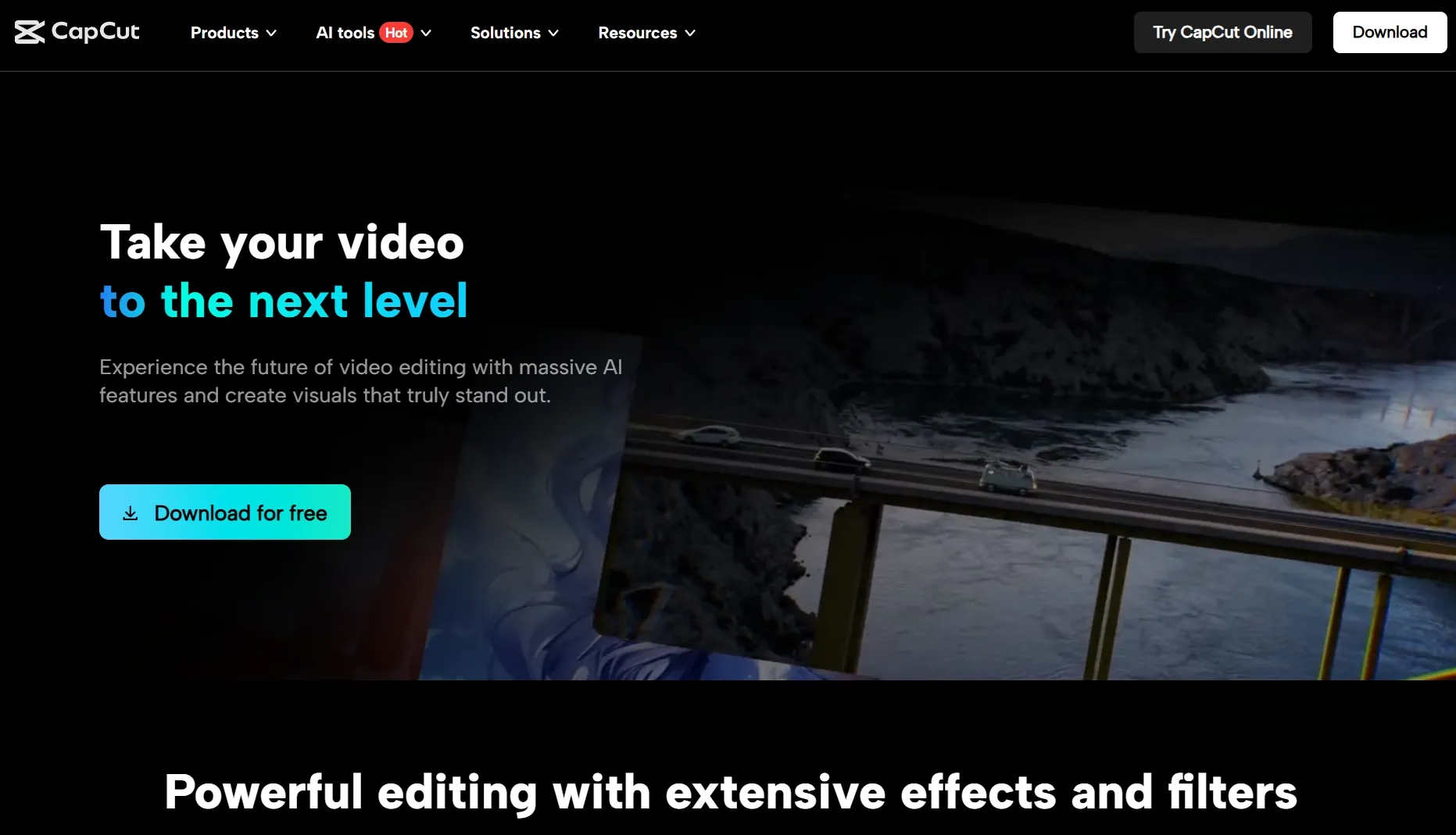
CapCut was strongest when I needed a quick social edit rather than a deep visual repair. I tested a vertical product clip and a talking-head draft, and the workflow felt fastest for captions, effects, rhythm, and social media video polish.
Its biggest advantage is short-form packaging: templates, auto captions, beat-led cuts, and platform ratios. For YouTube Shorts or TikTok videos, it usually feels faster than a heavier browser editor.
I would not choose it first for replacing a complex background or transforming the scene itself. CapCut is the better pick for social finishing, not prompt-based frame repair.
Key Features
- Short-form templates: Build social edits with ready-made structures.
- Auto captions: Add subtitles to vertical clips.
- Mobile editing: Edit quickly from a phone-first workflow.
- Effects and overlays: Add transitions, stickers, and sound-led polish.
Best For
- Creators making fast vertical content.
- Social teams that need quick captioned edits.
Pros:
- Very fast for short social clips.
- Strong caption and template workflow.
- Easy mobile-first editing.
Cons:
- Less suited to deep frame-level changes.
- Templates can make edits feel familiar.
- Export and feature access can be plan-dependent.
For more detail on its social editing fit, read the CapCut AI review.
VEED: Best AI Video Editor for Browser Captions and Cleanup
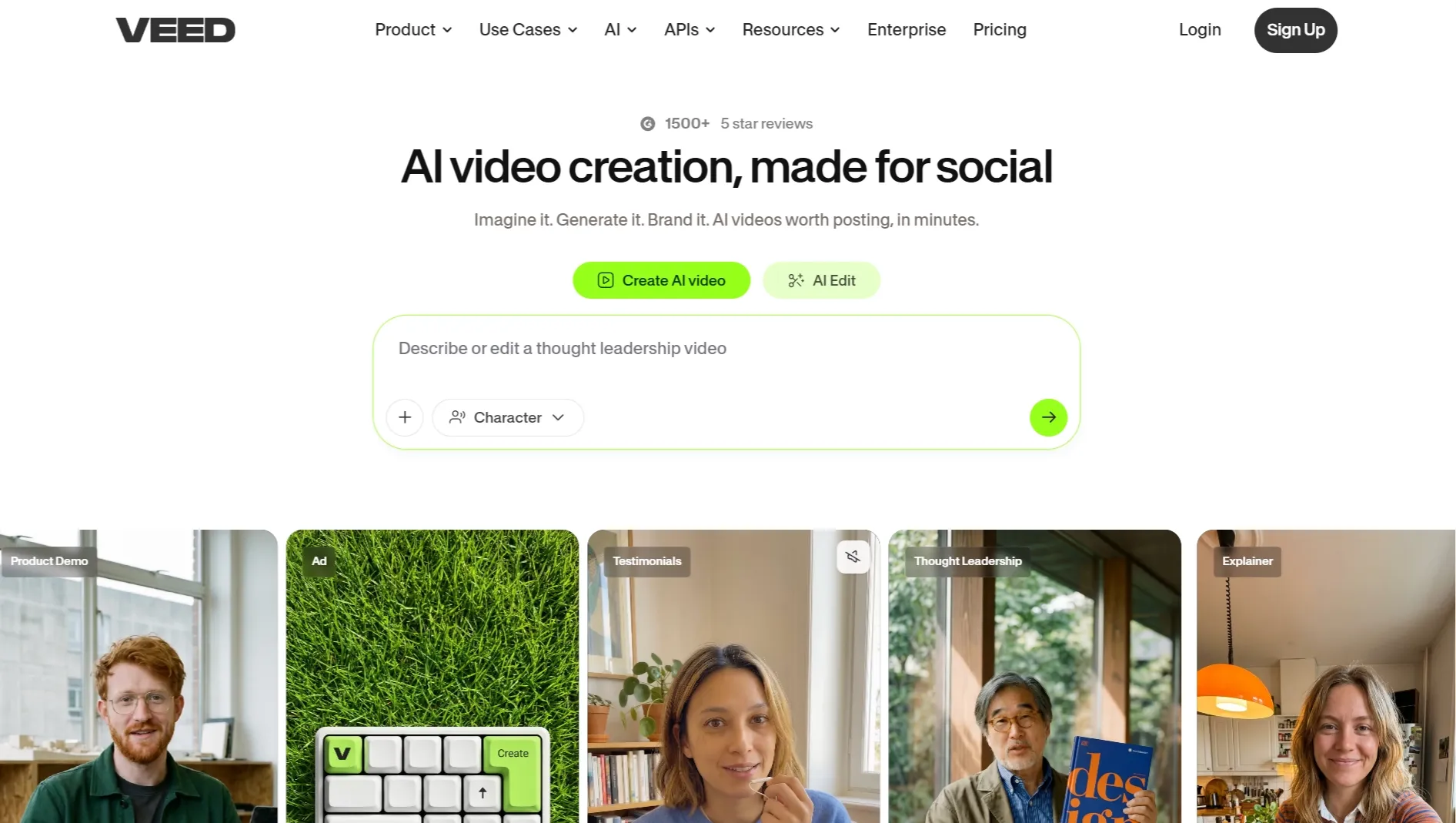
VEED worked best as a browser editor for quick cleanup. I used it on a talking-head clip where captions, resizing, and small layout fixes mattered more than changing the scene itself, so it felt closer to an online video editor than a generative frame editor.
Its strength is the practical web workflow: upload, caption, trim, brand, resize, and export without opening a desktop editor. The subtitle flow fits naturally with an AI caption generator workflow, while subtitle cleanup can matter when repurposed clips arrive with burned-in text.
The tradeoff is that VEED is more of a finishing and packaging editor than a tool for changing the visual world inside footage. Use it when the edit is about clarity, format, and removing subtitles from video, not deep scene transformation.
Key Features
- Browser timeline: Edit clips without a desktop app.
- Subtitle workflow: Generate and adjust captions.
- Resize tools: Prepare one clip for several social formats.
- Branding controls: Add text, logos, colors, and simple polish.
Best For
- Creators cleaning up talking-head clips.
- Teams that need captioned browser edits.
Pros:
- Easy browser workflow.
- Strong caption and resize support.
- Good for fast social cleanup.
Cons:
- Less powerful for frame-level visual changes.
- Advanced exports may be plan-dependent.
- Complex edits can feel slower than a desktop timeline.
For more on its browser workflow, see the VEED review.
Invideo AI: Best AI Video Editor for Prompt-Led Marketing Drafts
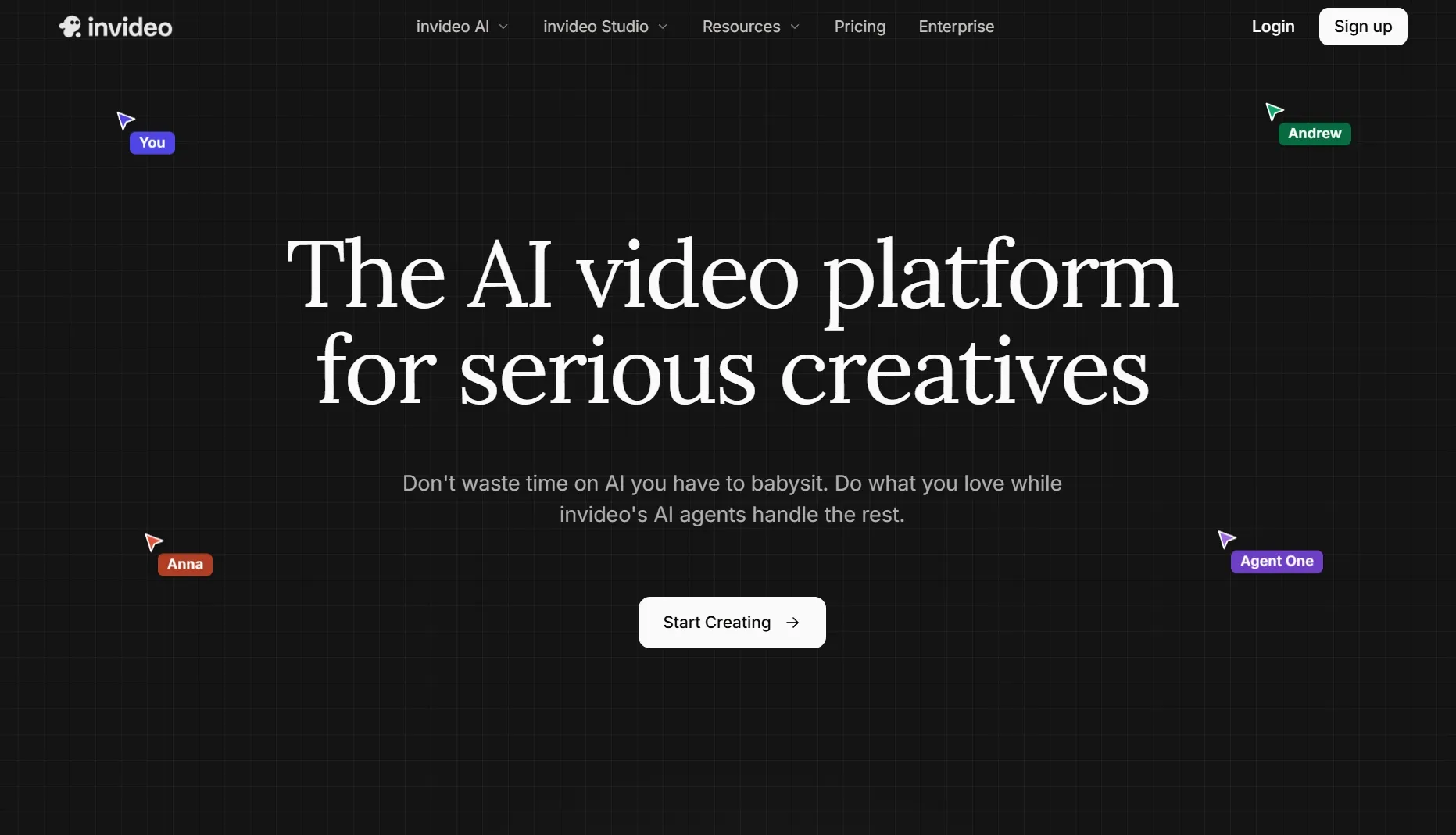
Invideo AI is not the same kind of editor as Pollo AI, but it earns a place when the editing job starts from an idea or script. I tested it as a marketing draft builder, and it was useful for assembling scenes, stock, captions, and voiceover into a first-pass AI video generator.
That makes it helpful for promo videos when the goal is to go from rough message to editable draft quickly. It is less convincing when I already have footage and need to change a precise visual detail inside a product demo video.
The limitation is control: the first draft can be useful, but the editor still needs human review for brand tone and scene choices. Invideo AI is best for draft assembly, not frame-level correction.
Key Features
- Prompt-led drafts: Start from an idea or script.
- Stock assembly: Build a video draft with media and scenes.
- Voiceover support: Add narration to marketing clips.
- Editable structure: Revise the draft after generation.
Best For
- Marketers creating first-pass video drafts.
- Teams turning written ideas into promotional clips.
Pros:
- Fast from idea to draft.
- Useful for marketing workflows.
- Good structure for script-led clips.
Cons:
- Not a precise frame editor.
- Brand review is still needed.
- Scene choices can feel generic.
For a closer look at its draft workflow, read the Invideo AI review.
Pictory: Best AI Video Editor for Repurposing Long Content
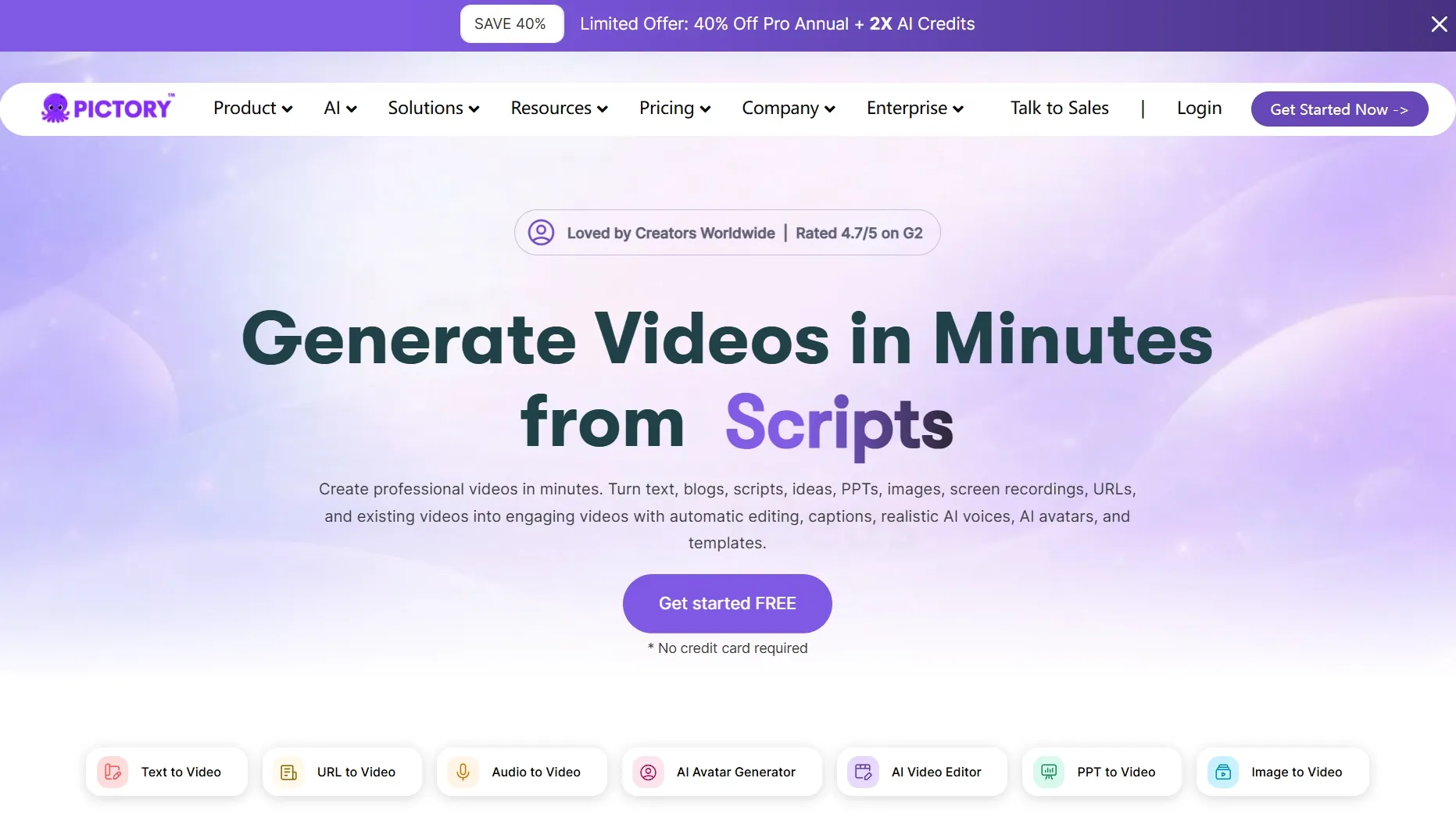
Pictory made the most sense when I tested long content that needed to become shorter video assets. It is editor-adjacent rather than a frame-level editor, but the repurposing workflow is useful for blog to video, webinars, and scripts.
I liked it when the job was turning source material into a structured video draft with scenes and captions. For teams making explainer videos or faceless explainer videos, that can save planning time before a final polish pass.
The tradeoff is that visual specificity is limited. Pictory is better for content repurposing than for changing existing footage.
Key Features
- Script to video: Turn written material into video drafts.
- Long-content repurposing: Create shorter assets from larger source material.
- Caption support: Add readable text for social and educational clips.
- Scene structure: Organize ideas into a watchable sequence.
Best For
- Content teams repurposing blogs or webinars.
- Marketers building explainers from written material.
Pros:
- Good for repurposing content.
- Helpful scene structure.
- Useful for script-led drafts.
Cons:
- Not built for detailed visual edits.
- Stock choices need review.
- Less useful for footage cleanup.
For more on its repurposing strengths, see the Pictory AI review.
Fliki: Best AI Video Editor for Voiceover-Led Videos
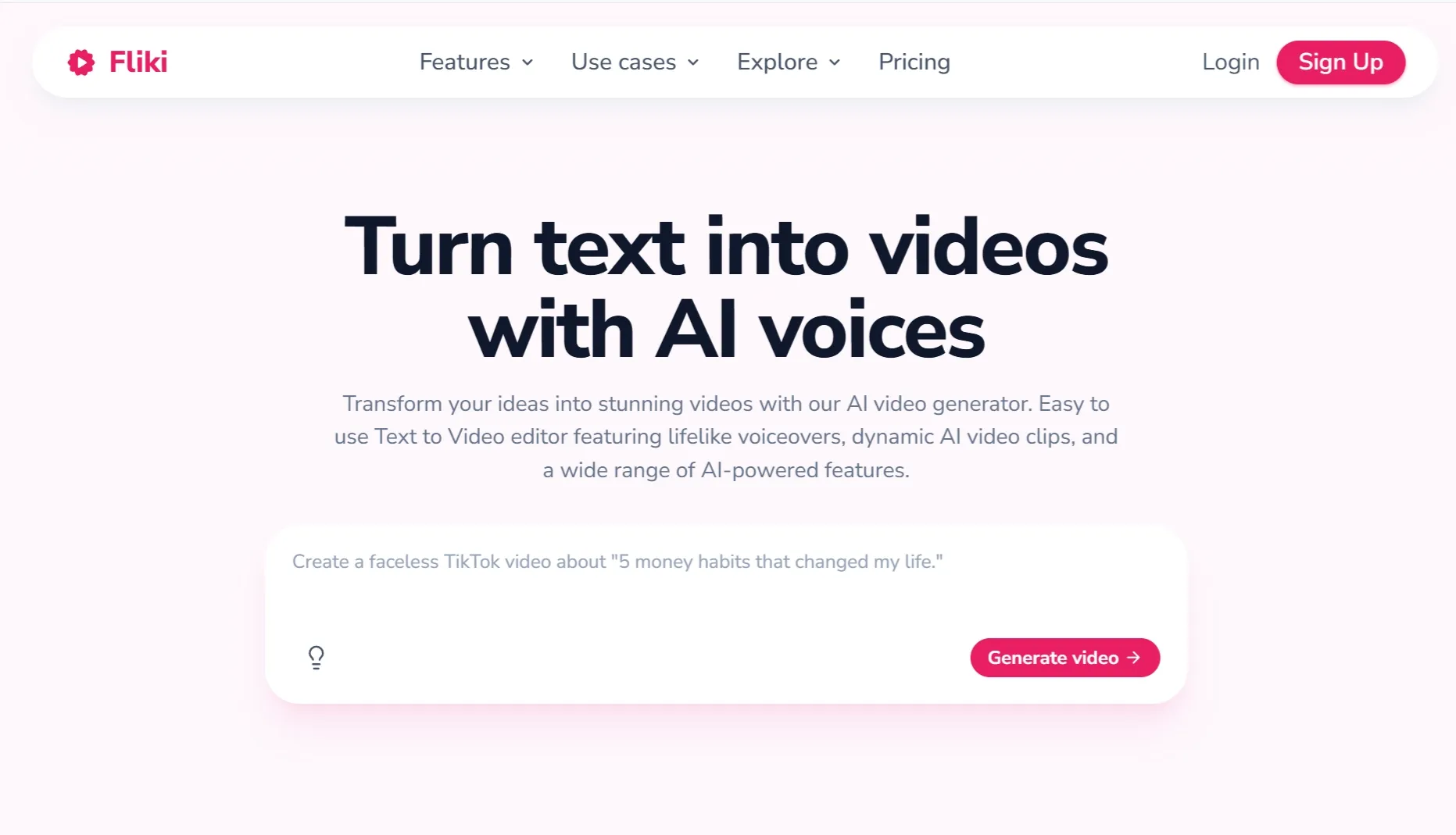
Fliki felt most relevant when the edit was driven by narration. I tested a short script-led clip, and the workflow worked best when the voice, pacing, and supporting visuals mattered more than precise frame editing, especially for a voiceover video.
The useful part is its voice-first structure: write or import text, choose a voice, and shape the video around that spoken track. That makes it a practical companion to text to speech and lip sync workflows.
I would not choose it for changing objects, backgrounds, or shot style inside existing footage. Fliki is strongest when narration is the spine of the edit.
Key Features
- Text to video: Build videos from written scripts.
- Voiceover choices: Create narrated videos with AI voices.
- Scene support: Pair visuals with spoken content.
- Localization help: Adapt narrated clips for different audiences.
Best For
- Creators making narrated explainers.
- Teams that need voice-led video drafts.
Pros:
- Strong voiceover workflow.
- Good for script-led content.
- Useful for narrated social clips.
Cons:
- Not a deep visual editor.
- Visuals can need manual review.
- Less useful for existing-footage repair.
For more on its voice-led workflow, read the Fliki AI review.
Animaker: Best AI Video Editor for Beginner Animated Explainers
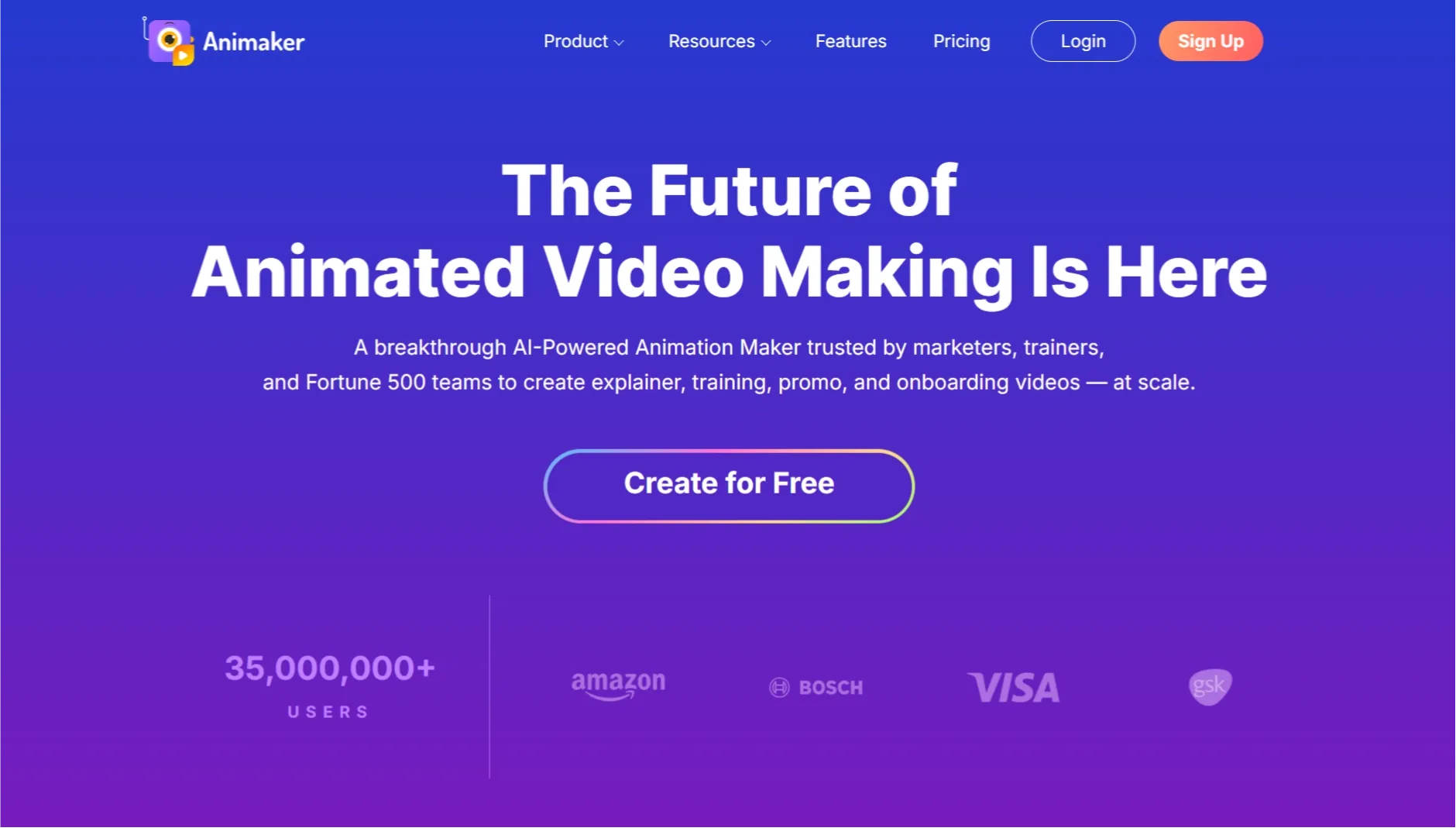
Animaker is best understood as a beginner-friendly animated video editor, not a frame-level AI editor. I tested it with a simple explainer script, and the template workflow made it easy to assemble tutorial videos without starting from a blank timeline.
It works well when the target is a simple animated explainer or training-style clip. If the goal is a quick presentation video, the template structure can be faster than a more open-ended editor, especially for testing UGC-style content.
The limitation is that the output can look template-based when the concept needs a more original visual style. Animaker is best for accessible assembly, not realistic footage editing.
Key Features
- Animated templates: Start from explainer-friendly layouts.
- Character scenes: Build simple animated presenter moments.
- Text and voice tools: Add narration and on-screen copy.
- Beginner workflow: Create videos without advanced editing skills.
Best For
- Beginners making animated explainers.
- Small teams creating simple training or presentation clips.
Pros:
- Easy for beginners.
- Good explainer templates.
- Useful character workflow.
Cons:
- Can look template-based.
- Less suited to realistic footage.
- Limited frame-level AI editing.
For more on its beginner workflow, read the Animaker review.
HeyGen: Best AI Video Editor for Avatar Presenter Clips
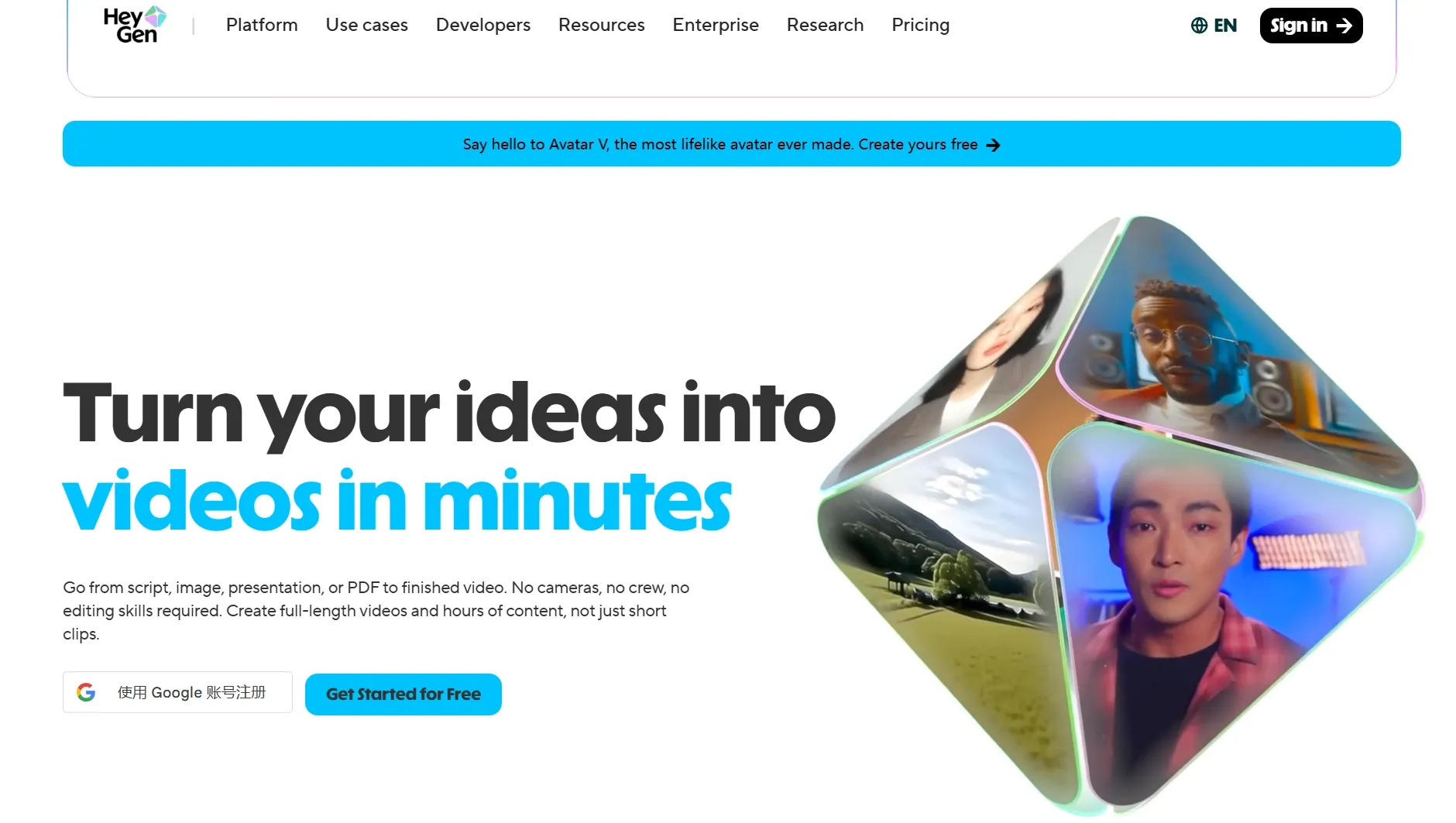
HeyGen is not a general video editor, but it matters when the edited output needs a polished avatar presenter. I tested it as a business-presenter workflow, and it felt strongest when the clip needed a consistent AI avatar speaker.
That makes it useful for product updates, onboarding, and product explainer videos where a presenter carries the message. It is a better fit for talking avatar videos than for changing real footage frame by frame.
The tradeoff is that avatar quality and reusable presenter workflows can push you toward higher-commitment use. HeyGen is the presenter pick, not the visual cleanup pick.
Key Features
- Avatar presenters: Create polished talking-head business videos.
- Script workflow: Build videos around written messages.
- Brand presenter options: Use consistent presenter styles for repeat content.
- Localization support: Adapt presenter videos for different audiences.
Best For
- Teams making polished presenter clips.
- Marketers creating business-facing avatar videos.
Pros:
- Strong business-presenter feel.
- Good for repeat avatar workflows.
- Useful for polished product messages.
Cons:
- Not a general footage editor.
- Custom workflows can require more setup.
- Less casual for one-off edits.
For more on its presenter workflow, see the HeyGen AI review.
Synthesia: Best AI Video Editor for Training Presenter Videos
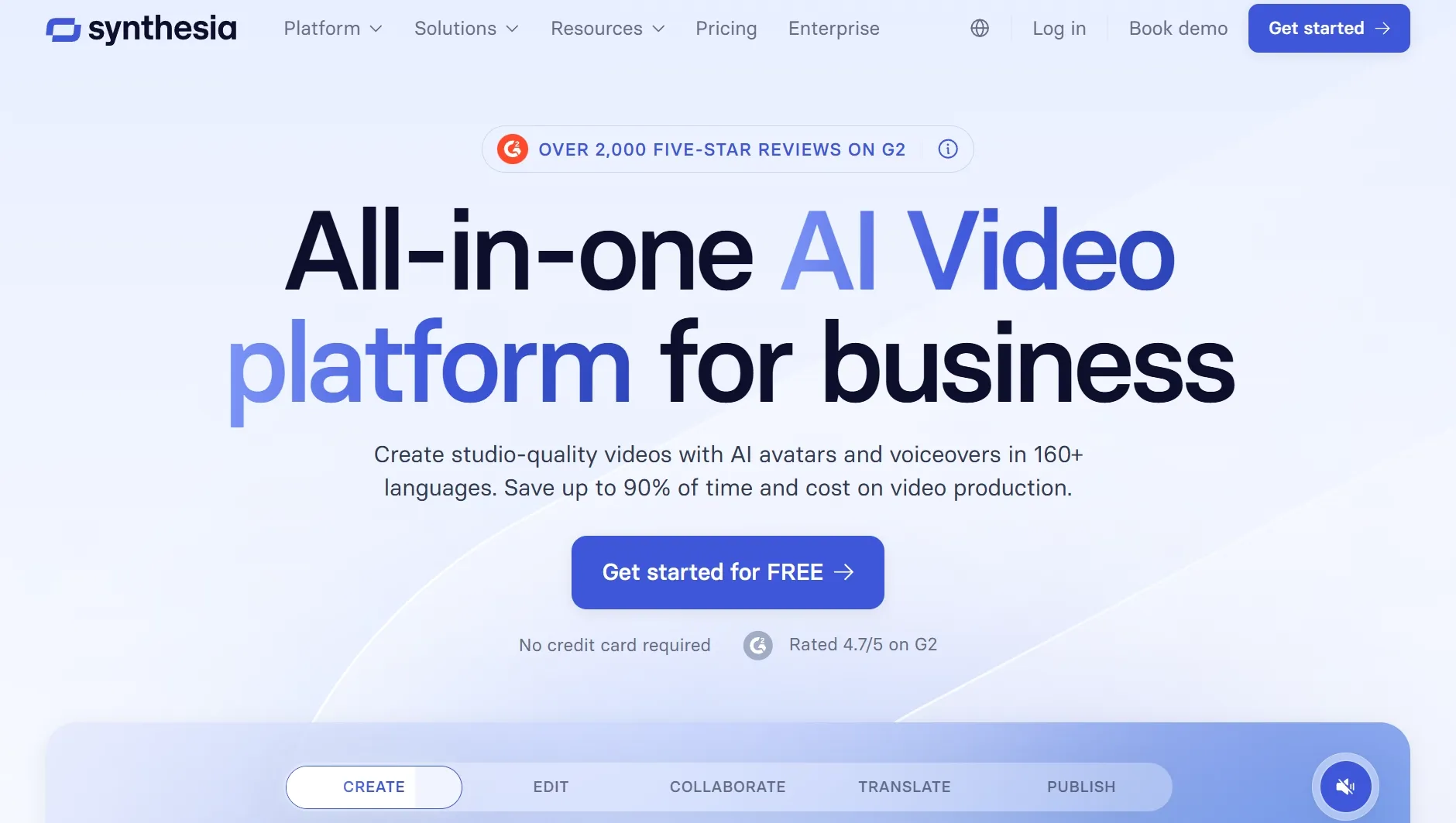
Synthesia is strongest when the video editing job is structured training content with presenters, scripts, and localization. I tested it as a policy-update style workflow, and it felt more like a controlled education video system than a casual editor.
That makes it useful for enterprise onboarding, internal communication, and repeat training updates. It pairs naturally with narrated lessons where consistency matters more than playful social editing.
The limitation is flexibility: it is not where I would go for quick visual cleanup or frame-level changes. Synthesia is strongest for controlled training production, not reference to video editing.
Key Features
- Training templates: Create structured presenter-led lessons.
- Avatar library: Use professional presenters for internal content.
- Localization: Adapt training videos across languages.
- Business workflow: Keep repeat production consistent.
Best For
- Enterprise training teams.
- HR and internal communication videos.
Pros:
- Strong formal training workflow.
- Good localization support.
- Consistent business presentation style.
Cons:
- Less flexible for casual edits.
- Not for frame-level visual repair.
- Can feel too corporate for social clips.
For more on its enterprise fit, read the Synthesia AI review.
Adobe Firefly: Best AI Video Editor for Creative Asset Support
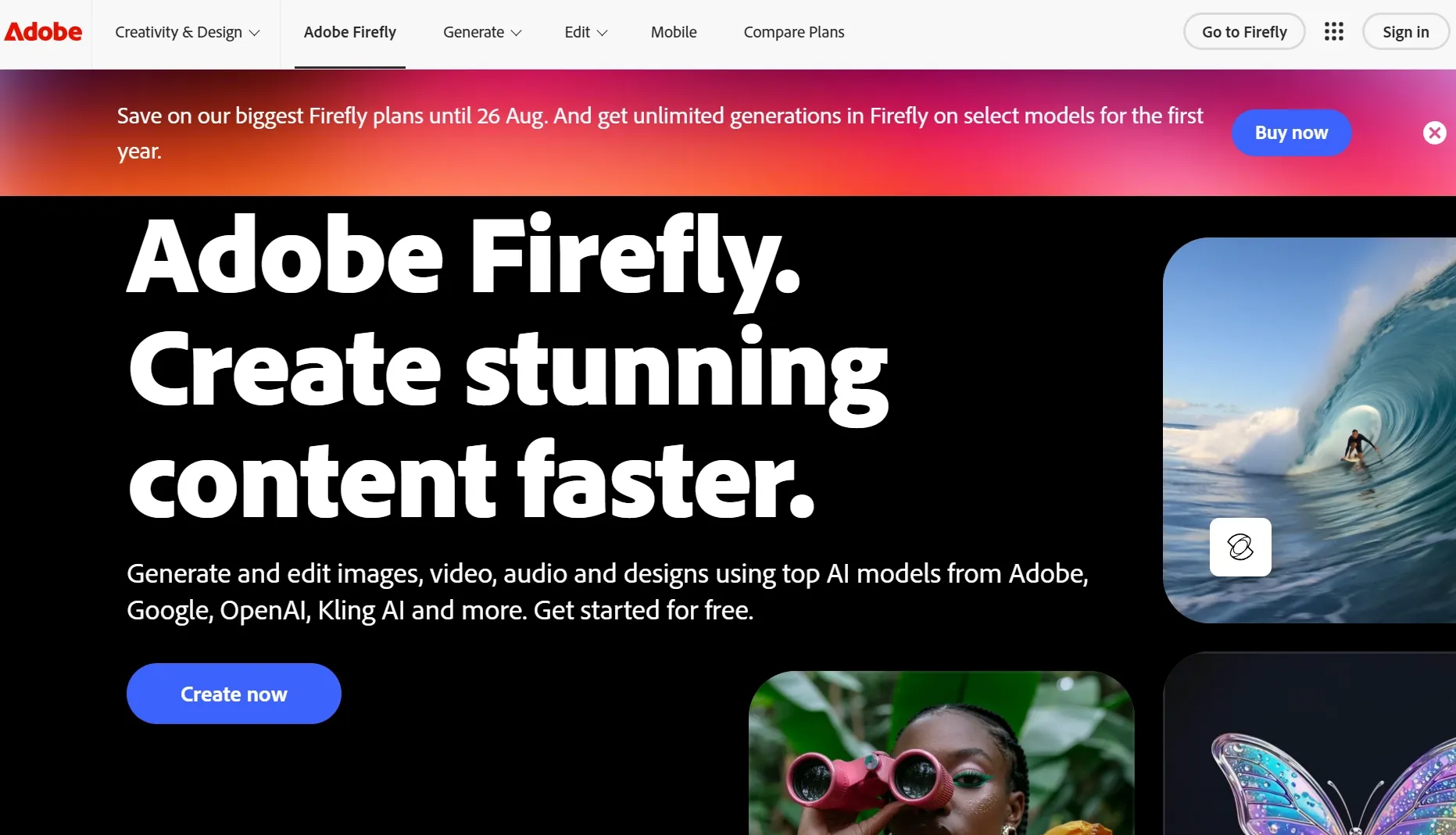
Adobe Firefly fits this list as creative support around editing rather than a simple all-purpose editor. I tested it as a way to generate or adjust visual assets that could support a video project, especially when the edit needed stronger AI image generation.
Its advantage is the Adobe creative context: assets, styles, and generative support can feed into a broader production workflow. It is useful when the AI video editor process also needs image to image or AI photo editor work around the clip.
The tradeoff is that it may not be the fastest route for a simple captioned social edit. Firefly is best as creative support, not quick video packaging.
Key Features
- Generative assets: Create visual material for video projects.
- Creative style support: Explore looks before final assembly.
- Adobe ecosystem fit: Support broader design and editing workflows.
- Brand review value: Build assets that can be refined in a creative suite.
Best For
- Design-led teams supporting video projects.
- Creators who need visuals around the edit.
Pros:
- Strong creative ecosystem.
- Useful for visual asset support.
- Good for design-led workflows.
Cons:
- Not the quickest social editor.
- Requires extra assembly for finished video.
- Less direct than frame-level video editing.
For more on its creative AI role, see the Adobe Firefly review.
How Did I Test These AI Video Editors?
I judged each AI video editor by the editing job it claimed to solve. I used existing clips, short social drafts, scripts, and presenter-video scenarios, then checked whether each tool reduced real editing work or only created another draft to fix.
- Visual edit accuracy: Could the editor make the requested visual change without damaging the subject?
- Workflow fit: Was the tool clearly useful for frame edits, captions, repurposing, templates, or presenter videos?
- Caption and audio support: Did the tool help with subtitles, voice, or speech-led editing when relevant?
- Social formatting: Could it reshape or package clips for short-form platforms?
- Output cleanup: How much manual review, trimming, or retrying was still needed?
- Limit visibility: Were exports, credits, watermarks, or plan-dependent steps easy to understand qualitatively?
How to Choose the Right AI Video Editor
- Choose Pollo AI if you need to change visual content inside footage, such as backgrounds, objects, mood, subject style, or shot feel.
- Choose CapCut if you mostly make short social edits with captions, templates, music, and fast mobile polish.
- Choose VEED if you want browser-based captions, resizing, branding, and quick cleanup for talking-head clips.
- Choose Invideo AI if you need to turn an idea or script into a marketing draft before manual polish.
- Choose Pictory if your main job is repurposing long articles, webinars, or scripts into shorter video drafts.
- Choose HeyGen or Synthesia if the edit is really a presenter-video workflow rather than footage cleanup.
My Personal Take
If I had to choose one AI video editor for the hardest editing problem in this list, I would start with Pollo AI because it handles visual changes inside existing footage. That is a more specific advantage than simply offering captions, templates, or timeline tools.
For social packaging, CapCut and VEED are faster. For script-to-draft work, Invideo AI, Pictory, and Fliki are more natural, while HeyGen and Synthesia make sense when the video is built around a presenter.
Final Verdict
Pollo AI is my top AI video editor pick for prompt-based frame-level edits: backgrounds, objects, mood, subject styling, and shot feel. That is the clearest advantage it has over tools that mainly trim, caption, template, narrate, or assemble drafts.
Choose CapCut or VEED for fast social finishing, Pictory or Invideo AI for draft assembly, and HeyGen or Synthesia for presenter videos. If the footage itself needs to change, start with Pollo AI.