


AI Video Editor Online Free: My 7 Top Picks
Got a clip that could use a little help? Maybe the background feels wrong or the pacing drags. If you’re looking for an AI video editor online free, here are seven options worth trying.
TL;DR
Pollo AI is my top pick for prompt-based visual changes, from removing distractions to changing a scene’s atmosphere. Its AI video editor connects those edits with tools for creating new footage. If you’re looking for an AI video editor online free for other tasks, consider CapCut for social cuts, Clipchamp for free 1080p exports, or Descript for transcript-based editing.
What Makes a Good Free Online AI Video Editor?
A useful AI video editor online free should help with the task that is slowing you down. Automatically shortening a recording and changing the setting behind a subject are different jobs. I would identify that job before comparing feature lists.
These are the criteria I would prioritize:
- Editing fit: Does it change the visuals, assemble clips, or edit spoken content?
- Useful AI assistance: Does automation reduce a specific manual task?
- Control over revisions: Can you adjust the result when the first attempt misses your intention?
- Free starting access: Which features can you actually try before upgrading?
- Export suitability: Check resolution, watermarks, duration, and asset restrictions.
For a wider comparison beyond free starting options, see our guide to the best AI video editors.
Best Free Online AI Video Editors at a Glance
| Tool | Best For | Free Access and Main Limitation |
|---|---|---|
| Pollo AI | Prompt-based visual changes | Free to try; credit availability and selected settings affect use |
| CapCut | Social videos with timeline control | Free basic editing; premium assets and AI features can require payment |
| Clipchamp | Watermark-free everyday editing | Free exports up to 1080p; 4K and premium assets require an upgrade |
| VEED | Captioned talking-head videos | Free basic editing and limited AI trials; 720p exports with a watermark |
| Kapwing | Repurposing short clips in a shared workspace | Free 720p exports up to four minutes, with a watermark and limited AI use |
| Descript | Editing interviews through a transcript | Free media and AI allowances; 720p exports with a watermark |
| FlexClip | Template-led videos and slideshows | Free 720p exports and AI trials; watermark and stock-asset limits |
Free-plan information checked on November 23, 2026. Free starting access does not mean every AI feature or export option is unlimited. Competitor heading links below open Pollo AI’s pages about those tools.
1. Pollo AI — My Top Pick for Prompt-Based Visual Editing
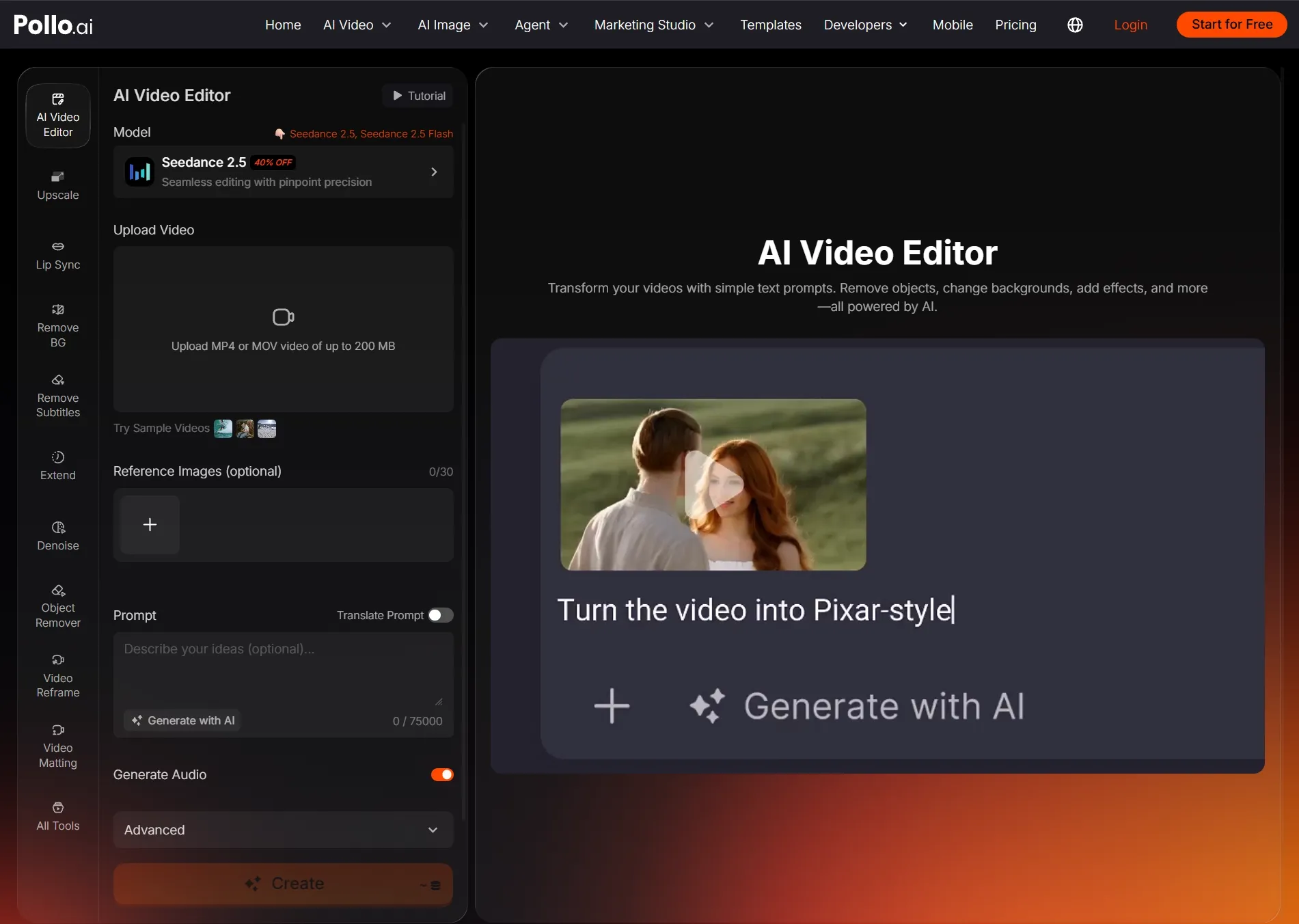
Pollo AI takes first place for creators who want to change what appears inside a clip. Describe the desired adjustment instead of searching through layers of controls. That makes it my preferred AI video editor online free to try for visual experimentation.
The editor supports changes such as removing distracting objects, altering backgrounds, and adjusting weather or atmosphere. For a focused cleanup task, you can also remove unwanted objects using the dedicated tool. Start with one clear change and inspect the result.
Pollo AI is an AI-native creative suite for all creators, so editing can connect with creating new footage. You can animate a photo, generate a missing shot from text, or develop a broader video idea through Pollo Agent.
For creators making promotional content, Marketing Studio adds a related route for ads and UGC. However, the reason to choose Pollo AI here is its visual editing workflow. Free starting access is credit-based, and complex changes may need another attempt.
Key Features
- Written editing instructions: Describe the change you want in everyday language.
- Scene adjustments: Explore different backgrounds, weather, and visual effects.
- Focused cleanup: Remove distracting elements from existing footage.
- Connected creation tools: Develop new shots alongside your editing project.
Best For
- Creators refreshing the appearance of an existing clip.
- Beginners who can explain an idea more easily than perform manual visual edits.
- Storytellers combining generated footage with revised scenes.
Pros
- Makes visual transformations accessible through a short written brief.
- Offers related tools for creating footage and refining individual clips.
- Supports several types of scene changes within the same platform.
- Runs in your browser without a software download.
Cons
- You need to complete tasks to earn free credits.
- The wide range of features can feel overwhelming at first.
Verdict
Start with Pollo AI when your creative idea depends on changing the shot itself. For the upload, prompt, and download process, follow our guide to using Pollo AI video editor.
Give Your Footage a Fresh Look
Try our AI video editor online free with Pollo AI. Upload a clip, describe a visual change, and explore a new direction for your next video.
Try AI Video Editor Online Free
2. CapCut — Best for Social Videos With Timeline Control
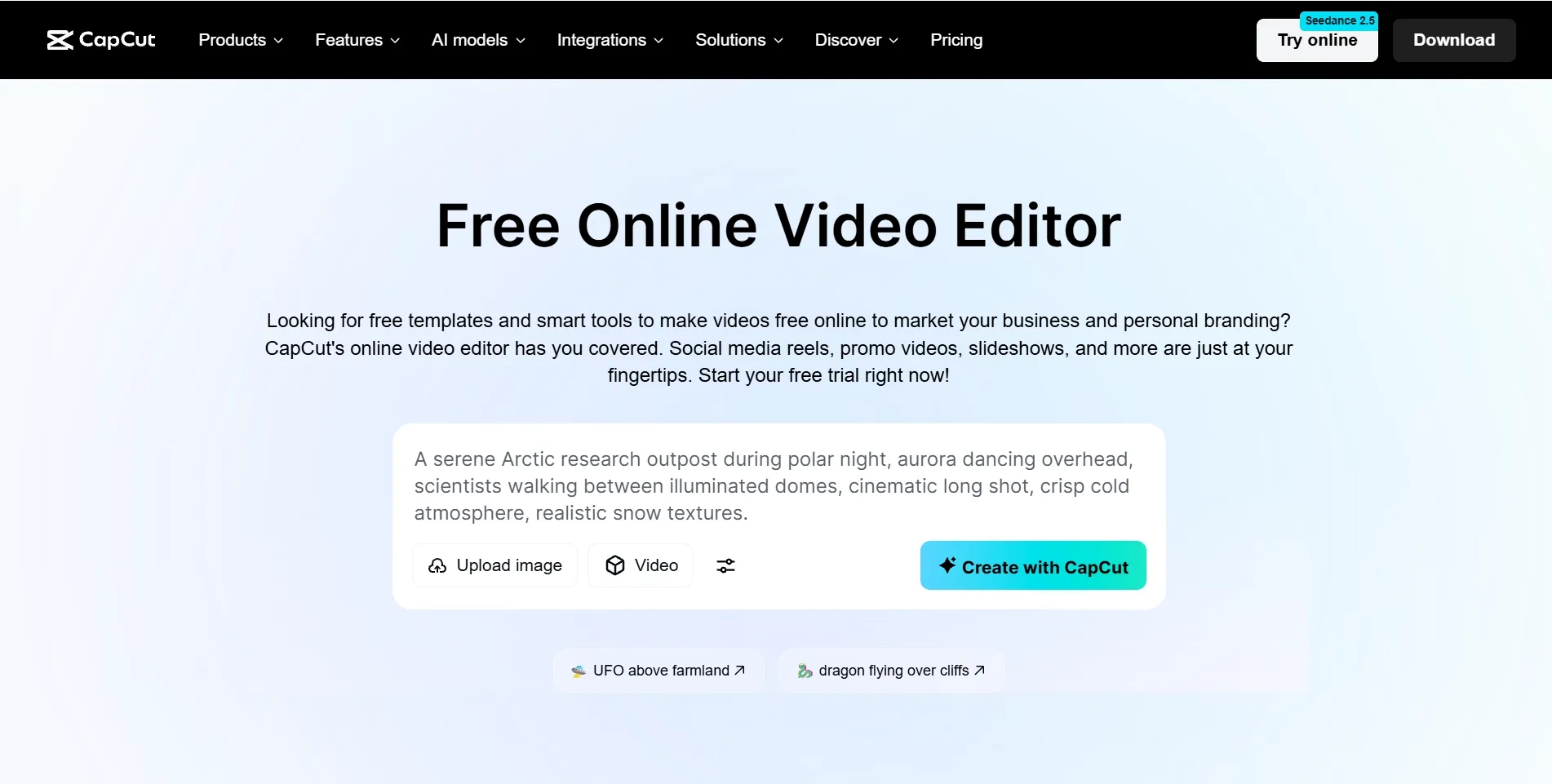
CapCut is a strong choice when your main task is arranging clips into engaging YouTube Shorts. I would choose it for hands-on decisions about pacing, text placement, transitions, and music, with AI assistance alongside those controls.
Its browser editor combines conventional editing with tools such as automatic captions, text to speech, and background removal. That combination suits creators who want to build a short sequence and keep control over the timing of each element.
The free plan covers basic editing, but advanced AI access and premium resources can require payment. Check the assets and tools used in your project before export, especially when following a look that relies on premium effects.
Key Features
- Timeline editing for arranging clips and audio.
- Automatic captions for spoken content.
- Text to speech and background-removal tools, subject to access limits.
Best For
- Creators assembling Reels, Shorts, and other social clips.
- Editors who want to adjust timing and overlays themselves.
Pros
- Combines familiar editing controls with AI assistance.
- Gives creators room to refine pacing manually.
- Brings captions, narration, and background tools into timeline editing.
Cons
- Free basic editing does not include every AI feature.
- Premium resources can change the cost of finishing a project.
Read our CapCut AI review for more on its video creation and editing workflow.
Verdict
Choose CapCut when the footage already looks right and the main challenge is how to assemble it.
3. Clipchamp — Best for Watermark-Free Everyday Editing
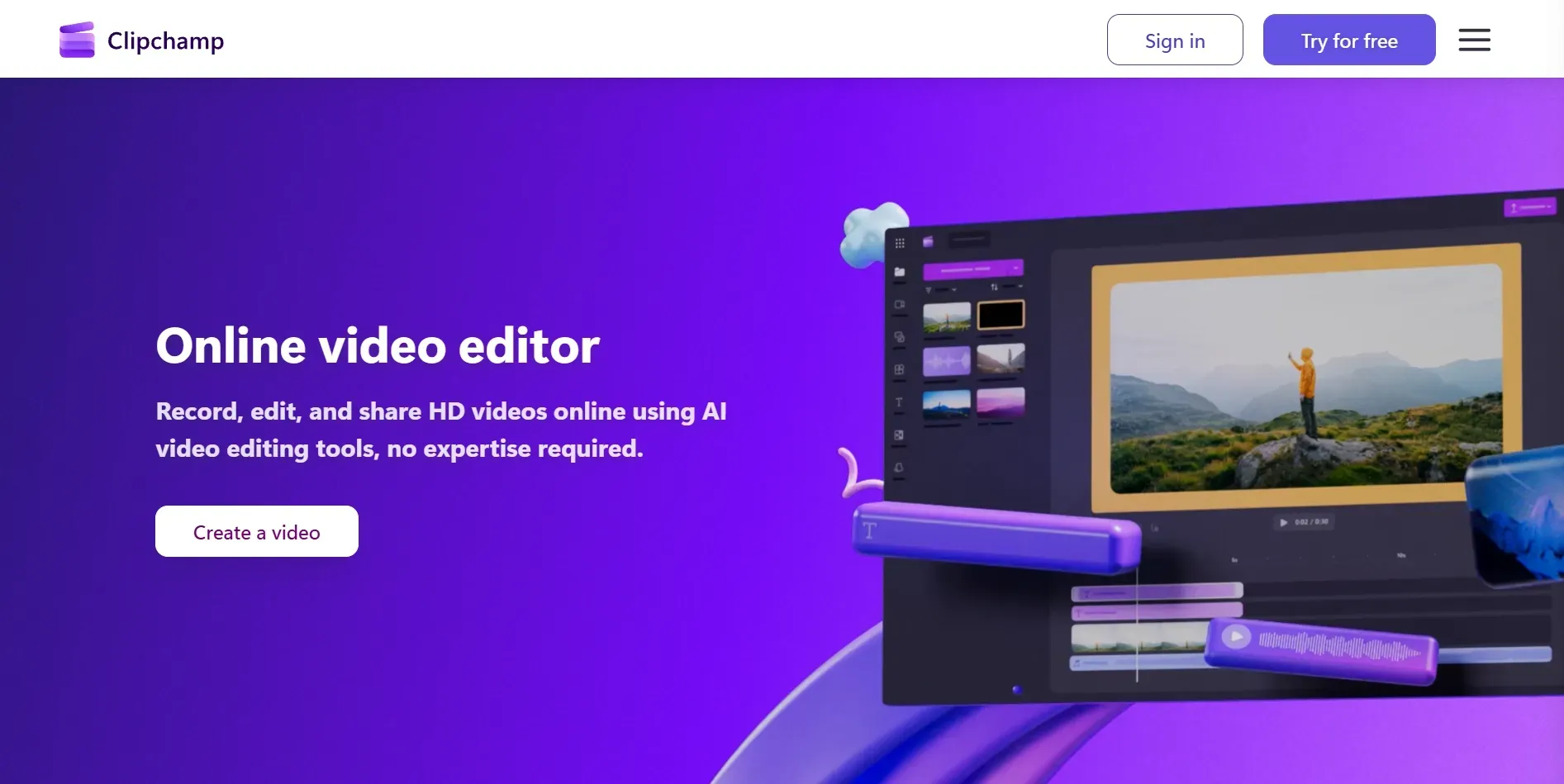
Clipchamp stands out for a practical reason: its personal free plan supports 1080p exports without a watermark. I would shortlist it for lessons, video presentations, and personal projects that need a usable download without a paid subscription.
Its AI tools include subtitles, voiceovers, and silence removal. You can combine these with trimming, cropping, recording, and text overlays. That makes it useful for turning a straightforward recording into a clearer, more watchable video.
The tradeoff is scope. Clipchamp is strongest for assembling and polishing footage. I would choose a dedicated generative editor for substantial scene changes. Premium stock, brand tools, and 4K export also sit outside the free tier.
Key Features
- AI subtitles and text-to-speech narration.
- Silence removal for tightening recordings.
- Screen, camera, and voice recording.
- Free personal-plan exports up to 1080p.
Best For
- Teachers and creators preparing simple explainer videos.
- Beginners who prioritize a watermark-free final file.
Pros
- Offers a useful free export allowance for regular editing.
- Brings recording, captions, and cutting into one browser workflow.
- Includes AI subtitles, voiceovers, and silence removal in the free plan.
Cons
- Requires a personal Microsoft account for the free personal plan.
- Premium assets and 4K exports require an eligible paid subscription.
Verdict
Clipchamp is my budget-focused choice when the export matters more than generative visual effects.
4. VEED — Best for Captioned Talking-Head Videos
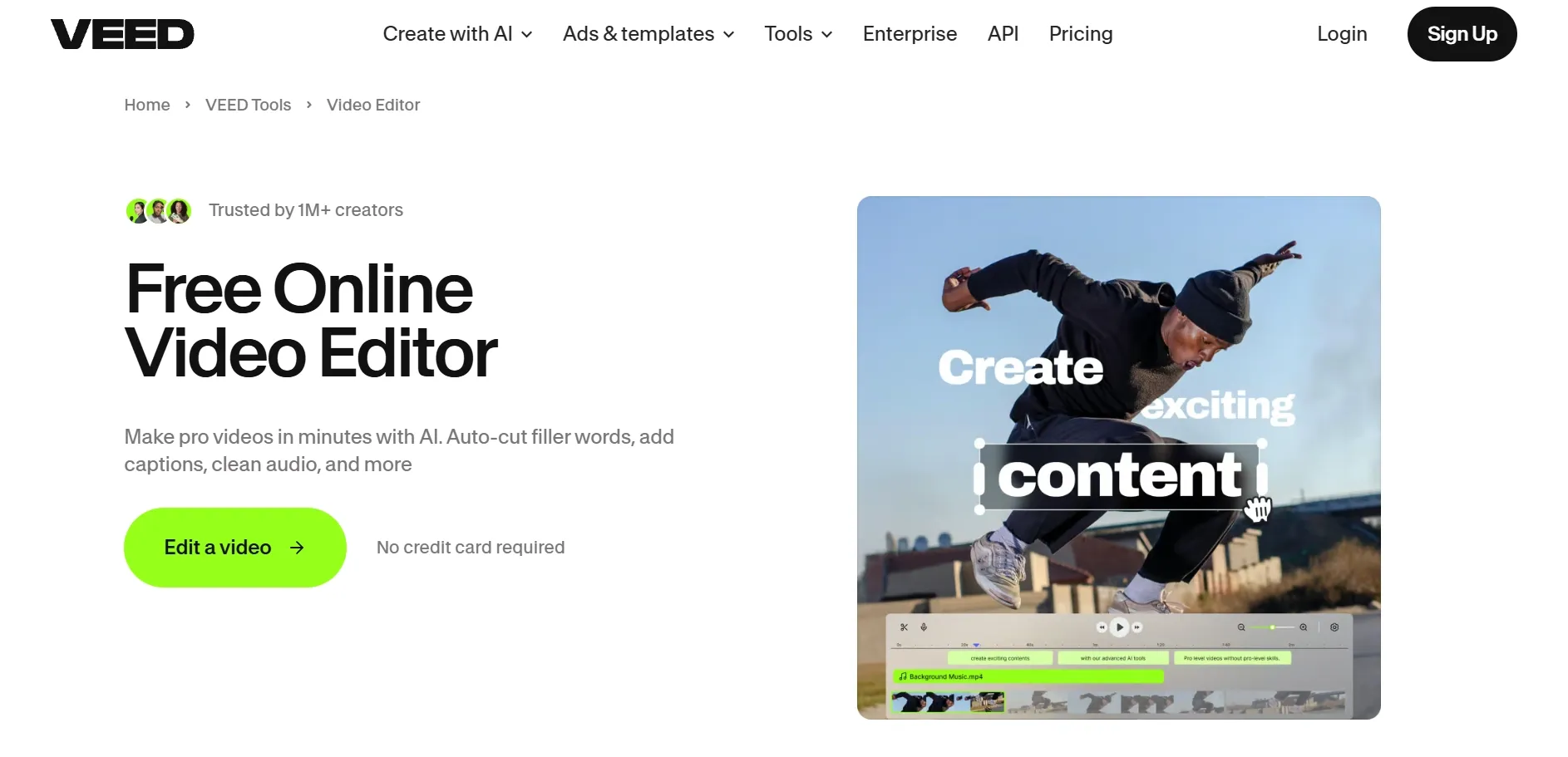
VEED suits recordings where the speaker carries the story. I would consider it for an explainer video, reaction, or tutorial that needs readable captions, tighter delivery, and simple visual additions within a browser-based editor.
The platform combines captions, transcript-based editing, audio cleanup, and conventional controls. Its free offering includes basic editing plus limited trials of selected AI tools. This lets you explore the workflow before deciding which paid capabilities you actually need.
The export restriction is the main concern: free videos carry a watermark and are limited to 720p. I would use the free tier to assess the editing experience before relying on it for a recurring publishing schedule.
Key Features
- Automatic captions for speech-led clips.
- Transcript-based editing for removing unwanted passages.
- Audio cleanup and other AI tools with plan-dependent access.
Best For
- Creators editing short explanations and talking-head videos.
- Beginners trying captions and speech cleanup together.
Pros
- Groups several common spoken-video tasks in one editor.
- Lets users explore selected AI tools through limited free trials.
- Supports transcript-based cuts without manually locating every edit.
Cons
- Free exports include a watermark.
- Higher-resolution output and expanded AI use require payment.
See our VEED review for a closer look at its creation and editing features.
Verdict
VEED is worth considering when captions and spoken delivery are your biggest editing needs.
5. Kapwing — Best for Repurposing Short Clips in a Shared Workspace
Kapwing appeals to creators who regularly adapt a recording for different placements. When improving a YouTube Shorts opening, its resizing, subtitles, and transcript tools offer several ways to revise the same clip. Shared projects help keep versions organized.
Tools such as Smart Cut and Clean Audio address pauses and distracting sound. Resizing and subtitle controls help reshape an existing clip for another format. Shared projects also suit workflows where someone else needs to review or contribute.
Its free tier is better suited to short projects. Downloads are watermarked, capped at 720p, and limited to four minutes per video. AI allowances are also small, so frequent repurposing may push you toward a subscription.
Key Features
- Resizing and subtitle tools for adapting existing videos.
- Transcript editing and silence removal.
- Shared browser projects for collaborative workflows.
Best For
- Creators preparing multiple versions of one short clip.
- Small groups reviewing videos in a shared workspace.
Pros
- Covers several practical repurposing tasks together.
- Offers a collaborative route beyond editing a file alone.
- Combines resizing, subtitles, and speech cleanup for adapting existing clips.
Cons
- Free exports carry a watermark and stop at 720p.
- Duration, monthly export, and AI limits constrain repeated use.
Verdict
Shortlist Kapwing when adapting and reviewing clips matters more than changing the visual content inside each shot.
6. Descript — Best for Editing Interviews Through a Transcript
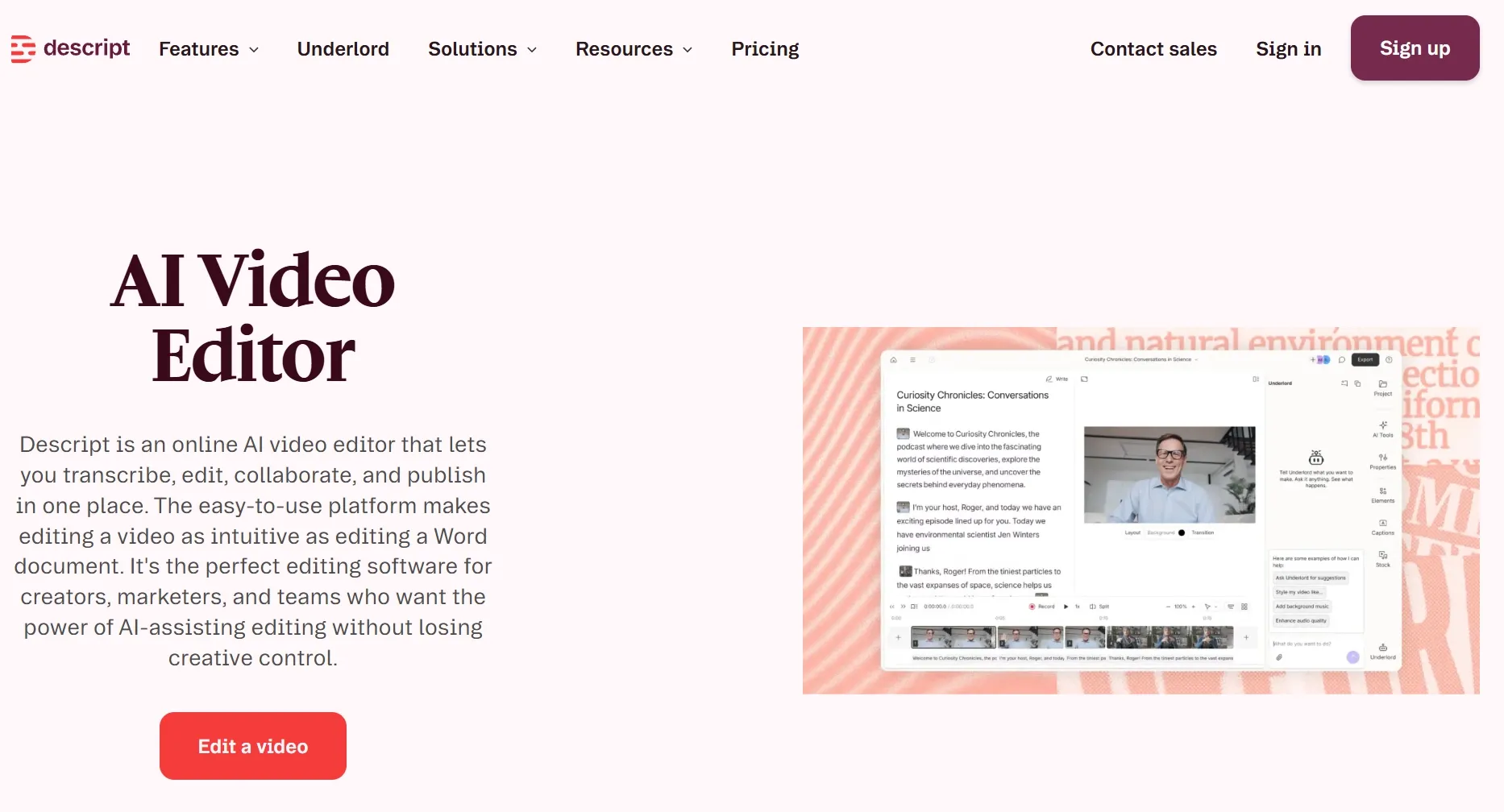
Descript is my recommendation when the biggest editing decisions are about what someone says. You work with a transcript linked to the recording, making it easier to locate sections, remove passages, and organize a conversation.
Its wider toolkit includes filler-word removal, Studio Sound, and the Underlord AI co-editor. These features support speech-led editing, although availability and usage depend on your plan. The advantage is making editorial decisions through readable text.
The free plan includes a limited media allowance and AI access, with watermarked 720p exports. It is a useful way to assess transcript editing, but longer interviews and frequent production can quickly exceed the free capacity.
Key Features
- Transcript-linked video editing.
- AI tools for speech cleanup and filler-word removal.
- Underlord assistance with plan-dependent usage.
Best For
- Interview and podcast creators working with spoken recordings.
- Educators shortening recorded lessons, including videos featuring AI presenters.
Pros
- Helps locate and revise spoken passages without searching every waveform.
- Brings several speech-editing tasks into one workflow.
- Offers AI assistance for filler-word removal and audio cleanup.
Cons
- Free media and AI allowances limit regular long-form work.
- Free exports have a watermark and a 720p resolution ceiling.
Verdict
Choose Descript when improving the conversation is more important than transforming the scenery.
7. FlexClip — Best for Template-Led Videos and Slideshows
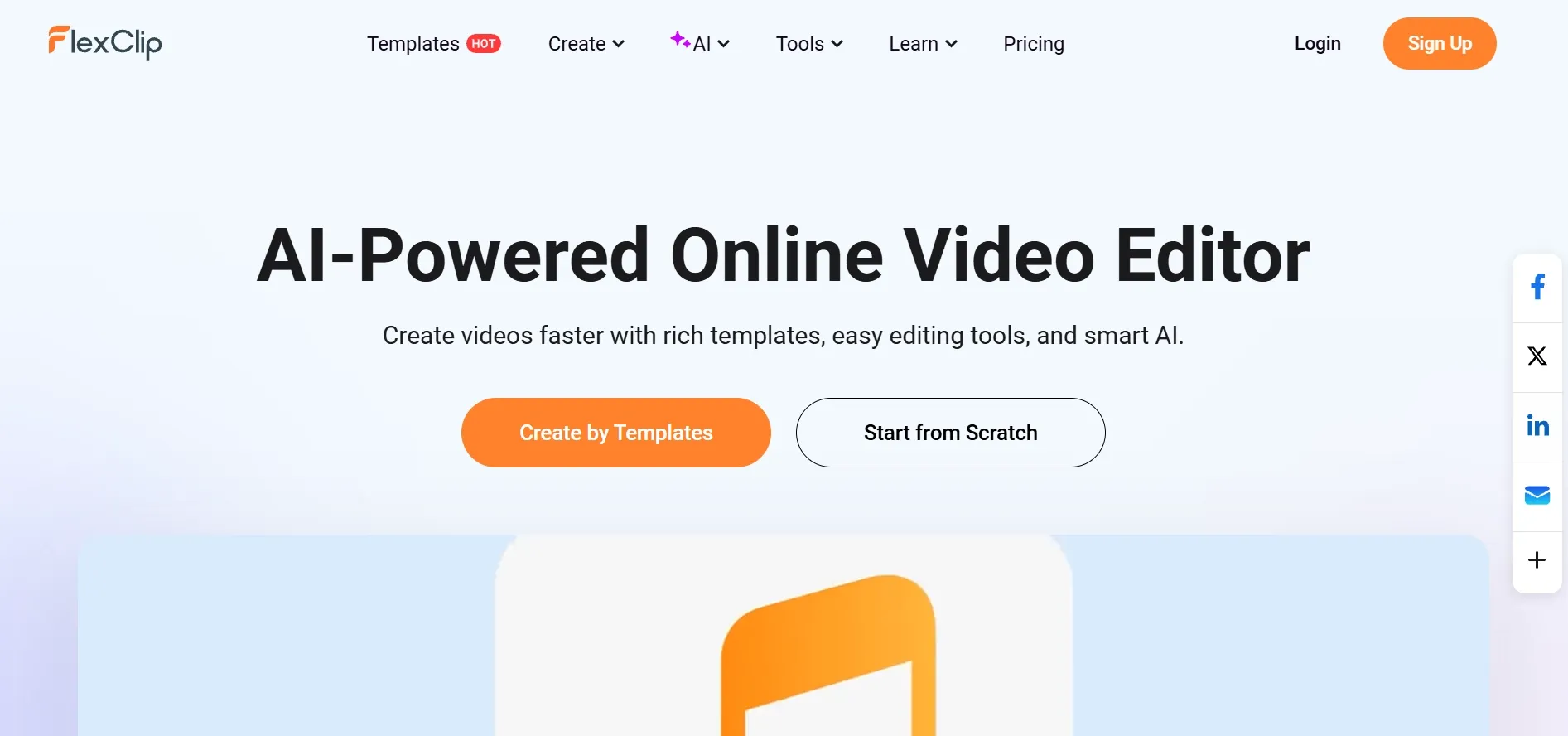
FlexClip fits projects that benefit from an existing structure: a birthday montage, travel recap, short introduction, or narrated slideshow. I would choose it when arranging personal clips and photos matters more than building a complex edit from scratch.
Its editor combines templates, text, stock assets, recording, and AI tools such as text to speech and automatic subtitles. You can replace the example media, adjust the sequence, and shape the video around a clear beginning and ending.
The free tier supports 720p downloads but includes a watermark and tight stock limits. AI tools are available through free trials. That makes it suitable for exploring a template-first workflow before paying for greater flexibility.
Key Features
- Customizable video templates and slideshow layouts.
- Text-to-speech and automatic subtitle tools.
- Screen and webcam recording alongside clip editing.
Best For
- Beginners making personal montages and narrated slideshows.
- Creators who prefer adapting a layout to assembling every element themselves.
Pros
- Provides a clear structure for straightforward video projects.
- Combines personal media with supporting text and audio.
- Lets beginners adapt existing layouts instead of assembling every element.
Cons
- Free exports include a watermark and are limited to 720p.
- Stock allowances and AI trials restrict more ambitious projects.
Our FlexClip review explores its editing and AI creation workflow in more detail.
Verdict
FlexClip works best when you want a guided starting layout for a simple video.
How I Compared These Free Online AI Video Editors
I based this comparison on official feature pages, pricing information, and help documentation. The ranking reflects my assessment of editing fit and documented free access. It does not claim hands-on testing or measured differences in output quality.
For an AI video editor online free comparison, I separated three editing methods: generative visual changes, timeline-based assembly, and transcript-based editing. Pollo AI leads my recommendations for the first category; the other tools serve different production needs.
I also checked the difference between free editing, limited AI trials, and paid export features. A large toolkit is less useful if the particular task you need is unavailable on the free plan.
How to Choose an AI Video Editor Online Free
Match the editor to the part of your project that needs work:
- Change the shot’s appearance: Start with Pollo AI for prompt-led visual adjustments. Use video to video when your goal is exploring a different overall style.
- Control the cut: Choose CapCut for hands-on social editing or Clipchamp for everyday projects with free 1080p downloads.
- Improve a speaker-led clip: Consider VEED for captions or Descript for transcript-based editorial decisions.
- Adapt an existing video: Consider Kapwing for resizing and shared review.
- Build a simple montage: Choose FlexClip when an existing layout helps you get started.
Tip
Before committing to a long project, export a short sample with the same assets and features you plan to use. This reveals practical restrictions early.
My Personal Take
Pollo AI is my first choice when looking for an AI video editor online free to try for creative visual changes. Its prompt-based workflow makes it easier to explore a different setting, atmosphere, or scene without learning those tasks through manual editing first.
The alternatives remain useful for specific jobs. Clipchamp has the strongest free export proposition in this selection, while CapCut and Descript suit different kinds of editing control. Choose according to the change your video actually needs.
Start with one short clip and one focused instruction in Pollo AI. If the idea needs a new supporting scene, you can also create a shot from text, then decide how it fits your story.
Free Online AI Video Editor FAQs
Which AI Video Editor Online Free Should I Try First?
I would start with Pollo AI for prompt-based visual editing. Upload a short clip and describe one change to the scene. If you mainly need cutting, captions, and watermark-free exports, Clipchamp is a strong alternative for its free personal plan.
Can I Use an AI Video Editor Online Free Without a Watermark?
Yes. Clipchamp’s personal free plan supports watermark-free exports up to 1080p when you use eligible features and assets. Other tools in this comparison have different restrictions, including watermarks, limited credits, or paid access to particular AI functions.
Can AI Change My Footage Instead of Just Cutting It?
Yes. Pollo AI supports prompt-based changes to visual content, including objects and atmosphere. If you specifically need a subject cutout, a dedicated video background remover addresses that task. Check the result for edge quality and consistency across frames.
Do I Need Editing Experience to Get Started?
You can start with a clear goal and a short source clip. For prompt-led editing, describe the change and what should stay consistent. Our Pollo AI video editor tutorial walks through the basic process.
What Should I Check Before Choosing a Free Plan?
Check whether the AI feature you need is included, how its allowance works, and whether the final export meets your needs. Resolution, watermarks, project length, and premium assets can all affect whether a free plan works for your intended video.