How to Uncrop Images Online: An Easy Step-by-Step Guide for 2026
Cropped a photo too tightly and can’t undo the edit? AI uncropping offers another way to give the picture a more complete composition by generating content around its edges.
This guide explains how to uncrop images online with Pollo AI. We’ll focus on fixing awkward crops, reviewing reconstructed edges, and keeping the result believable. You can start with a single photo and follow three straightforward steps below.
TL;DR
Here’s how to uncrop images online: open Pollo AI’s uncrop image tool, upload your photo, choose an aspect ratio, and click Uncrop. Review the generated edges, then download the result. AI recreates plausible details rather than retrieving deleted pixels.
How to Uncrop Images Online With Pollo AI in 3 Easy Steps
The process is upload, choose your aspect ratio, generate, then review and download. Keep your goal simple: improve the awkward crop while retaining what you like about the picture. Start with its existing subject, lighting, and mood.
Step 1: Upload Your Cropped Photo
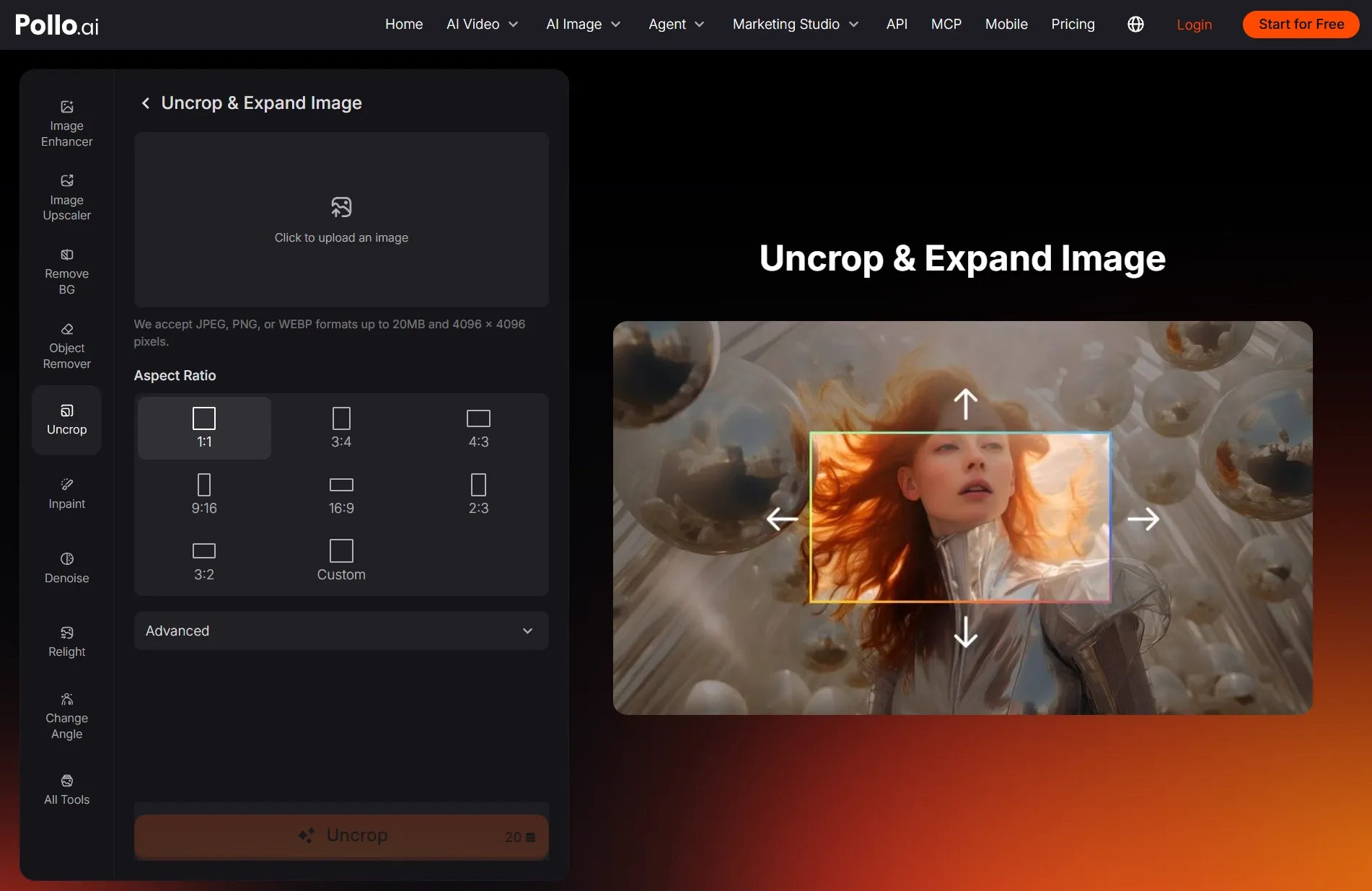
Open Pollo AI’s uncrop tool and upload a JPEG, PNG, or WEBP image.
Use your clearest saved copy. Avoid cropping it again before uploading, since the visible background provides context for creating a continuation around the existing edges.
Step 2: Choose an aspect ratio or customize the frame
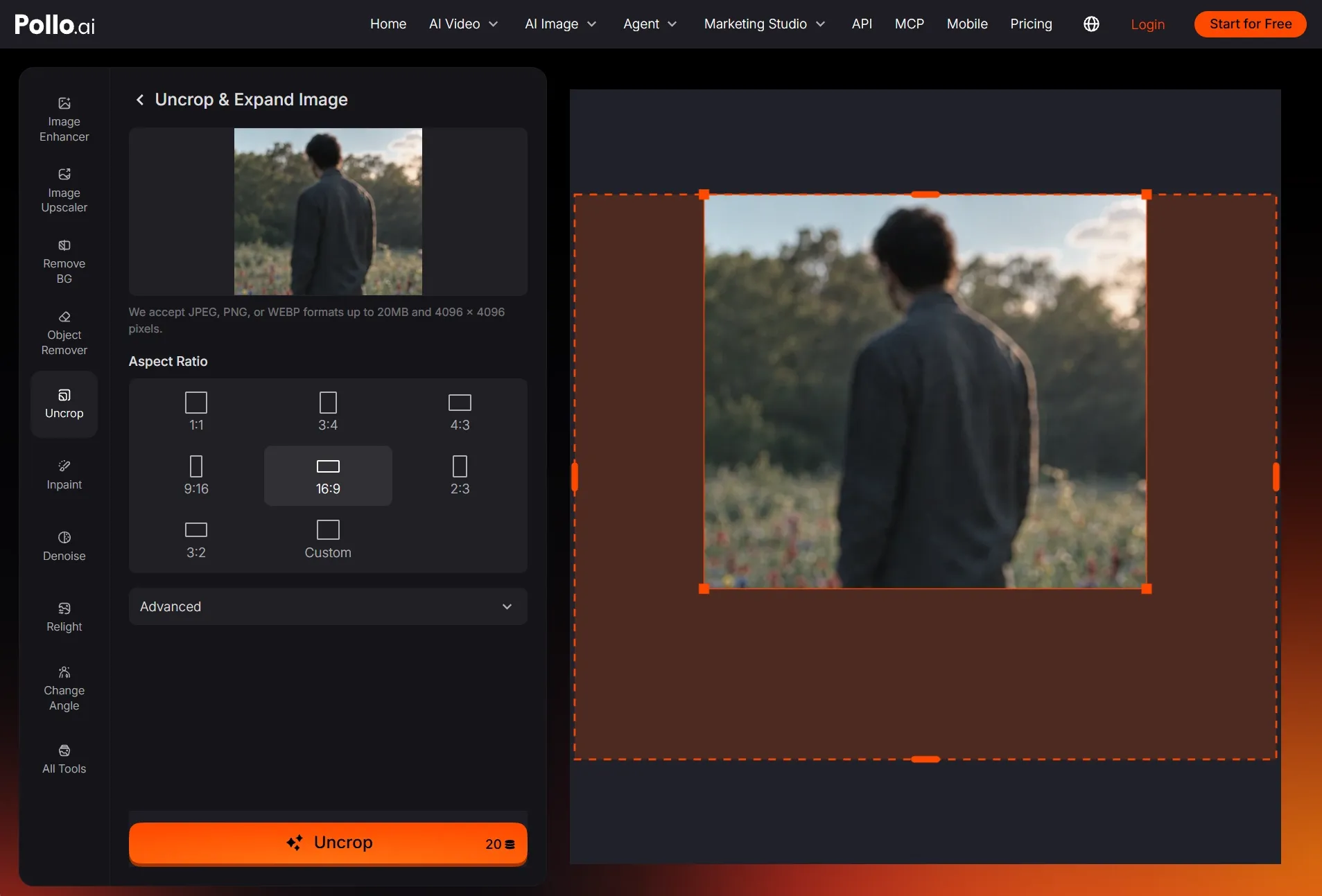
Choose a preset Aspect Ratio or select Custom to set your own proportions.
Drag the orange handles around the image in the right-hand preview to adjust the frame freely, then click Uncrop to generate your expanded image.
Step 3: Review and Download
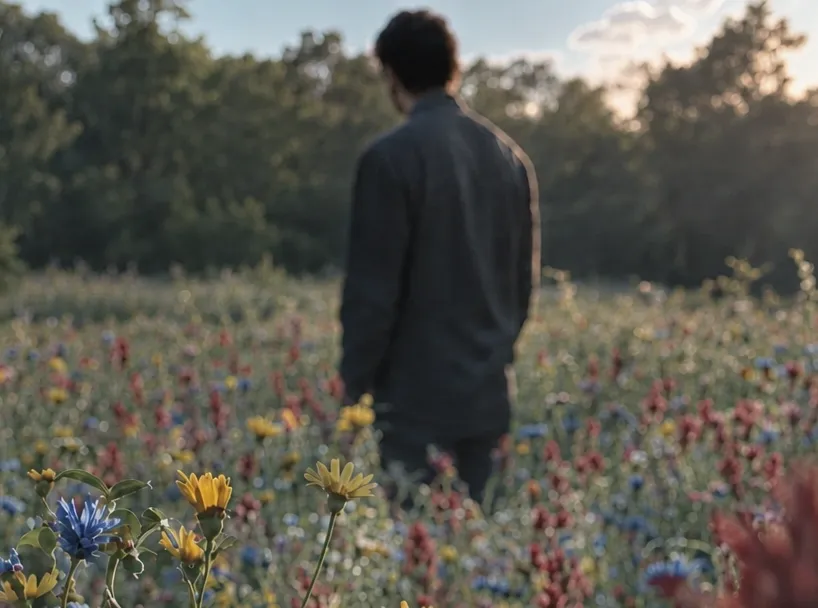
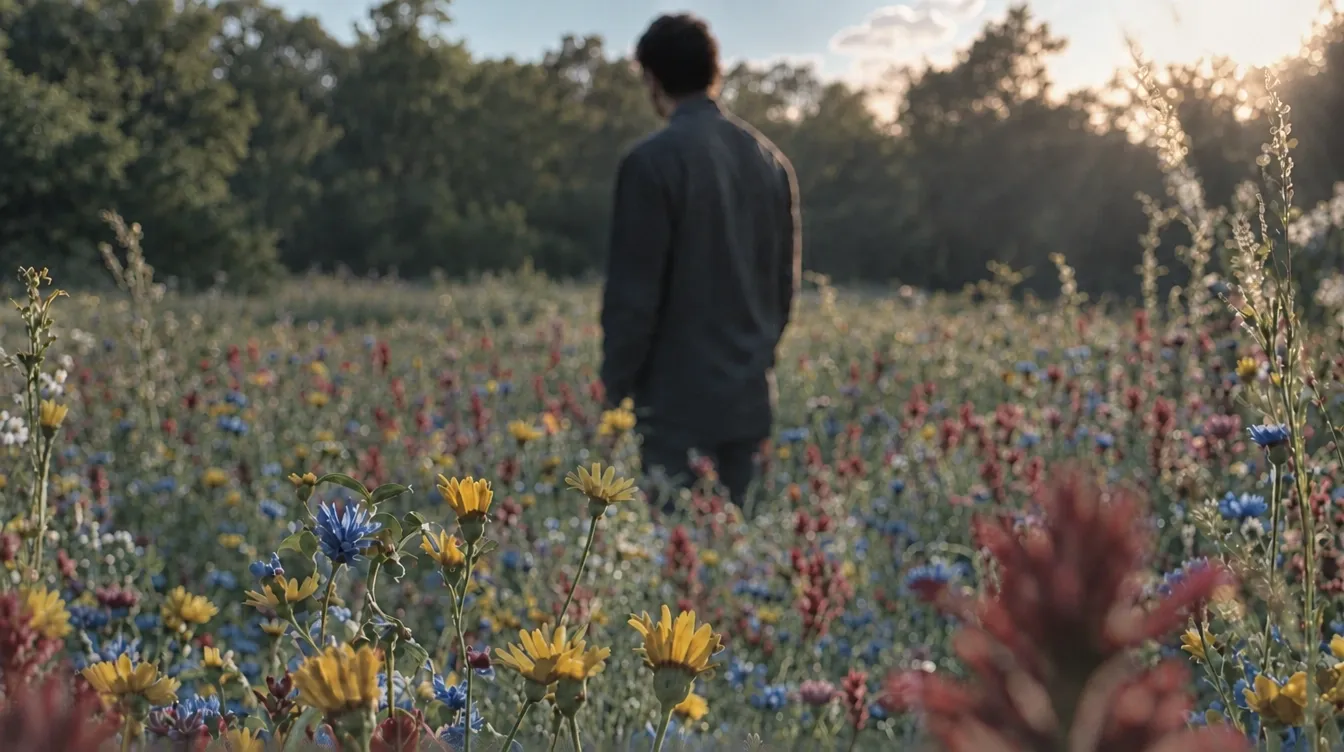
Compare the result with your uploaded photo, especially near hair, clothing, and recognizable objects.
If the recreated edges look believable, download your image. If the framing still feels wrong, try another aspect ratio and compare the results before choosing.
| Before | After |
 |  |
What Does It Mean to Uncrop an Image?
Uncropping uses the visible picture as a starting point to generate content beyond its cut edges. It can help when a portrait feels cramped or a crop interrupts the background. The goal here is to repair the composition.
An AI image expander can also work as an AI photo extender for cropped pictures. Here, we’re using it to address unwanted cropping. Changing an image’s dimensions for a new layout belongs to a different workflow.
What Should You Check Before Uncropping?
Before learning how to uncrop images online, check your photo library, editing history, or saved copies for the original. If someone sent you the cropped version, ask for the full photo. Recovering it preserves the actual missing details.
If the original isn’t available, choose the clearest cropped copy you have. Identify the edge that feels wrong: perhaps a cramped portrait or a landscape cut off abruptly. Start with that specific problem instead of trying to redesign the photograph.
3 Cropping Problems You Can Try to Fix
Knowing how to uncrop images online helps when the remaining photo still has enough context to suggest a continuation. These examples focus on repairing awkward framing. I’d start with the one that most closely resembles your cropped picture.
A Portrait That Feels Too Tightly Framed
An AI photo expander can help when a portrait has almost no room around the person. Start by restoring some visual breathing room. If hair or clothing is partly missing, inspect the generated continuation carefully before keeping the result.
A Landscape With Abruptly Cut Edges
An accidental crop can interrupt a shoreline, hillside, or stretch of sky. Try uncropping it to make the composition feel less abrupt. Follow visible lines into the generated area and check that their direction still makes visual sense.
An Object Partly Cut Off by the Frame
A cropped cup, chair, or decorative object may benefit from a generated continuation for a creative image. Check its shape and proportions closely. For product listings or accurate documentation, use an original photograph that shows the actual object instead.
Give Cropped Photos a Second Chance
Use Pollo AI to recreate missing edges and bring a more complete composition to the photos you still love.
Uncrop Your Image Free
How Can You Make an Uncropped Photo Look More Natural?
When learning how to uncrop images online, pay attention to the join between existing and generated content. An attractive overall result can still contain small mismatches. I recommend checking the following details before making additional edits to the image.
Compare Details Around the Original Crop
Check the transition from the existing photo into the generated area. Watch for hair that changes direction, clothing seams that stop suddenly, or background lines that bend. These specific checks are more useful than judging only the overall impression.
Keep Optional Cleanup Separate
If an unwanted object appears in the recreated background, try our object remover. For broader changes, such as lighting adjustments, use the AI photo editor. Neither is a required step; keep the first result if it already works.
Address Image Quality After Fixing the Crop
Fix the framing first, then decide whether the picture needs clearer details or a larger pixel size. An image enhancer and an image upscaler address those separate needs. Review faces and textures afterward rather than assuming additional processing always helps.
Give Your Cropped Photos a More Complete Look
Now that you know how to uncrop images online, choose a photo with one awkward edge. Try uncropping it with Pollo AI, review the reconstruction, and keep the version that makes your picture feel complete without losing its original character.