How to Use Pollo Director to Create a Complete AI Video
Pollo Director is Pollo AI's scene-by-scene video creation workspace for building a complete multi-shot video in one project. It lets you create or import footage, reuse characters, scenes, and products, compare different takes, and refine video, audio, text, and subtitles on a multitrack timeline. This guide explains how to use Pollo Director from the first project setup to the final export, with practical preparation tips and checkpoints for each step.
TL;DR: The Pollo Director Workflow
To create a complete AI video, open Pollo Director, start a new project or import existing media, and add reusable characters, scenes, and products. Generate each shot with consistent references, compare alternate takes, place the best versions on the multitrack timeline, add audio and subtitles, preview the full sequence, and export the finished video.
What Do You Need Before You Start?
Before opening Pollo Director, prepare a clear video goal, a short shot list, and the visual assets that must remain recognizable. A simple four-shot plan works well for a first project: opening, development, hero moment, and closing. Also decide where the video will be published so you can choose an appropriate aspect ratio and pacing.
Choose Director when the goal is a sequence of connected shots, not only a standalone clip from an AI video generator. If you do not have clean character, location, or product references yet, prepare them first with the AI image generator, then use the approved images throughout the project.
Keep these continuity rules nearby while you work:
- The character's face, hairstyle, wardrobe, and key accessories.
- The product's shape, logo placement, color, and proportions.
- The location, time of day, lighting direction, and color palette.
- The visual style, camera language, and intended mood.
Direct Every Scene with Pollo Director
Build connected AI videos with reusable subjects, shot-level control, and a multitrack timeline in one workspace.
Try Pollo Director Free
How to Create a Complete AI Video with Pollo Director
Once your goal, shot list, and references are ready, follow these six steps to move from an empty project to an exported video.
Step 1: Start a New Project or Import Your Media
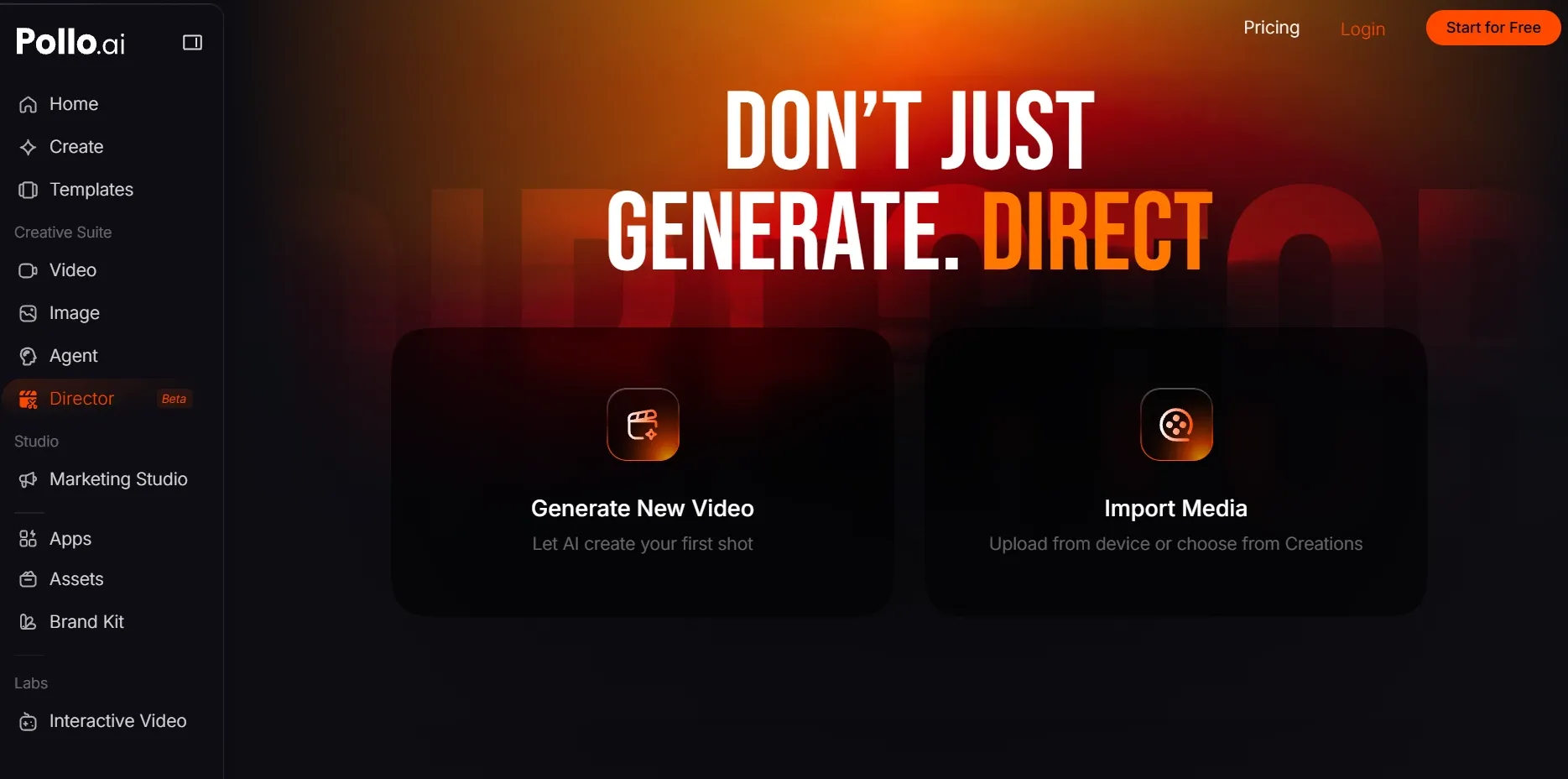
Open Pollo Director and choose Generate New Video to start from scratch, or Import Media to bring existing footage into the project. Confirm the video's purpose and shot order before creating anything else. Continue when the workspace is open and your imported assets or first empty shot are ready.
Step 2: Build Reusable Characters, Scenes, and Products
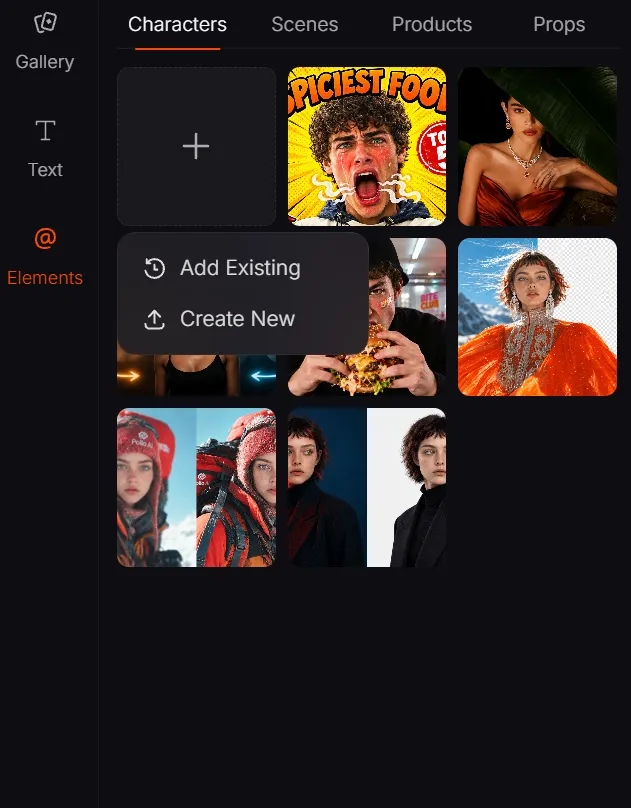
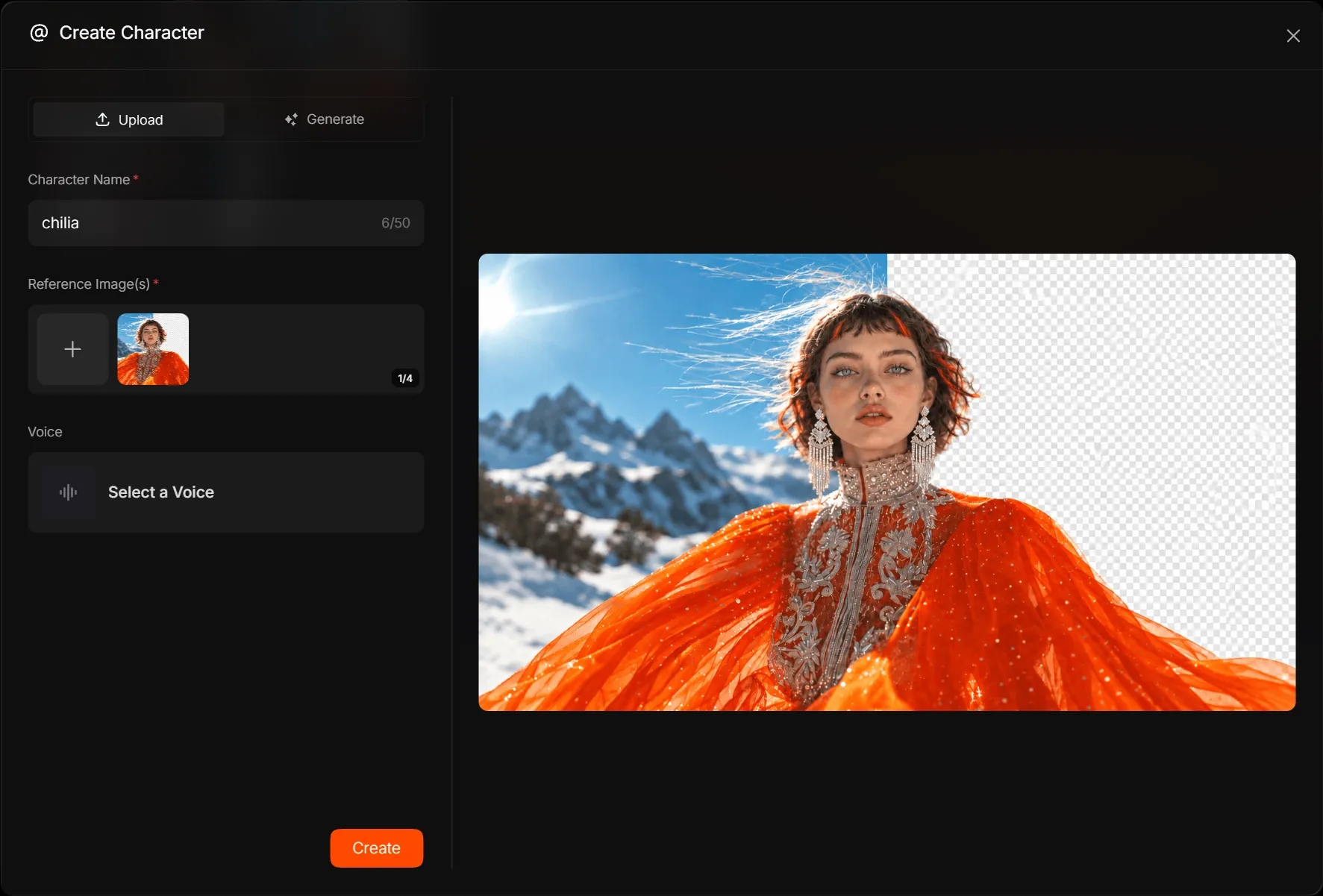
Open Elements and create or upload the characters, scenes, products, or props that should remain recognizable. Use clear names and references that show defining details without blur or extreme cropping. Reusing the same approved Elements gives every shot a shared visual foundation, although the final consistency still depends on the generation model and prompt.
Step 3: Generate and Refine the First Shot
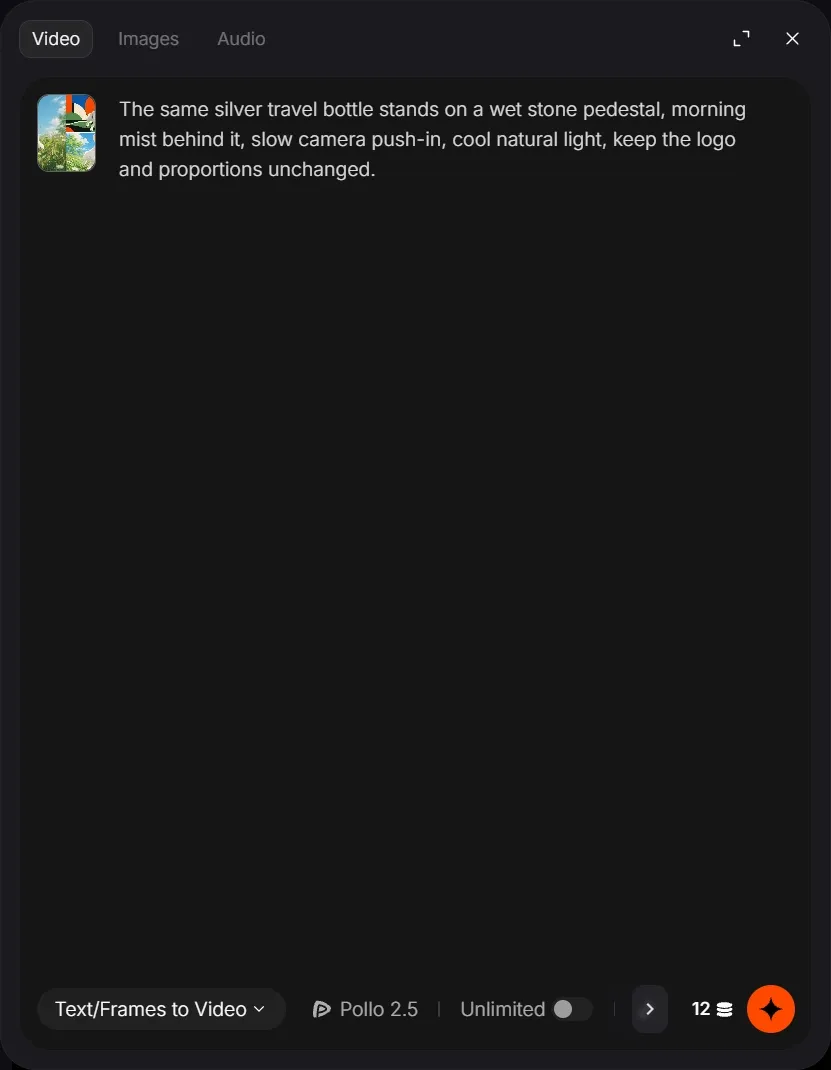
Click Add your first shot in the timeline and click Create with AI, choose the generation method and model that fit the shot, then attach the relevant Elements. For text-led shots, use text to video; for several visual references, use reference to video.
Give the shot one clear action and use this prompt structure:
Subject + Action + Setting + Camera + Lighting or Mood + Continuity Detail
Example: The same silver travel bottle stands on a wet stone pedestal, morning mist behind it, slow camera push-in, cool natural light, keep the logo and proportions unchanged.
Use the example as a template, not a tested result. Approve the subject, framing, mood, and style before creating the remaining shots.
Step 4: Create the Remaining Shots and Compare Takes
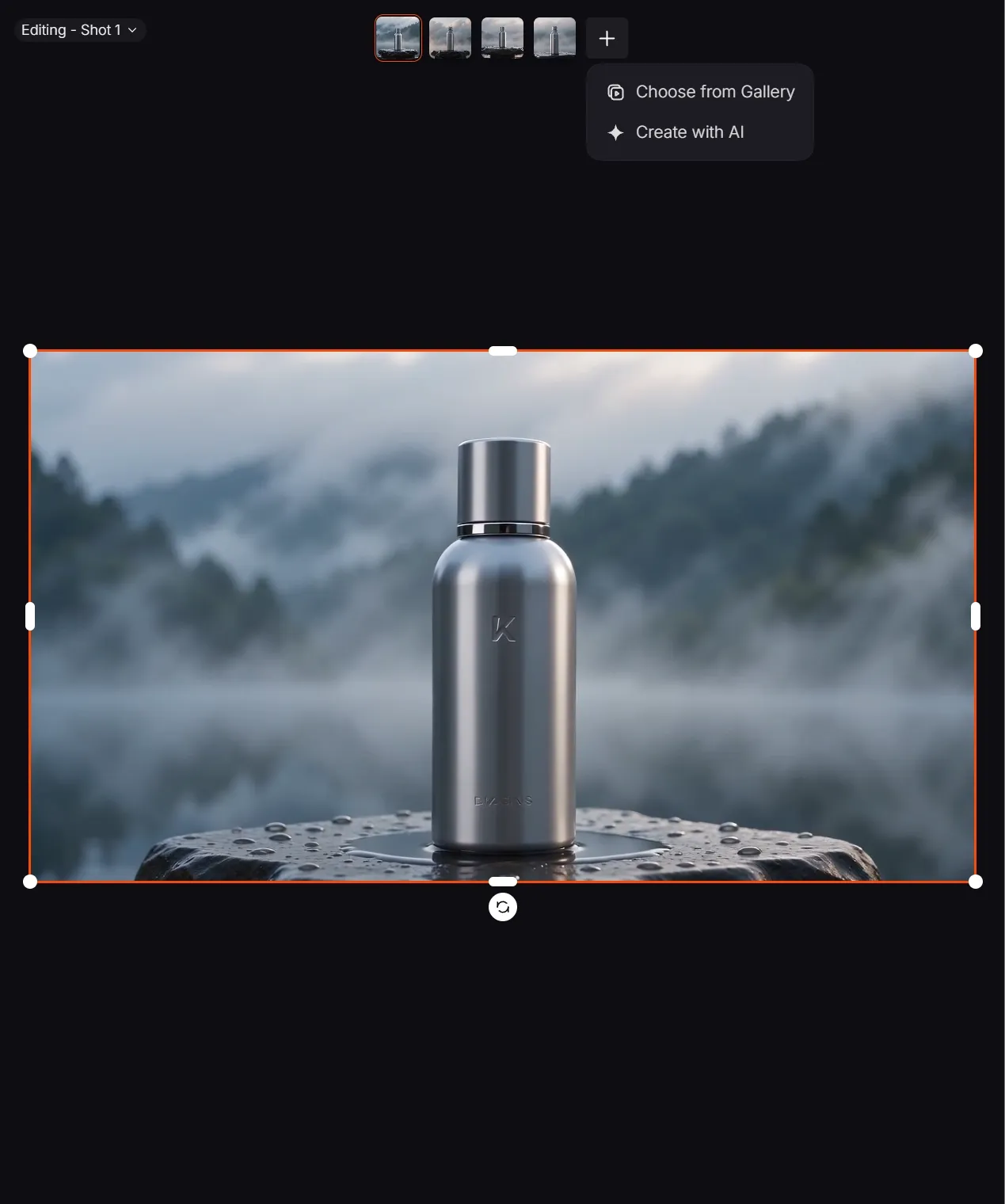
Create the remaining shots from the shot list, reusing the same Elements and continuity details. Keep each shot focused on one action or story beat. When a take is not quite right, generate another version and compare subject accuracy, motion, camera direction, and lighting before applying the strongest one. Move to editing when every planned shot has a usable take.
Step 5: Arrange the Timeline and Add Audio and Subtitles
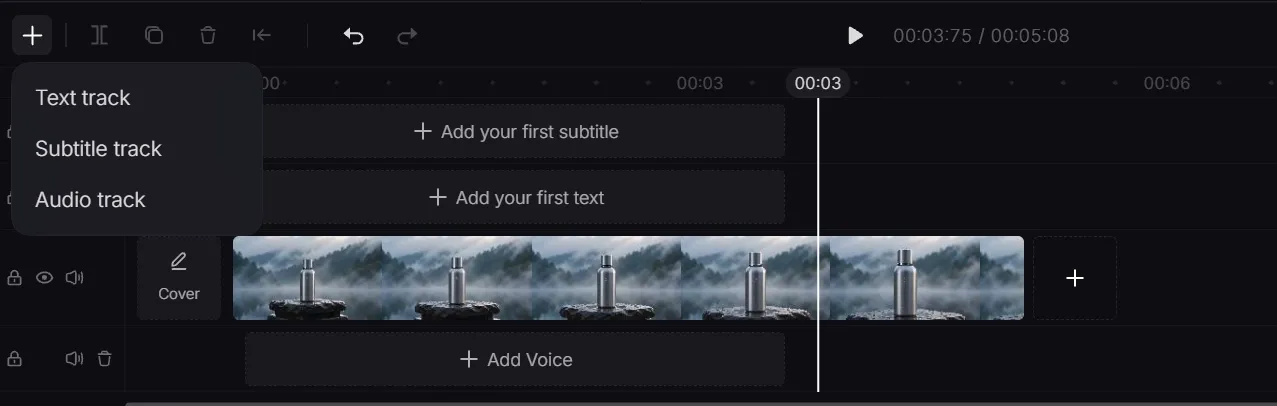
Add the selected shots to the main video track and arrange them in story order. Trim weak openings or endings, split clips when needed, and complete the rough visual cut before styling subtitles.
Add voiceover, music, and text next. When you need a separate narration track, turn the script into speech before adding the audio to the timeline. Generate subtitles for spoken content, then check their wording, timing, and contrast. Clear captions are especially useful for tutorial videos and social clips that may be watched without sound. Continue when all tracks play together cleanly.
Step 6: Preview and Export the Final Video
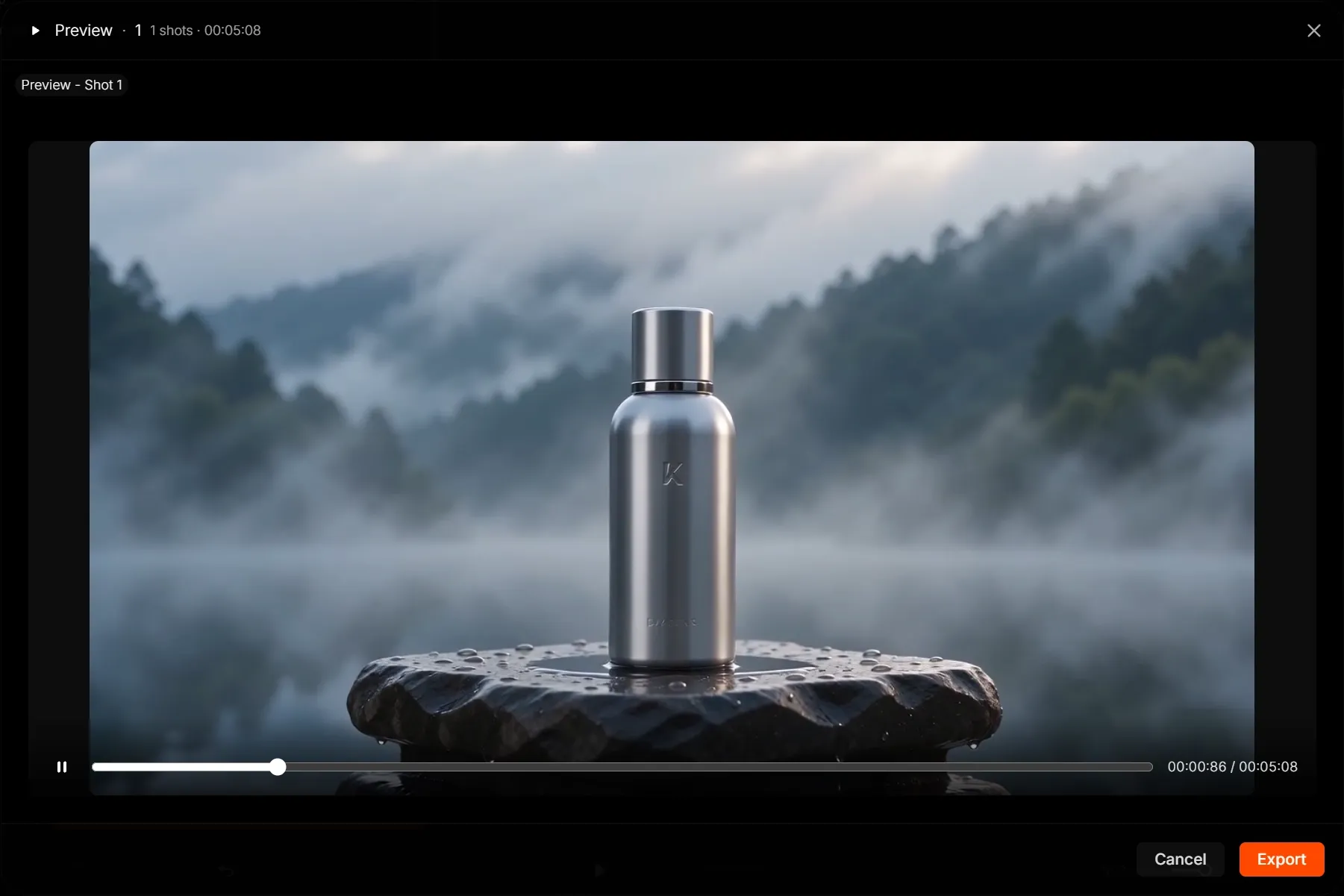
Preview the complete video from beginning to end. Check the cuts, subject continuity, pacing, audio balance, and subtitle readability, then fix any problems before exporting. Choose the options shown in the current export panel and start the export. Confirm changing details such as formats, resolutions, and credit costs in the live product when the screenshots are captured.
Tips and Mistakes to Avoid
- Approve one strong visual anchor first. Finalize the main character, location, or product reference before generating several shots. Changing the core reference halfway through the project creates unnecessary visual drift.
- Give each shot one primary action. Complex prompts with several actions, camera moves, and emotional beats can compete with one another. Split the idea into shorter, more controllable shots.
- Reuse continuity details. Keep wardrobe, props, time of day, lighting, and visual style consistent whenever a scene continues. Do not rely on phrases such as "the same character" without attaching the visual reference.
- Compare takes before replacing them. A new version may solve one issue while introducing another. Keep the current usable take until the replacement is clearly better.
- Review the whole video, not only individual clips. Pacing, audio balance, subtitle timing, and visual continuity are sequence-level problems. They only become obvious during a complete preview.
What Can You Create with Pollo Director?
Pollo Director works best for projects that need connected shots, reusable subjects, and precise control over the final sequence. Common examples include narrative, brand, and music-led videos.
Multi-Scene Stories and Microdramas
Pollo Director is suited to narrative projects in which characters and locations return across several shots. You can organize the performances, reactions, close-ups, and pacing inside one timeline. For a faster starting point, use a script or idea to create a story video, then use Director when the project needs deeper shot-level refinement.
Product and Brand Films
Brands can reuse the same product references across a studio reveal, lifestyle scene, close-up, and final hero shot. The timeline makes it easier to control how long each benefit stays on screen and where the call to action appears. Teams that regularly turn product images into showcase videos can use this structure to keep visual identity and pacing consistent across campaigns.
Music and Creator Content
Musicians and creators can shape cuts around changes in rhythm, move between performance and atmosphere shots, and add styled captions or titles. You can create AI music videos more quickly with a focused generator, while Director is the better fit when you want to compare shots and control the final sequence in detail.
Frequently Asked Questions About Pollo Director
How Is Pollo Director Different from a Regular AI Video Generator?
A regular generator usually focuses on producing one clip from a prompt or reference. Pollo Director organizes multiple clips as shots in a larger project, giving you control over versions, order, timing, audio, and captions before the final video is exported.
Can I Upload and Reuse My Own Footage and Visual References?
Yes. You can begin by importing media and create or upload reusable visual Elements for the project. Reusing approved references helps recurring characters, locations, and products start from the same visual identity, although final consistency still depends on the source material, prompt, and selected generation model.
Should I Use Pollo Director or Pollo Agent?
Use Director when you want to see and control individual shots, versions, tracks, subtitles, and pacing. Use Pollo Agent when your priority is a more automated path from an idea or source asset to a finished first result. They serve different stages of creation, so do not assume an automatic handoff between them unless that workflow is visible in the current product.
Finish Your Next Video in Pollo Director
Pollo Director gives you one workspace to build, refine, and finish every scene. Start a project, direct each shot, and shape the final story.