
10 Best AI Video Upscaler Tools in 2026: My Feature-by-Feature Comparison
Got a blurry video you want to rescue? I compared 10 AI video upscalers to show you how they differ in 4K options, detail enhancement, and ease of use.
Quick Answer: What Is the Best AI Video Upscaler?
Pollo AI is my best AI video upscaler overall. I like how it enhances low-resolution footage to 1080p or 4K while reducing blur and noise. Its simple workflow requires no advanced editing skills, and I can explore other AI video tools if my clips need further improvements.
10 Best AI Video Upscalers at a Glance
| Tool | Best for | Upscaling and enhancement options |
|---|---|---|
| Pollo AI | Creators and marketers enhancing varied video content | 1080p/4K output, blur and noise reduction |
| Dreamina | Social creators polishing AI-generated short video drafts | Supported HD Upscale outputs up to 2K/4K |
| TensorPix | Archivists restoring shaky or heavily degraded recordings | Up to 4K, restoration filters, stabilization |
| Krea | Digital artists refining stylized motion and effects | 1×, 2×, 4×, 8× scaling options |
| Media.io | Phone users cleaning up short compressed clips | 1×, 2×, 4× enhancement, up to 4K |
| Magic Hour | YouTubers refreshing older uploads before reuse | 2×/4× scaling and targets up to 4K |
| GoEnhance AI | Travel and sports creators improving motion-heavy footage | 1080p/4K, motion-aware deblur, denoising |
| DomoAI | Animators sharpening lines in character-driven scenes | 2K/4K upscaling for animation and live action |
| Picwand | Families preserving and refreshing treasured home recordings | 4K upscaling, denoise and color tools |
| insMind | Online sellers polishing product demos and ads | 1080p/4K enhancement and sharpening |
Pollo AI: Best AI Video Upscaler Overall
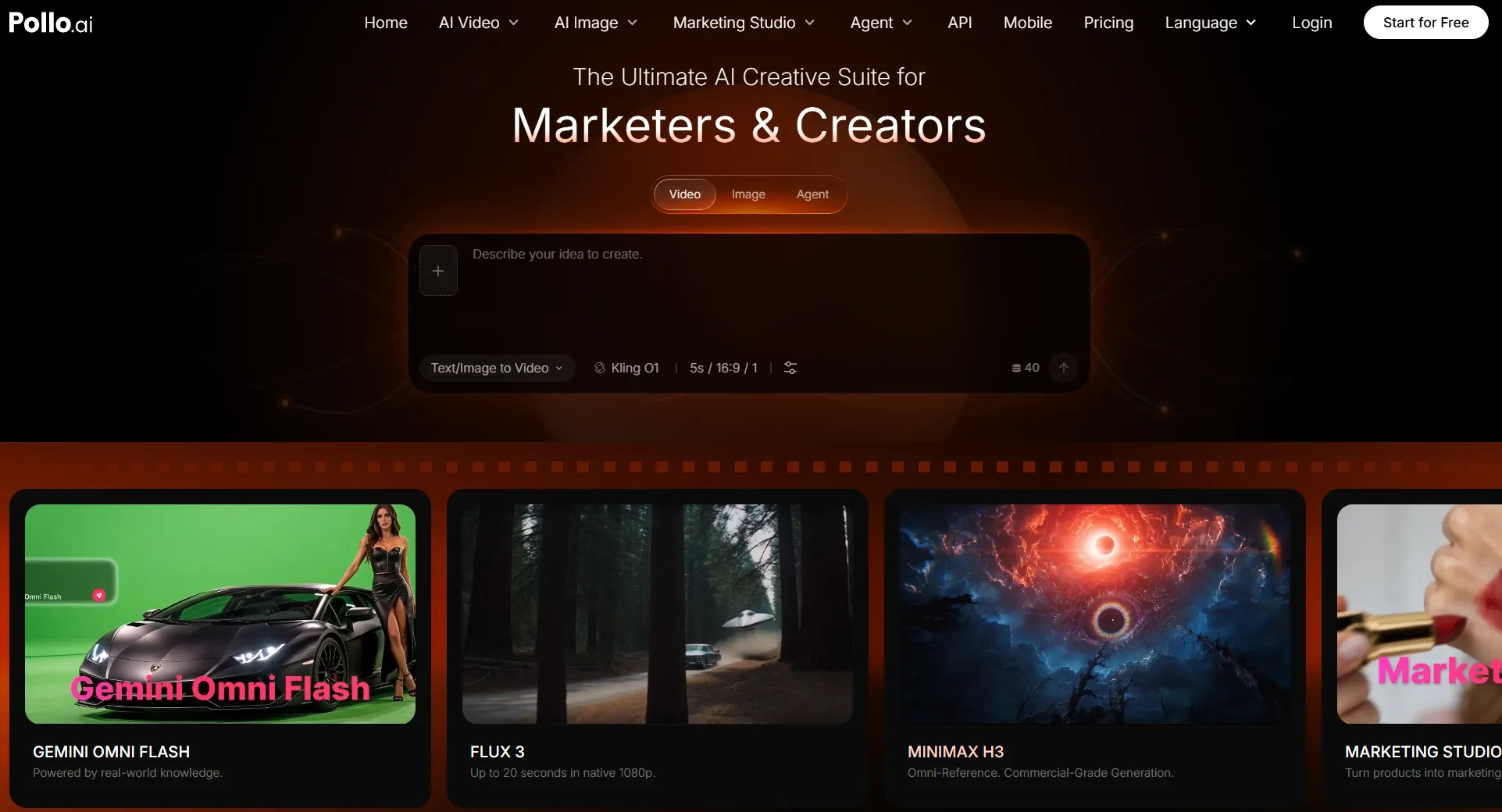
When I explored Pollo AI’s video upscaler, I liked how straightforward the process was. I can upload a video, select an available scale and mode, and generate an enhanced version without complicated editing steps.
It supports 1080p and 4K output, using AI to reduce blur and noise while improving edges, textures, and fine details. I find this especially useful for making product demos, travel clips, and older recordings look clearer.
Another feature that caught my attention was its ability to preserve the original style of anime, animation, and gameplay footage during upscaling. It also supports MP4, MPG, FLV, AVI, and MOV files, giving me flexibility when working with different videos.
Beyond upscaling, I think Pollo AI stands out for its extensive capability to make AI videos. It supports text-to-video, image-to-video, and reference-to-video generation, with access to leading AI models like Kling AI, Veo, and Seedance. I can choose different models depending on whether I want realistic scenes, cinematic visuals, or creative animations.
I also appreciate Pollo AI's additional tools for improving and repurposing existing videos. For instance, its AI video editor lets me remove unwanted objects, change backgrounds, and apply visual effects using simple text prompts.
I can also use AI video translator to translate speech and subtitles into 40+ languages and accents while preserving the speaker's tone and syncing lip movements. These features make it easier for me to refine my clips and reach audiences in different countries without starting from scratch.
Another advantage worth mentioning is Pollo AI's collection of AI video apps. It provides specialized solutions for creating product videos, UGC ads, anime clips, and more.
I find these particularly useful because I can start with a specific creative goal instead of figuring out the entire production process myself. Whether I want to enhance an existing recording, create new footage, or produce marketing content, Pollo AI gives me plenty of ways to handle everything in one place.
Key Features
- 1080p and 4K upscaling: Enhance lower-resolution videos for clearer playback on modern screens.
- Blur and noise reduction: Improve soft edges, grainy areas, and visible scene details.
- Original style preservation: Keep anime, gameplay, and everyday footage recognizable after enhancement.
- Straightforward online workflow: Upload a video, select the available scale and mode, then review and download the result.
- Broad creative toolkit: Work with common video formats and explore generation or editing tools afterward.
Best For
- Content creators: Prepare sharper vlogs, gameplay clips, travel footage, and social videos.
- Marketers: Improve product demos and promotional shots before adding them to campaign edits.
- Personal projects: Make older family recordings or event videos easier to watch and share.
- AI video creators: Give lower-resolution generated scenes a more polished final pass.
Pros:
- 1080p and 4K output without manual frame editing.
- Targets blur and noise while retaining recognizable styles.
- Supports common formats and additional AI video tools.
Cons:
- Severely damaged footage may still lack recoverable detail.
- Free usage and settings can vary by plan.
Make Your Videos Sharper with Pollo AI
Bring blurry videos back to life with Pollo AI’s video upscaler and enjoy sharper, clearer footage in stunning 4K.
Try Pollo AI Video Upscaler Free
Dreamina: Best AI Video Upscaler for Social Videos
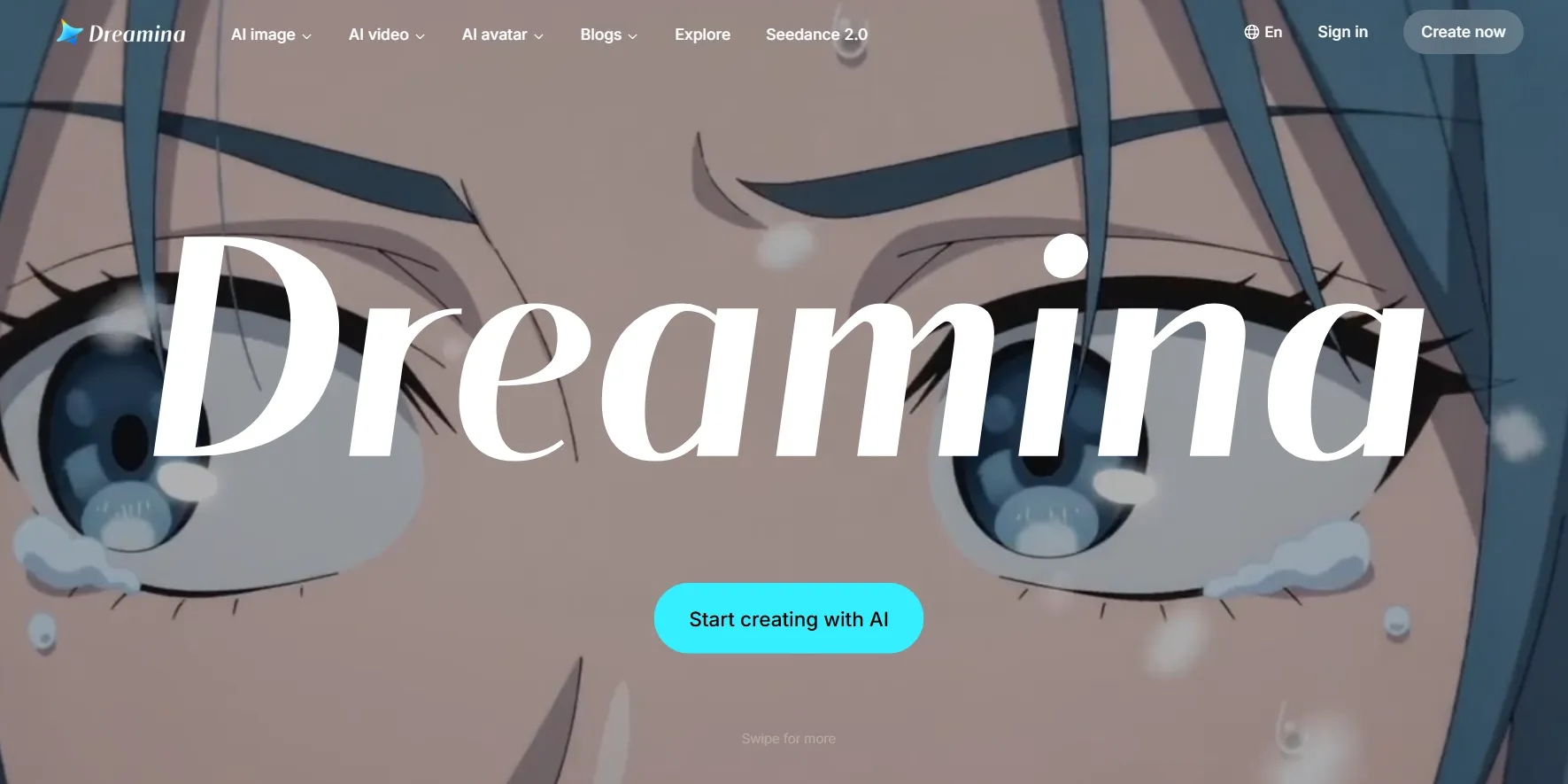
Dreamina felt different from the dedicated upload-and-enhance tools on my list. I see it as a generation workspace where upscaling is a finishing step, especially for teasers, cinematic posts, and short promotional scenes.
The feature I focused on was HD Upscale. I like being able to settle on the scene and motion before committing to a higher-resolution output. With a supported model and workflow, the selected clip can be enhanced to 2K or 4K. That feels more efficient than upscaling every draft.
I also noticed a limitation worth checking before spending credits: not every generation mode provides the same upscale choices. If you mainly want to improve a video recorded on your phone, Dreamina may feel less direct than a standalone enhancer.
Its text to video, image to video, and supported frame-interpolation features are useful for building the original material. For this ranking, though, the reason I included Dreamina is the ability to polish a chosen AI clip before publishing.
Curious about its other creative tools? Read our Dreamina AI review.
Key Features
- HD Upscale: Increase supported video outputs to 2K or 4K after the creative result is selected.
- Generation-first workflow: Refine prompts and choose your preferred take before using higher-resolution processing.
- Frame interpolation: Use supported motion tools to make selected clips play more smoothly.
Best For
- Social creators: Finish sharper Reels, TikToks, and short video intros.
- Brand teams: Polish generated fashion, lifestyle, or product teasers.
- Visual storytellers: Improve the resolution of selected cinematic scenes.
Pros:
- Sensible workflow for enhancing an approved AI-generated clip.
- Video creation and resolution improvement live on the same platform.
Cons:
- Upscaling access varies with the model and generation mode.
- Less convenient for enhancing existing camera footage.
TensorPix: Best AI Video Upscaler for Restored Vintage Videos
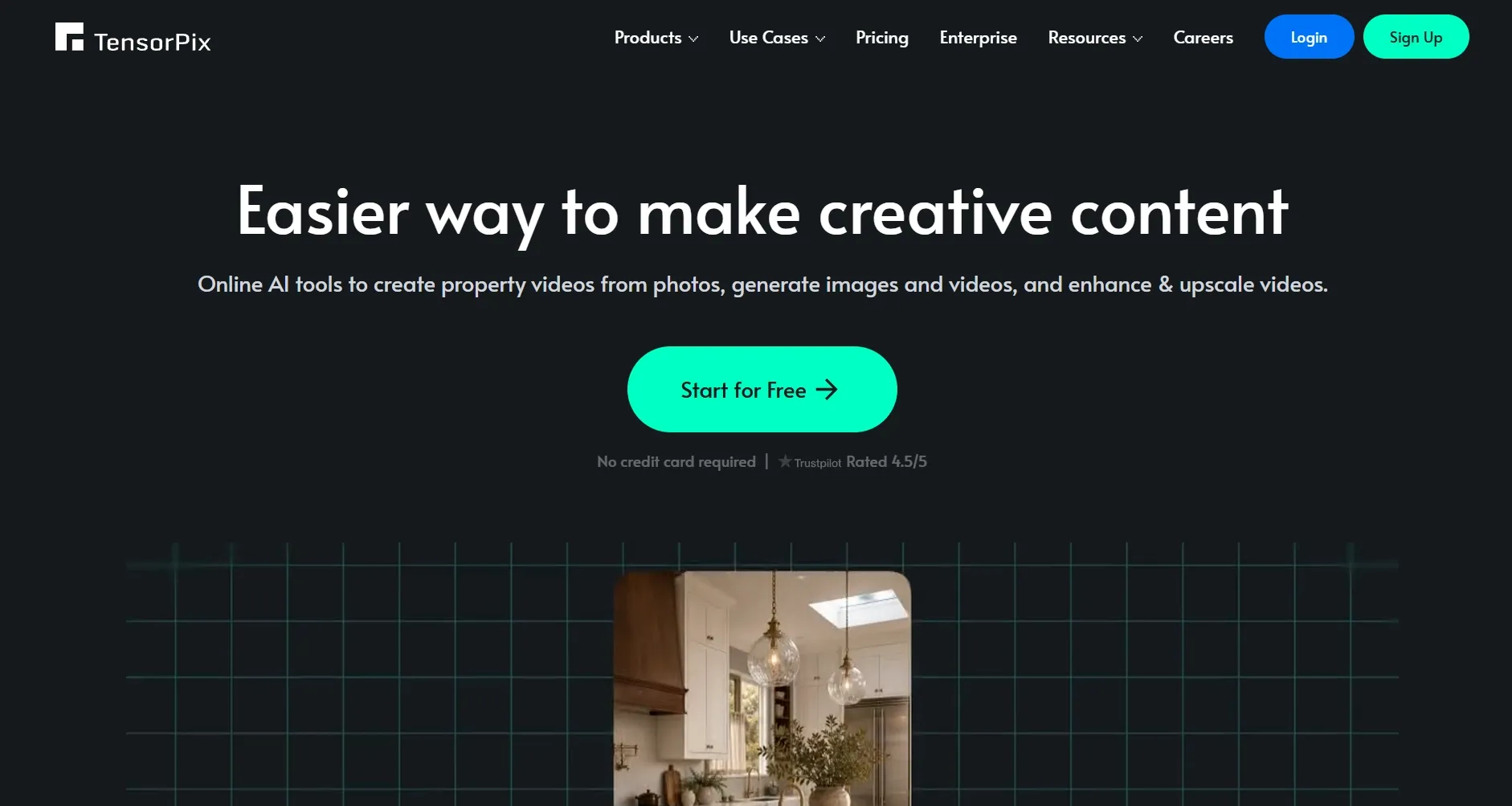
When I turned to TensorPix, I was thinking about the rough videos that need more than resolution alone: old recordings with grain, unstable camera movement, and faded detail. A 4K label means little if those problems remain.
I went straight to its restoration features. TensorPix offers filters for upscaling, stabilization, and frame-rate improvement, while its Upscale Ultra 4 model targets degraded or archival footage. It was refreshing to see video enhancement approached from different angles instead of being hidden behind a single promise.
The way I approached the options was simple: stabilize first, then reduce video noise and recover texture before chasing extra pixels. Its cloud-based workflow is another advantage for documentary teams or anyone handling several recordings without a powerful computer.
My reservation is the time and judgment involved. With more filters to choose from, it takes some care to avoid processing a clip harder than necessary. TensorPix makes most sense to me when the material is worth that effort.
Key Features
- AI video restoration: Improve older, damaged, or compressed footage with specialized enhancement models.
- Up to 4K output: Increase video resolution while aiming to preserve texture and edge detail.
- Additional AI filters: Stabilize shaky footage and interpolate frames when smoother playback is needed.
- Cloud processing: Enhance single videos or larger collections without a powerful local workstation.
Best For
- Archivists: Prepare older recordings for modern screens.
- Documentary creators: Make historical clips easier to include in new projects.
- Families: Revisit digitized tapes and low-quality home recordings.
Pros:
- Restoration-focused toolset rather than resolution export alone.
- Useful for handling several video-quality issues in one service.
Cons:
- Longer videos and multiple filters increase processing time.
- Casual clips may not justify the extra settings.
Krea: Best AI Video Upscaler for Creative Videos
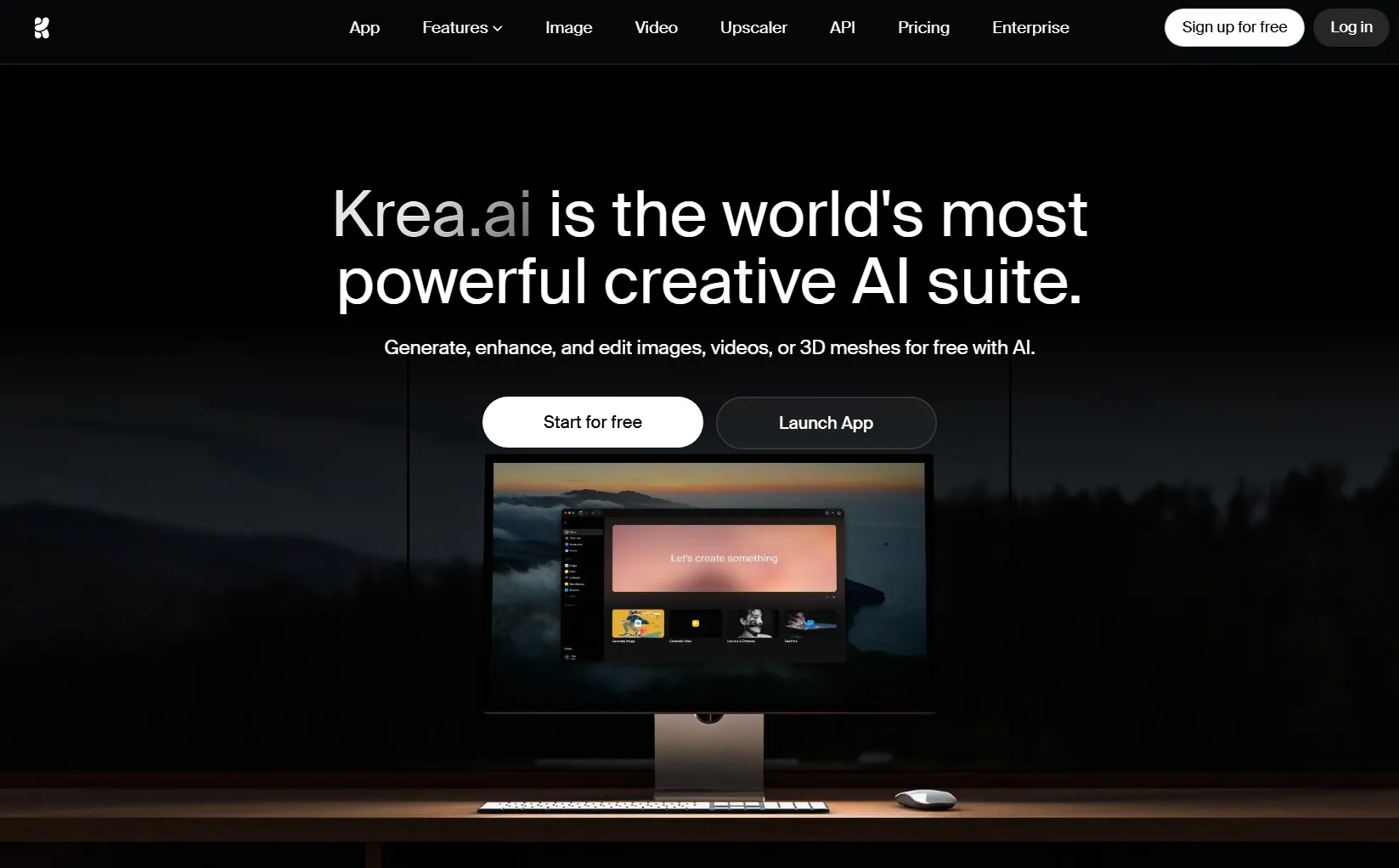
Krea was the one I kept thinking about for unusual visuals: shifting patterns, surreal scenes, animated images, and experimental loops. Those clips often lose delicate detail after generation or compression, and aggressive sharpening can change the intended style.
I was especially interested in its scale selector. The dedicated MP4 upscaler lists 1×, 2×, 4×, and 8× options, depending on your input and plan. The 1× setting caught my eye: sometimes I want cleaner detail at the original dimensions, not a dramatically larger video.
I also considered motion consistency, because moving textures can flicker when an enhancer invents too much detail. Krea emphasizes coherent movement alongside its sharper output. I also like its support for video to video generation, which lets me experiment with different visual styles while using existing footage as a starting point.
Still, I would not automatically choose 8×. Higher scaling can magnify flaws or introduce patterns that were never in the artwork. I prefer the smallest setting that makes the scene look noticeably better.
Our Krea AI review explores its broader video creation features in more detail.
Key Features
- Multiple scale factors: Work with 1×, 2×, 4×, or 8× settings when available.
- Native video upscaling: Upload an MP4 and improve detail in Krea's dedicated workflow.
- Creative production tools: Generate new scenes, explore restyles, and refine other AI visuals.
Best For
- AI artists: Enhance moving visual experiments and stylized scenes.
- Designers: Present sharper motion concepts to a client or team.
- Music creators: Improve the definition of animated loops and visualizers.
Pros:
- More scale choices than several simpler upscalers.
- Works naturally alongside creative AI video generation.
Cons:
- The standalone tool specifies MP4 input.
- Free usage is limited, and larger scaling may exaggerate artifacts.
Media.io: Best AI Video Upscaler for Cleaner 4K Phone Videos
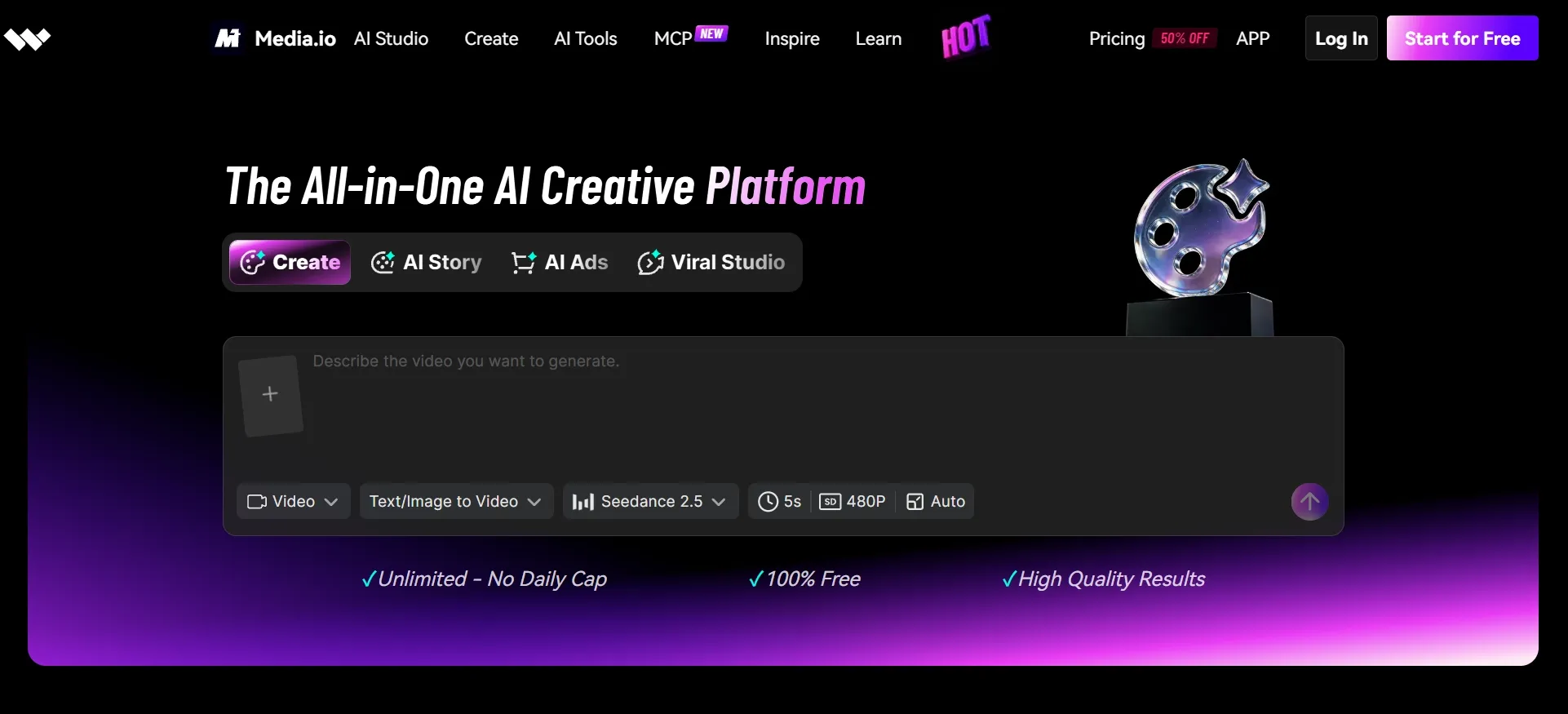
Media.io caught my attention for a much simpler job: rescuing a short phone clip. I am not always working with carefully shot footage. Sometimes the only copy I have has been compressed by a messaging app, and I just want it to look less rough before I reframe my video for social media.
I liked how the choices were laid out: 1×, 2×, and 4×, with output targets reaching 4K. The first option matters more than it sounds. If a clip is already large enough, removing noise or compression blocks may do more good than enlarging it further.
I also paid attention to the video length limit. Media.io supports MP4 and MOV clips up to five minutes long, which works well for Reels or product snippets. However, I found it less suitable for longer event recordings.
There are other creative tools on the site, including video generation. I might still need to remove subtitles when repurposing a clip, but the main appeal for me is being able to improve one short, imperfect recording without opening a complicated editor.
Want a closer look at the platform? Check out our Media.io review.
Key Features
- 1×, 2×, and 4× options: Enhance at the original size or upscale to a higher resolution.
- Artifact cleanup: Target blur, grain, and compression-related softness.
- Online access: Process short clips without installing a desktop editor.
Best For
- Phone videographers: Improve soft recordings before sharing.
- Small businesses: Clean up quick product demonstrations.
- Social creators: Refresh short clips downloaded or compressed by other platforms.
Pros:
- Simple controls for an occasional enhancement task.
- The 1× mode cleans up footage without enlargement.
Cons:
- Published file-format and duration limits restrict some projects.
- Poor fit for long-form or complex restoration projects.
Magic Hour: Best AI Video Upscaler for Remastered YouTube Videos
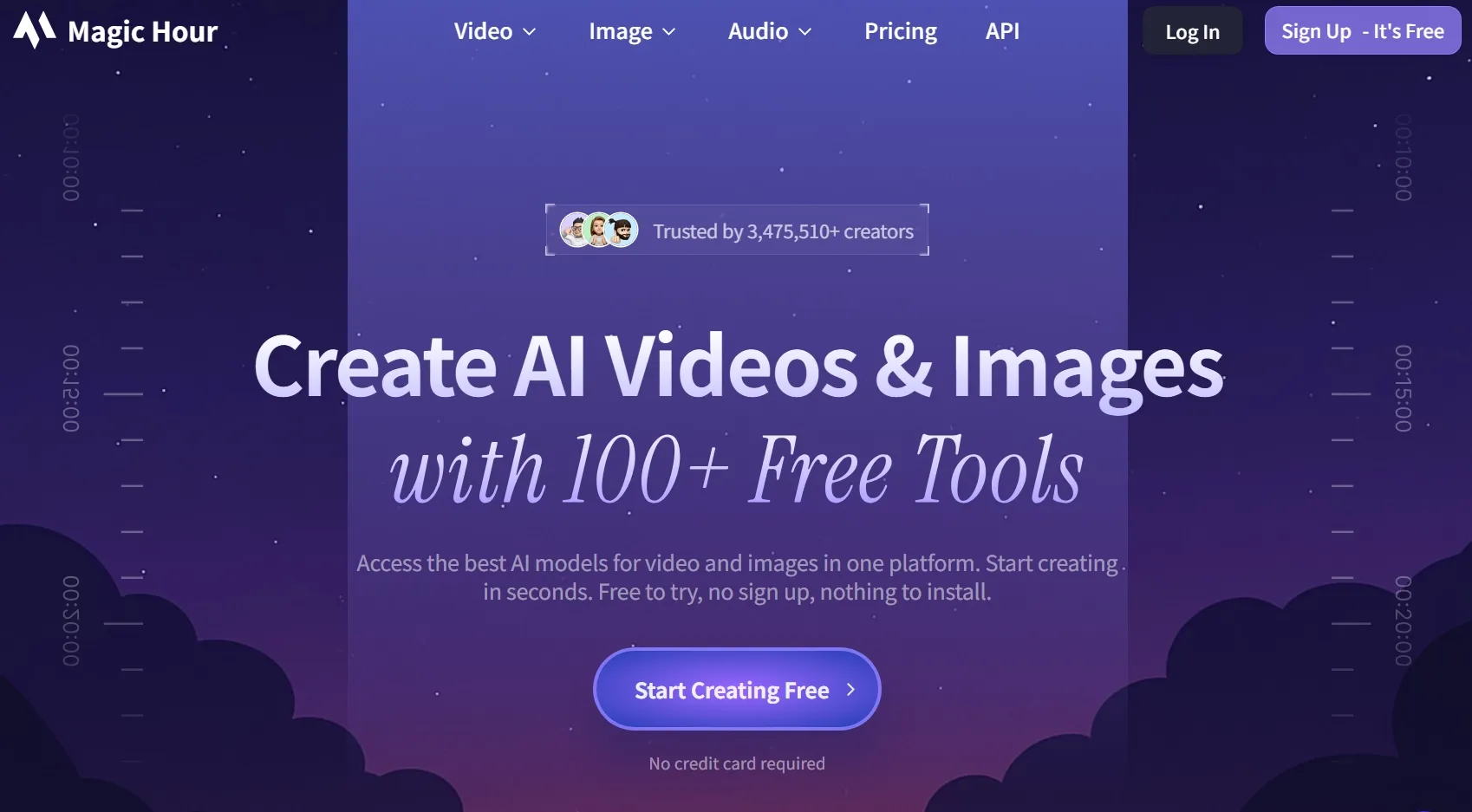
Magic Hour made me think about a familiar dilemma: is a YouTube Short worth remastering? I do not want to spend credits on a full video before I know whether the opening seconds look any better.
Its short preview is the feature I noticed first. The dedicated upscaler supports 2× and 4× scaling, with preset targets up to 4K on eligible plans. I like that the workflow gives me a way to inspect enhancement before committing to longer processing.
There is a catch. The no-signup test covers only the first three seconds, capped at 2× or 2K, whichever is lower. A free account can access longer 2× processing with credits; advanced settings cost more. That tiny sample is where I would scrutinize faces, titles, and any halos around edges.
The broader toolkit includes text-to-video and image-to-video tools for intros or replacement scenes. Yet the preview-first approach is what makes Magic Hour particularly relevant to this comparison.
Key Features
- Resolution choices: Select 2× or 4× scaling or supported targets up to 4K.
- Short preview: Check an enhanced sample before processing more footage.
- AI video suite: Generate, modify, or extend videos after upscaling when needed.
Best For
- YouTubers: Revisit older uploads that look soft on today's screens.
- Video marketers: Prepare sharper versions of existing campaign clips.
- Independent creators: Preview enhancement quality before committing credits.
Pros:
- Useful preview-first approach.
- Dedicated upscaling tool within a broader video creation platform.
Cons:
- The no-signup preview is very short.
- 4× scaling and named 4K targets require paid access.
GoEnhance AI: Best AI Video Upscaler for Action and Travel Videos
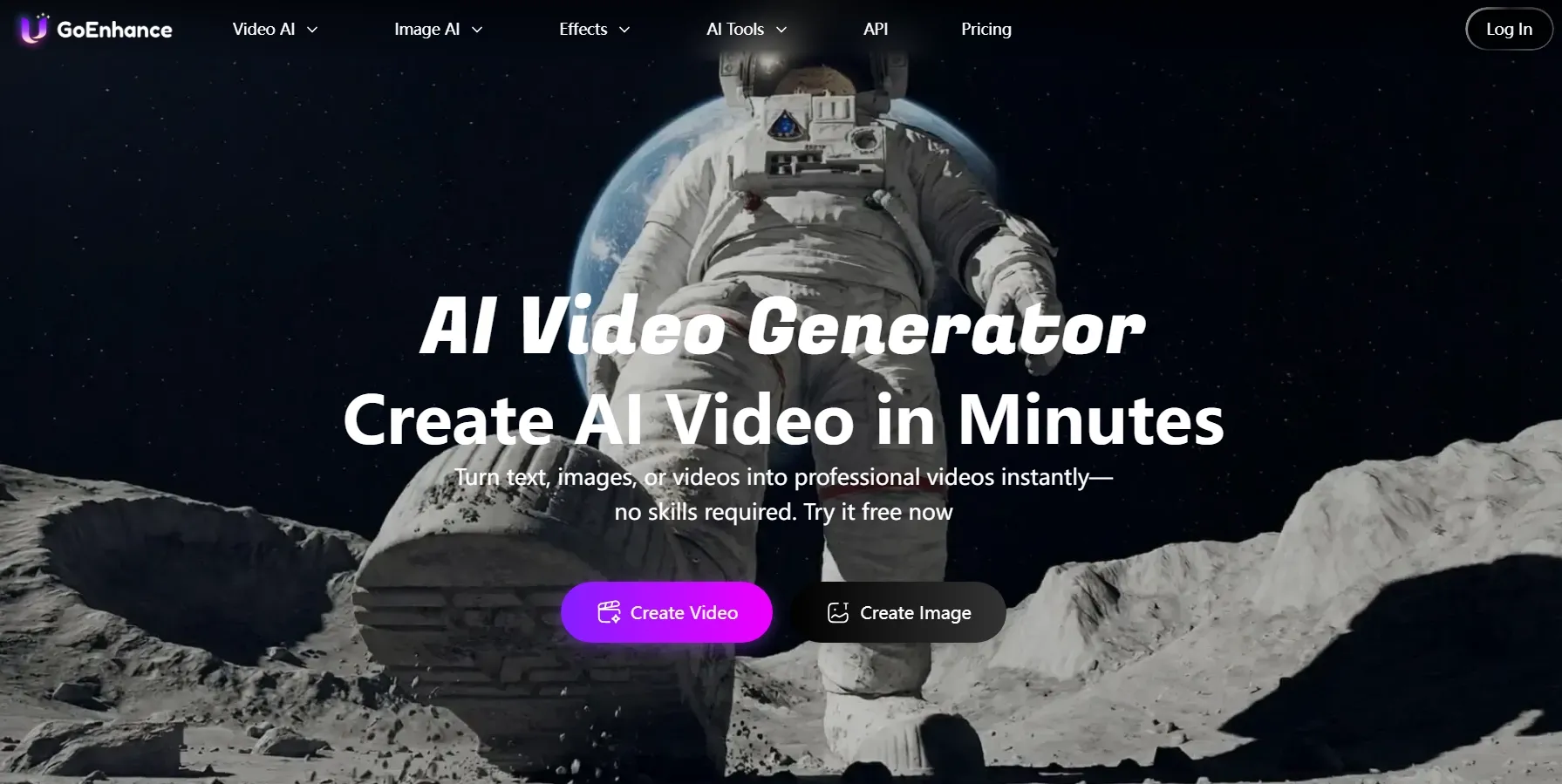
GoEnhance AI drew my attention to a problem that ordinary upscaling often overlooks: motion. A quick camera pan or someone running through the frame can leave smeared outlines, and making those frames larger does not necessarily make them clearer.
I examined its motion-aware deblurring and denoising options first. They target blurred edges and the grain common in night footage or action-camera recordings. GoEnhance also offers 1080p and 4K targets, so resolution enhancement is part of a broader cleanup process.
When preparing a sports story video, I would focus on whether fast-moving players, equipment, and background details remain recognizable after enhancement. For a travel video, I would pay closer attention to streetlights, distant landmarks, and fine textures in nighttime scenes.
These details help me judge whether the enhanced footage looks genuinely clearer without losing its natural appearance.
Its upload page currently accepts MP4, MOV, or WebM files up to 100 MB. The platform's video-to-video and animation generation are worth exploring afterward, although they do not replace proper footage enhancement.
For a deeper look at those animation features, read our GoEnhance AI review.
Key Features
- Motion-aware deblur: Improve the definition of moving subjects and camera pans.
- Intelligent denoising: Reduce visible grain in darker or lower-quality footage.
- 1080p and 4K enhancement: Increase resolution for modern playback and publishing.
Best For
- Travel creators: Clean up handheld scenes and action-camera clips.
- Sports channels: Prepare clearer movement-heavy highlights.
- Gaming creators: Improve low-resolution gameplay recordings.
Pros:
- More attention to motion blur than a simple resolution converter.
- Useful noise-reduction options for challenging footage.
Cons:
- Current upload-size limits may affect larger source files.
- Very fast motion can still produce imperfect edges or artifacts.
DomoAI: Best AI Video Upscaler for Sharp Anime Videos
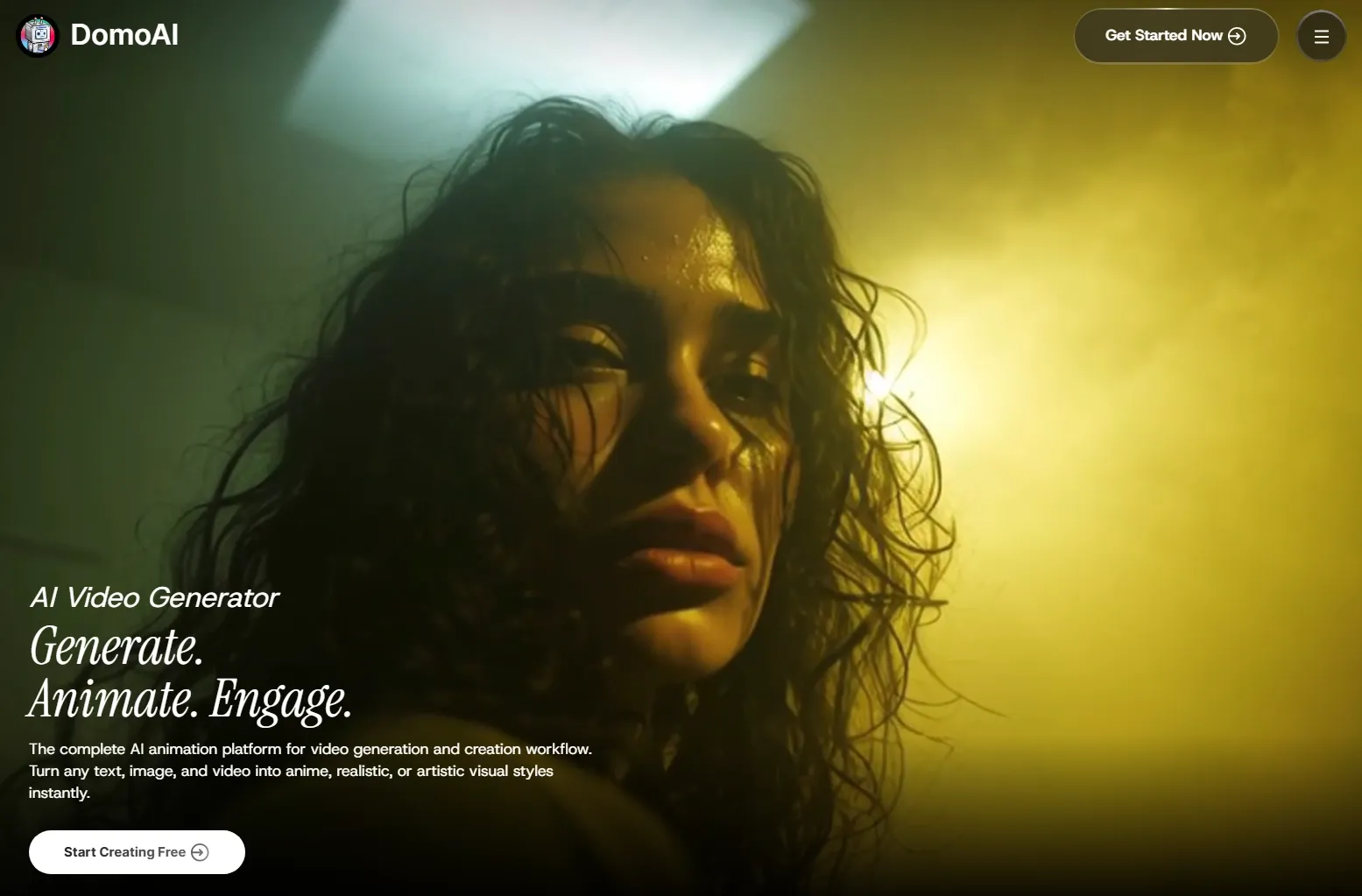
With DomoAI, I shifted my attention from real-world texture to drawn lines. In anime videos, a softened character outline is immediately noticeable. Push sharpening too far, however, and that same line can develop an ugly glow.
The dedicated 2K/4K upscaler was the part I focused on. DomoAI supports both animation and live-action footage, but I find its emphasis on anime video enhancement particularly relevant. I want character outlines and flat color regions to stay clean without gaining realistic-looking textures that do not belong.
When assessing an animated clip, I pay close attention to hair strands, eye shapes, and the borders between colors. Those details are more revealing than a resolution number. For character edits or short animated videos, DomoAI's creative ecosystem feels like a natural fit.
The 50 MB upload limit is the main practical drawback I noted. DomoAI accepts MP4, MOV, and AVI files, while 4K output requires a paid plan. I would start with a brief sample before committing.
You can explore its anime-focused tools further in our DomoAI review.
Key Features
- 2K and 4K upscaling: Choose a higher-resolution target for eligible clips.
- Animation-friendly enhancement: Improve line detail and clarity in stylized videos.
- Video transformation tools: Create anime or cartoon variants before the final upscale.
Best For
- Anime creators: Prepare crisper character edits and fan videos.
- Animators: Improve the presentation of short stylized sequences.
- Social creators: Give generated cartoon videos a sharper finish.
Pros:
- Natural fit for animation and stylized video workflows.
- Easy-to-understand 2K and 4K targets.
Cons:
- The 50 MB file limit may be restrictive.
- 4K output is tied to paid access.
Picwand: Best AI Video Upscaler for Restored Family Videos
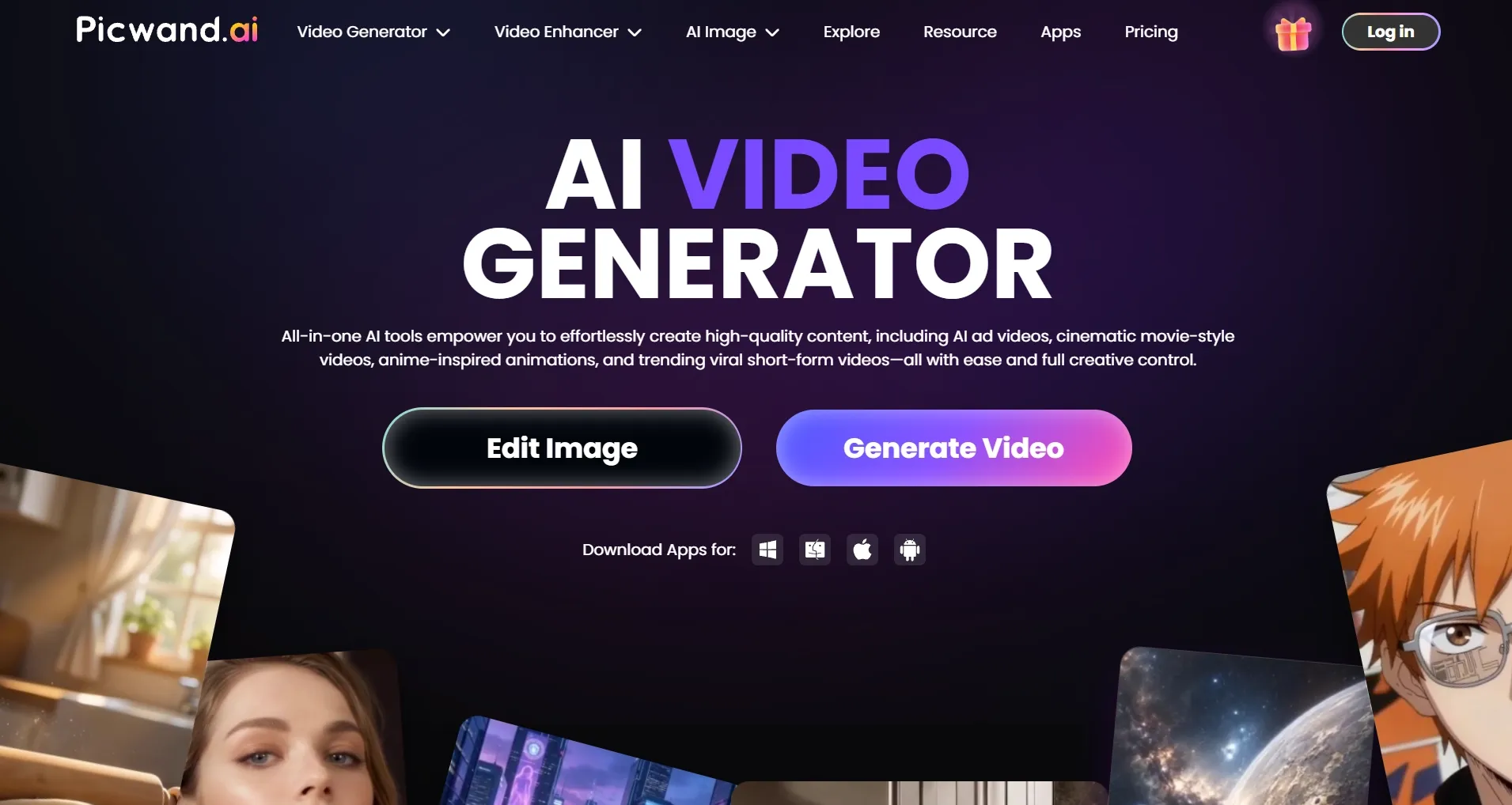
Picwand was the option that made me think less about professional sharpness and more about personal memories. When a family video is noisy or faded, I mainly want to recognize faces and enjoy the moment without being distracted by poor quality.
I liked how its scene-by-scene workflow made everything easy to manage. The platform highlights old home movies, DVDs, documentaries, and daily vlogs, while its upscaler targets up to 4K. Denoising, sharpening, and color improvements address several problems that often appear together in older recordings.
The basic path is easy to follow: upload the source, process it, inspect the preview, and download the enhanced version. I appreciate that the site does not make a casual restoration project feel like advanced post-production.
I am careful with footage that cannot be recorded again. If a restoration model invents facial texture or changes a small expression, the picture may look sharper but less faithful. I always recommend preserving the original and comparing versions side by side.
Picwand has AI video creation and effects, too. I see those as optional extras; for family archives, making the original memory easier to watch is the real priority.
Interested in its other video features? Take a look at our Picwand review.
Key Features
- Online 4K upscaling: Improve the resolution of lower-quality videos.
- Restoration tools: Target blur, pixelation, noise, and weak color presentation.
- Scene-based entry points: Start from footage categories such as home movies or old recordings.
Best For
- Families: Preserve older personal clips in a more watchable format.
- Event organizers: Refresh recordings of celebrations and gatherings.
- Hobbyists: Improve footage copied from older devices or discs.
Pros:
- Easy to approach for nontechnical personal projects.
- Focuses on several common defects in old recordings.
Cons:
- Full enhancement and export limits may vary by plan.
- Heavy enhancement may alter subtle original details.
insMind: Best AI Video Upscaler for High-Quality Product Ads

insMind made me think about the stakes of sharpening a product ad. Better-looking fabric or packaging can help a video feel polished, but altered lettering or a distorted logo would be a serious problem.
I focused on its straightforward 1080p/4K enhancement options and automatic refinement of edges and texture. This setup makes sense for a short ecommerce demonstration that looks slightly soft on a product page or in a social campaign.
My quality checklist here is stricter than for a casual clip: I zoom in on labels, logos, fabric patterns, and moving product edges. If those details change, the output is not ready for an ad, regardless of its resolution. insMind's generation tools can help build the wider campaign, but accuracy comes first.
I also checked the access conditions. A free trial is available, but credits and export options may vary. Overall, I see insMind as a convenient finishing tool for short promotions, not a deep archival restoration suite.
For more about its marketing and creation tools, read our insMind review.
Key Features
- 1080p and 4K enhancement: Choose a higher-resolution output for existing videos.
- Automatic detail refinement: Improve perceived sharpness, edges, and textures.
- Creative marketing tools: Generate video and product-oriented visual assets in the same platform.
Best For
- E-commerce sellers: Prepare cleaner product demonstrations and showcases.
- Social marketers: Improve short ad creatives before posting.
- Small brands: Refresh existing promotional clips without a complicated workflow.
Pros:
- Clear 1080p and 4K targets for product clips.
- Fits naturally alongside product-focused AI creation tools.
Cons:
- Free trial allowances and export access depend on the account.
- Text and packaging details require close inspection.
How I Evaluated These AI Video Upscalers
My comparison centered on the controls I could identify in each workflow, the limitations worth checking, and the kinds of footage each platform is built to handle. I have not assigned made-up quality scores or claimed identical side-by-side test renders. These are the checks I use to judge whether an upscaler is practical:
- Real resolution enhancement: Does the tool offer AI upscaling or super-resolution, rather than merely resizing the output?
- Detail preservation: Are faces, text, logos, patterns, and edges still recognizable after enhancement?
- Noise and blur reduction: Can it address grain, compression damage, and soft focus without making the picture look artificial?
- Motion consistency: Do details remain stable from one frame to the next, especially during camera movement?
- Useful controls: Can I choose an appropriate scale or target resolution, and preview the result before committing?
- Practical limits: Are the upload formats, file sizes, clip lengths, processing time, and credit requirements realistic for my project?
- Workflow value: Once a clip is clearer, can I generate or edit additional content without unnecessary extra steps?
The first four matter most to me. An upscaler can offer plenty of extra AI features, but it should earn its place on this list by improving the existing video first.
My Final Verdict
Each of these 10 AI video upscalers has its strengths, whether you're restoring old recordings, enhancing creative footage, or polishing social videos. However, Pollo AI is my best AI video upscaler overall for its balance of video quality, ease of use, and versatility.
With 1080p/4K upscaling, blur and noise reduction, and additional AI video tools, Pollo AI makes video enhancement simple for creators and marketers alike. If you want sharper, clearer footage without complicated editing, I recommend trying Pollo AI’s video upscaler.